
Last Updated on 4 months ago by Bernard Mugo
You have 70 papers, a deadline, and your supervisor asking where your synthesis is. I’ve helped many researchers get their systematic literature reviews done, and the problem is almost never the papers — it’s the process.
In this guide, I’m going to show you the exact system I use to go from a pile of scholarly articles to a complete framework matrix using NVivo.
By the time you finish reading, you’ll have a clear, repeatable process you can apply to your own data.
Quick definition: A systematic literature review is a rigorous, structured approach to identifying, selecting, and synthesising research on a specific topic. Unlike a standard literature review, it follows a documented protocol so the process is transparent and reproducible.
- What Is a Systematic Literature Review?
- Why Use NVivo for a Systematic Literature Review?
- Step 1 — Search and Select Your Articles (Scopus or Google Scholar)
- Step 2 — Import Your Articles into Zotero
- Step 3 — Export the RIS File and Import into NVivo
- Step 4 — Set Up Your NVivo Project and File Classifications
- Step 5 — Build Your Coding Framework
- Step 6 — Run Text Search Queries to Extract Data
- Step 7 — Code and Organise Findings into Themes
- Step 8 — Export the Framework Matrix
- Frequently Asked Questions
- Key Takeaways
- Need Help With Your Systematic Literature Review?
What Is a Systematic Literature Review?
A systematic literature review (SLR) is a method researchers use to comprehensively search, screen, and synthesise published studies on a defined topic. It follows PRISMA guidelines — Preferred Reporting Items for Systematic Reviews and Meta-Analyses — to ensure the process is transparent, reproducible, and defensible. If you want a deeper overview of what PRISMA requires, Scribbr’s guide to systematic reviews is an excellent starting point.
The typical process involves eight steps:
- Formulate your research question
- Develop a protocol
- Conduct a systematic database search
- Screen and select relevant studies
- Assess study quality
- Extract data from included studies
- Synthesise and analyse findings
- Interpret findings and write the review
This guide focuses on steps 6 and 7 — data extraction and synthesis — using NVivo.
Why Use NVivo for a Systematic Literature Review?
Most researchers approach a systematic literature review by highlighting PDFs and copying snippets into a spreadsheet. It works for small collections, but it doesn’t scale. When you have 50 or 100 articles, that method breaks down fast.
NVivo gives you a structured way to extract, organise, and query information across all your articles at once. The text search query tool lets you search for specific terms across every imported PDF simultaneously. The framework matrix exports your findings into a structured table by article and theme — ready to use in your write-up. According to NVivo’s official documentation, the software is specifically designed to handle this kind of multi-document analytical work.
Step 1 — Search and Select Your Articles (Scopus or Google Scholar)
Start in a scholarly database. I use Scopus for most topics, but Google Scholar works well too, especially if your institution doesn’t have Scopus access.

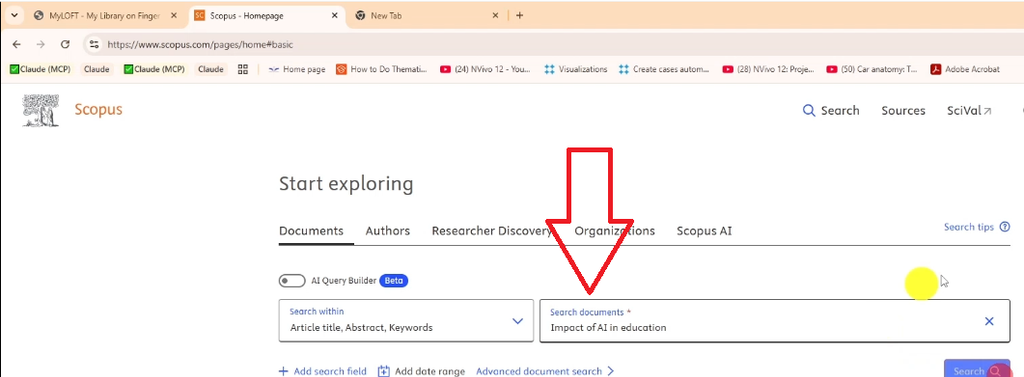
Here’s how I approached the search for the example topic — the impact of AI in education:
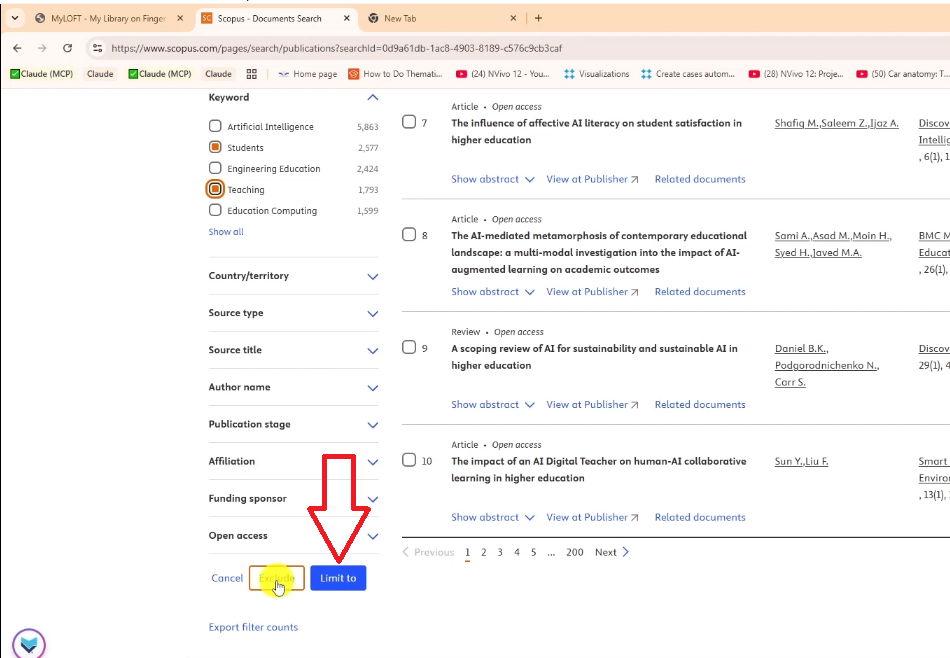
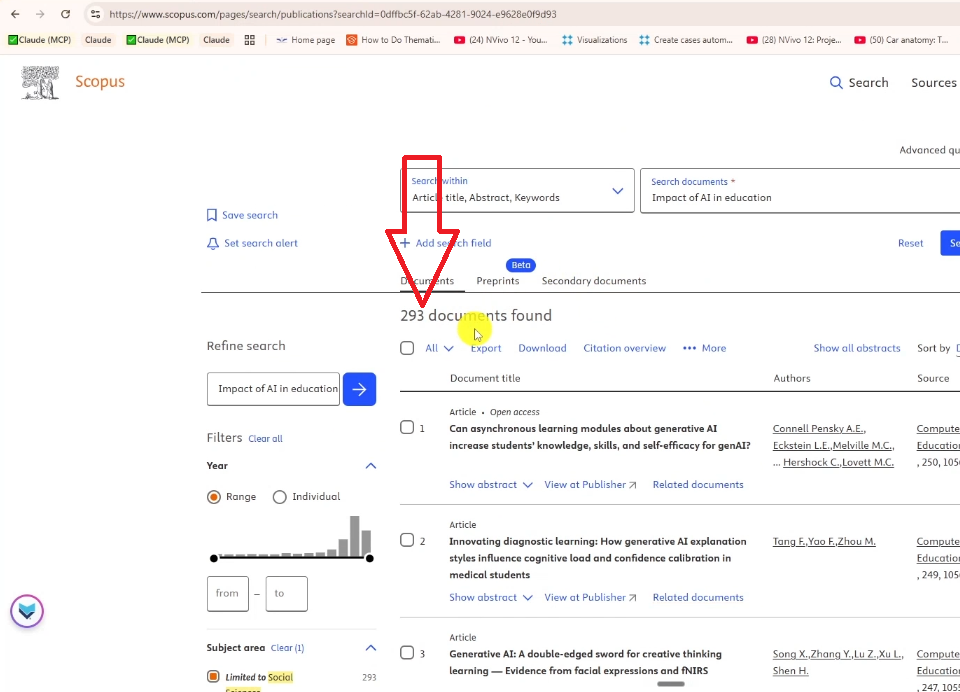
- Search your topic with keywords in the title/abstract field
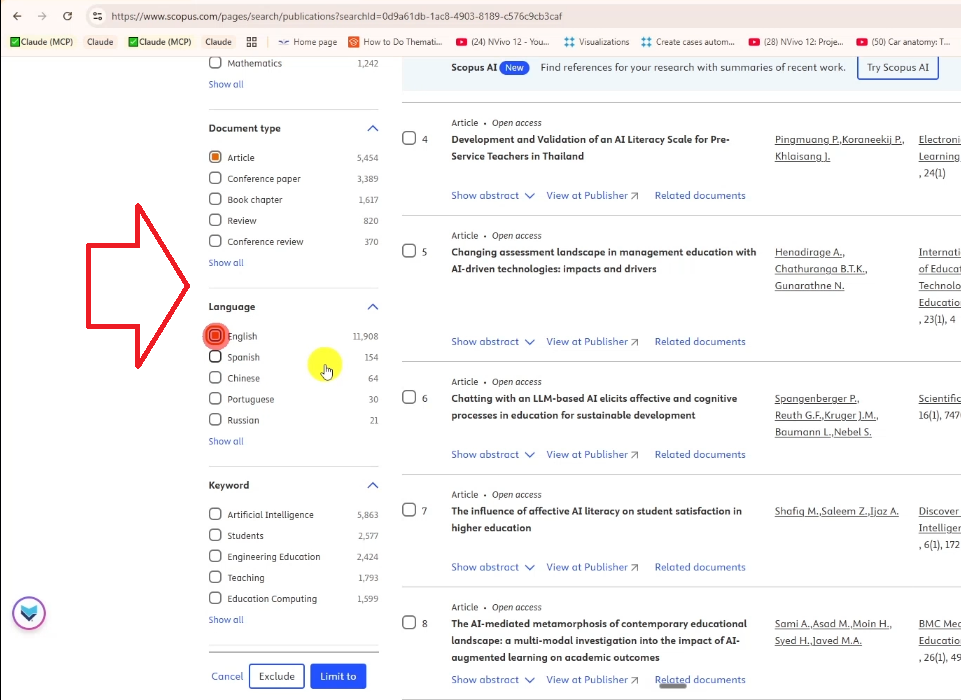
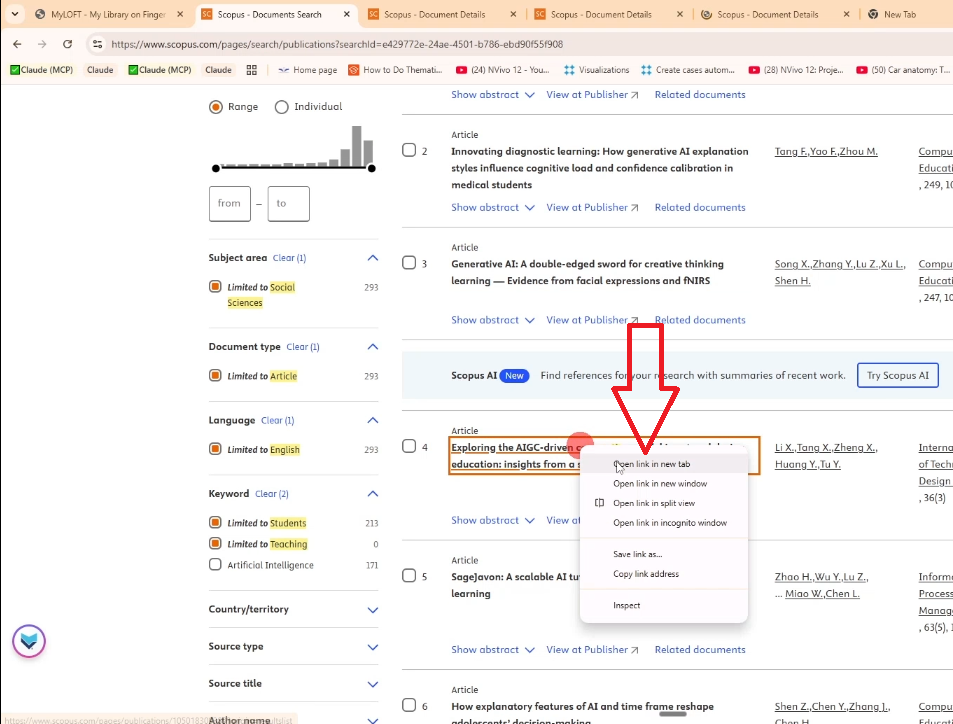
- Apply filters: date range, document type (journal articles only), language (English), subject area
- Review abstracts to screen for relevance
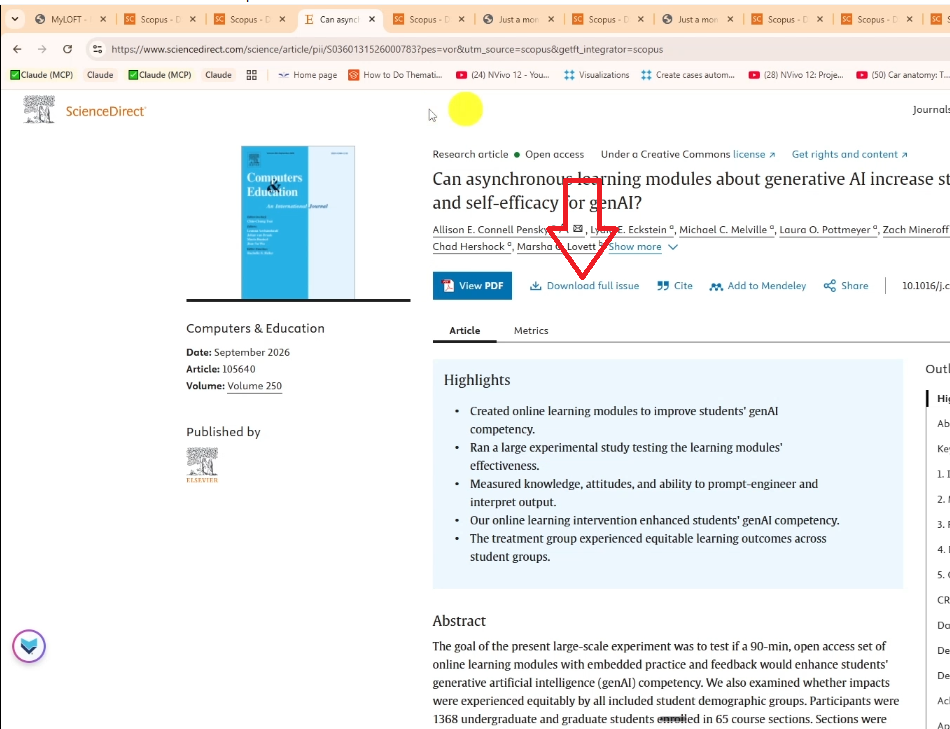
- Download PDFs for articles that meet your inclusion criteria
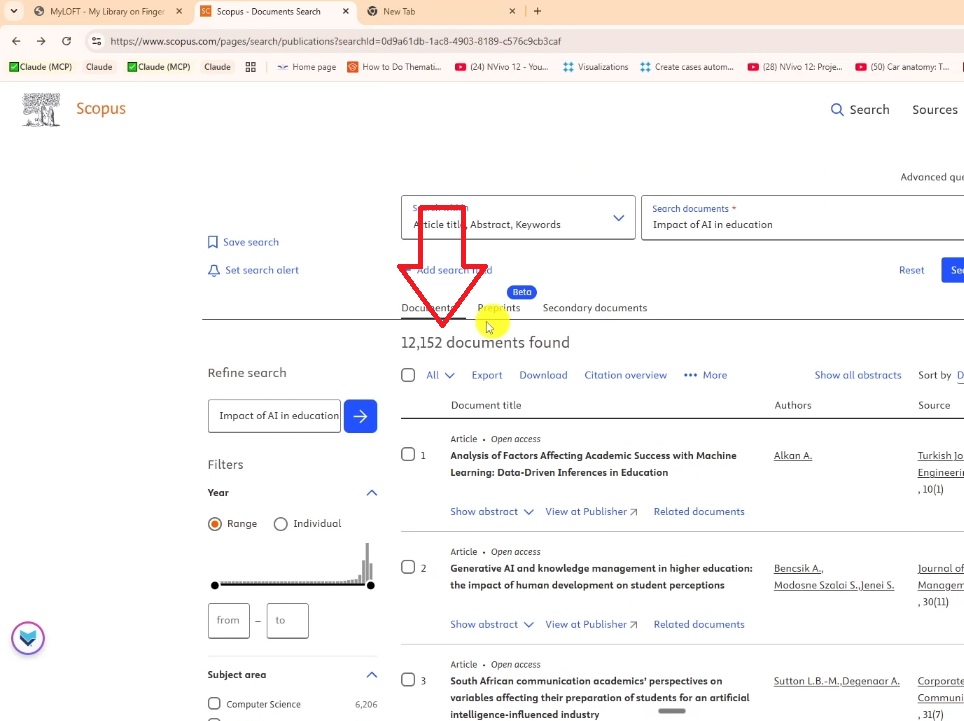
Scopus returned over 12,000 results for the initial search. After applying filters — 2021 to 2026, social sciences, English, with the keyword ‘students teaching’ — that narrowed to 293. From those, I selected articles whose abstracts matched the review question closely.
You don’t need to download all 293. You need the articles that genuinely answer your research question.
Step 2 — Import Your Articles into Zotero
Once you have your PDFs, import them into a reference manager. I use Zotero — it’s free, reliable, and integrates directly with NVivo. Mendeley works too.
Here’s the process:
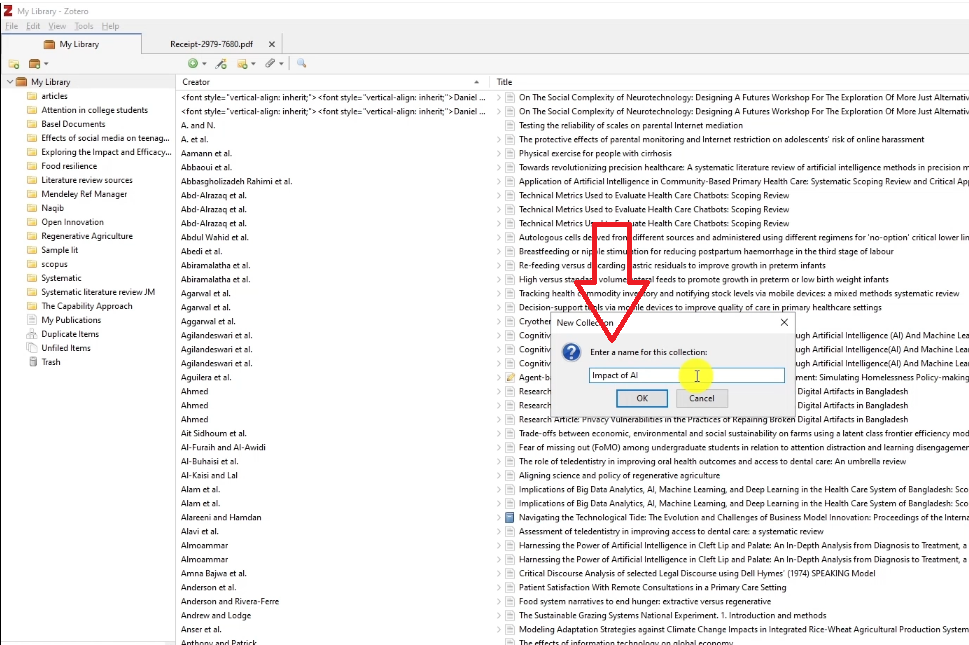
- Open Zotero and right-click your library to create a new collection (name it after your topic)
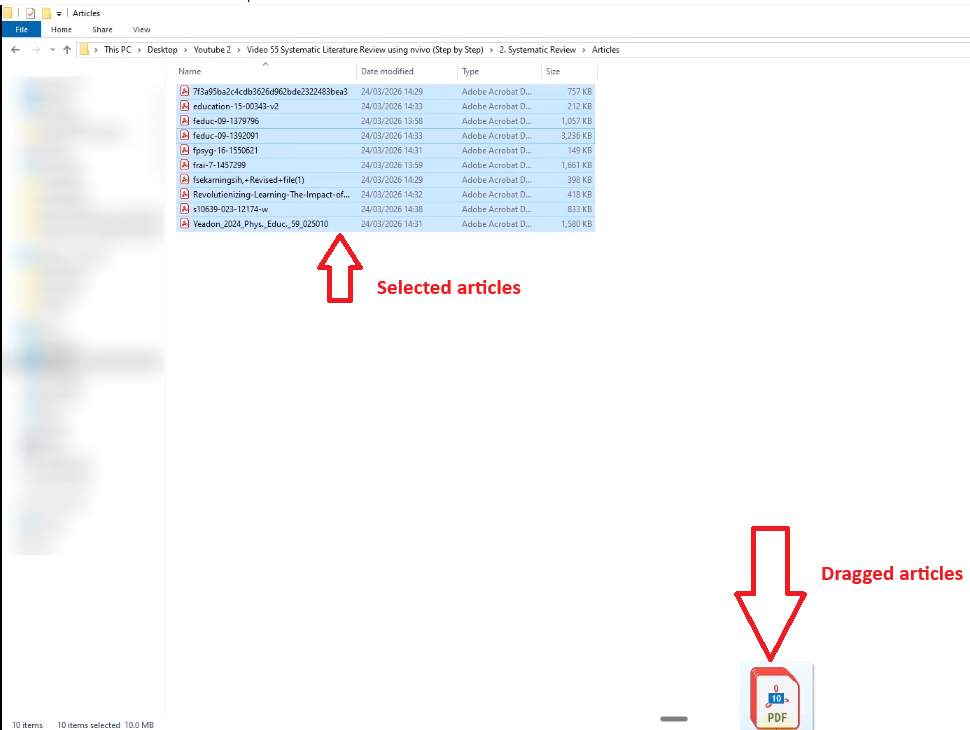
- Drag and drop your downloaded PDFs into the collection
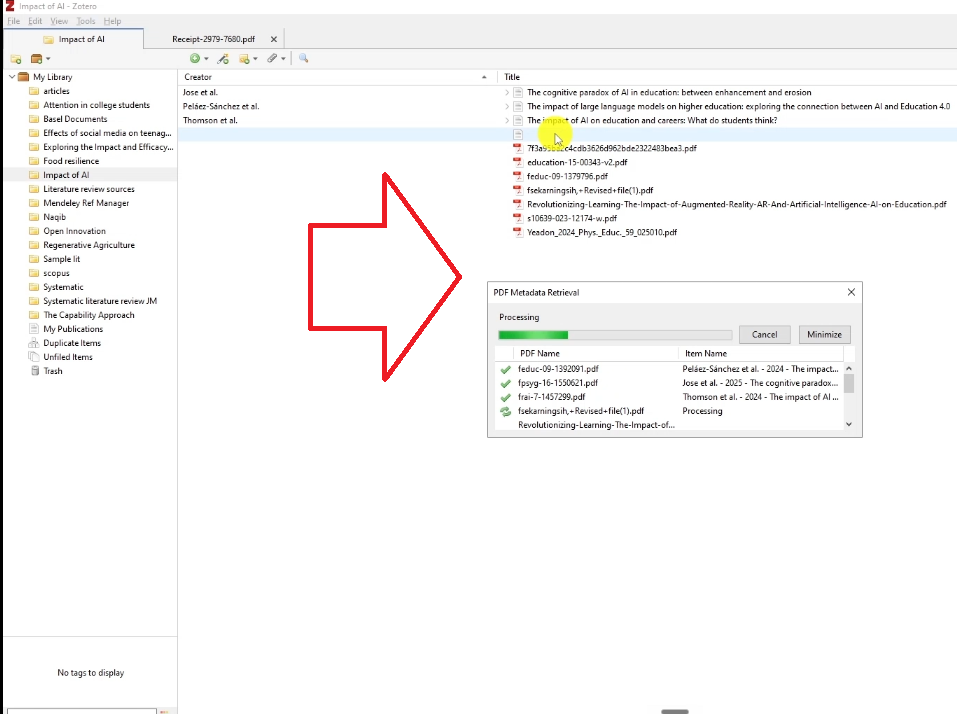
- Zotero automatically fetches metadata — author, title, journal, year, DOI — for each article
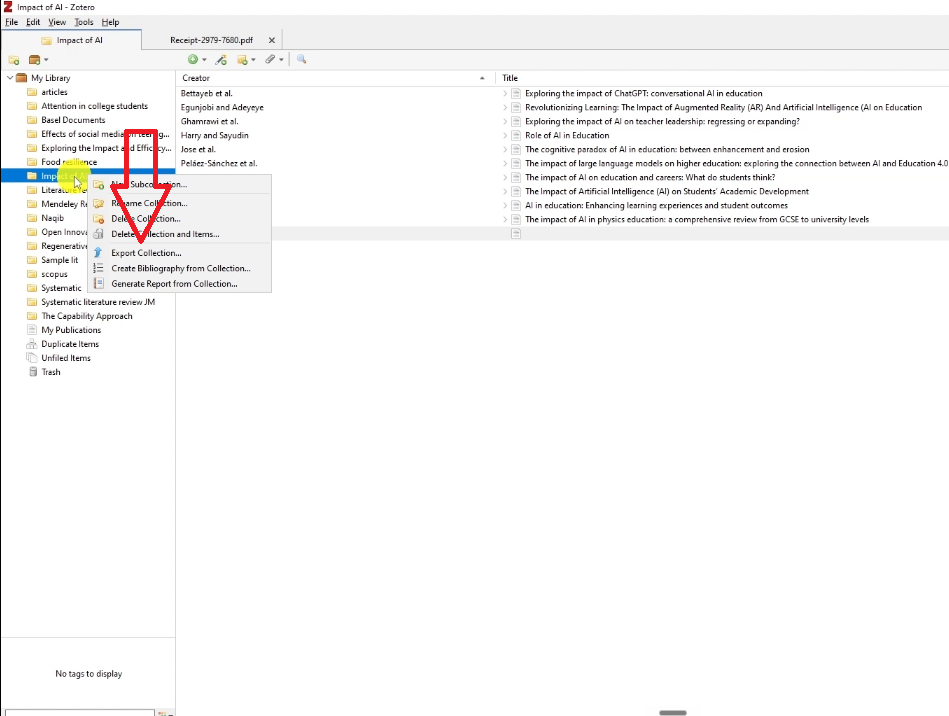
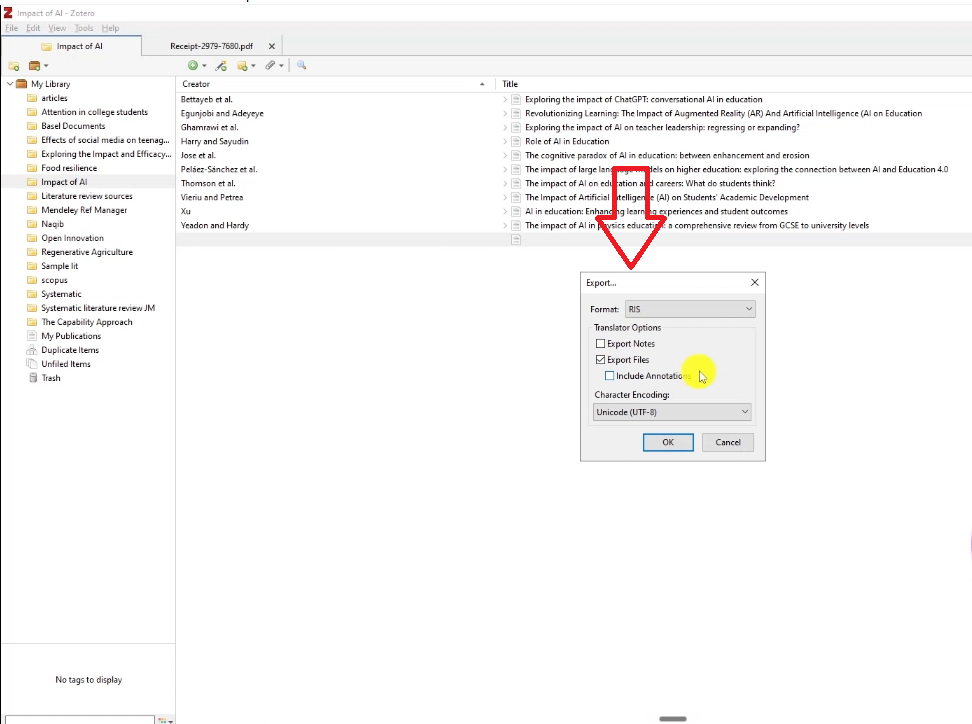
- Right-click your collection and select Export Collection
- Choose RIS format and save the file
The RIS file is what you’ll import into NVivo. This two-step process — Zotero first, then NVivo — means NVivo captures not just the PDF content but also all the citation metadata automatically.
Step 3 — Export the RIS File and Import into NVivo
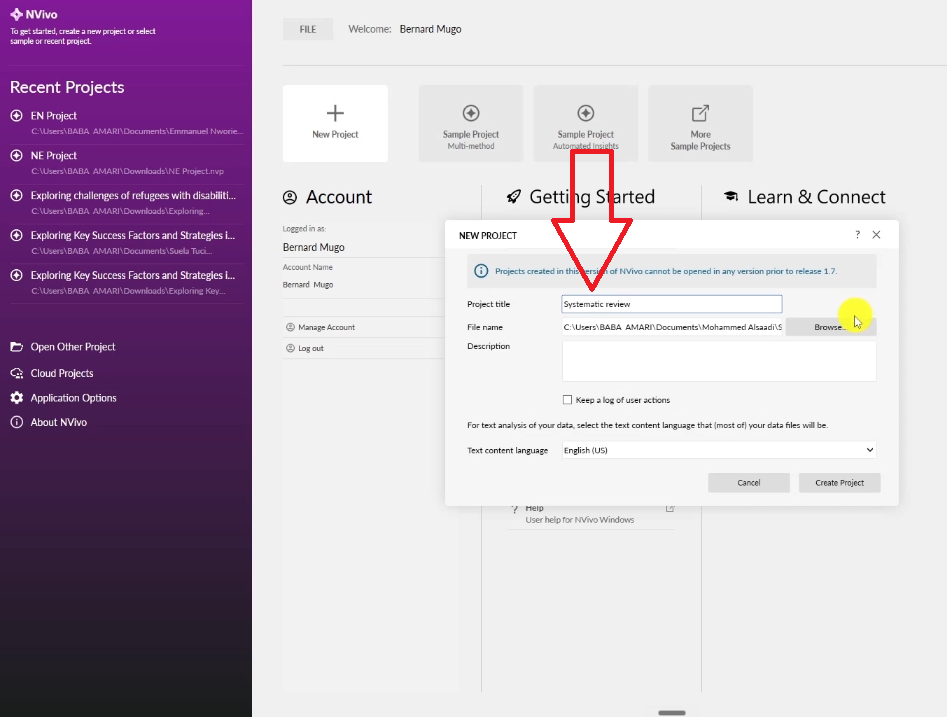
Open NVivo and create a new project. Name it after your review topic so you can find it easily later. One important tip: always set NVivo to manual save with a 15-minute reminder. Auto-save has been known to cause file issues.
To import your articles:
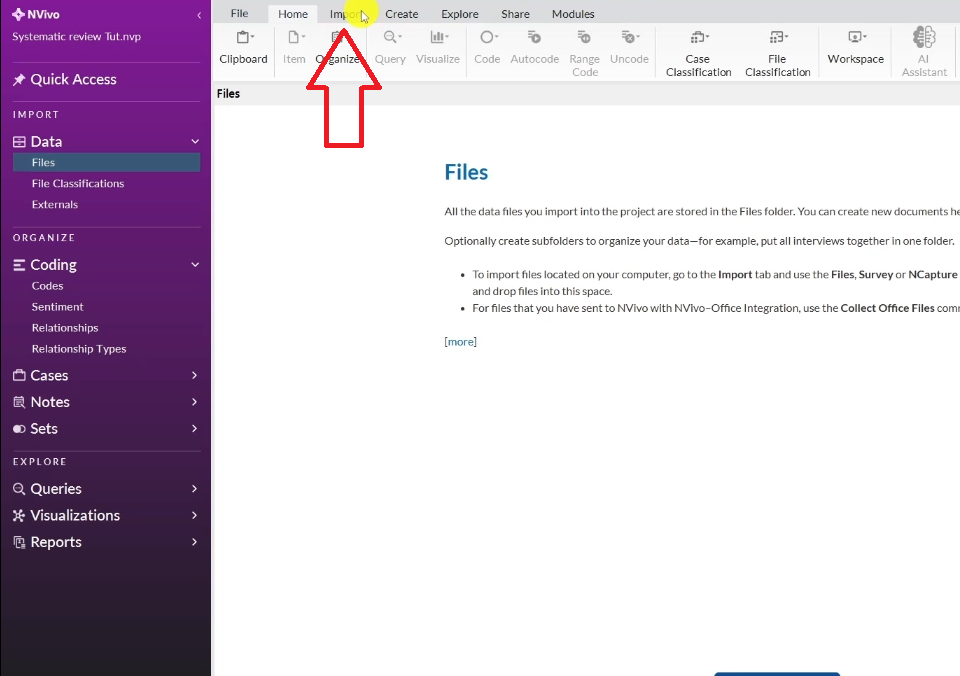
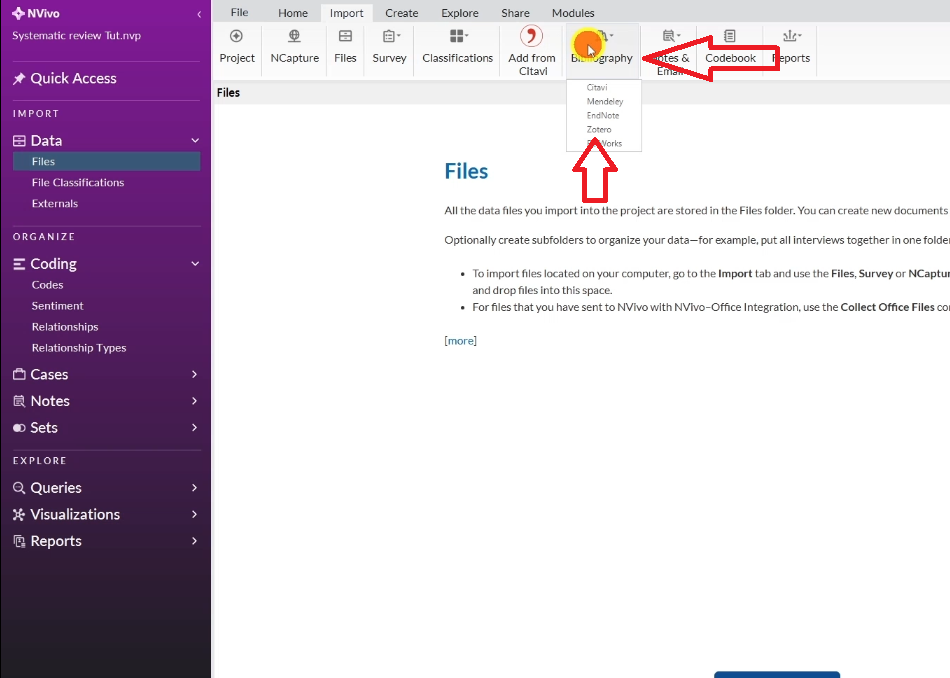
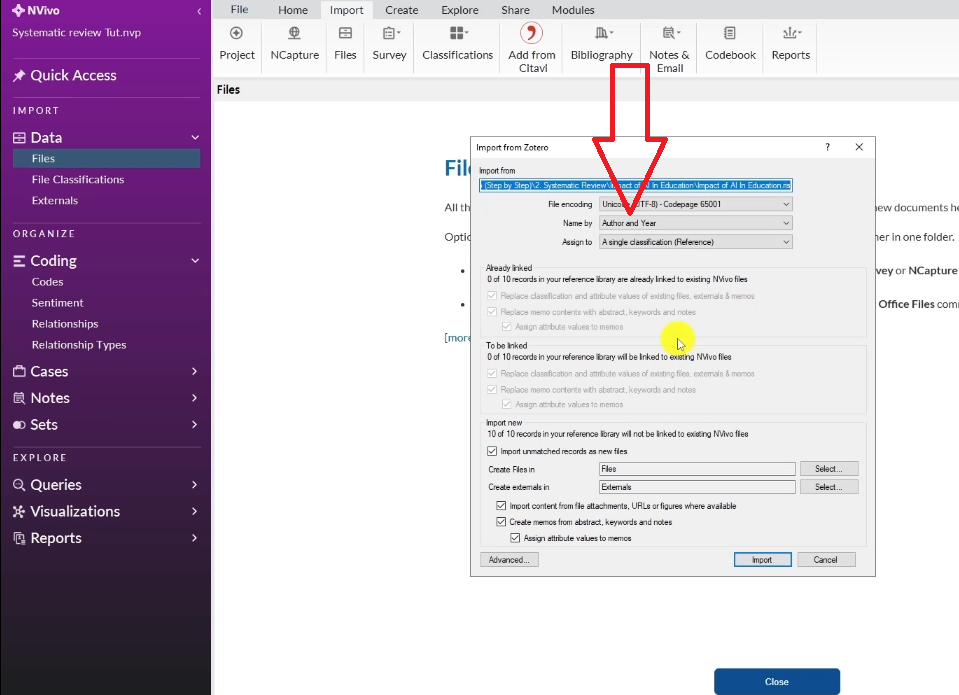
- Go to Import in the main menu
- Select Bibliography
- Choose Zotero as your reference manager
- Browse to your saved RIS file and click Open
- Select ‘name by order and year’ — this organises your articles more clearly than the default
- Click Import
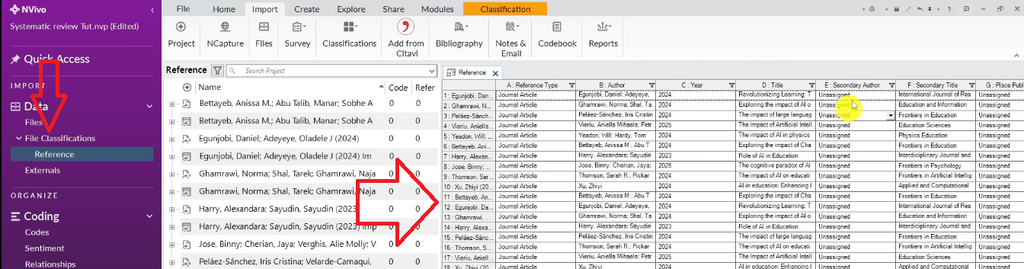
NVivo will import all your articles, including their metadata. You’ll see them appear in the Files section. If you go to File Classifications and click Reference, you’ll see a structured table showing author, year, title, journal, volume, and pages for every article.
Step 4 — Set Up Your NVivo Project and File Classifications
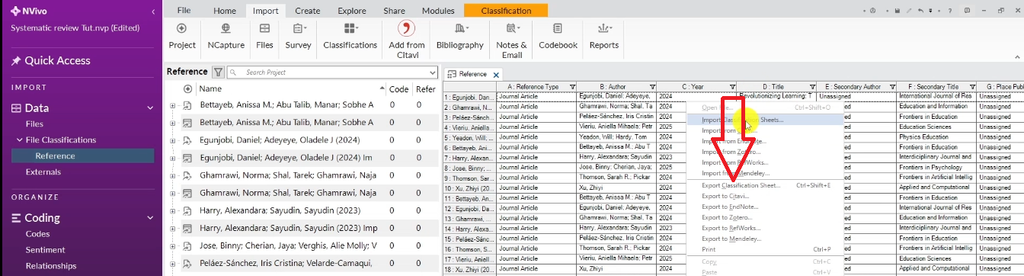
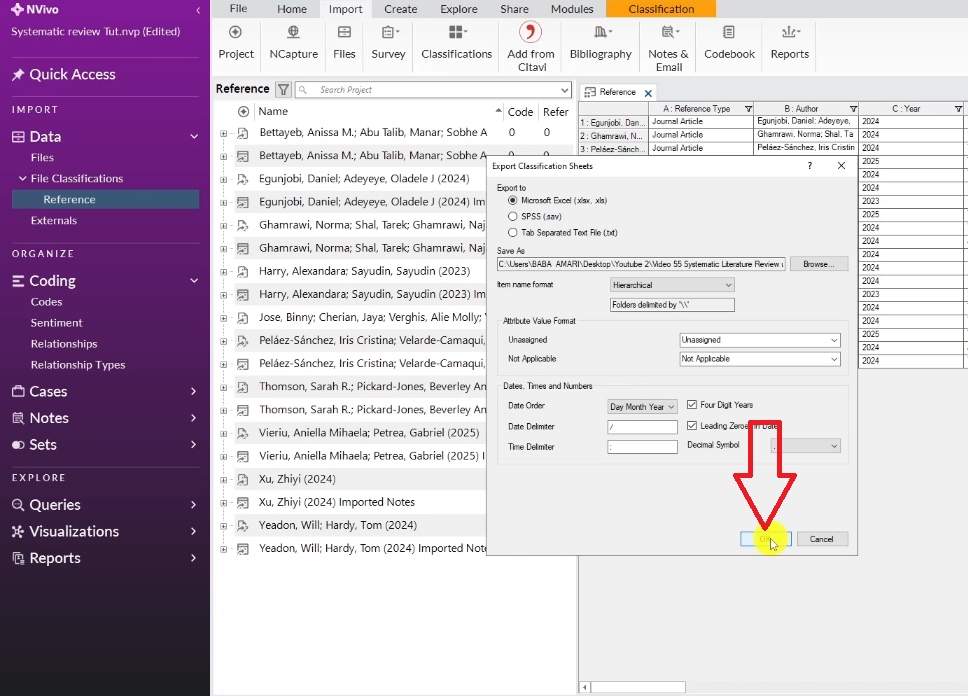
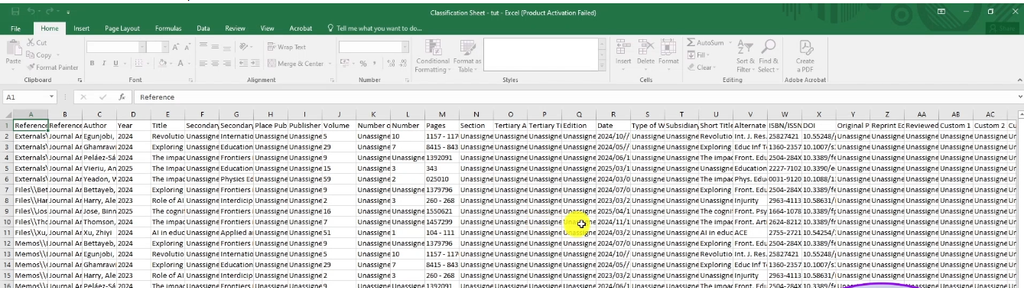
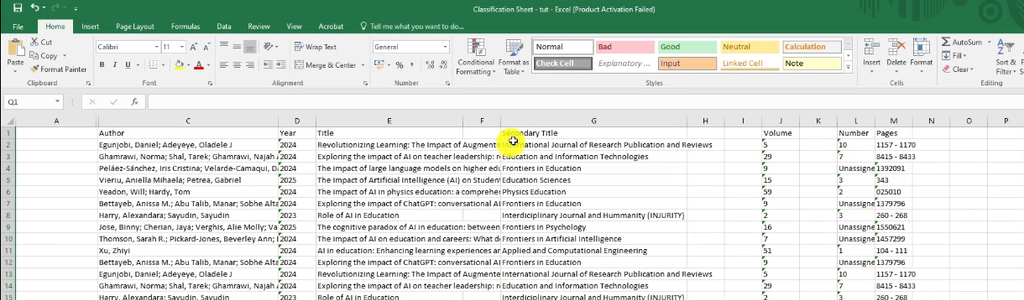
Before you start extracting data, export the classification sheet. This gives you a structured record of all your included studies — useful for your methodology section and PRISMA flow diagram.
To export: go to Export Classification Sheet, select Reference, and click OK. Open the exported spreadsheet and clean it up — remove columns you don’t need (like secondary author fields or place of publication), and keep author, year, title, journal, volume, and pages.
This becomes your article metadata table, which most systematic reviews require in an appendix.
Step 5 — Build Your Coding Framework
This is the most important step — and the one most researchers skip. Before running any queries, you need a coding framework: a list of exactly what you want to extract from each article, and the keywords scholars use to describe it.
For the impact of AI in education example, my coding framework included: (a) methodology — keywords: qualitative, quantitative, mixed methods; (b) main findings; (c) negative effects of AI — keyword: ‘negative impact’; (d) positive effects of AI — keyword: ‘positive impact’. If you want to go deeper on building strong coding structures, my NVivo thematic analysis tutorial walks through the principles in detail.
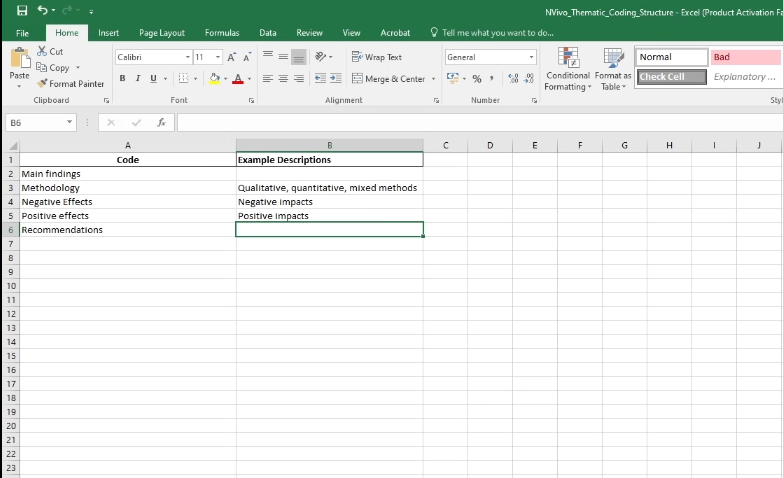
To create this framework in NVivo:
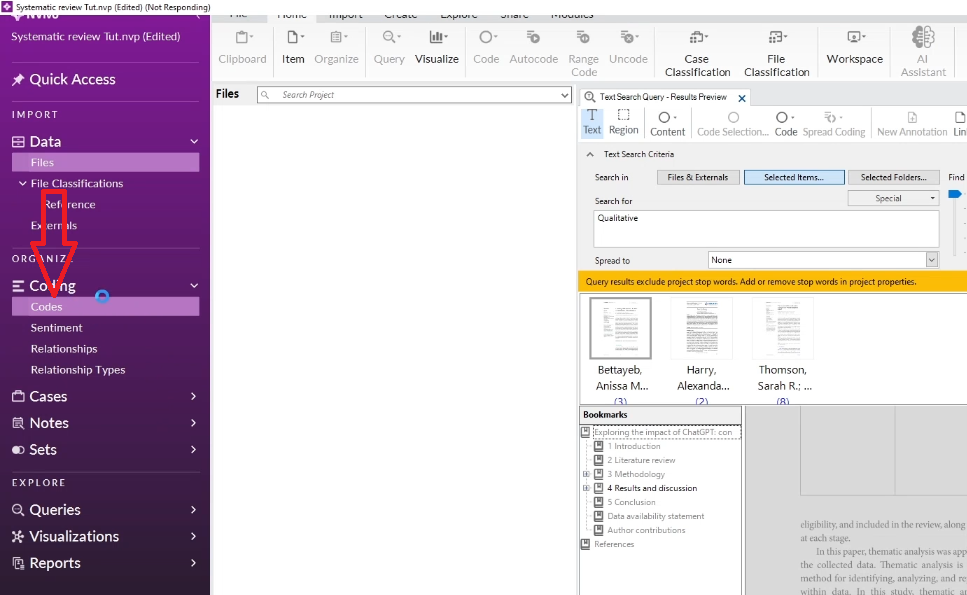
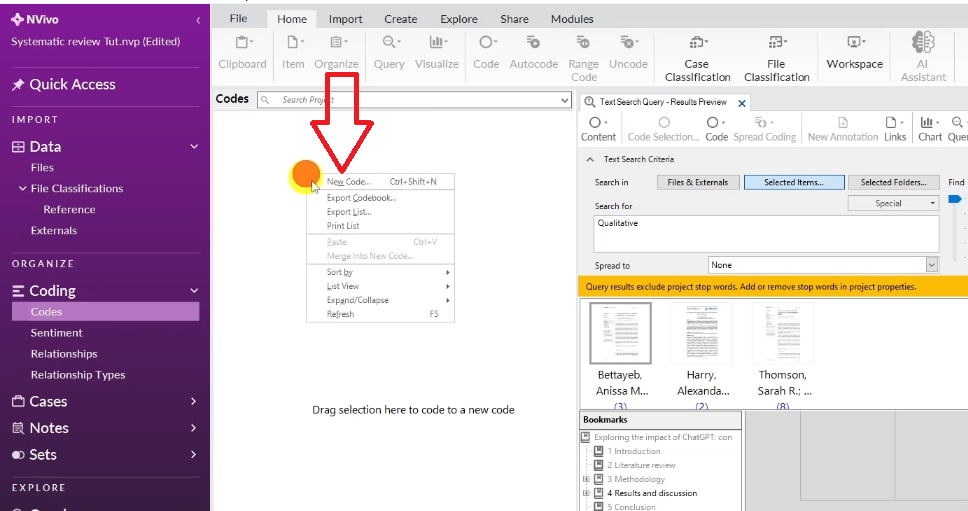
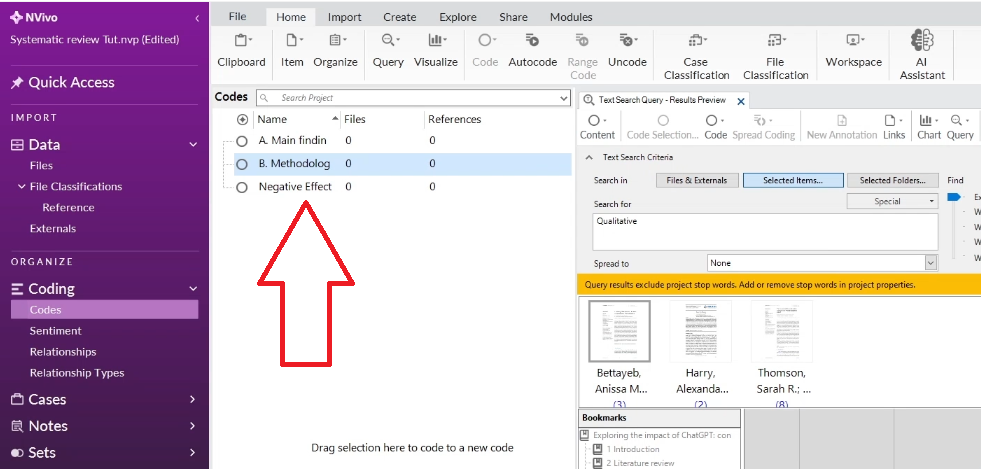
- Go to the Codes section
- Right-click in the blank area and select New Code
- Create a parent code for each category (e.g. A. Main Findings, B. Methodology, C. Negative Effects, D. Positive Effects)
- Use Code Properties to number them and keep them ordered
This structure is essentially a deductive coding framework — you’re searching the literature for what you already know you need to find. For a thorough overview of the difference between deductive and inductive approaches, SAGE Research Methods has an excellent resource on qualitative coding frameworks.
Step 6 — Run Text Search Queries to Extract Data
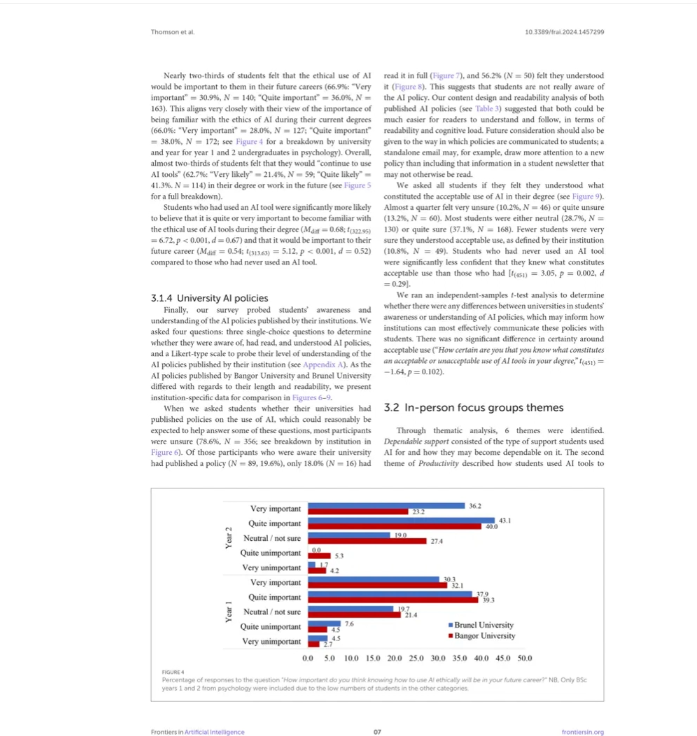
Here’s where NVivo saves you hours. Instead of reading every article manually, you run text search queries to locate exactly where your keywords appear across all your documents at once.
To run a query:
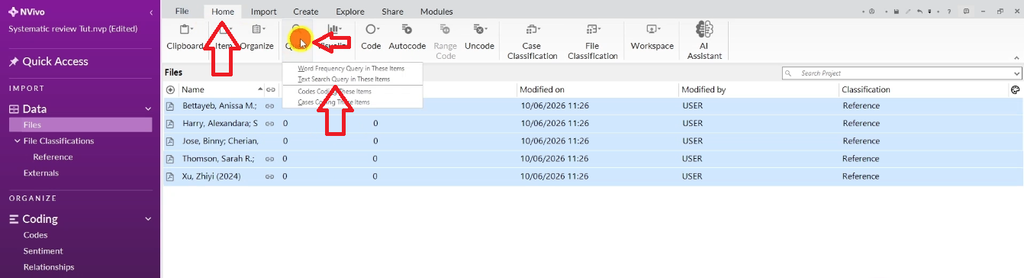
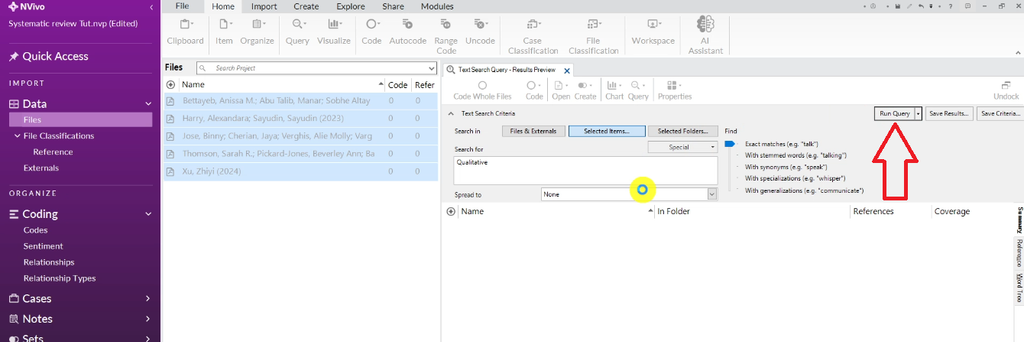
- Go to Home > Query > Text Search Query
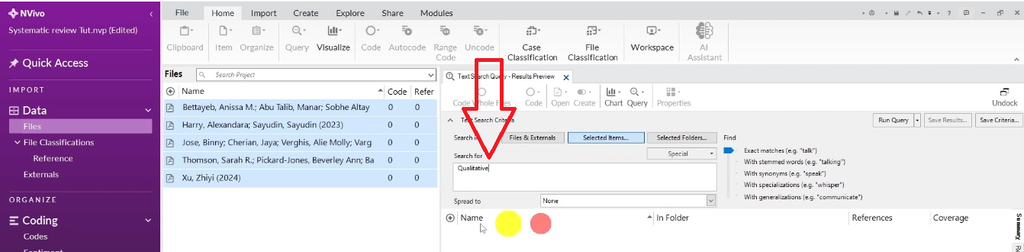
- Type your keyword (e.g. ‘qualitative’)
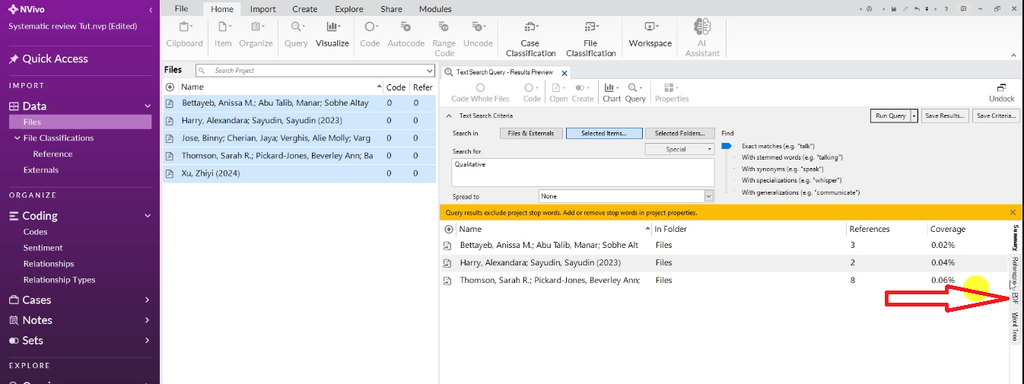
- Click Run Query
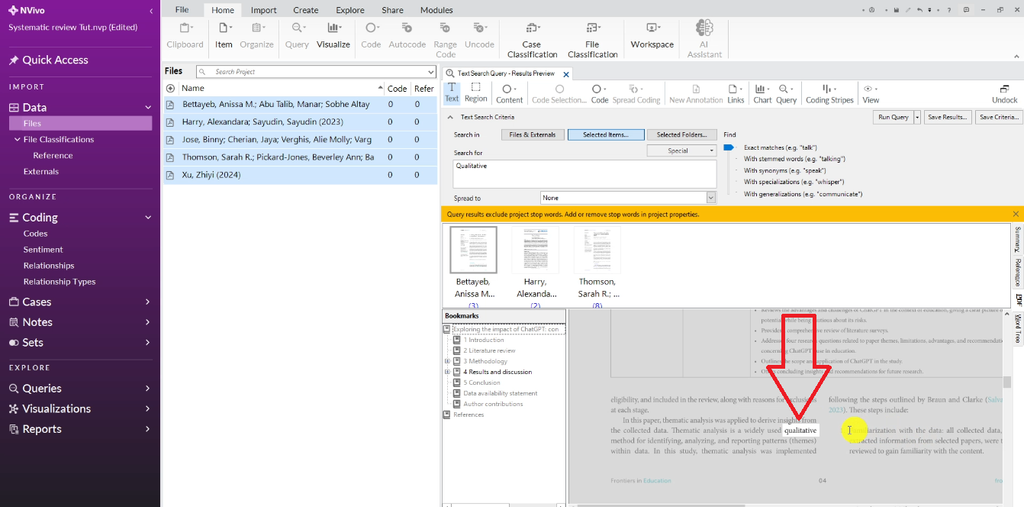
- In the results panel on the right, click PDF view to see the keyword in context across all articles
- Scroll through results to identify relevant excerpts
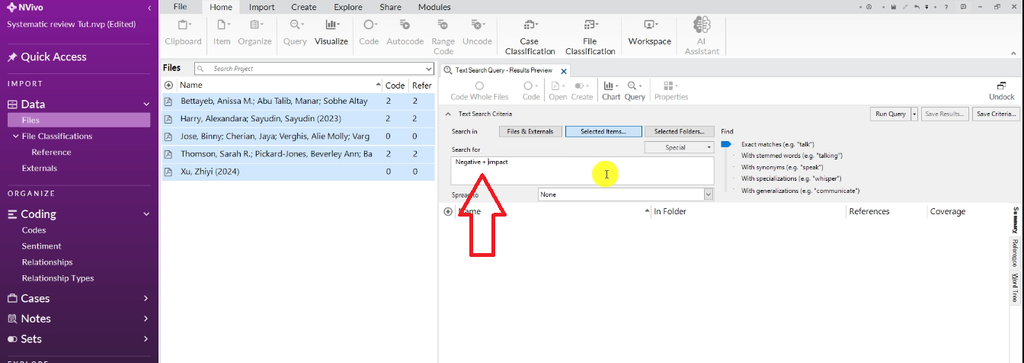
You can also use Boolean operators for more targeted searches. Searching ‘negative AND impact’ returns only passages that contain both terms together — useful for distinguishing negative from general mentions of impact.
Pro tip: search one keyword at a time rather than combining too many terms. This gives you more control over what you’re capturing and reduces the risk of missing relevant content.
Step 7 — Code and Organise Findings into Themes
Once you’ve found a relevant excerpt in the query results, highlight it, right-click, and select Code Selection. Navigate to the relevant parent code, then create a child code that captures the specific finding or concept.
For example, when I found the passage ‘the research method used in this study is qualitative descriptive method’, I highlighted it, right-clicked, selected Code Selection > Methodology > Child Code, and labelled it ‘qualitative approach’. That passage is now stored under my methodology framework and linked to the article it came from.
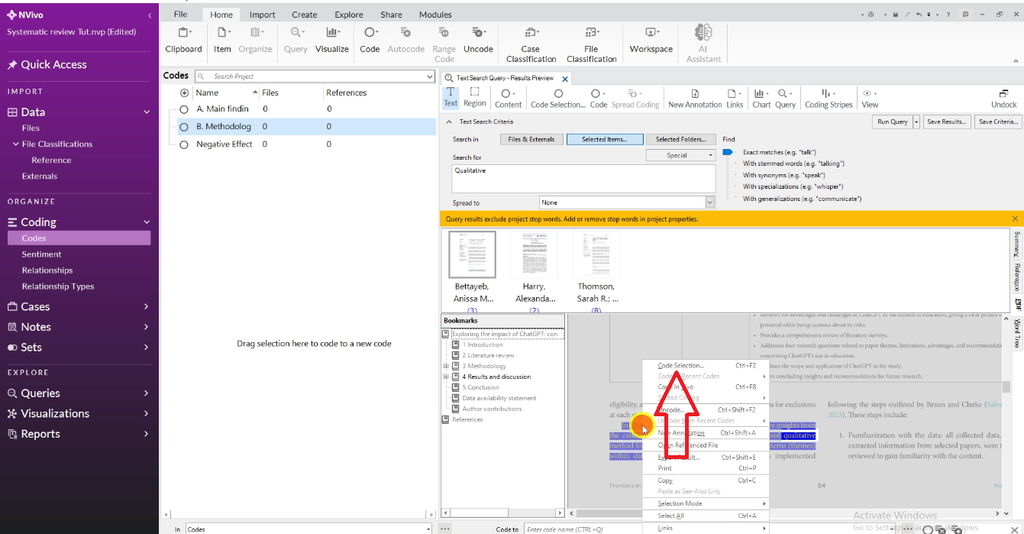
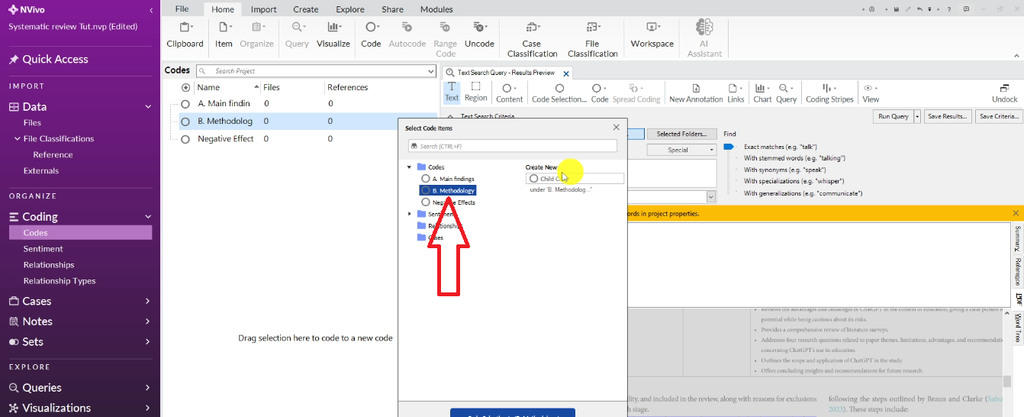
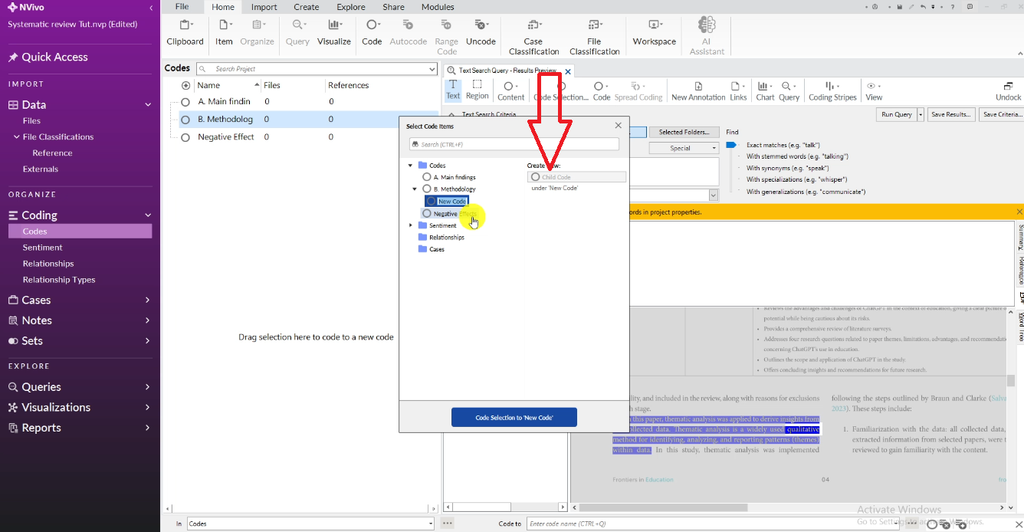
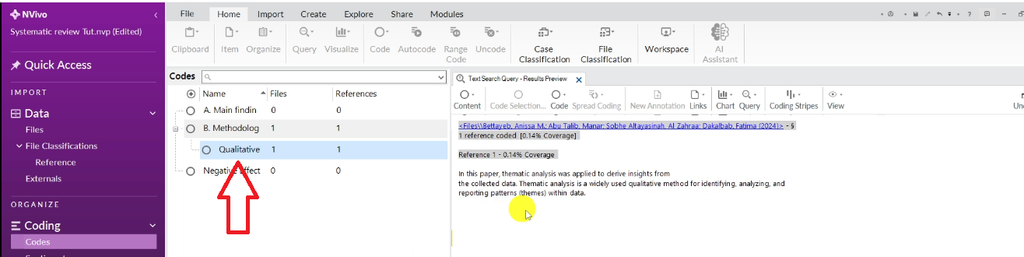
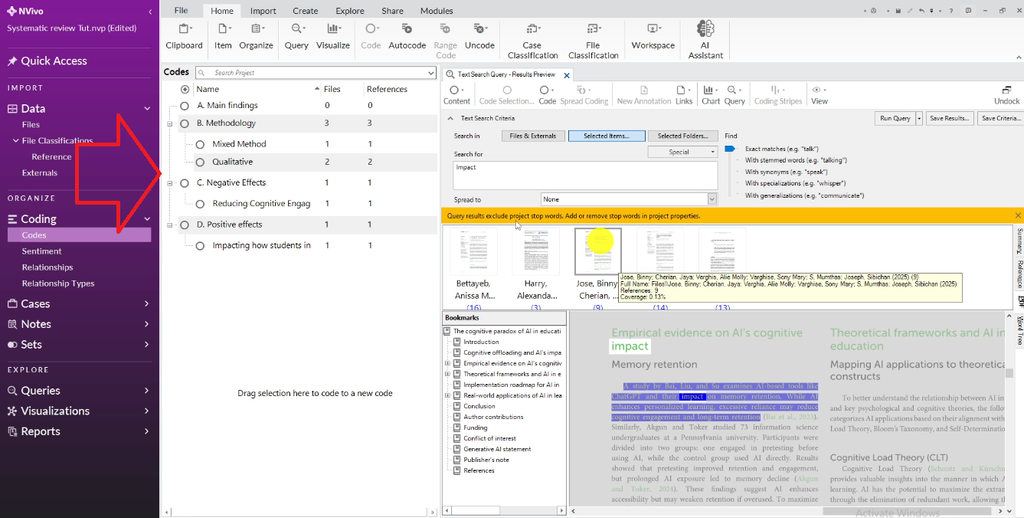
Repeat this across all your articles for each category in your coding framework. As you code, NVivo tracks how many articles mention each concept — you’ll see a number increment next to each child code, showing how many files contain that coded excerpt.
One common mistake researchers make at this stage is over-generalising — grouping very different findings under the same code. My post on common qualitative coding mistakes covers exactly this kind of issue and how to avoid it.
Step 8 — Export the Framework Matrix
Once you’ve coded across all your articles, you’re ready to export the framework matrix — the table that organises every coded excerpt by article and theme.
To create and export the framework matrix:
- Go to Create > Framework Matrix
- Name your matrix
- Select all your files (Ctrl+A), right-click, and choose Create as Cases
- Go back to Framework Matrix, select your cases for rows
- Under Columns, select your parent codes
- Click OK to run
- Click Retrieve Excerpts to populate the table
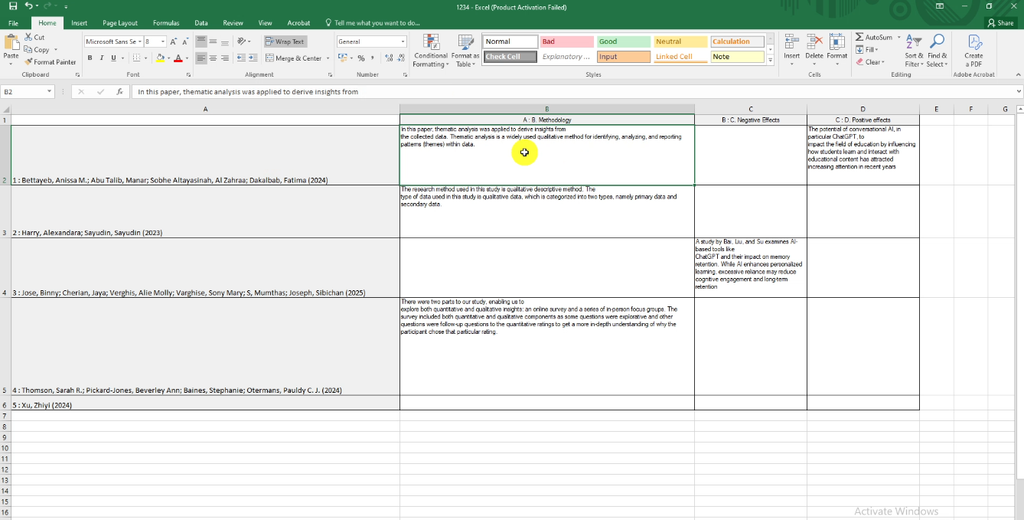
- Go to Export Framework Matrix and save as an Excel file
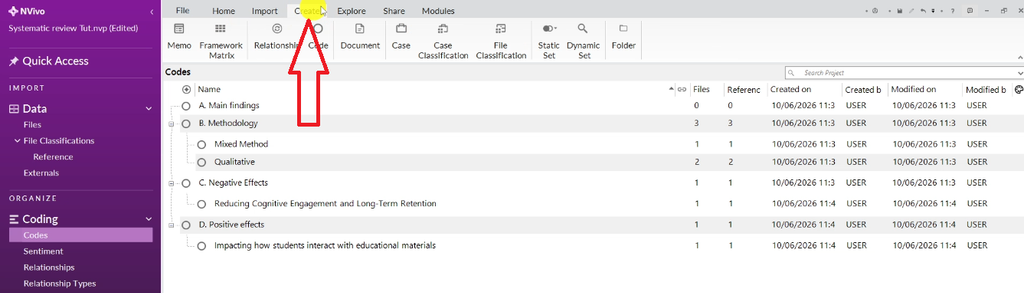
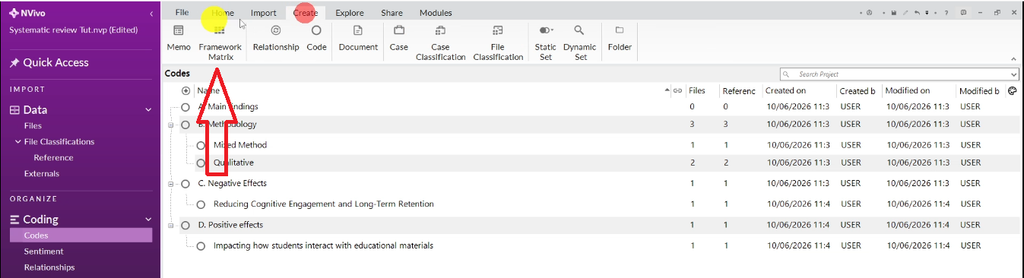
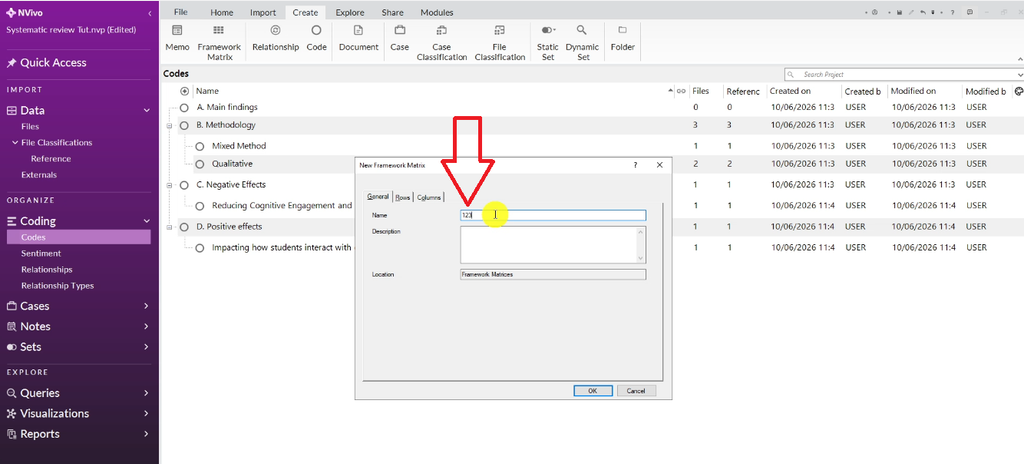
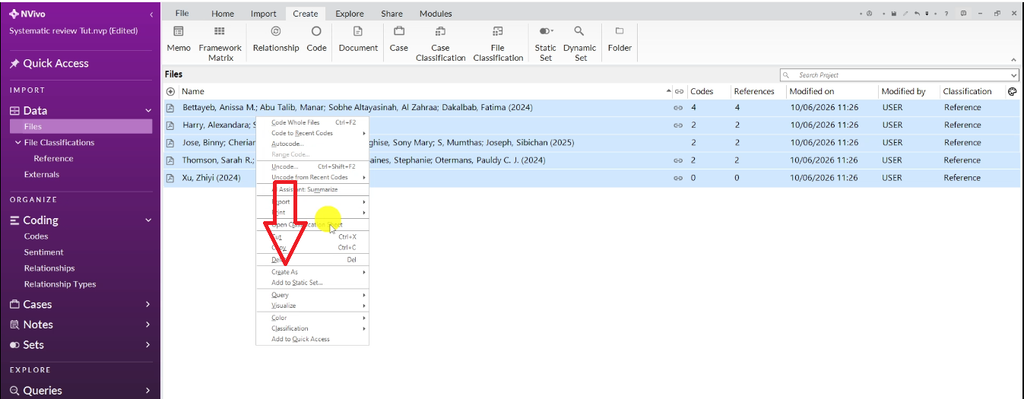
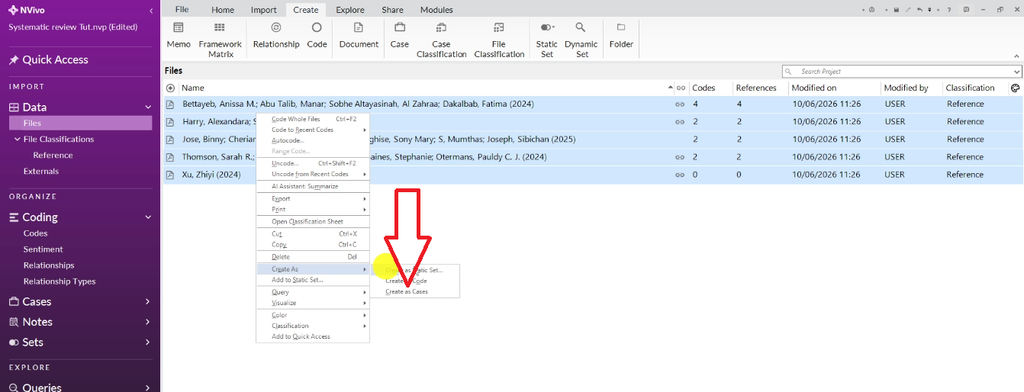
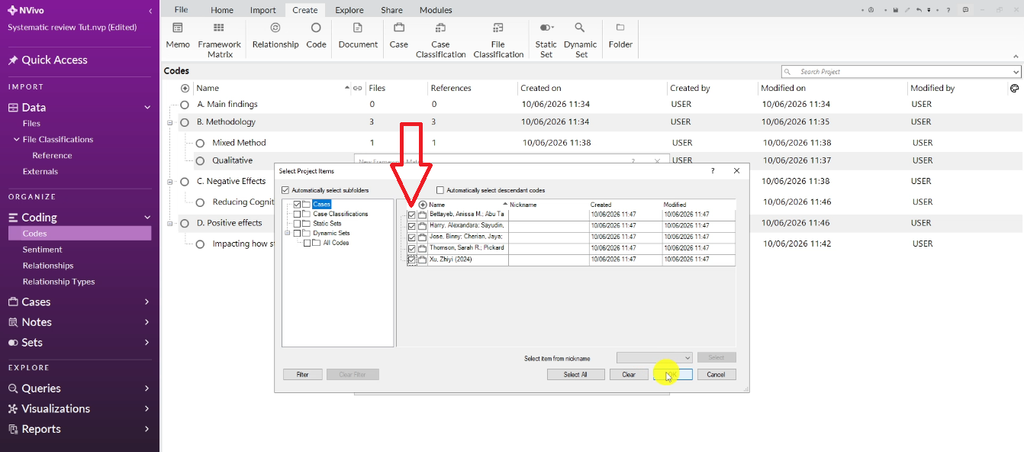
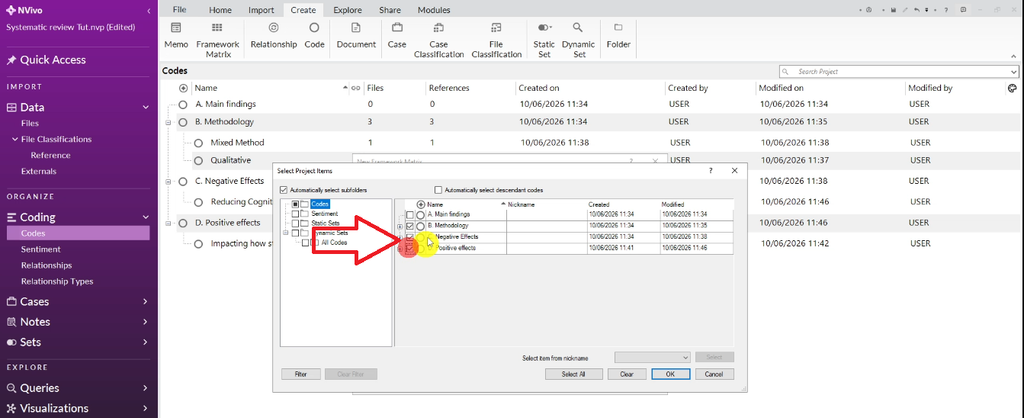

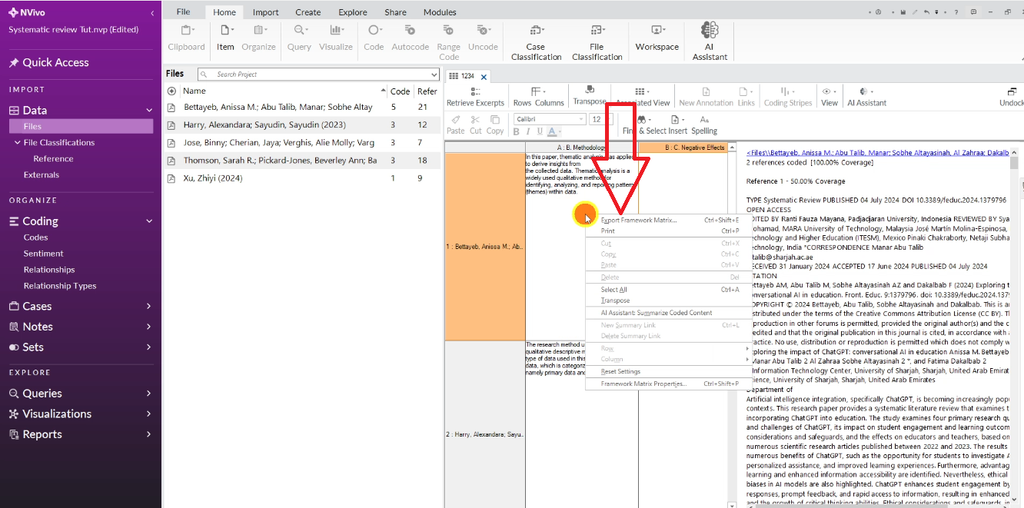
What you get is a structured table: articles as rows, your coding categories as columns, and the relevant excerpts from each article in each cell. This is your synthesis table — the foundation of your findings chapter.
After your systematic review is complete, NVivo also has excellent visualisation tools. My guide on visualizing your NVivo findings with the project map shows you how to turn your coded data into diagrams for your thesis or publication. You can also explore the word cloud feature in NVivo to get a quick visual overview of the most prominent concepts across your articles.
Frequently Asked Questions
Can I use NVivo 14 instead of NVivo 15 for this?
Yes. Everything covered in this guide works in both NVivo 14 and NVivo 15. The menus and tools are the same — NVivo 15 has some additional AI-assisted features, but they are not required for this workflow.
Do I need Scopus, or can I use Google Scholar?
Google Scholar works well and is free. Scopus gives you better filtering options and more reliable metadata, which makes the Zotero import cleaner. If you have institutional access, use Scopus. If not, Google Scholar is a solid alternative.
What if I have more than 100 articles?
The workflow is the same — NVivo handles large collections without difficulty. The key is having a tight coding framework before you start. The more specific your keywords and codes, the faster you’ll move through even large collections.
Do I need to read every article in full?
No — that’s one of the main advantages of this workflow. The text search query takes you directly to the relevant sections in each article. You read the excerpts in context, not the whole paper from start to finish.
What is a framework matrix in NVivo?
A framework matrix is a summary table that NVivo generates from your coded data. Rows are your articles (or cases), columns are your coding categories, and cells contain the relevant excerpts you coded from each article. It’s the primary output of a systematic review in NVivo and feeds directly into your synthesis write-up.
Key Takeaways
- A systematic literature review needs a documented process — NVivo gives you that structure
- Use Scopus or Google Scholar to find and filter articles, then Zotero to organise them
- Import via RIS format — this brings both PDFs and citation metadata into NVivo simultaneously
- Build your coding framework before running queries — know exactly what you’re looking for
- Use text search queries with Boolean operators to find relevant excerpts fast
- Export the framework matrix as your synthesis table — it becomes the backbone of your findings chapter
Need Help With Your Systematic Literature Review?
If you’re behind on your systematic review and need it done quickly, I work with PhD students directly. You can book a one-on-one consulting session through the link in the description — we’ll look at your data together and map the fastest path to your analysis. If you’d prefer to hand it over completely, my done-for-you NVivo analysis service is available for researchers who just need it done.