
Last Updated on 4 months ago by Grace Nyambura
How to Analyze PDFs and Images in NVivo (Secondary Data)
If you want to analyze PDFs and images in NVivo, you’ll code them the same way you’d code an interview transcript — the difference is how you decide what to highlight. This guide walks through both the inductive and deductive routes, using a real example: a study on the importance of teaching aids in the classroom.
- How to Analyze PDFs and Images in NVivo (Secondary Data)
What Counts as Secondary Data in NVivo?
Secondary data in NVivo refers to any source you didn’t collect yourself through interviews or focus groups — most commonly PDFs (journal articles, reports, documents participants share with you) and images (photos, screenshots, diagrams). NVivo treats both as codeable sources, meaning you can highlight sections and images just like you would a transcript.
Researchers often combine secondary sources with interview data in the same project — for example, coding a participant’s interview alongside a document they handed you during the study.

Setting Up Your NVivo Project for Secondary Sources
For this walkthrough, the example topic is the importance of using teaching aids in the classroom. Here’s how to get your project ready:
- Open NVivo and create a new project.
- Name the project after your research topic (e.g. “Importance of Using Teaching Aids in the Classroom”).
- Import your PDFs and images as sources.

How to Analyze PDFs in NVivo

Analysing PDFs in Nvivo
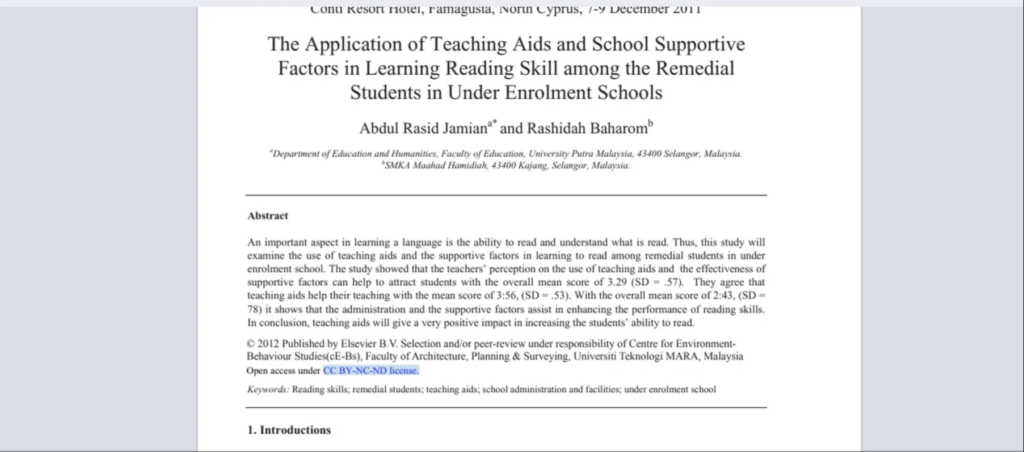
Say you’re studying the importance of teaching aids in the classroom, and the teachers you interviewed have handed you a few PDFs as supporting artifacts or secondary articles. There are two ways to code them: inductively and deductively.
Inductive Coding of PDFs in NVivo
Inductive coding means letting the material in the PDF determine your codes, rather than deciding on codes in advance. Here’s the process:
- Read through the PDF the same way you’d read a transcript, looking for statements that stand out.
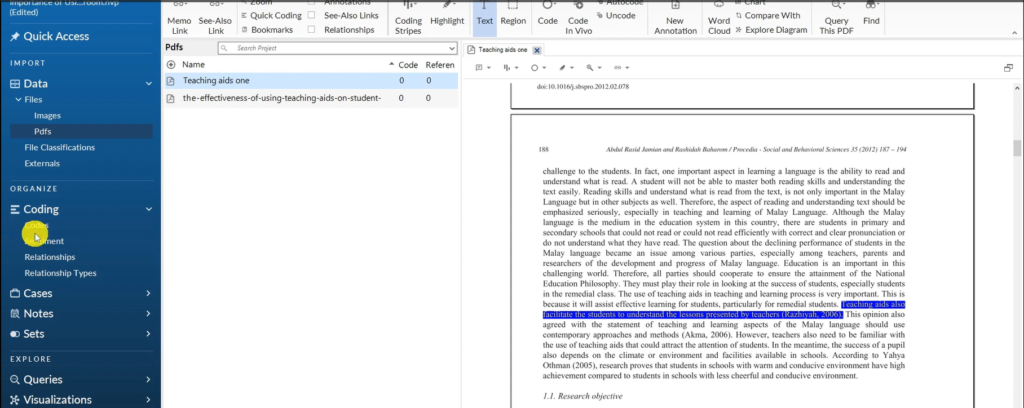
- Highlight the statement — for example: “Teaching aids also facilitate the students to understand the lessons presented by teachers.”
- Drag the highlighted section into the coding panel, keeping your research topic in mind.
- Name the code based on what the statement is telling you — this section became “Teaching aids promote understanding.”
- Repeat for other standout statements. A line about aids increasing classroom interest became its own code, “Teaching aids increase interest of students in the classroom,” and a line about attracting remedial readers reinforced that same code.


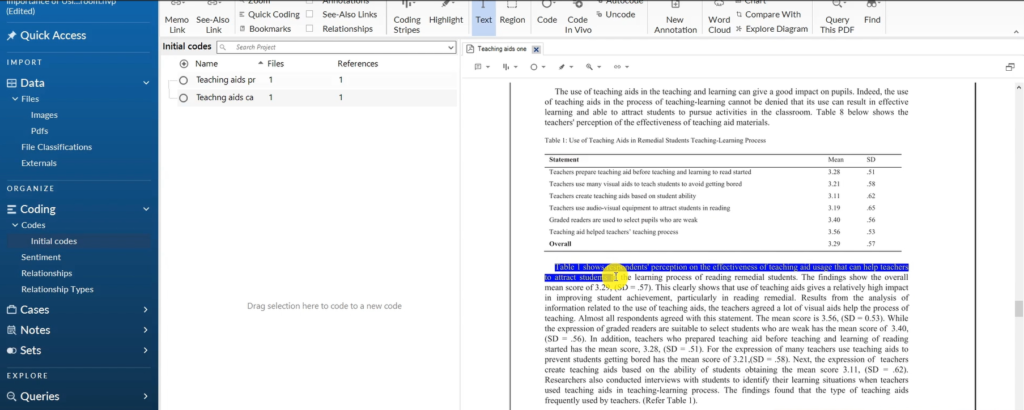
Once you’ve extracted statements and built out codes this way, you combine related codes to form themes. To understand the difference between the two approaches in more depth, see Thematic Analysis Examples: Inductive and Deductive Step by Step.

Inductive thematic analysis
Deductive Coding of PDFs in NVivo (Autocode & Text Search)
Deductive coding means you already know what you’re looking for. NVivo supports this with two built-in tools: autocode and text search query.
Autocode:
- Select the PDFs you want to analyze.
- Go to Auto Code and let NVivo identify the main issues and themes running through the documents.
- Click Finish, then review the auto-coded themes.
- Delete anything that isn’t relevant to your study, keeping only what matters.


Text search query:
- Select both PDFs, then go to Query → Text Search Query.
- Search for your key phrase — in this example, “teaching aids” — and run the query.
- Review each hit. One PDF returned: “Visual aids are instrumental in learning English as they play a vital role in facilitating comprehension.”
- Highlight the relevant section and drag it into a code — this one became “Promote comprehension.”
- Repeat for other hits — a section about aids bringing clarity to teaching became “Assist teachers to teach more effectively.”


Combining autocoding with a targeted text search query is a fast way to move from raw PDFs to a working set of deductive codes, which you’ll later group into themes. If you want a deeper walkthrough of the deductive approach specifically, see Qualitative Coding of Interviews with NVivo.
How to Analyze Images in NVivo

Analysing images
Images are analyzed by tagging them, not by highlighting text. Here’s the process using an example image of a teacher using an abacus as a teaching aid:
- Open the image as a source in NVivo.
- Drag your mouse over the relevant area of the image to select it.
- Code the selection — in this case, “Teacher using an abacus as a teaching aid.”
- Repeat for other images. A photo of a teacher with a globe became “Teacher using a globe as a teaching aid,” and an image of alphabet letters for preschool students became “An example of a teacher using teaching aids in the classroom.”


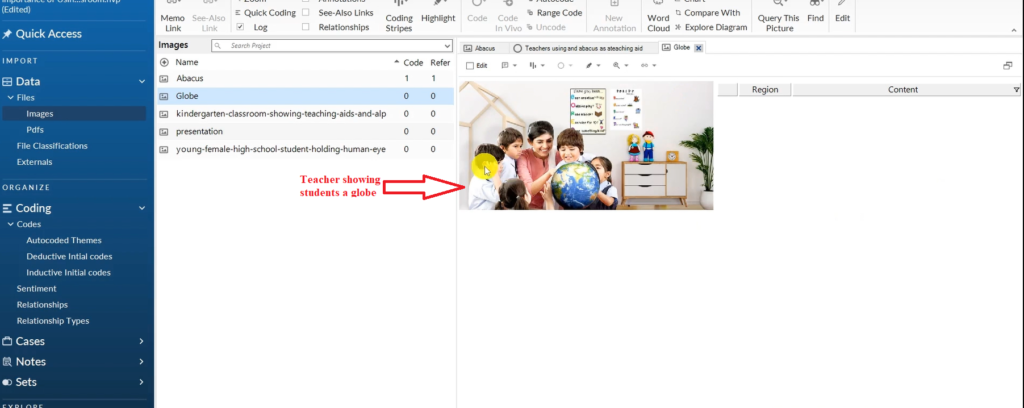


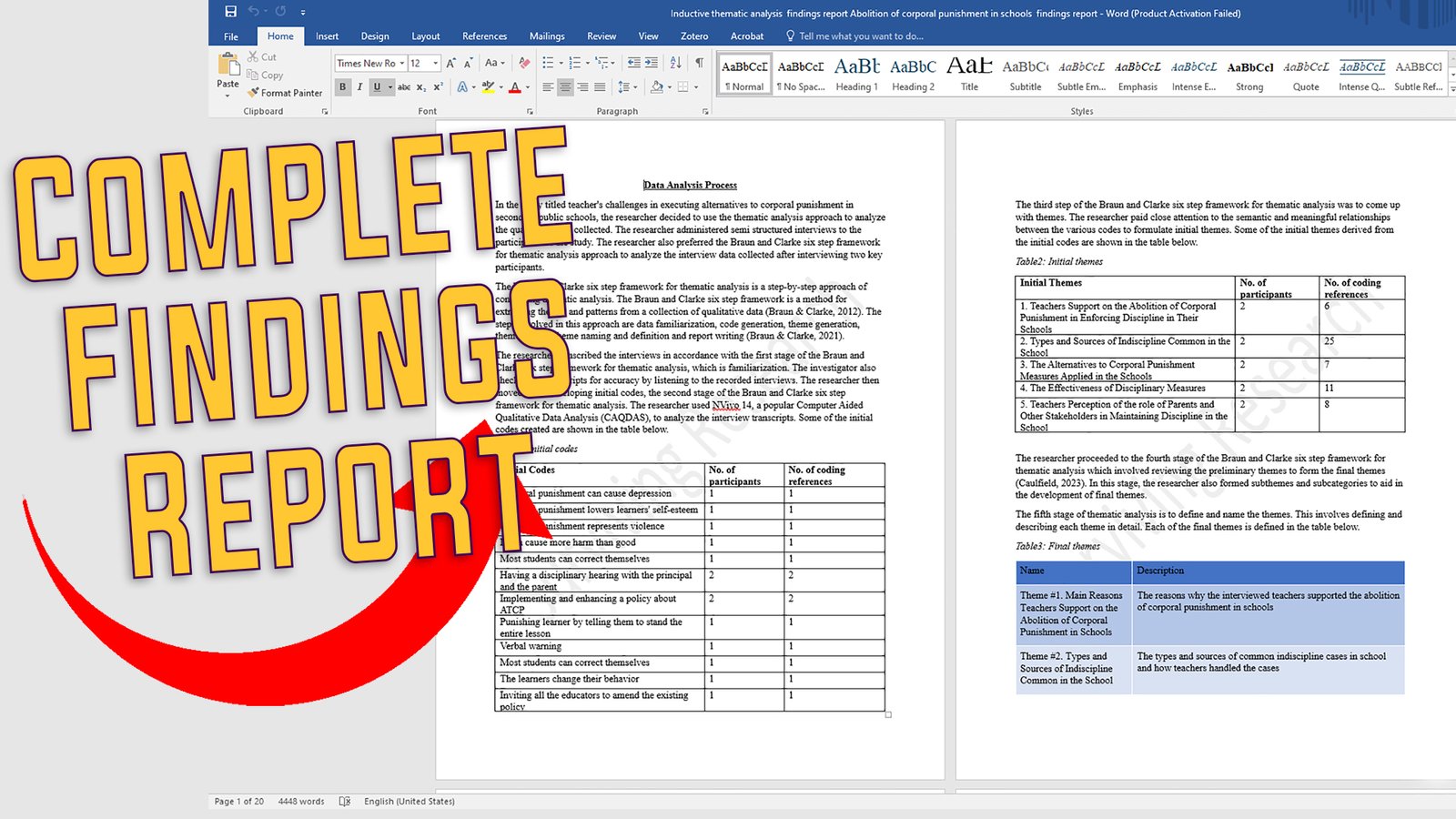
Essentially, you’re captioning the images with codes, and those captions can later be pulled directly into your findings report.
Common Mistakes When Coding PDFs and Images in NVivo
- Mixing inductive and deductive coding without deciding upfront — pick your approach per source type before you start, or your codebook gets messy.
- Accepting every autocode theme NVivo suggests instead of reviewing and pruning irrelevant ones.
- Coding images too broadly instead of tagging the specific region that supports the code.
- Treating secondary sources as separate from your interview data instead of coding them into the same framework.
Frequently Asked Questions
Can NVivo code PDFs and images the same way as interview transcripts?
Yes. NVivo treats PDFs and images as codeable sources, so you highlight text or select image regions and assign codes exactly as you would with a transcript.
Should I use inductive or deductive coding for secondary data?
It depends on your research question. Use inductive coding when you want the PDF’s content to shape your codes from scratch. Use deductive coding — autocode plus text search query — when you already know the concepts you’re looking for.
What is autocoding in NVivo?
Autocoding is a built-in NVivo feature that scans your PDFs and automatically identifies recurring themes, giving you a starting set of codes to review and refine rather than building from zero.
Key Takeaways
- PDFs and images are coded the same way as transcripts in NVivo — by highlighting/selecting and assigning a code.
- Inductive coding lets the PDF content determine your codes; deductive coding uses autocode and text search query to find specific concepts.
- Images are coded by tagging a selected region, essentially captioning the image with a code.
- Combine codes from PDFs and images with your interview codes to build unified themes across your whole dataset.
Get Expert Help With Your Qualitative Data Analysis
Are you overwhelmed by your qualitative data? I offer two specialized services for PhD students who need support with N-Vivo analysis. The first is my done-for-you qualitative data analysis service, where I handle the full coding, theme development, data visualization, and a findings report — including a walk-through recording of the entire analysis. The second is one-on-one N-Vivo consulting, where we work together on a video call via Zoom or Microsoft Teams, and I guide you through your analysis step by step.