

Last Updated on 1 month ago by Grace Nyambura
| Quick summary: This guide shows you how to do qualitative analysis of interview transcripts in ATLAS.ti from start to finish — understanding and defining codes, setting up your project, importing transcripts, applying colour coding, generating initial codes across two transcripts, grouping codes into themes, and exporting your codebook. The tutorial uses a real parental engagement dataset to walk through every step. |
- What Is Qualitative Coding? (With Real Examples)
- Setting Up ATLAS.ti for Interview Analysis
- Choosing a Framework: The Braun and Clarke Approach
- Step 1 — Familiarising with the Data and Colour Coding
- Step 2 — Generating Initial Codes in ATLAS.ti
- Step 3 — Generating Themes from Your Codes
- Frequently Asked Questions
- What is the difference between a code and a code group in ATLAS.ti?
- Do I have to colour code my interview questions before importing to ATLAS.ti?
- Can one segment of text have multiple codes in ATLAS.ti?
- How many transcripts do I need before I can generate themes?
- What happens to codes in ATLAS.ti when I drag them into a code group?
- Key Takeaways
- Need Help With Your ATLAS.ti Analysis?
ou’ve just finished your interviews, you have your transcripts, and now you’re wondering how to turn all of that into a findings chapter. That’s exactly what this article covers.
I’m going to show you how to do qualitative analysis of interviews using ATLAS.ti — from your first code all the way to a complete codebook with themes. We’ll follow the Braun and Clarke six-step thematic analysis framework, focusing on the three most hands-on stages: coding, generating themes, and exporting your codebook.
I’m Bernard Mugo. Over the past three years I’ve helped more than 250 PhD students analyse qualitative data and complete their dissertations. This is a foundational tutorial — if you’re new to ATLAS.ti, start here.
What Is Qualitative Coding? (With Real Examples)
Before we open ATLAS.ti, let’s make sure we’re clear on what qualitative coding actually is. The clearest way to explain it is through examples.
Example Codes from a Heart Failure Interview
The following codes come from an interview with a patient diagnosed with heart failure. The participant says:
“The main reason for coming back is because in between I had swelling in my legs. I’m a driver — if I start today then two to three days only I can come back. There was swelling in the legs and blisters and I was not able to keep my leg down.”
From this single paragraph, several codes emerge:
- HF symptoms affect work — the participant is a driver who can only work for a few days before returning due to symptoms
- Swelling in the legs — directly stated physical symptom
- Pain in the legs — implied from the inability to keep the leg down
- Previously taking medication — from a subsequent statement: “then I took medicines and since I was taking medicines it was okay”
- Palpitations when walking — from: “when I walk I was having palpitations, I was not able to climb stairs”
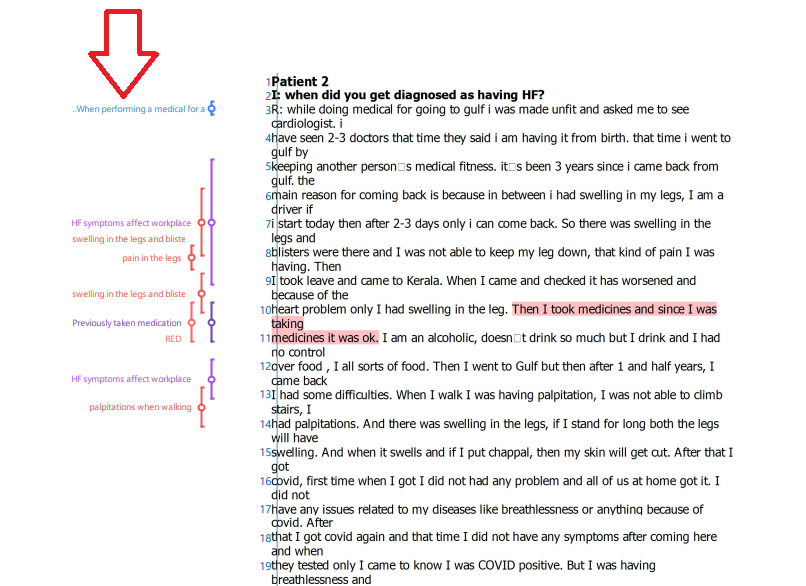
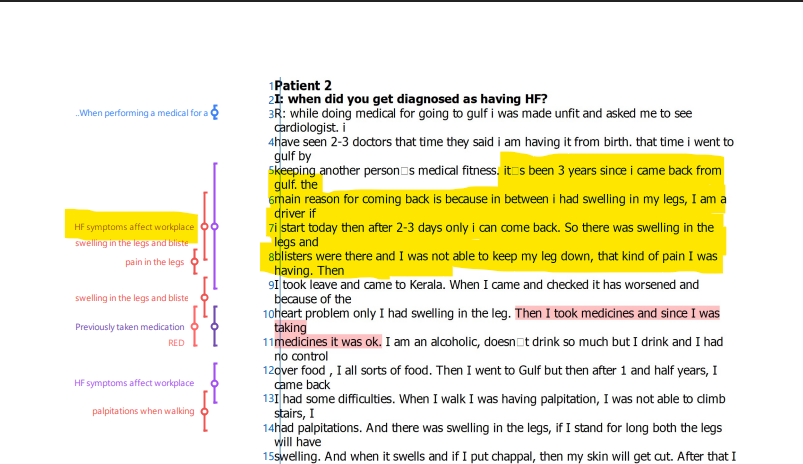
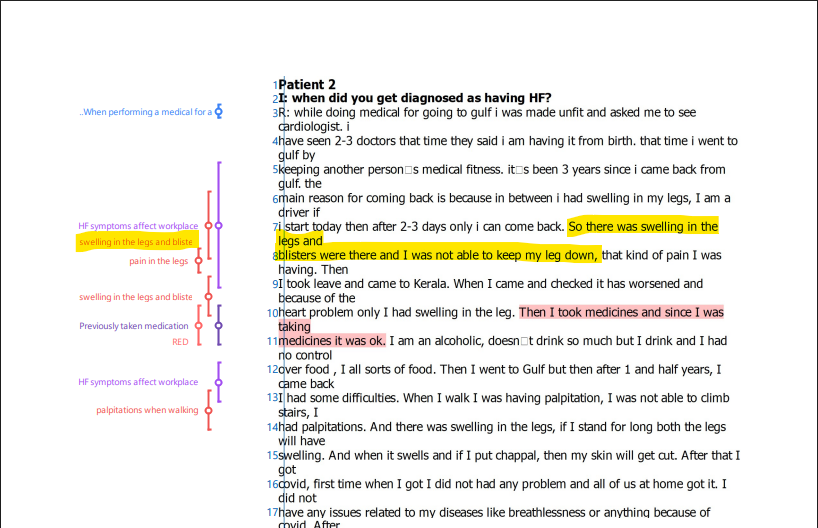
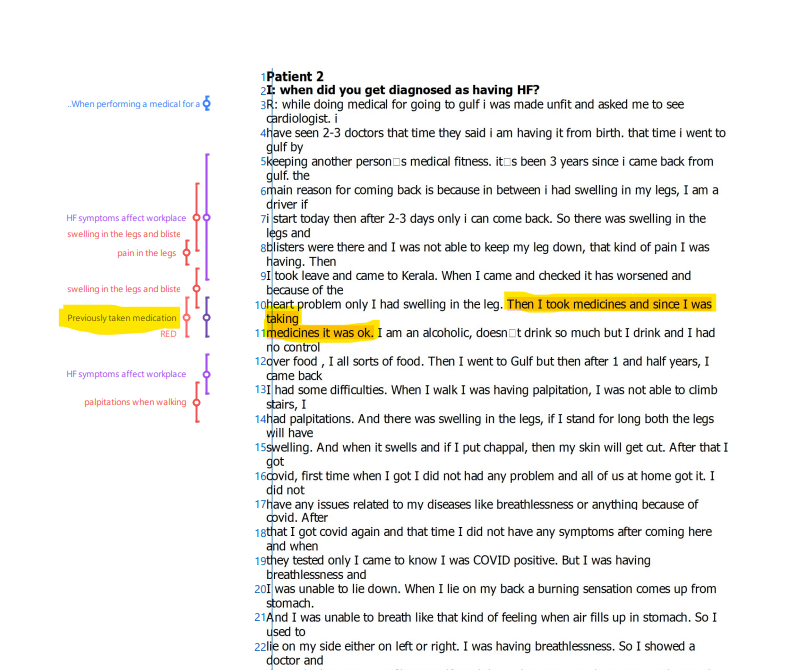
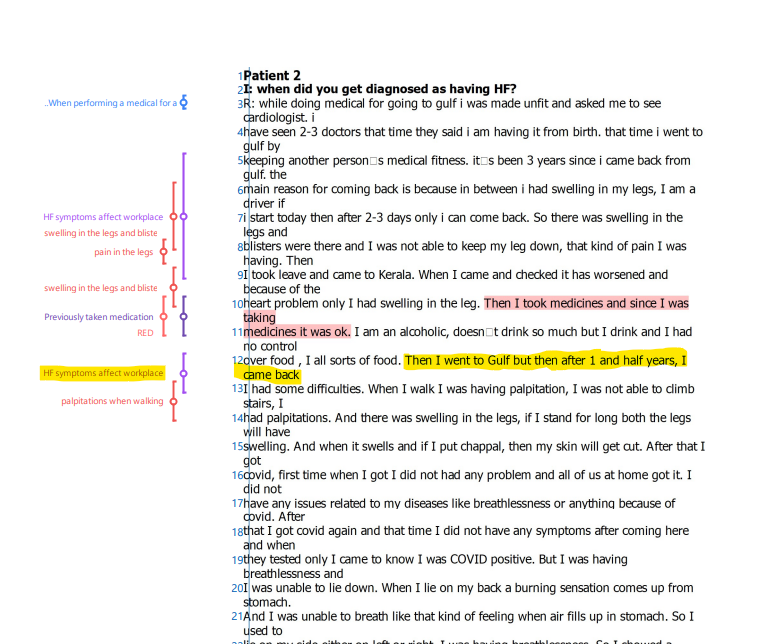
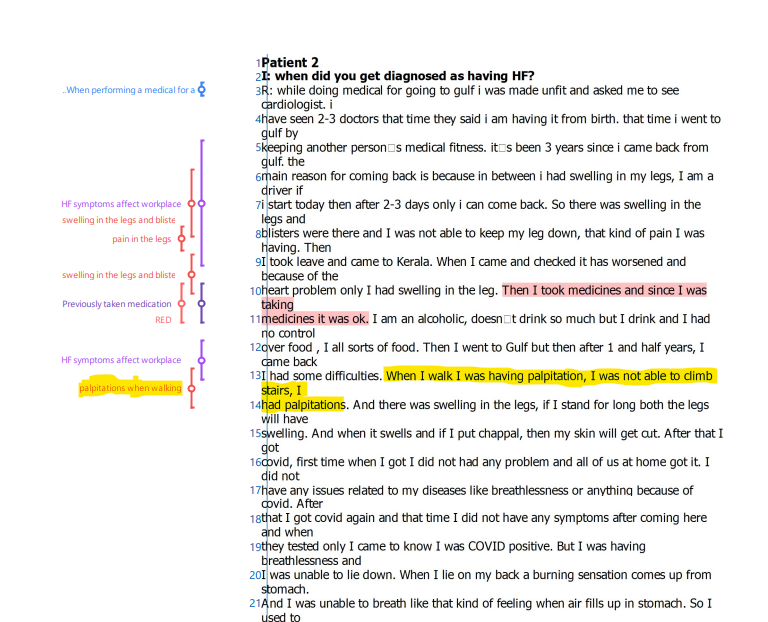
Notice that codes are interpretive — they capture the meaning of what the participant is saying relative to the research objective (experiences of patients with heart failure), not just a copy of their words.
How to Define a Code
A code is a label or interpretive statement applied to any segment of data that is important to your research questions or objectives. You tag statements with concise labels that interpret the information — you are not summarising, you are assigning meaning.
Setting Up ATLAS.ti for Interview Analysis
The ATLAS.ti Interface Explained
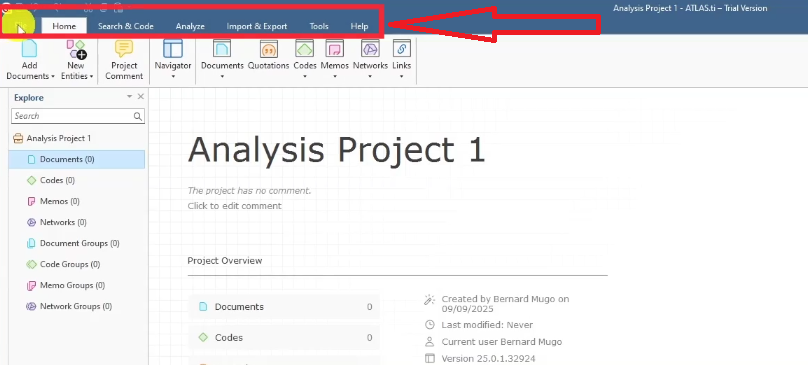
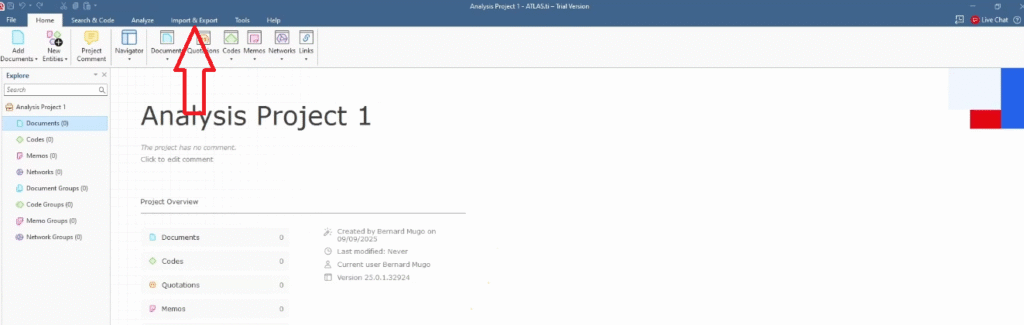
When you first open ATLAS.ti you’ll see a blue top menu and a left sidebar. For qualitative interview analysis you need to understand three areas. Full documentation is available on ATLAS.ti’s official research hub.
- Top menu: File, Home, Search & Code, Analyze, Import & Export, Tools, Help
- Secondary menu: Documents, Codes, Memos, Networks — the core workflow tools
- Left sidebar: Documents, Codes, Memos, Networks, Code Groups — your main navigation panel throughout the analysis
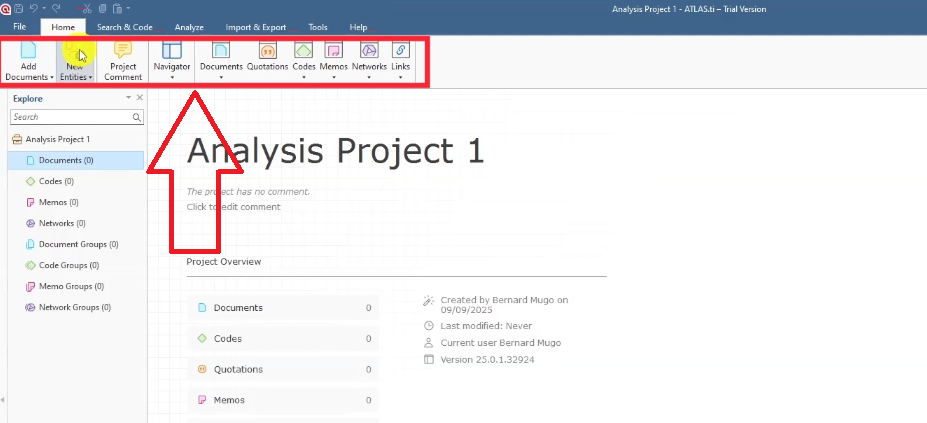
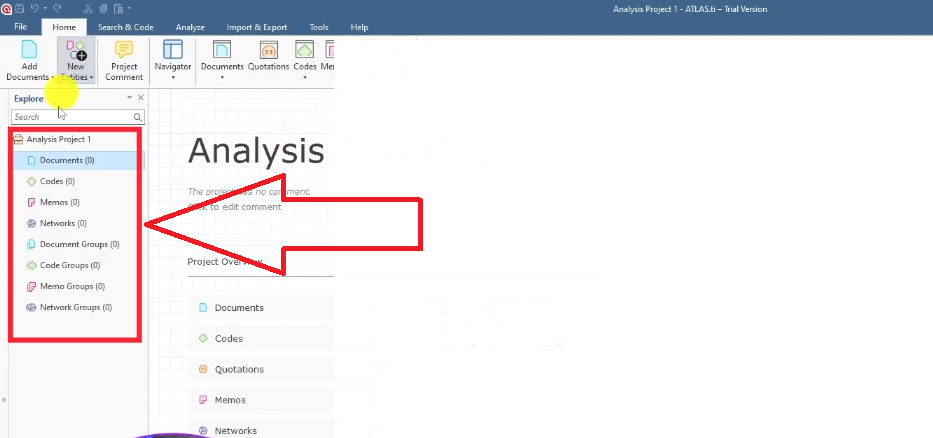
For this tutorial the study topic is: engagement of parents in schools. We’ll be analysing two interview transcripts from this study.
How to Import Transcripts into ATLAS.ti
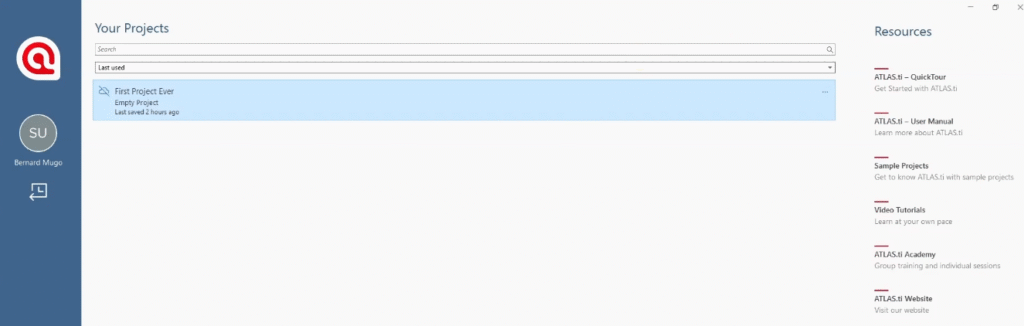
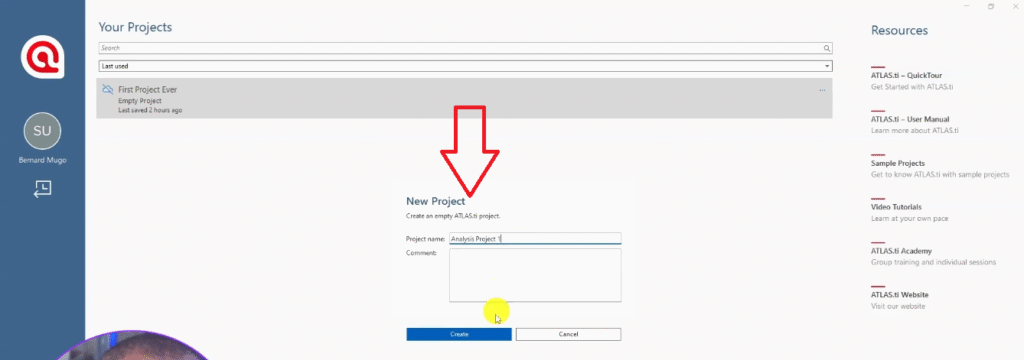
- Open ATLAS.ti and click New Project.
- Name your project using your actual study title.
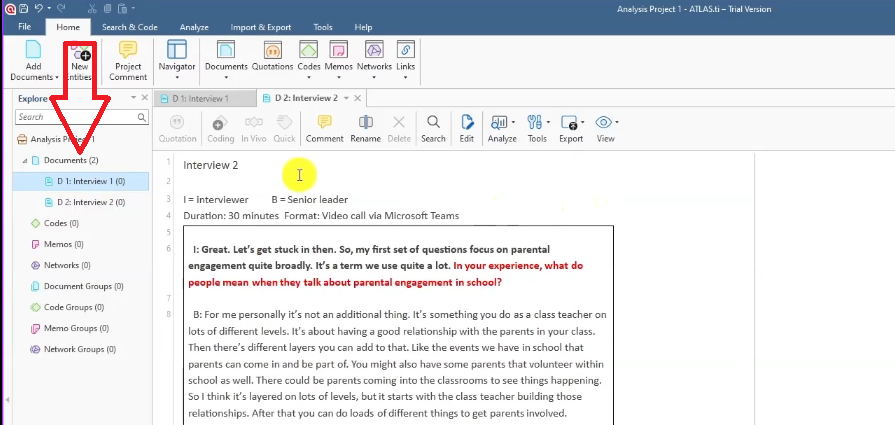
- To import transcripts: either drag and drop your Word or PDF files directly into the Documents panel, or use Import & Export > Import Documents from the top menu.
- Your transcripts appear listed in the Documents section. Double-click one to open it for coding.
Choosing a Framework: The Braun and Clarke Approach
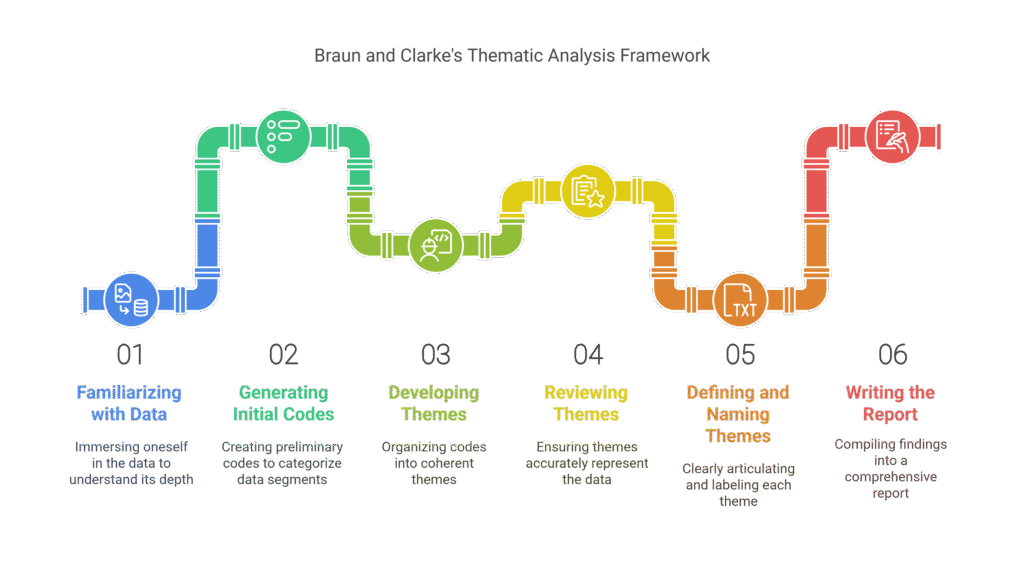
Before you start coding, you need a framework. For this article I’m using the Braun and Clarke six-step approach to thematic analysis: familiarise with the data, generate initial codes, develop themes, review themes, define and name themes, and produce the report. For a deeper overview of the framework itself, Scribbr’s guide to thematic analysis is an excellent companion.
I won’t follow every step in rigid sequence here — the goal is to show you how to get codes and combine them into themes inside ATLAS.ti. That covers steps 1, 2, and 3 and is the core practical work of the analysis.
If you want a more complete walk-through of all six steps specifically in ATLAS.ti, read my dedicated guide on thematic analysis in ATLAS.ti using Braun and Clarke.
Step 1 — Familiarising with the Data and Colour Coding
The first step is to read your transcripts in full before coding anything. You’re building familiarity with what participants said and developing an intuitive sense of where the important segments are.
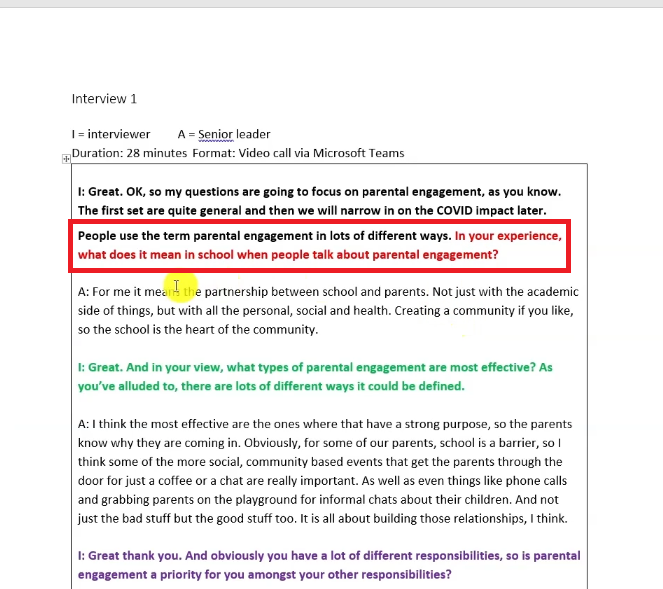
At the same time, I always recommend colour-coding your interview questions before you start coding in ATLAS.ti. This is one of the most practical organisational techniques in the whole process.
How to Colour Code Interview Questions Before Coding
- Open your transcript in Word before importing it.
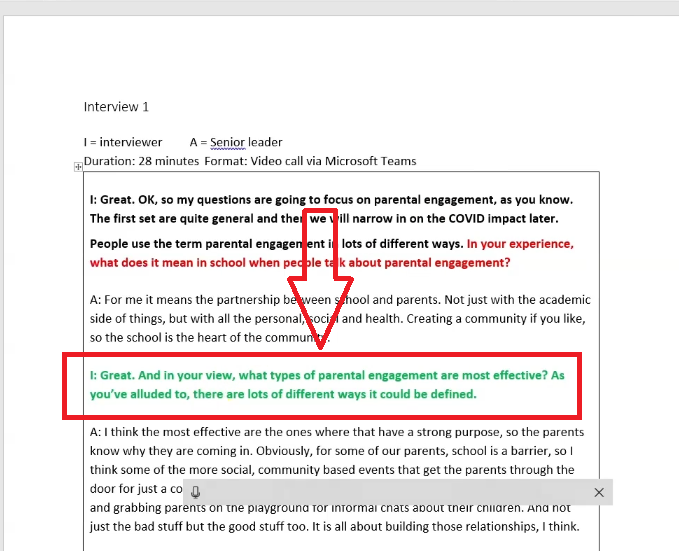
- Assign a colour to each interview question: question 1 red, question 2 green, question 3 brown, and so on.
- Save the colour-coded transcript and import it into ATLAS.ti.
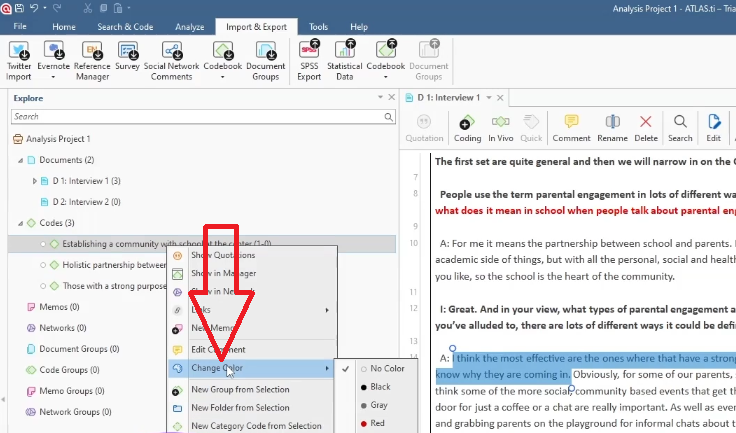
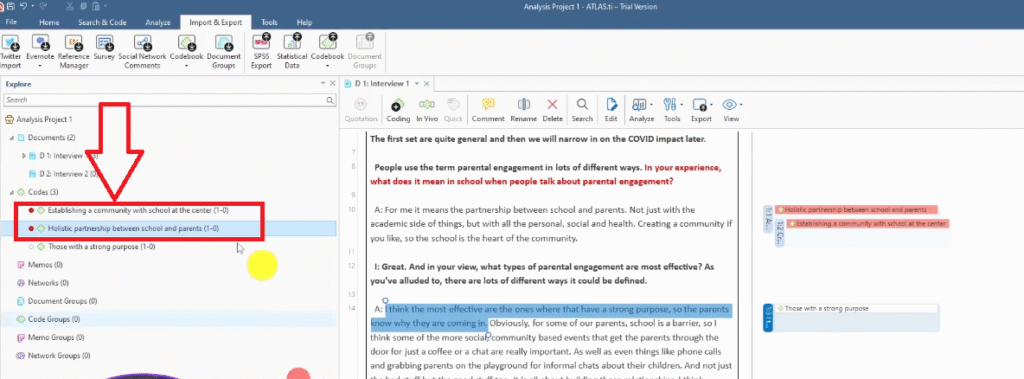
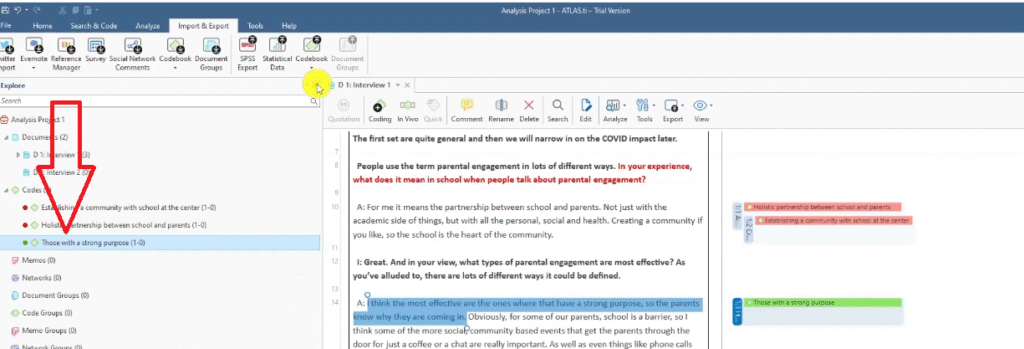
- As you generate codes in ATLAS.ti, right-click each code and select Change Color to match the question it came from.
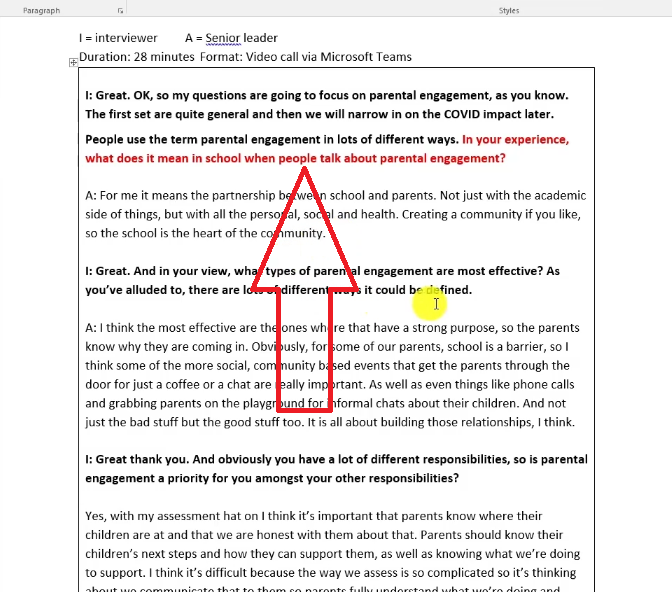
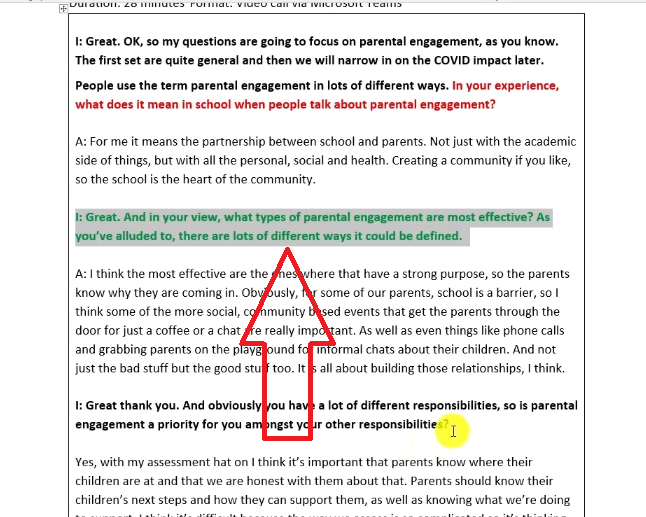
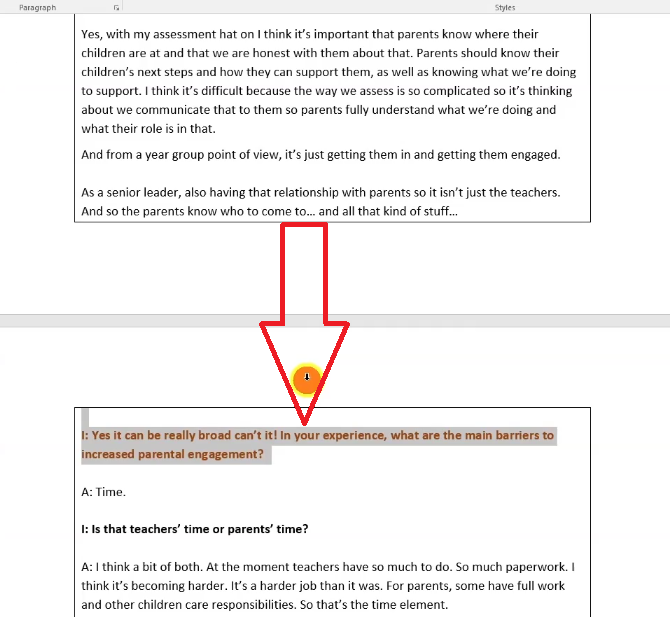
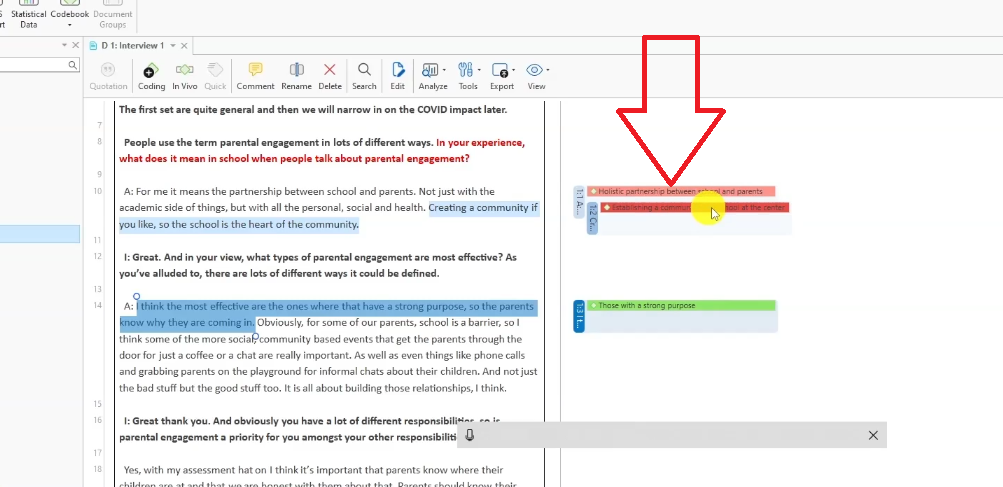
This colour map means that when you get to the theme generation stage, all red codes belong to the same research question — making it immediately clear which codes share meaning and should be grouped together. It saves significant time later.
Step 2 — Generating Initial Codes in ATLAS.ti
Now we start coding. Open your first transcript in ATLAS.ti and work through it systematically, segment by segment.
How to Apply Codes in ATLAS.ti Step by Step
Using the parental engagement interview as our example:
- Open the transcript in ATLAS.ti by double-clicking it in the Documents panel.
- Read the full paragraph before coding any segment.
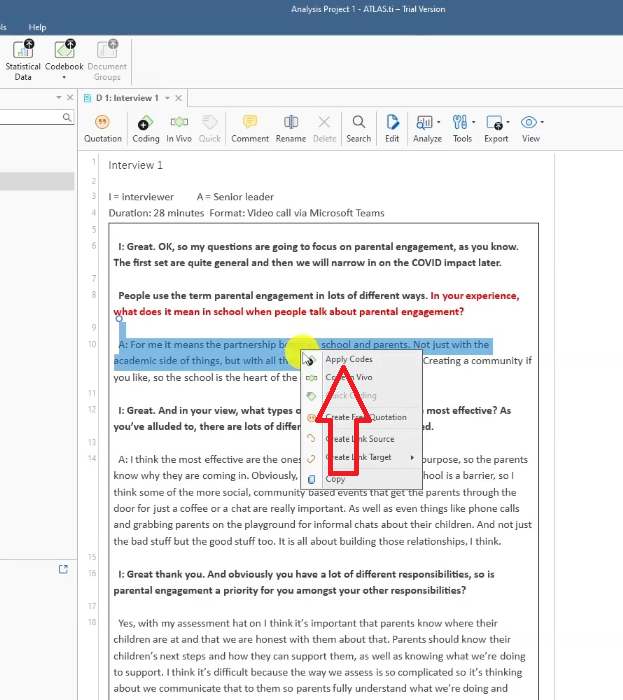
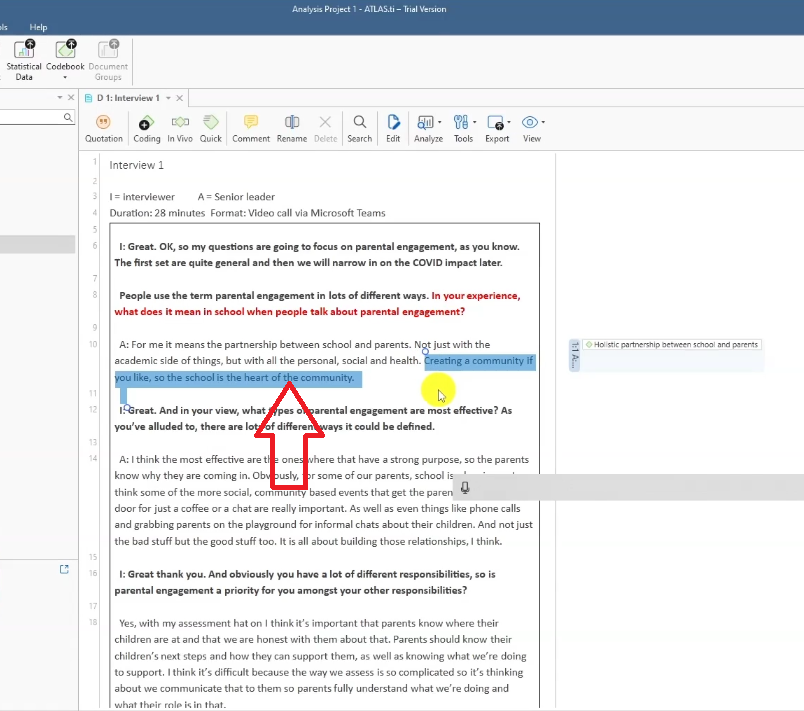
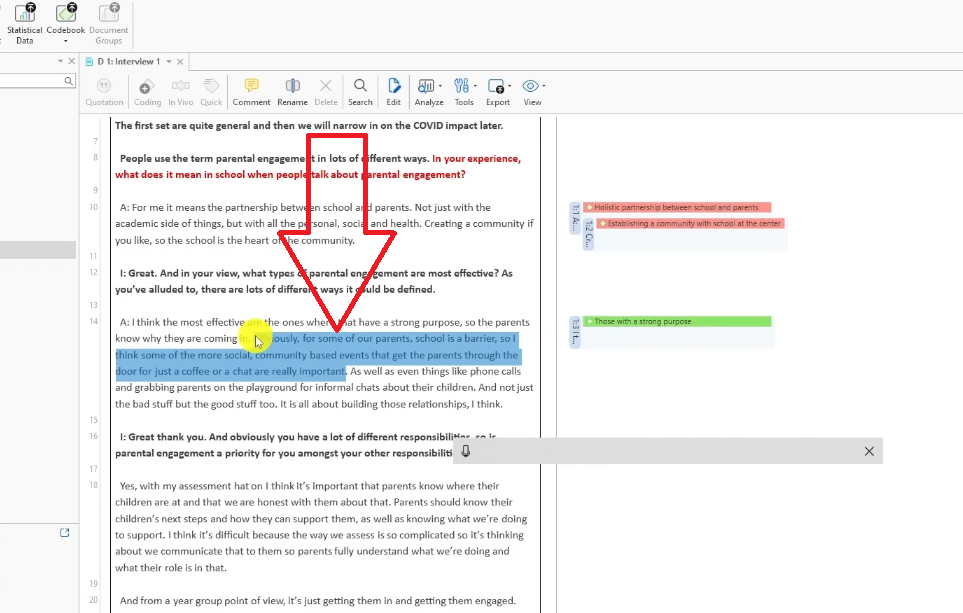
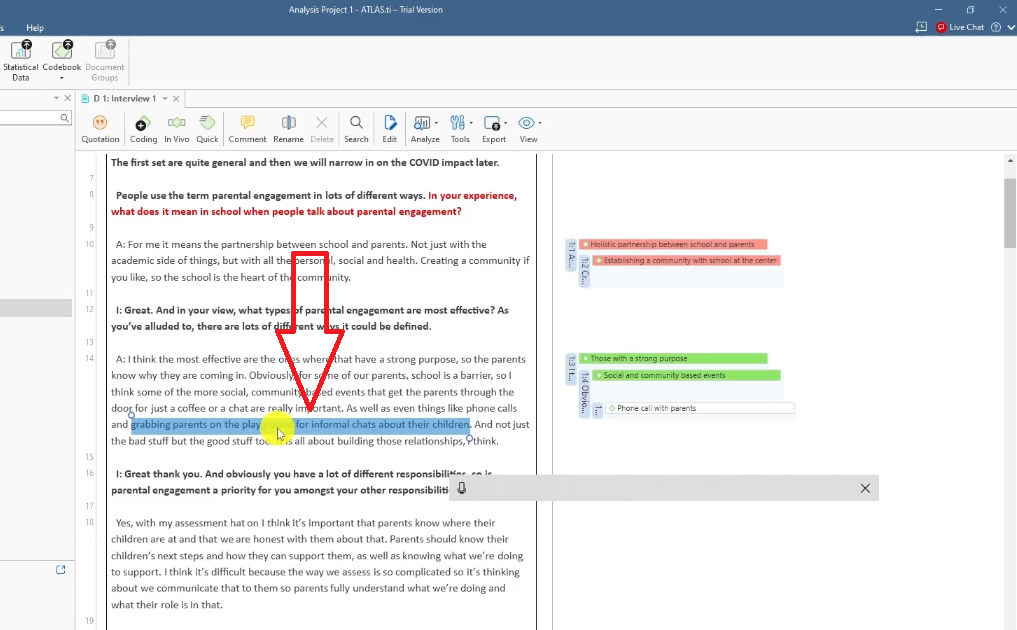
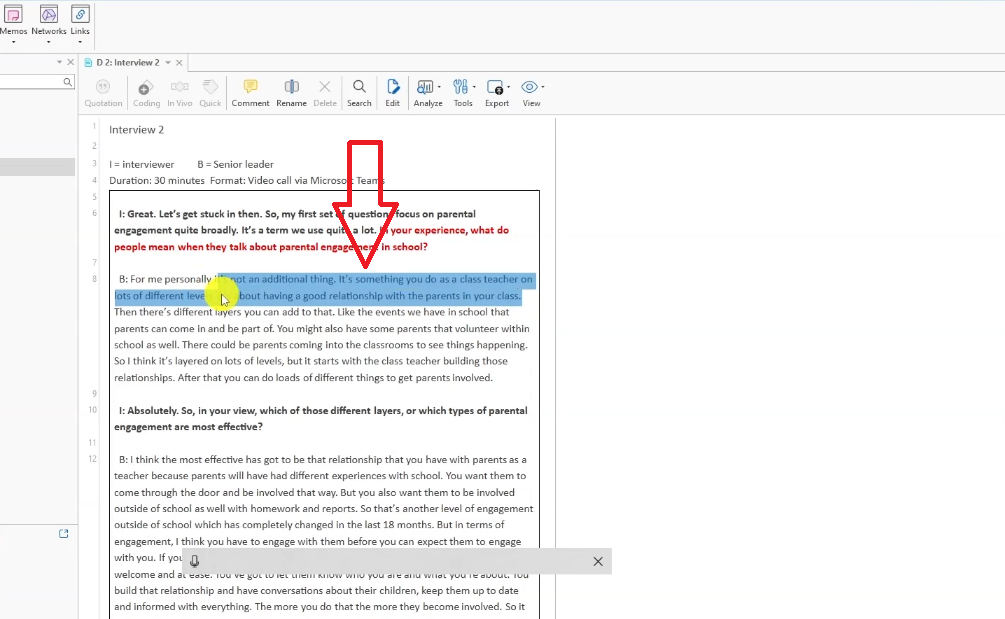
- Highlight the text you want to code.
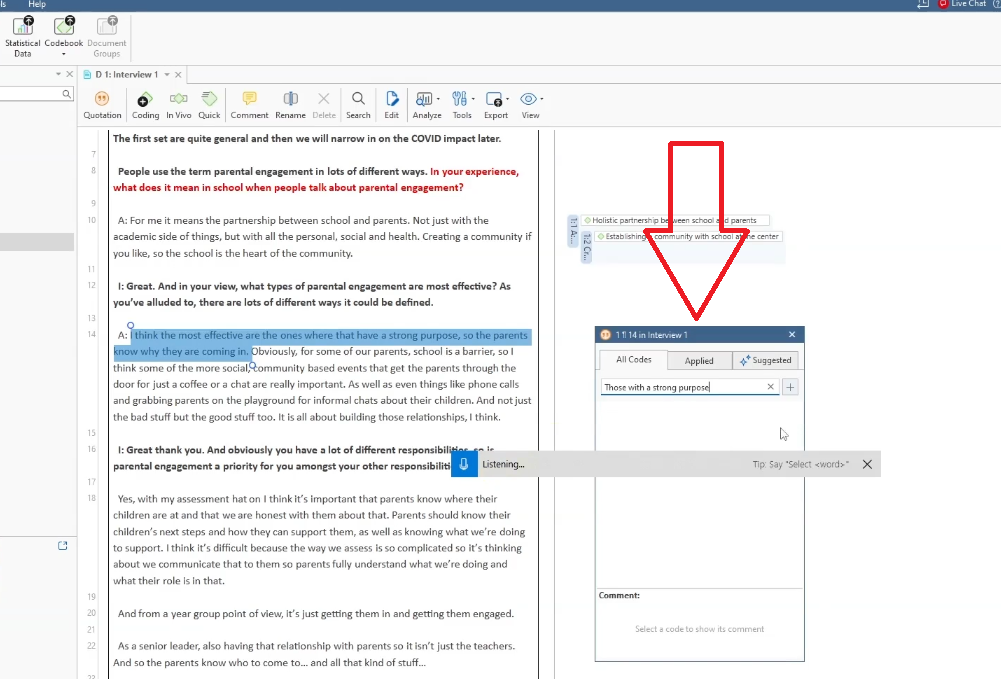
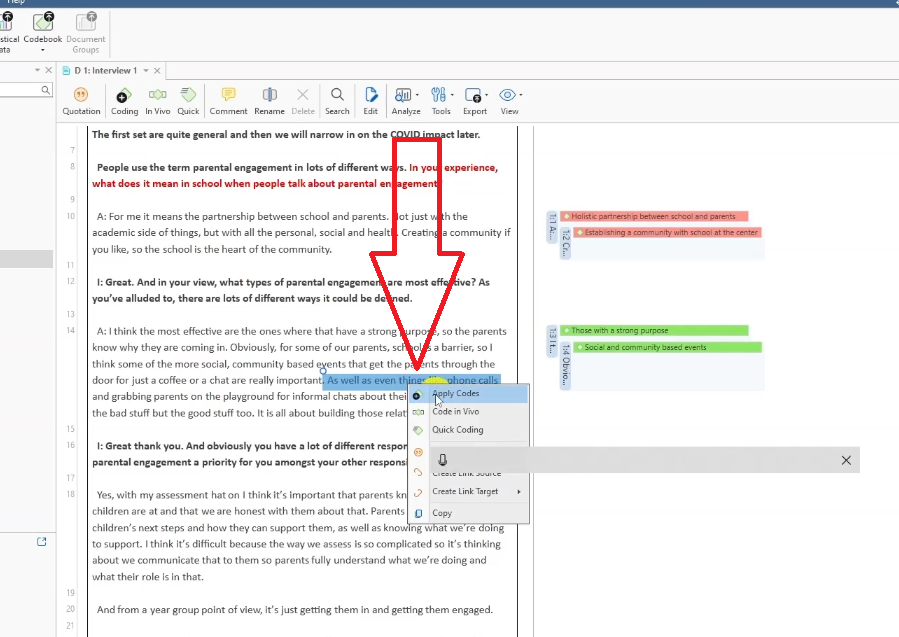
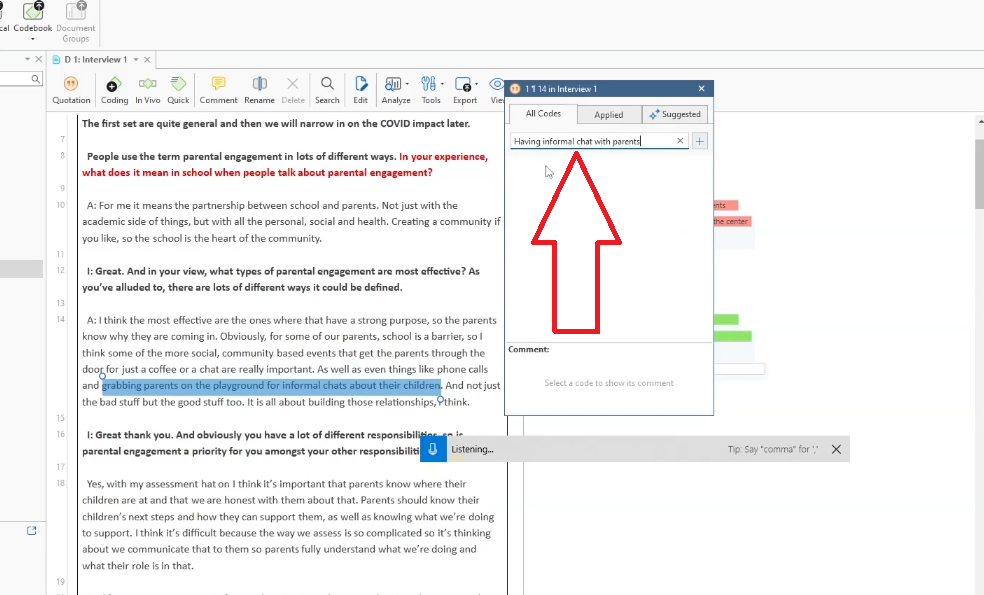
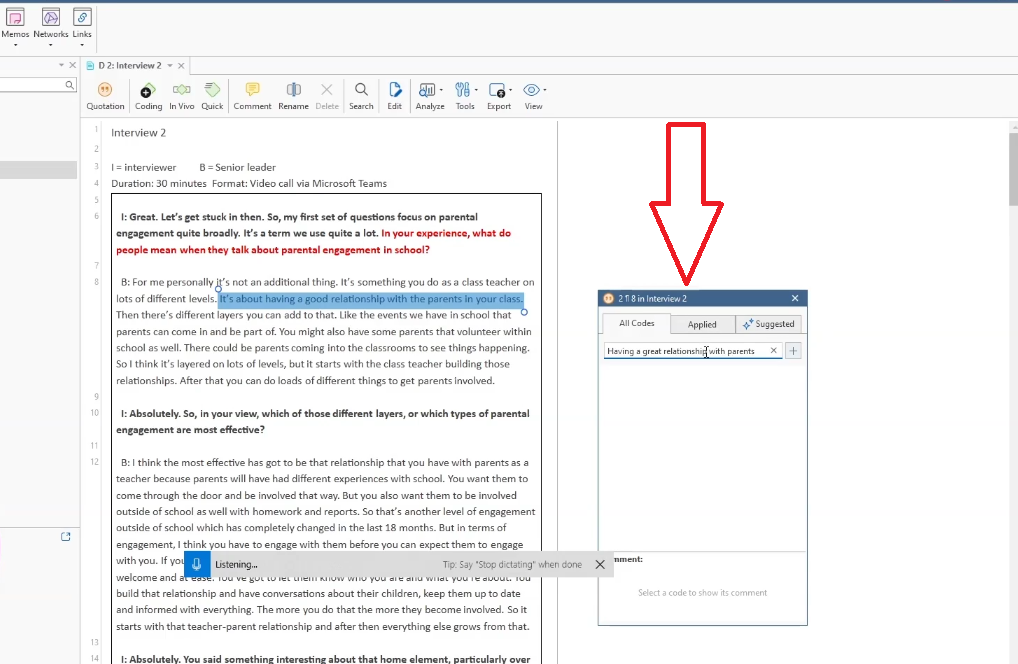
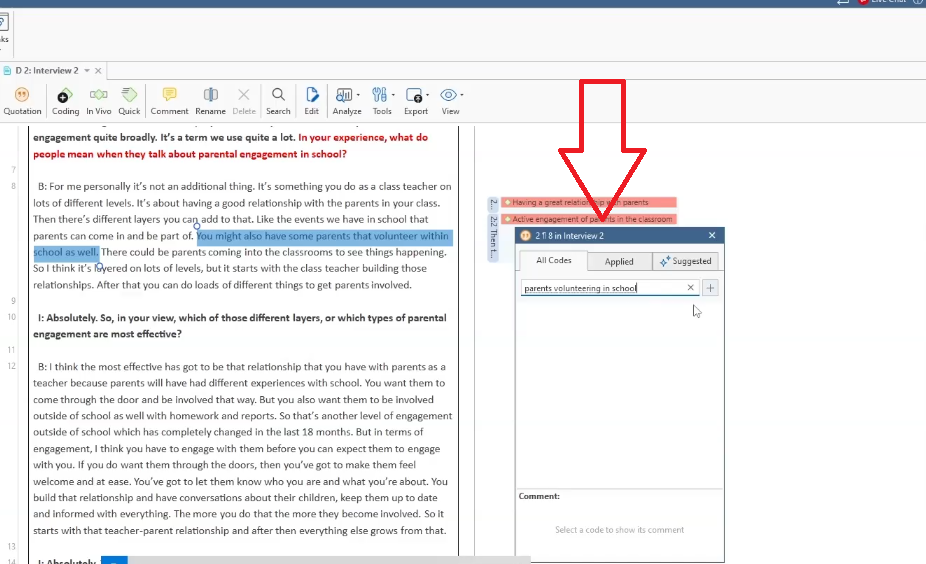
- Right-click the highlighted text and select Apply Codes.
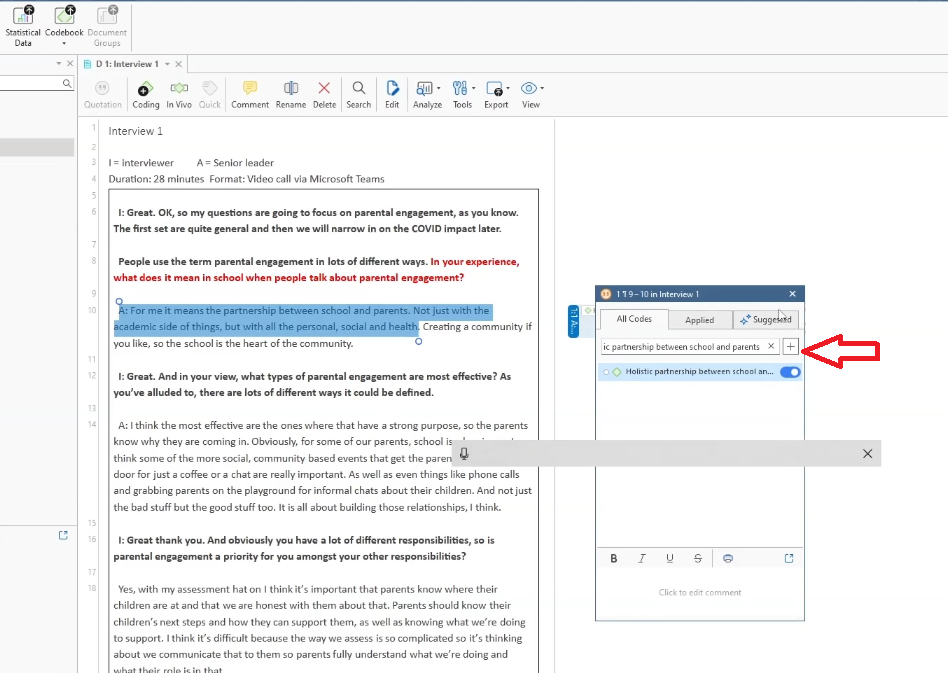
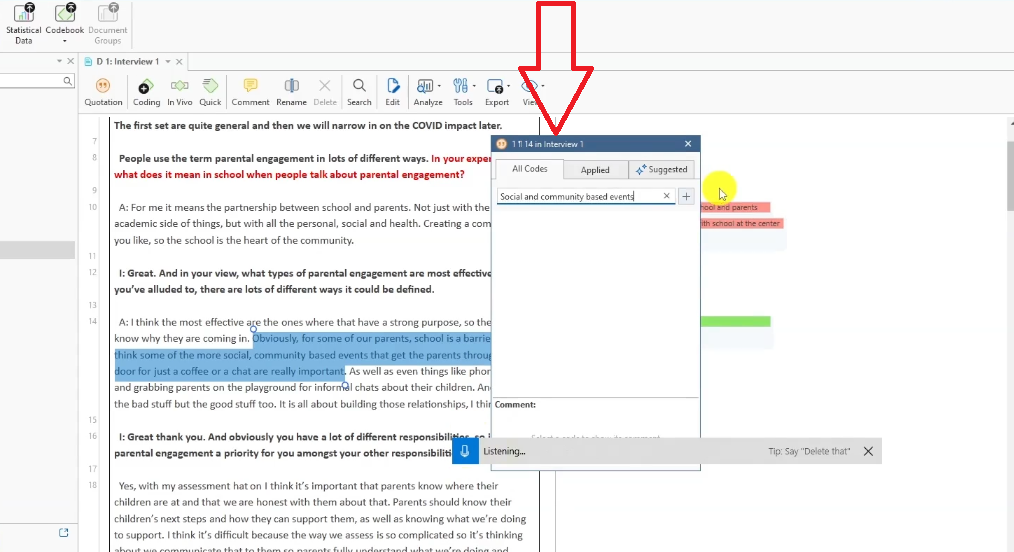
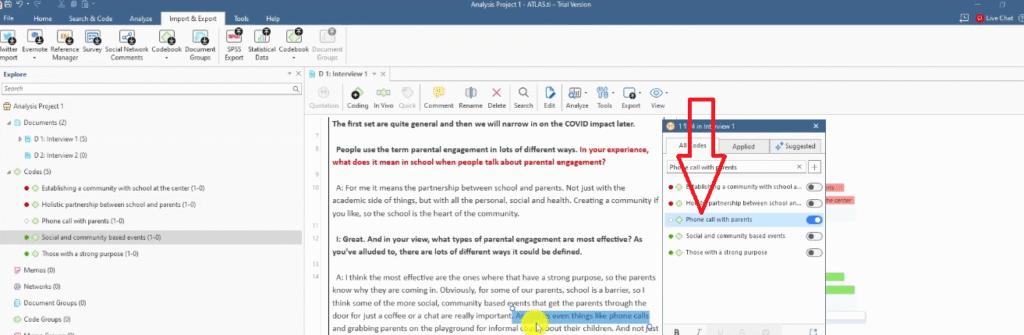
- Type your code label in the search box and click the + sign to create it.
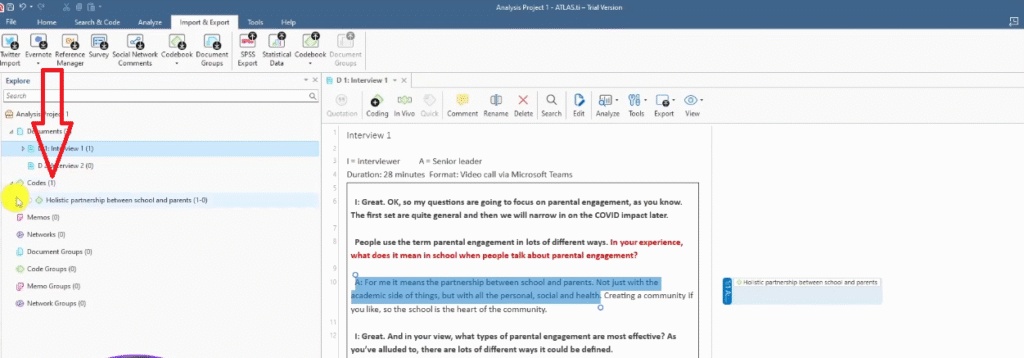
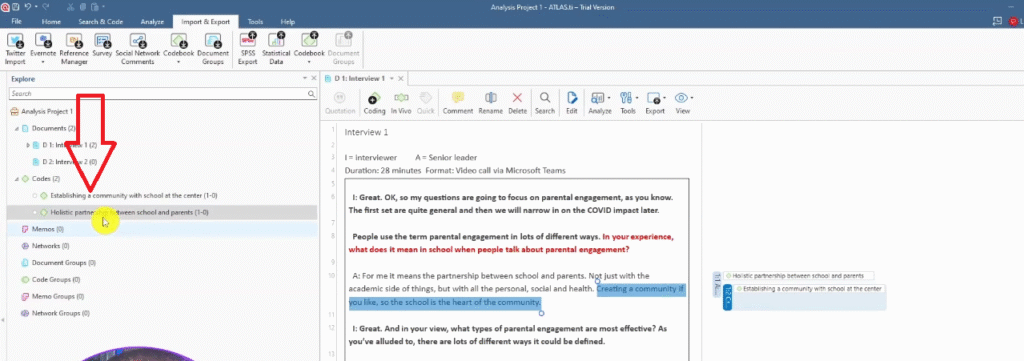
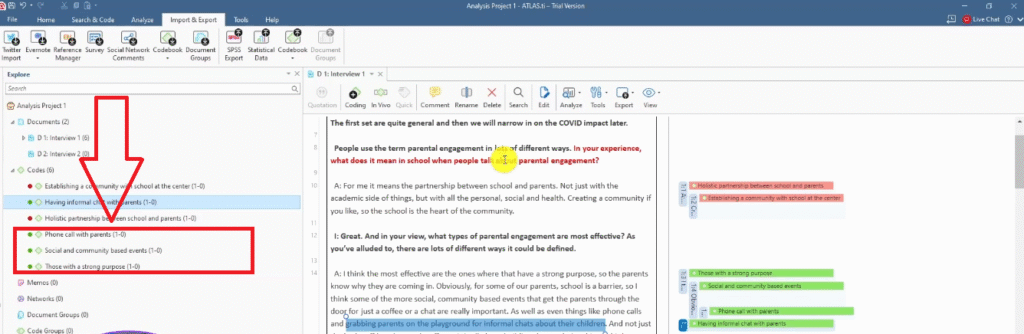
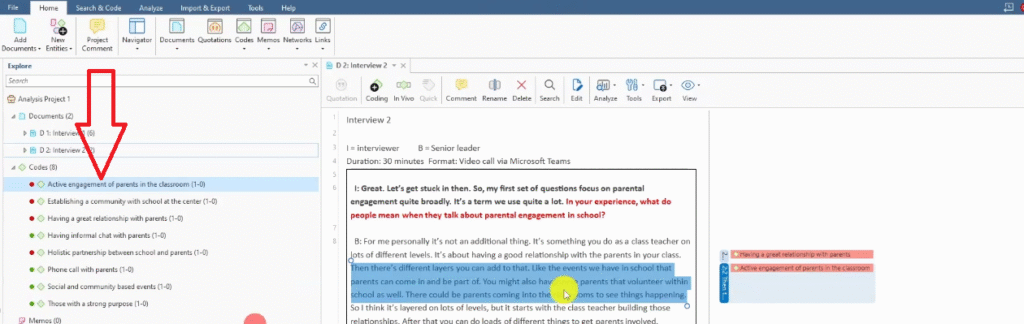
- The code immediately appears in the Codes panel on the left sidebar.
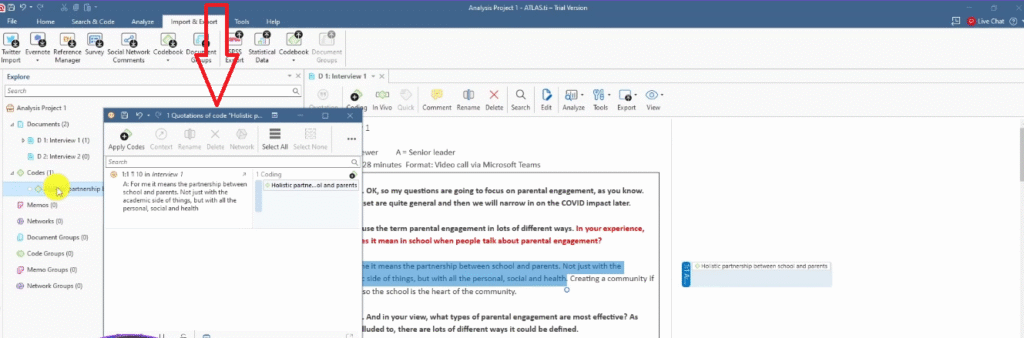
- Double-click the code in the Codes panel to view the participant quote it’s linked to.
Example from Interview 1 — question: “What does parental engagement mean in school?”
- Text highlighted: “partnership between school and parents not just with the academic side of things but with all the personal, social and health” → Code: Holistic partnership between school and parents (red)
- Text highlighted: “creating a community if you like so the school is at the heart of the community” → Code: Establishing a community with school at the centre (red)
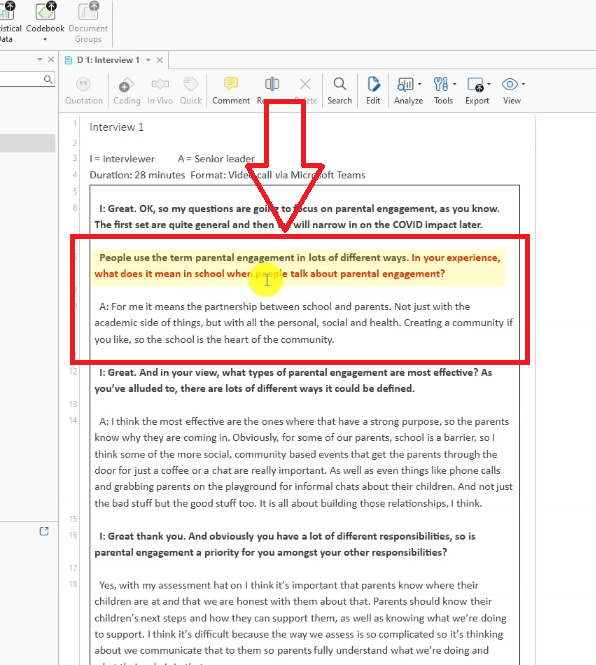
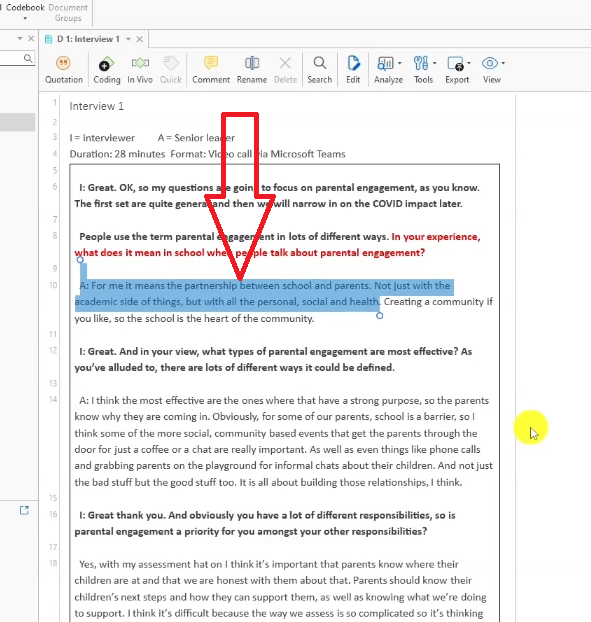
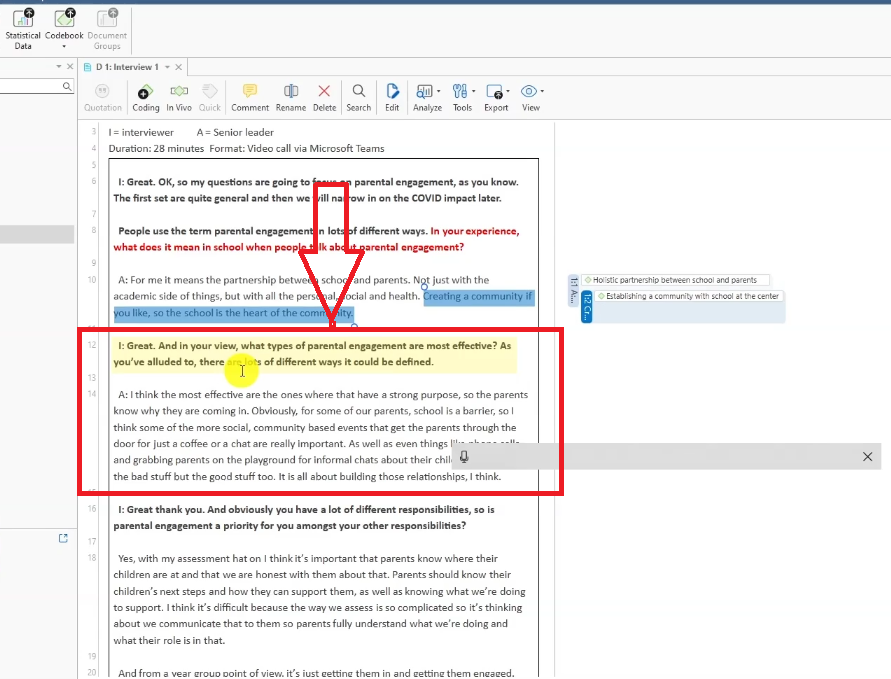
Example from Interview 1 — question: “What types of parental engagement are most effective?”
- Text highlighted: “the ones that have a strong purpose so the parents know why they’re coming in” → Code: Those with a strong purpose (green)
- Text highlighted: “social community-based events that get the parents through the door for just a coffee or a chat” → Code: Social and community-based events (green)
- Text highlighted: “phone calls and grabbing parents on the playground for informal chats” → Code: Phone calls with parents (green) + Having informal chats with parents (green)
Coding Across Multiple Transcripts
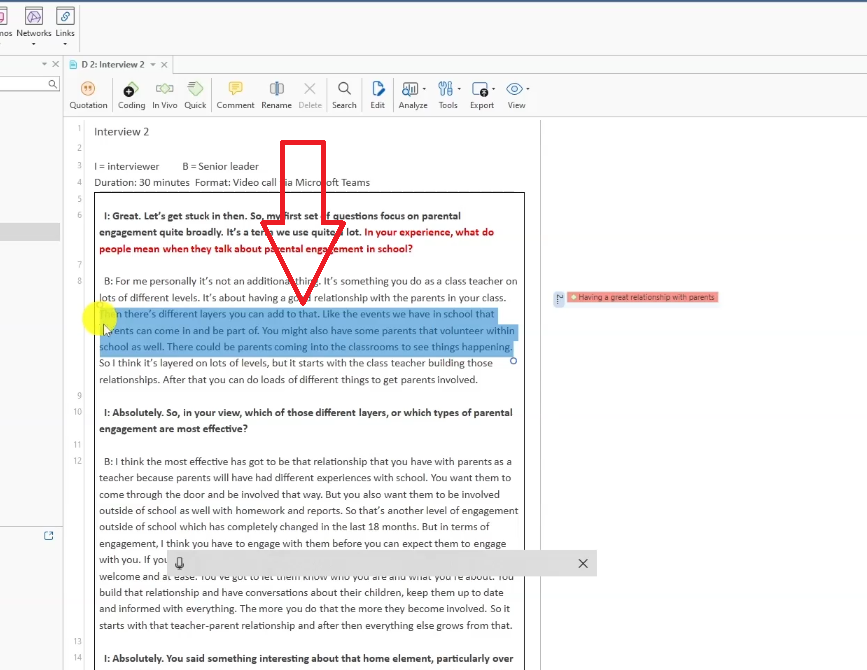
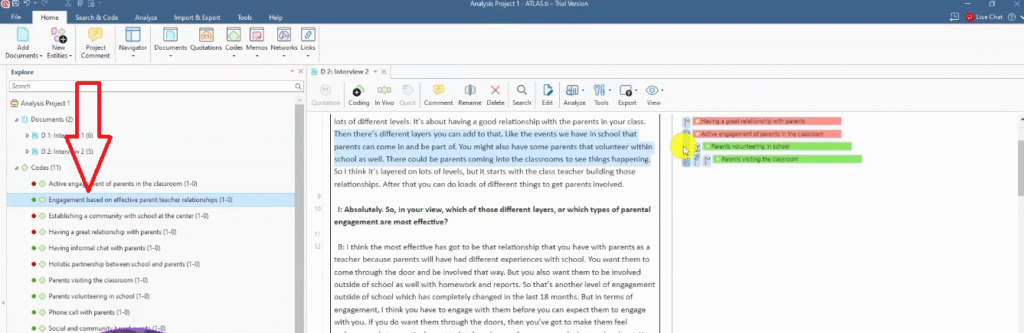
Once you’ve completed the first transcript, open the second and continue coding. You’ll often find that participants say similar things — when that happens, you don’t create a duplicate code. Instead, apply the existing code to the new quote.
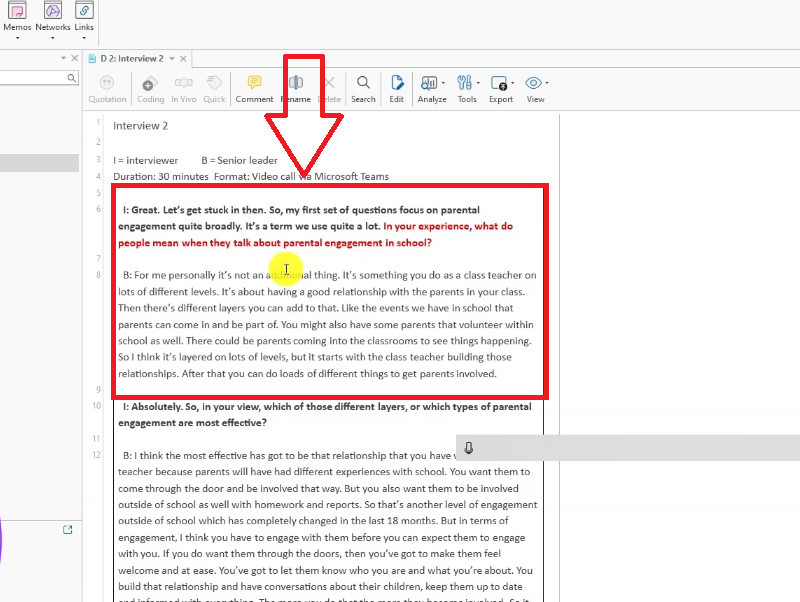
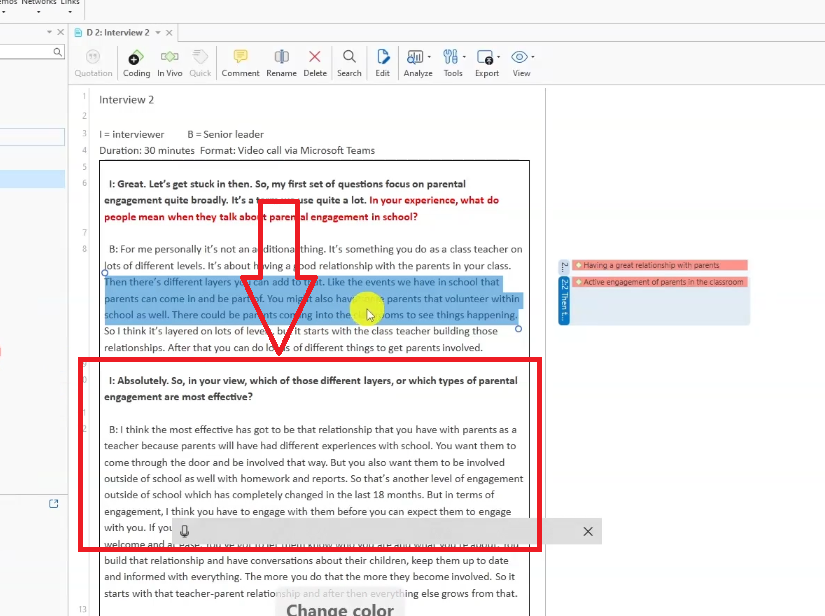
Example from Interview 2 — question: “What does parental engagement mean in school?”
- “having a good relationship with parents in your class” → Code: Having a great relationship with parents (red)
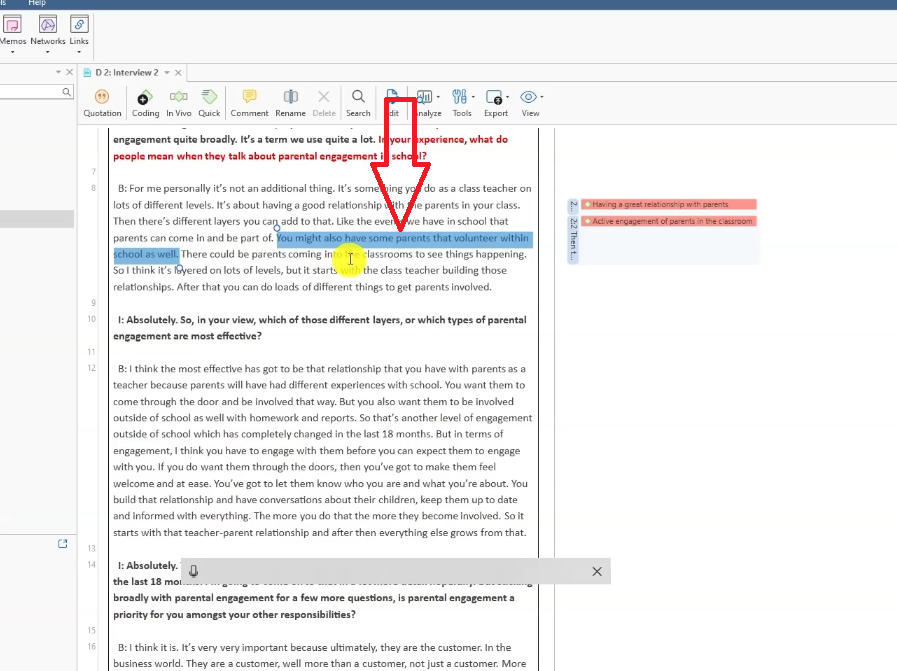
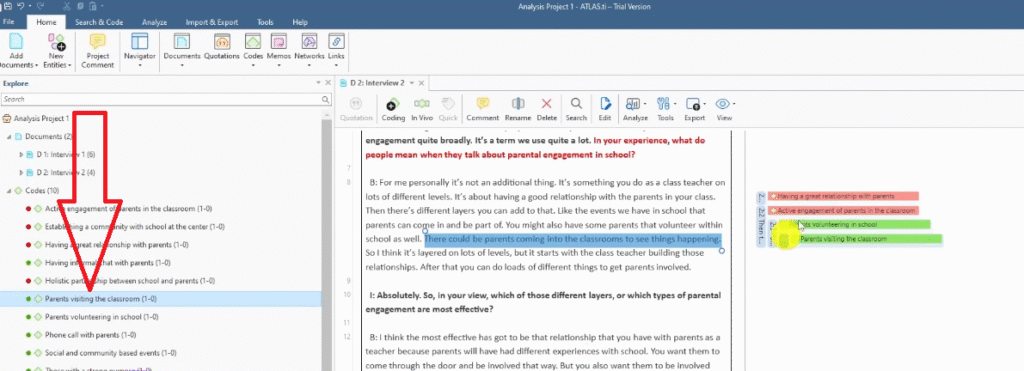
- “events we have in school that parents can come in and be part… parents that volunteer within the school… parents coming to the classroom” → Code: Active engagement of parents in the classroom (red)
Example from Interview 2 — question: “Which types of parental engagement are most effective?”
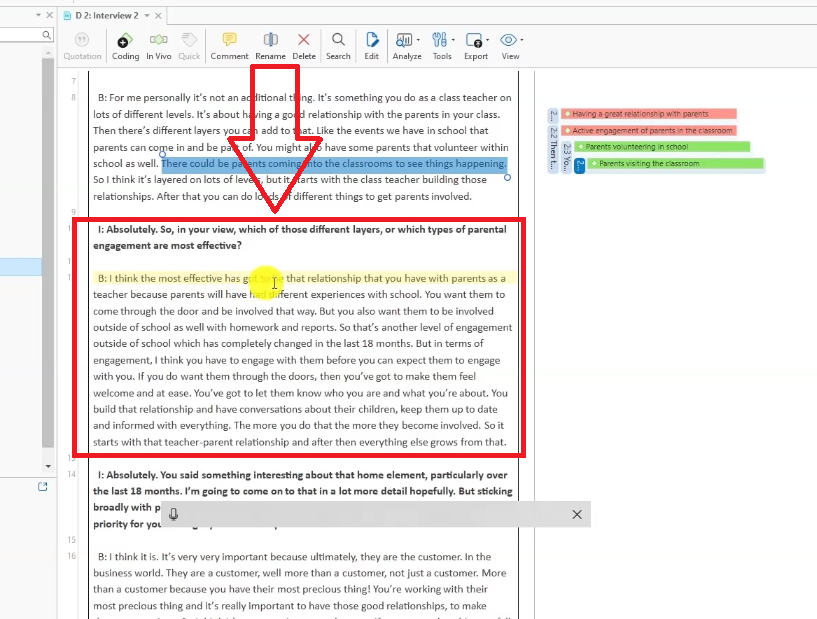
- Parents volunteering in school (green) — from a quote provided even before the question was asked
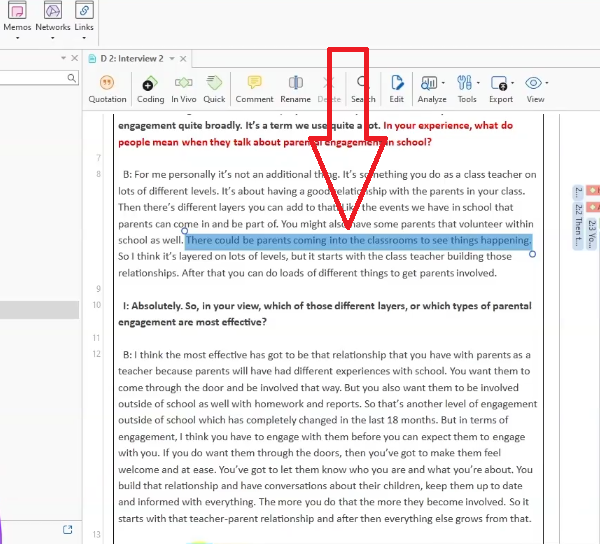
- Parents visiting the classroom (green)
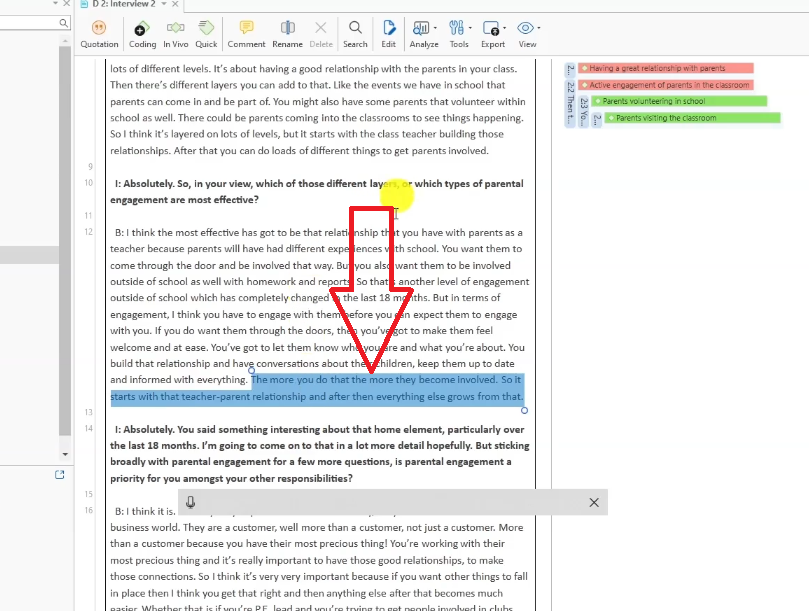
- Engagement based on effective parent-teacher relationships (green) — from: “it starts with the teacher-parent relationship, and then everything else grows from that”
Step 3 — Generating Themes from Your Codes
Once you’ve coded both transcripts, you look across your codes for patterns of shared meaning. Codes that are talking about the same underlying issue get grouped into a theme — in ATLAS.ti, themes are created as Code Groups.
How to Create a Code Group (Theme) in ATLAS.ti
Using the colour coding system you set up in Step 1, all red codes belong to question 1 (what does parental engagement mean?) and all green codes belong to question 2 (what forms are most effective?). These become your two themes.
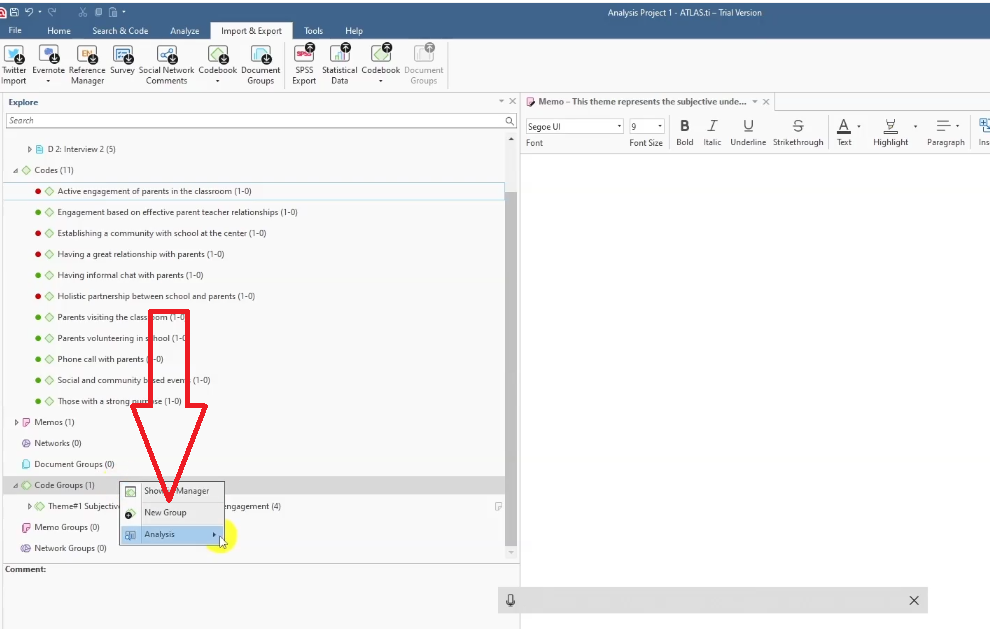
- In the left sidebar, go to Code Groups > New Group.
- Name the group as your theme. Theme 1: Subjective understanding of parental engagement.
- Right-click the theme and select New Memo. Write a description: “This theme represents the subjective understanding of parental engagement according to the interviewees.”
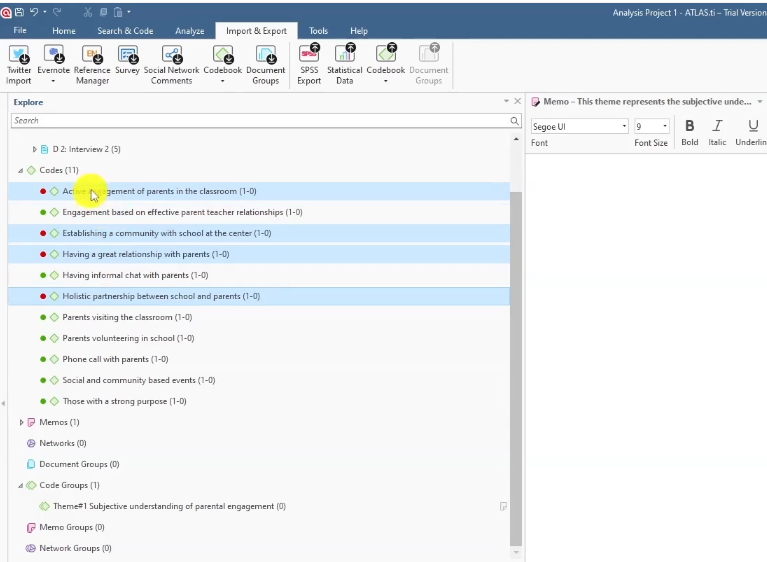
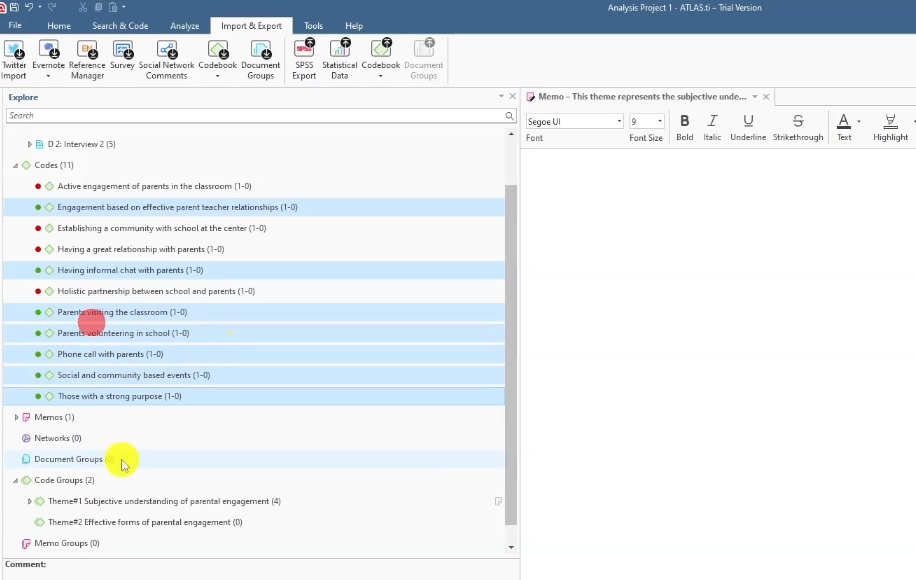
- In the Codes panel, hold Ctrl and select all red codes.
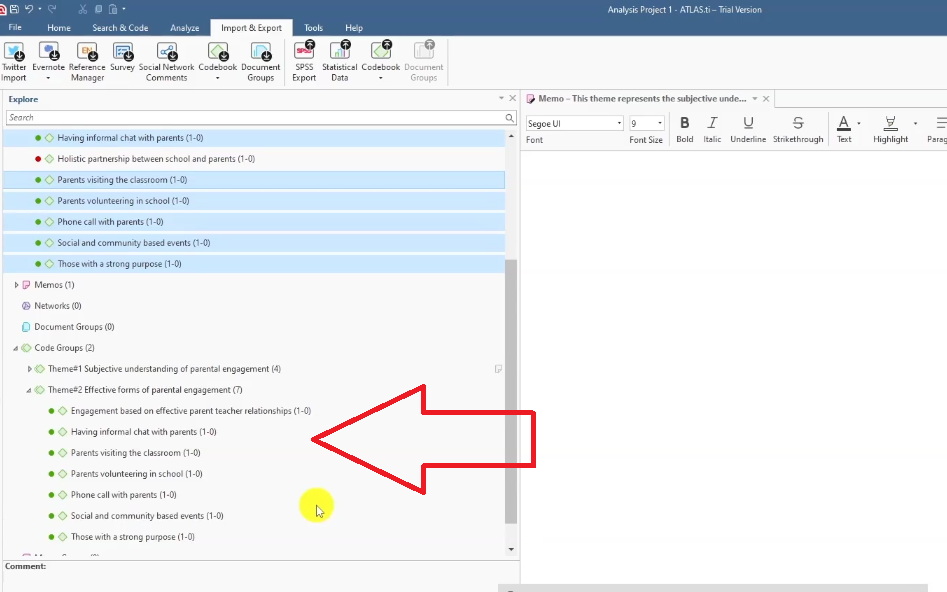
- Drag and drop them under Theme 1. In ATLAS.ti the codes get duplicated — they remain in the original codes list and also appear under the theme.
- Repeat for Theme 2: Effective forms of parental engagement — select all green codes and drag them into the new group.
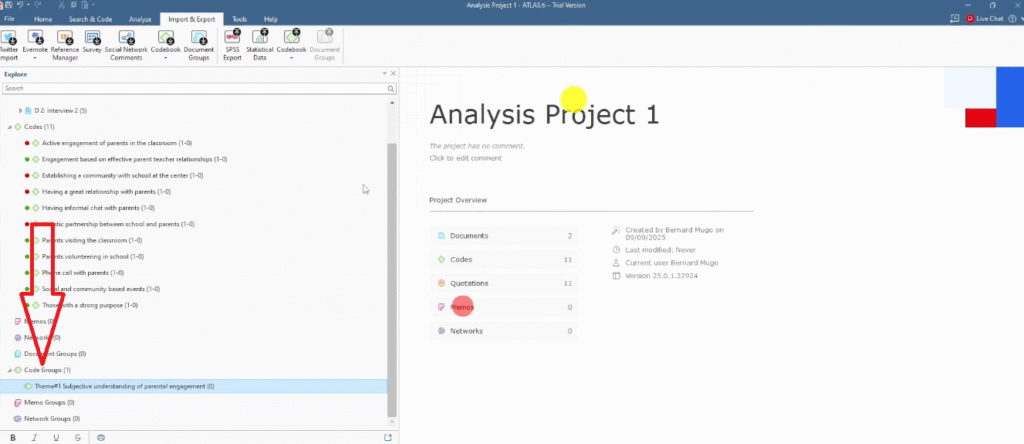
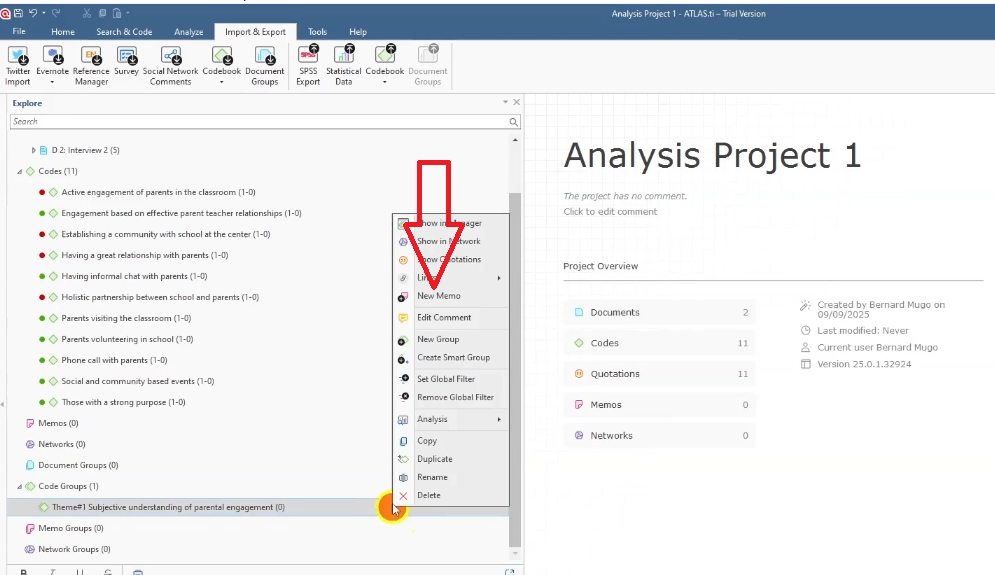
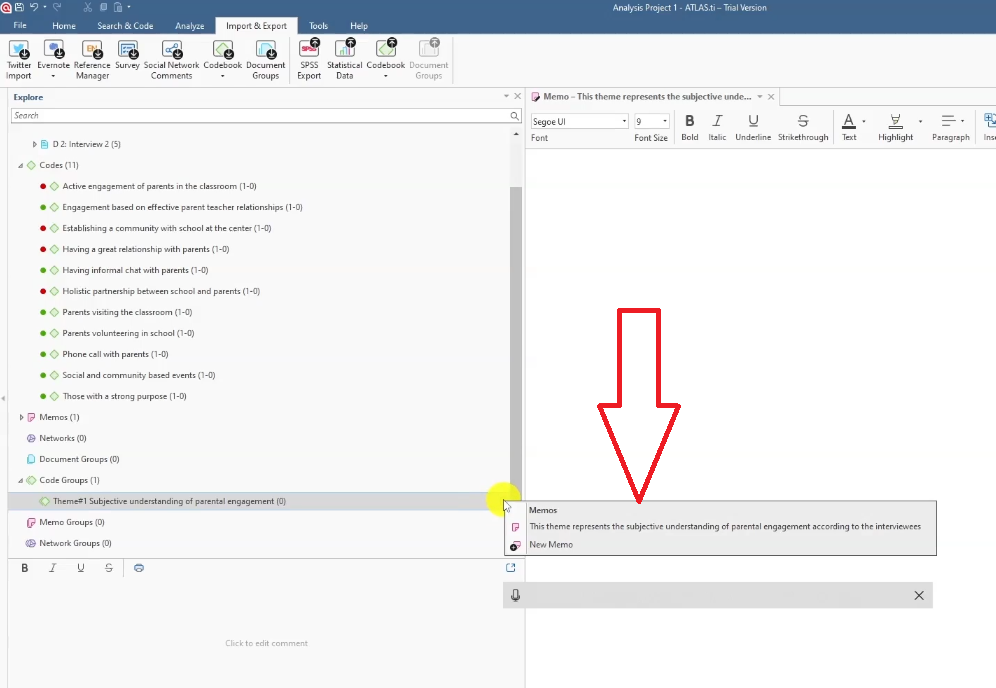
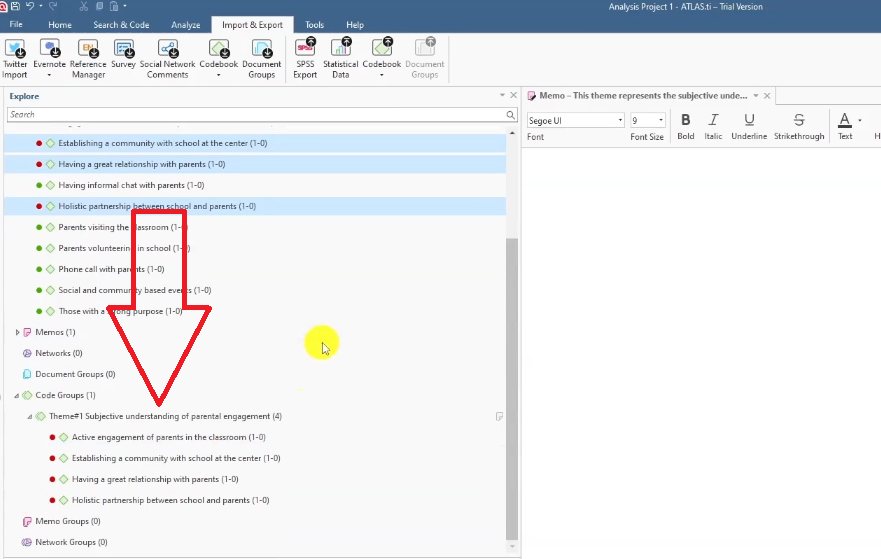
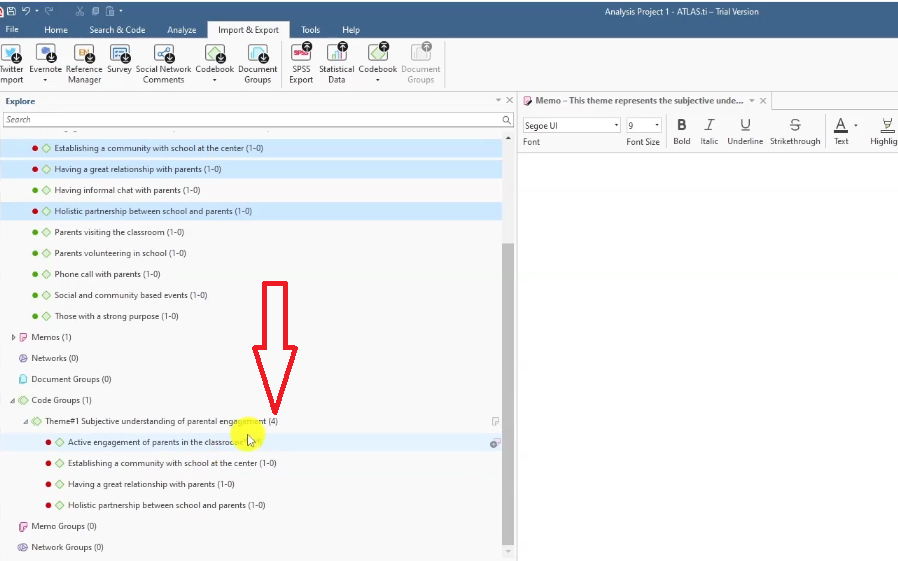
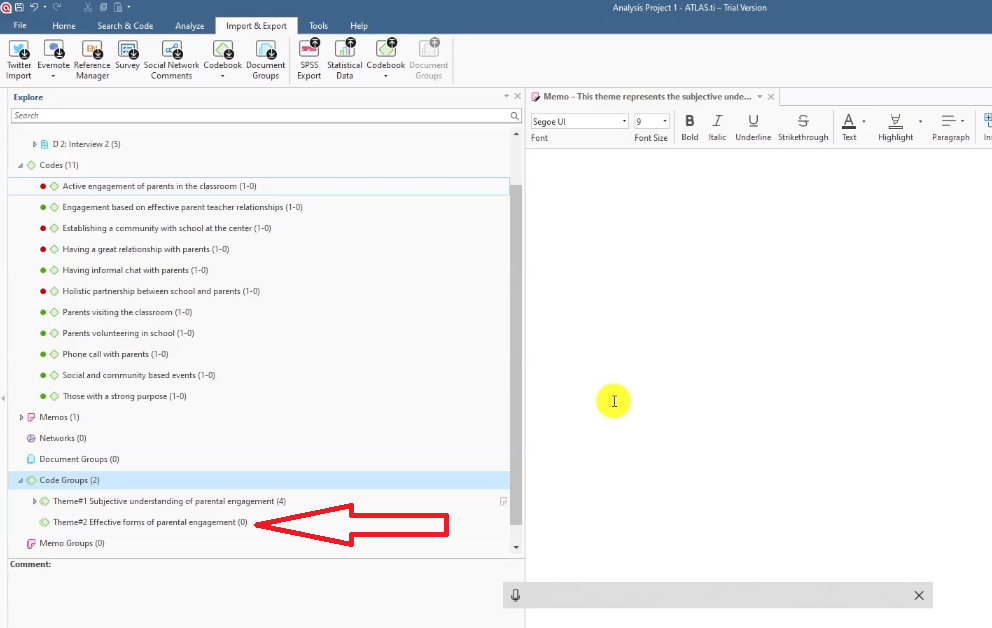
Theme 1 ends up with four codes: holistic partnership between school and parents, establishing a community with school at the centre, having a great relationship with parents, active engagement of parents in the classroom.
Theme 2 ends up with six codes: engagement based on effective parent-teacher relationships, having informal chats with parents, parents visiting the classroom, parents volunteering in school, phone calls with parents, social and community-based events, those with a strong purpose.
How to Export Your ATLAS.ti Codebook
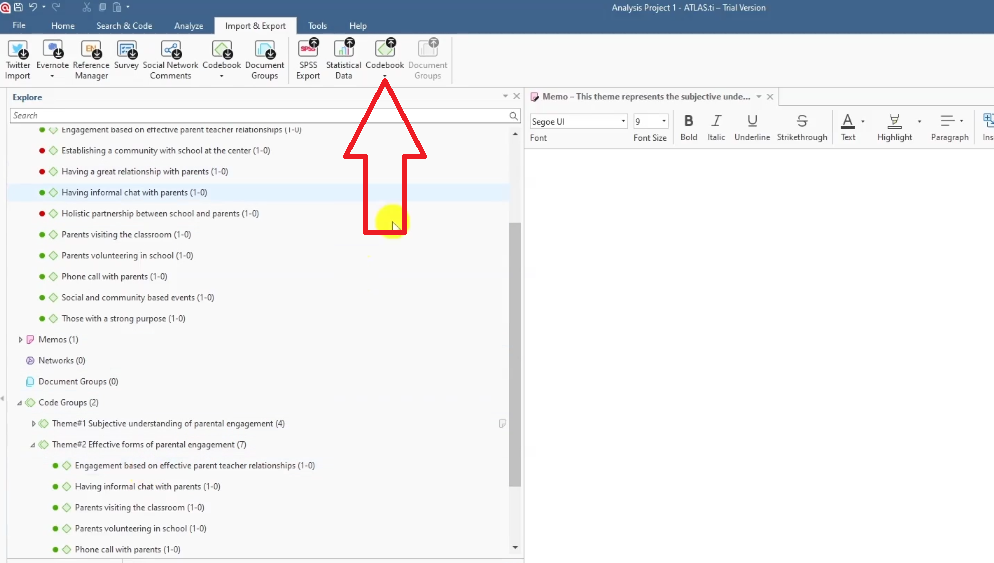
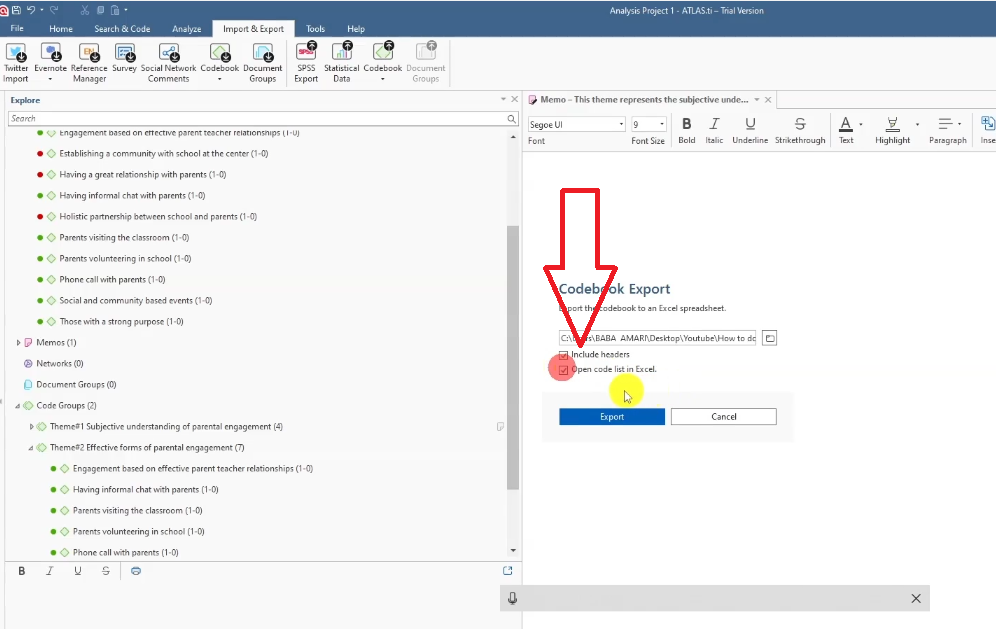
- In the Codes panel, click the Codebook icon.
- Select Open Code List in Excel.
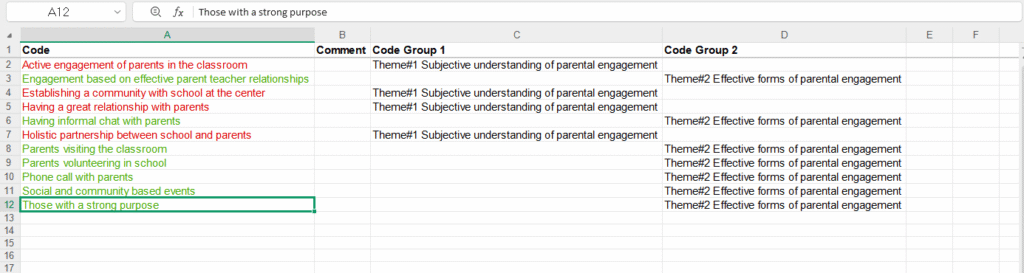
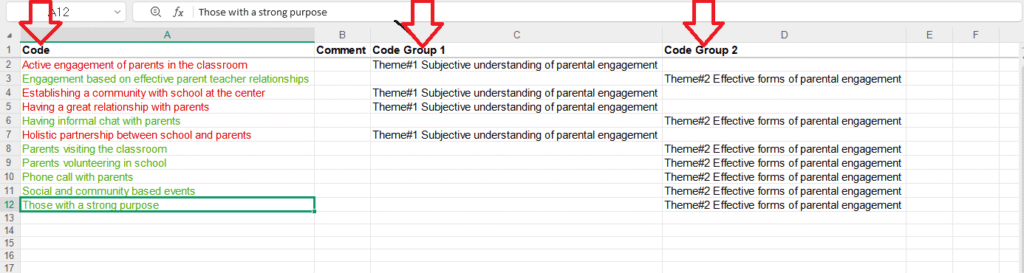
- ATLAS.ti generates a spreadsheet showing every code, its colour, and which code group (theme) it belongs to.
The codebook is your audit trail — it shows the examiner exactly how you moved from data to codes to themes. Many supervisors and examiners will ask to see it.
Once you have your themes and codebook, the next step is writing up your findings. For guidance on producing visualizations to accompany your findings report, read my guide on 5 ways to visualize your ATLAS.ti results.
And if you’re still at the interview stage and haven’t collected your data yet, my article on how to conduct a qualitative research interview covers everything you need before you start transcribing.
For a broader look at how to work with interview data before you even open ATLAS.ti, read my guide on how to analyze interview transcripts in qualitative research.
Frequently Asked Questions
What is the difference between a code and a code group in ATLAS.ti?
A code is a short label attached to a specific segment of an interview transcript — it captures what one participant said or meant at that point. A code group is a container that holds multiple codes sharing a common meaning — this is your theme. So codes are your evidence; code groups are your themes.
Do I have to colour code my interview questions before importing to ATLAS.ti?
No — it’s a technique, not a requirement. But it makes the theme generation step significantly faster, especially when you have 30–60 codes spread across multiple transcripts. Without colour coding, you have to read through every code individually to determine which research question it came from. With it, you can see the pattern instantly.
Can one segment of text have multiple codes in ATLAS.ti?
Yes. A single paragraph often contains several ideas that need separate codes. In the parental engagement example, one participant’s response to the effective engagement question yielded four separate codes — phone calls, informal chats, strong purpose, and social events. ATLAS.ti handles overlapping codes without any issues.
How many transcripts do I need before I can generate themes?
You can begin provisional theme generation after your first transcript, but themes become more robust as you add more participants. Most PhD studies with 3–6 interviews will have completed initial coding of all transcripts before grouping codes into themes. The goal is to see which codes appear across multiple participants — that cross-participant support is what makes a code worth elevating to a theme.
What happens to codes in ATLAS.ti when I drag them into a code group?
In ATLAS.ti, when you drag a code into a code group, the code is duplicated — it stays in the original codes list and also appears under the theme. It does not get removed from the codes panel. This means you can assign the same code to multiple themes if needed, and your original coding structure is preserved.
Key Takeaways
- Qualitative coding means attaching interpretive labels to segments of interview data that are important to your research objectives
- Before importing to ATLAS.ti, colour-code your interview questions in Word — it makes theme generation significantly faster
- In ATLAS.ti, highlight text → right-click → Apply Codes → type your code label → click + to create it
- Work one full transcript at a time before moving to the next — never code in patches
- Themes are created as Code Groups in ATLAS.ti — drag and drop colour-matched codes into each group
- Export your codebook via the Codebook icon → Open Code List in Excel — supervisors and examiners commonly request this
Need Help With Your ATLAS.ti Analysis?
If you have your interview transcripts but aren’t sure how to turn them into codes, themes, and a finished findings chapter, I can help. I’ve worked with more than 250 PhD students on exactly this — from raw data to submission-ready analysis.
Get in touch here and tell me where you are in your project. I’ll take it from there.
![Thematic Analysis in ATLAS.ti: Braun and Clarke 6 Steps [Full Guide]](https://survivingresearch.com/wp-content/uploads/2025/10/Thematic-Analysis-with-Atlas-ti.jpg)
Pingback: Inductive Thematic Analysis in ATLAS.ti: Saldana's Method -