

Last Updated on 5 months ago by Grace Nyambura
| Quick summary: This guide shows you how to do thematic analysis in MAXQDA from start to finish — importing transcripts, creating initial codes, using colour coding to stay organised, and grouping codes into themes. The example dataset is a patient interview about experiences with heart failure. By the end you will have a codebook with a defined theme ready to write up as findings. |
- What Is Thematic Analysis in MAXQDA? (Quick Overview)
- Step 1 — Familiarise Yourself with the Data
- Step 2 — Set Up MAXQDA and Import Your Transcripts
- Qualitative coding in MAXQDA
- Step 4 — Generating Themes from Your Codes in MAXQDA
- Frequently Asked Questions
- Do I need to use all six Braun and Clarke steps in MAXQDA?
- How many codes should I have before I start generating themes?
- What is the difference between a code and a theme in MAXQDA?
- Should I create a new MAXQDA project for theme generation?
- Can I use MAXQDA for deductive as well as inductive thematic analysis?
- Key Takeaways
- Need Help With Your MAXQDA Analysis?
In this article I’m going to show you how to do thematic analysis in MAXQDA as efficiently as possible — focusing on the two things that matter most: how to code your data and how to generate themes from your codes.
The framework we’re following is the Braun and Clarke six-step approach to thematic analysis, which is one of the most widely used methods in qualitative research. I won’t be going through every step in detail here — the focus is on steps 2 and 3: generating initial codes and developing themes. That’s where most PhD students need the most practical help.
I’m Bernard Mugo. Over the past three years I’ve helped more than 250 PhD students analyse qualitative data and complete their dissertations. Everything in this guide comes from hands-on experience doing exactly this kind of analysis.
What Is Thematic Analysis in MAXQDA? (Quick Overview)
Thematic analysis is a method for identifying patterns of meaning — called themes — across a qualitative dataset. It is one of the most commonly used approaches in PhD research, and MAXQDA is one of the best tools for managing the process systematically. For a clear academic overview, Scribbr’s guide to thematic analysis is an excellent starting point.
The six steps according to Braun and Clarke are:
- Familiarise yourself with the data
- Generate initial codes
- Generate themes
- Review themes
- Define and name themes
- Produce the report
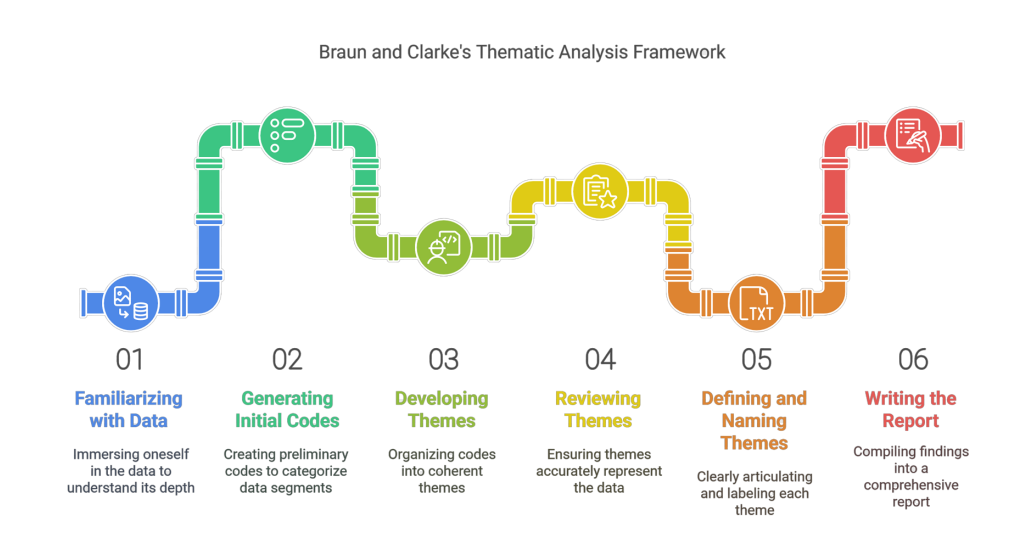
In this article we’re focusing on steps 2 and 3 — coding and theme generation — using a real interview dataset about patient experiences with heart failure. You can apply the same process to any study.
Step 1 — Familiarise Yourself with the Data
Before opening MAXQDA, read your transcripts from start to finish — at least once, ideally twice. You’re not coding yet. You’re getting a feel for what your participants are saying, what the main issues are, and where the interesting patterns might be.
For this tutorial the study is: experiences of patients with heart failure. The objective is to understand what patients experience — their symptoms, coping strategies, daily challenges, and perceptions of their care. Keeping that objective in front of you throughout the coding process is essential — it’s what determines what you code and what you skip.
Step 2 — Set Up MAXQDA and Import Your Transcripts
The Three Panels You Need to Know in MAXQDA
When you open MAXQDA, you’ll see three main panels. For thematic analysis you only need to understand these three. The full MAXQDA documentation is available on MAXQDA’s official how-to guide if you need more detail on other features.
- Document System (left panel) — where your imported transcripts live
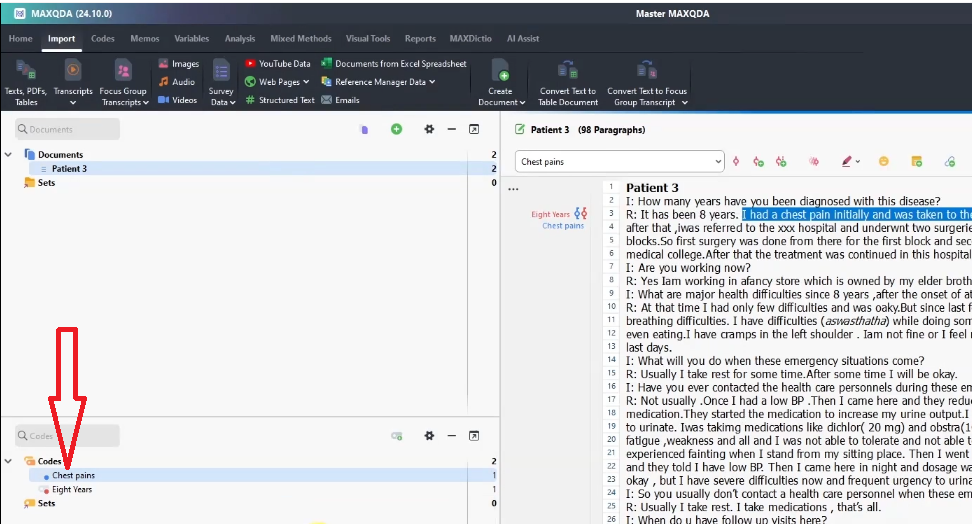
- Code System (bottom-left panel) — where every code you create is stored and organised
- Document Browser (right panel) — where you read and highlight your transcripts during coding
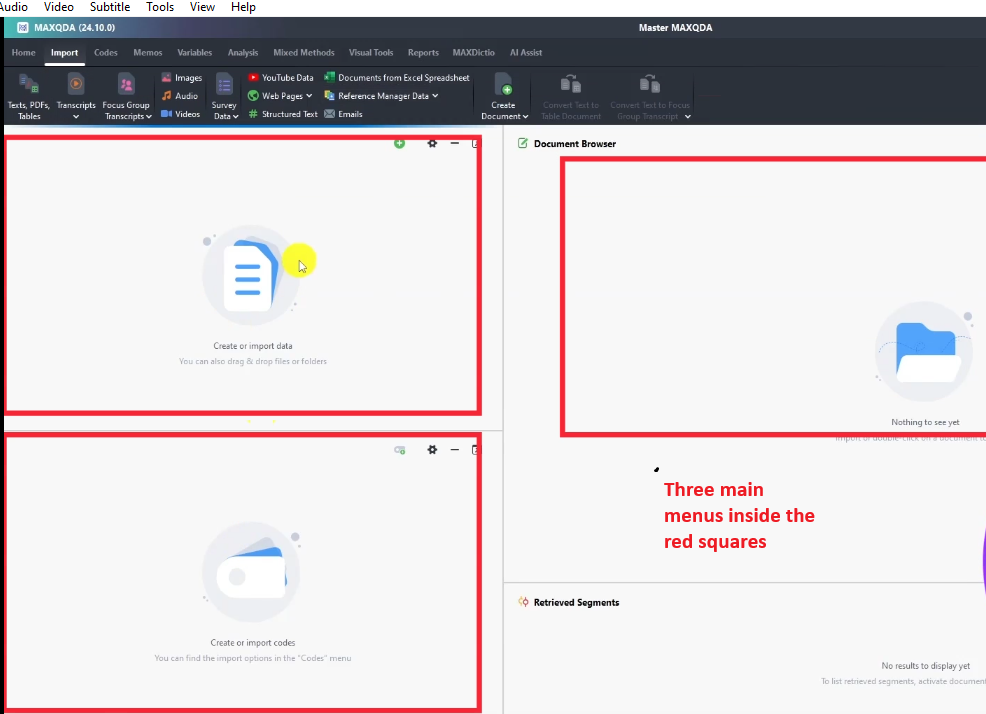
That’s it. For the Braun and Clarke approach to thematic analysis, you work between these three panels. The rest of MAXQDA’s features are for other analysis types — don’t let the interface overwhelm you.
How to Import Interview Transcripts into MAXQDA
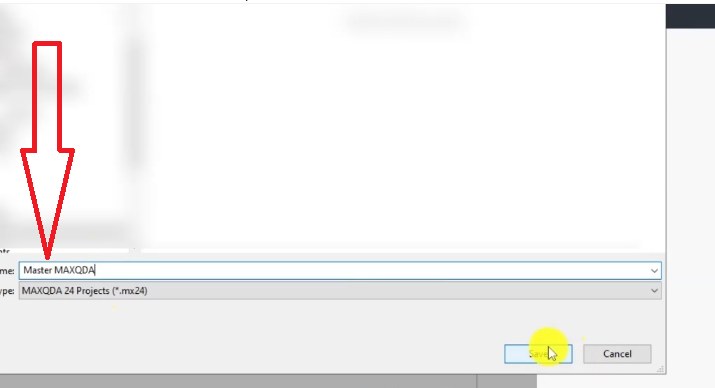
- Open MAXQDA and click New Project.
- Name your project using your actual study title — not a placeholder like ‘Project 1’.
- To import transcripts, either drag and drop your Word or PDF files directly into the Document System panel, or go to Import → Documents from the top menu.
- Your transcripts will appear listed in the Document System. Double-click any one to open it in the Document Browser.

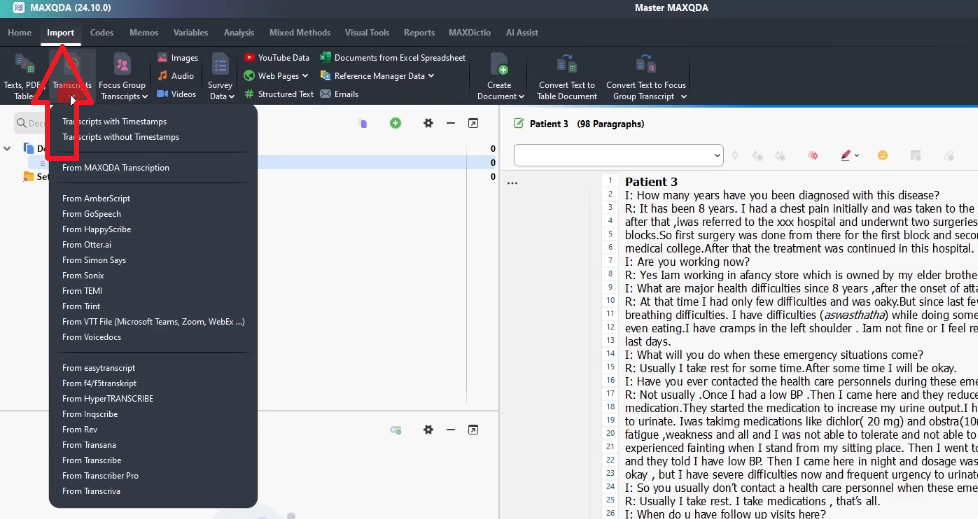
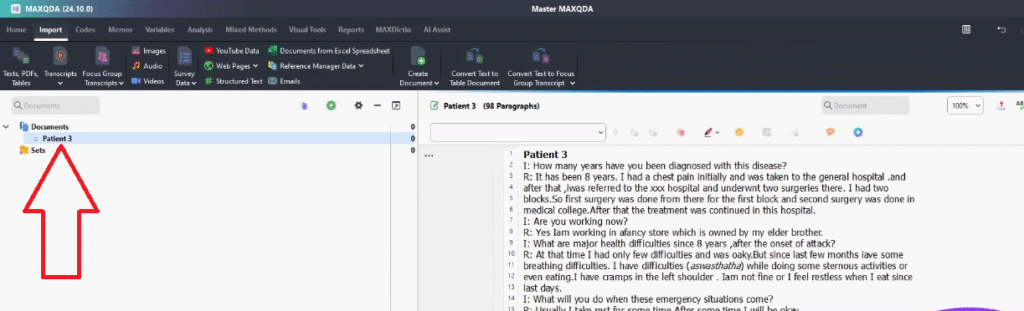
MAXQDA accepts Word documents (.docx), PDFs, and plain text files. If your transcripts are in Excel or another format, convert them to Word first.
Using Colour Coding to Organise Your Interview Questions
Before you start coding in MAXQDA, I recommend colour-coding your interview questions in the original Word transcript. This is one of the most effective organisational techniques for thematic analysis — it lets you track which research question each code came from.
- Open your transcript in Word before importing.
- Highlight each interview question with a distinct colour: question 1 red, question 2 gold, question 3 light green, question 4 blue, question 5 a second shade of blue.
- Save and import the colour-coded transcript into MAXQDA.
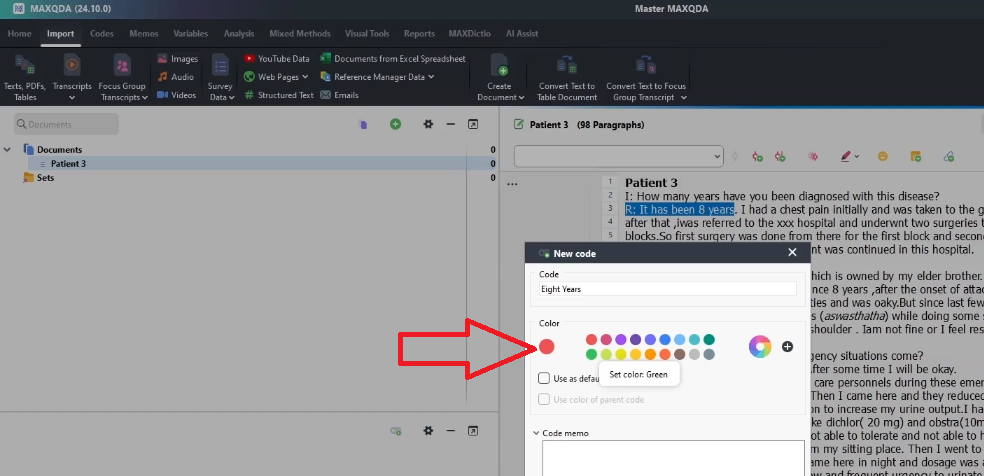
- When you create a code in MAXQDA, right-click it in the Code System panel and change its colour to match the question it came from.
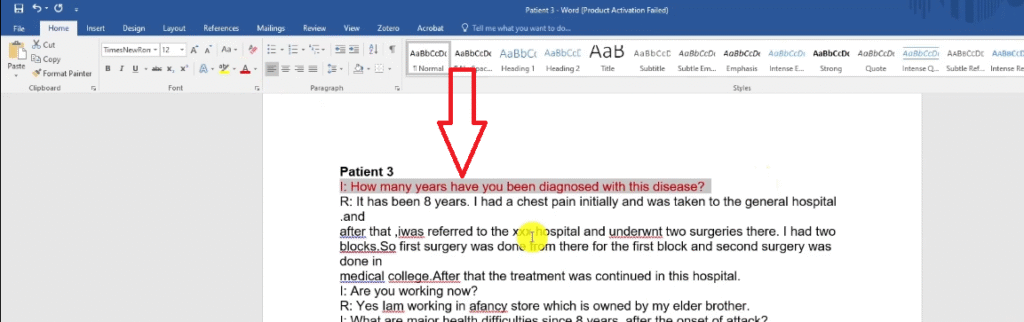
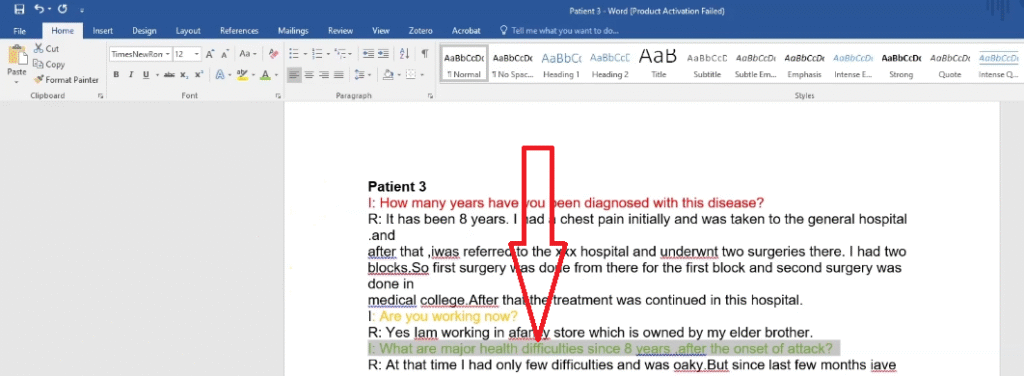
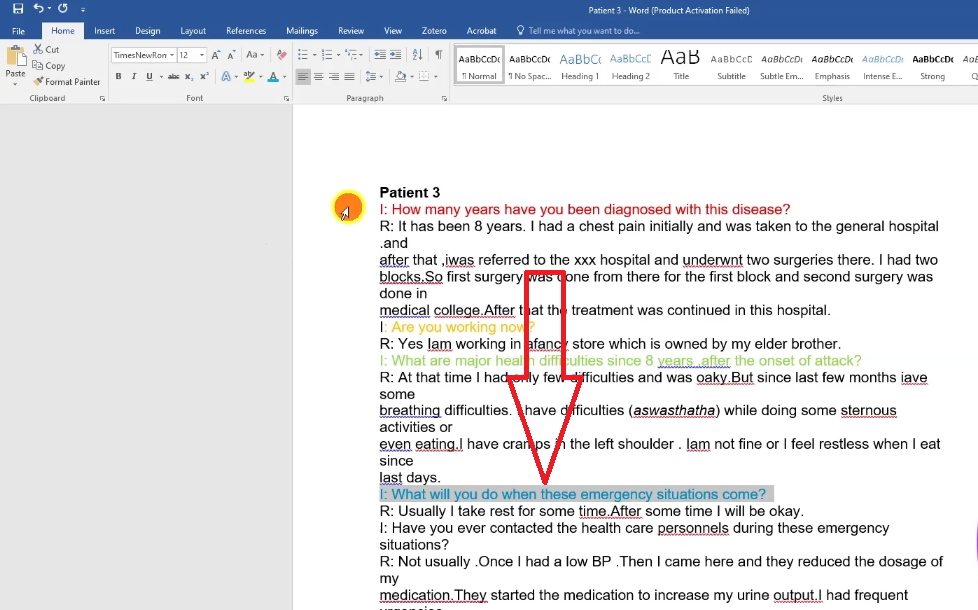
This colour map means that when you reach the theme generation stage, all your red codes belong to the same research question — making it far easier to see which codes share meaning and should be grouped together.
Qualitative coding in MAXQDA
What Is a Code? (Definition and Example)
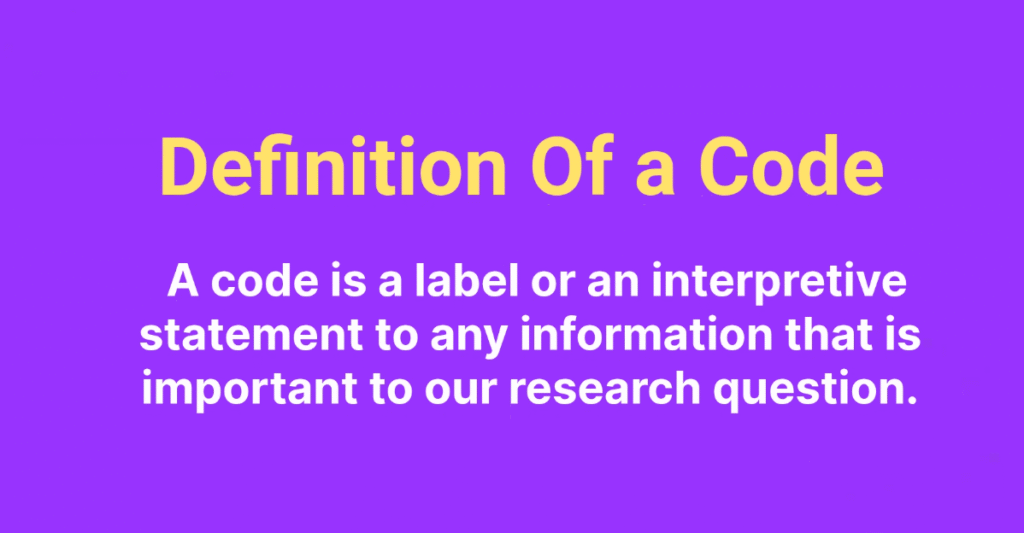
A code is a label or interpretive statement that you attach to any segment of data that is important to your research question. You’re not summarising — you’re interpreting. The code captures the meaning of what a participant is saying, not just what they said.
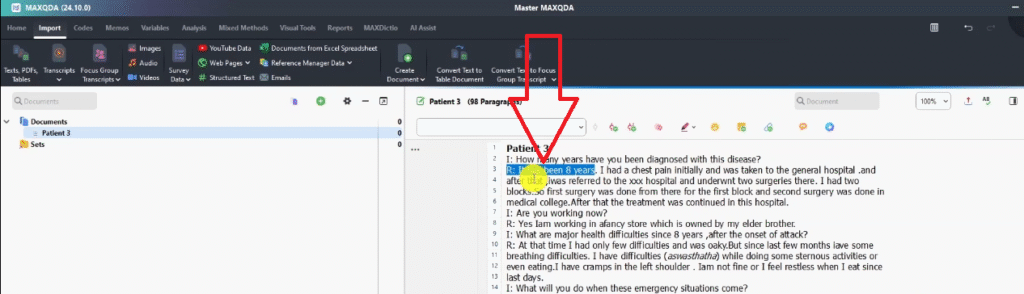
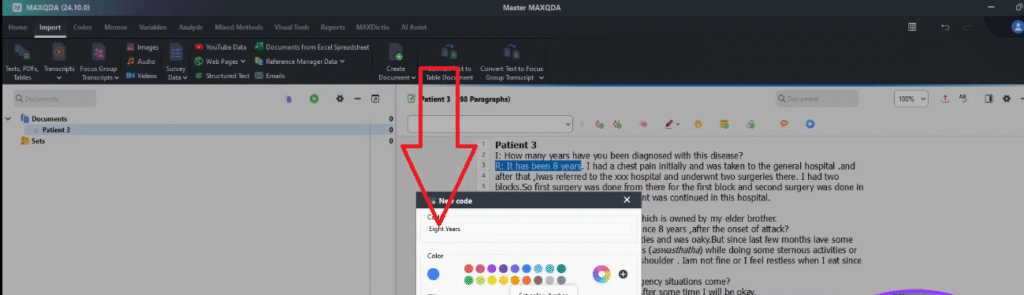
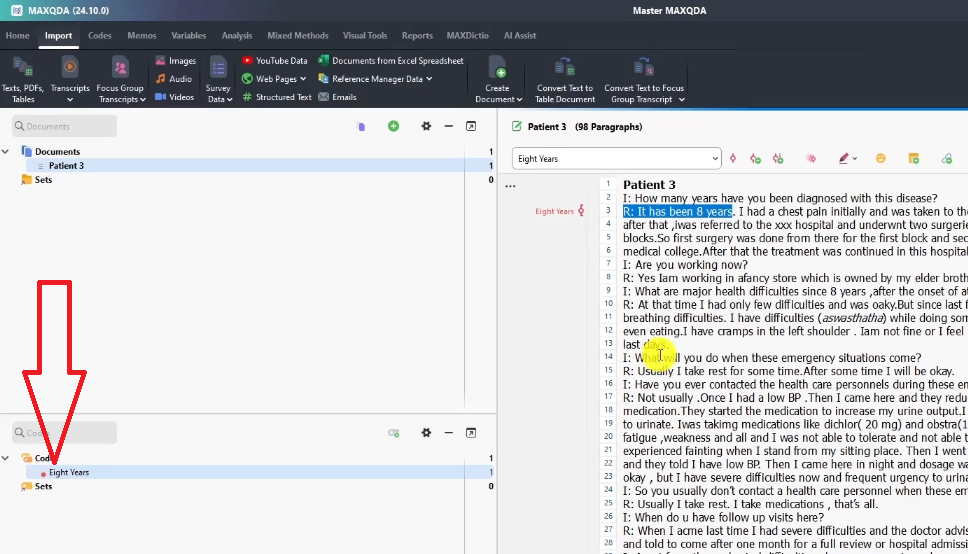
Example: the participant says, “It has been eight years. I had a chest pain initially and was taken to the general hospital. I underwent two surgeries.” This doesn’t directly answer a question about current health difficulties — but it’s important background. The code is: eight years (capturing the duration of illness).
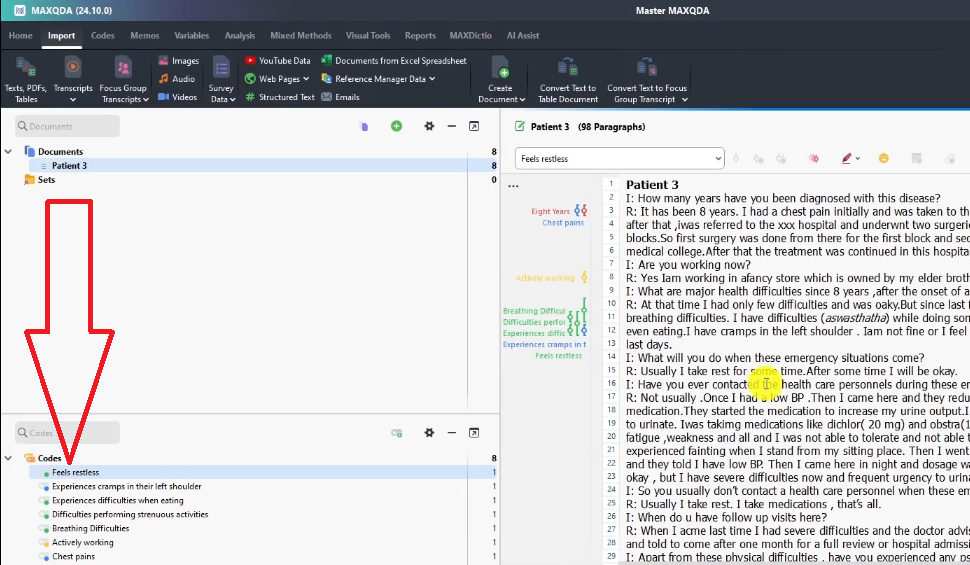
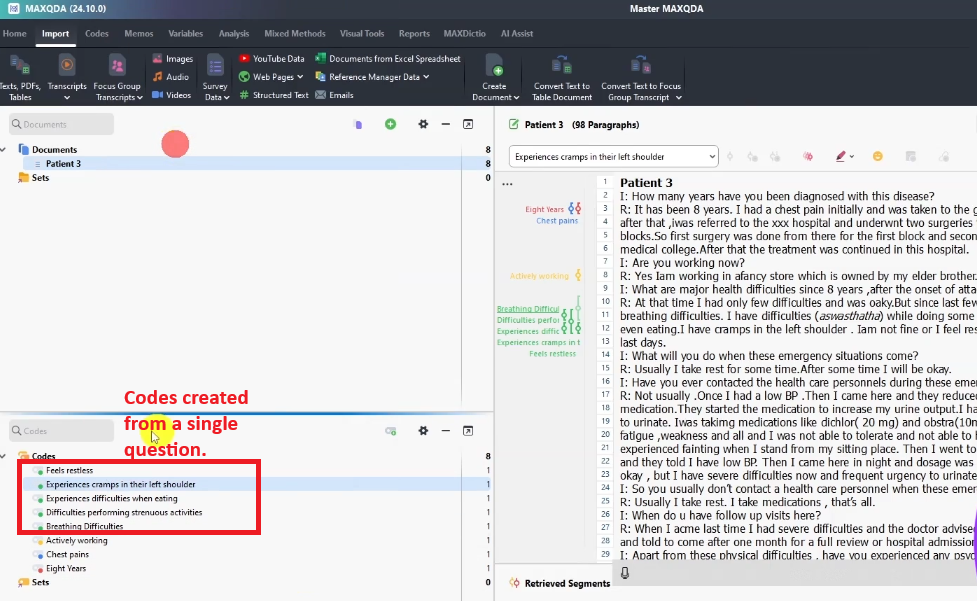
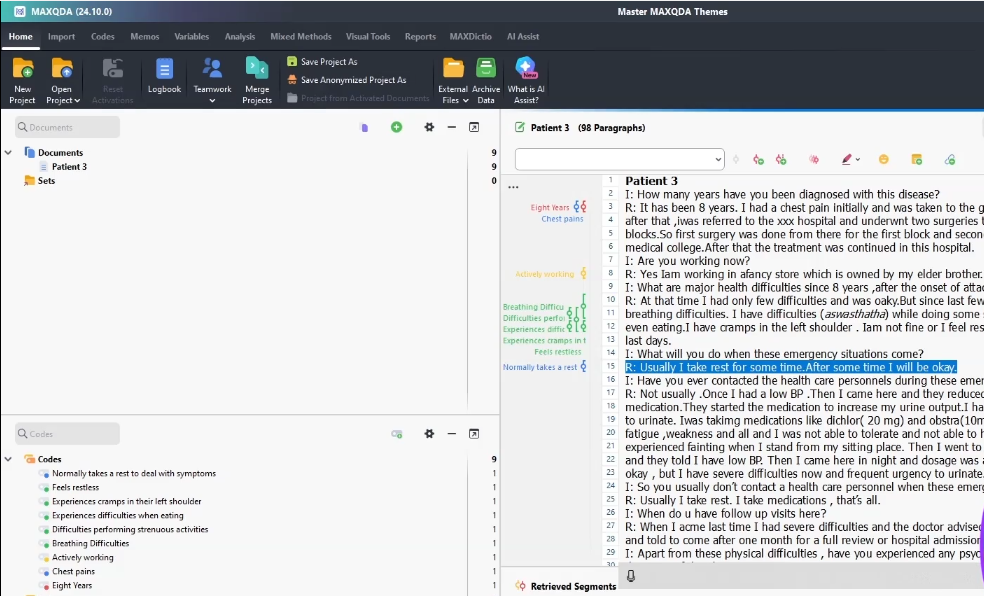
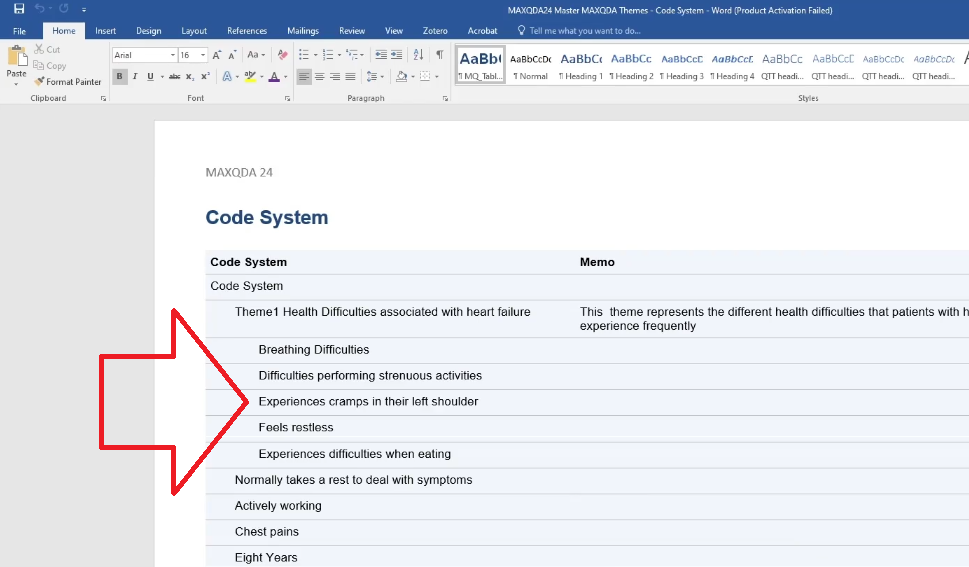
A code from the health difficulties question — “I have breathing difficulties, I have difficulties while doing strenuous activities, even eating, I have cramps in my left shoulder, I feel restless” — generates five separate codes: difficulties performing strenuous activities, experiences difficulties when eating, experiences cramps in left shoulder, feels restless, and breathing difficulties.
How to Create a Code in MAXQDA Step by Step
- Open your transcript in the Document Browser.
- Read the full paragraph before coding any segment.
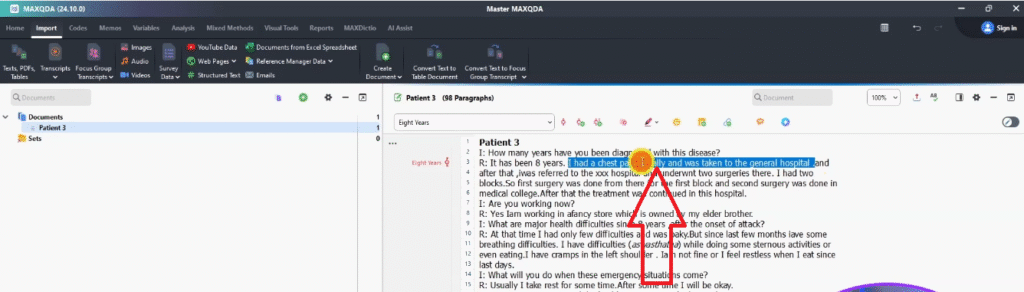
- Highlight the text you want to code.
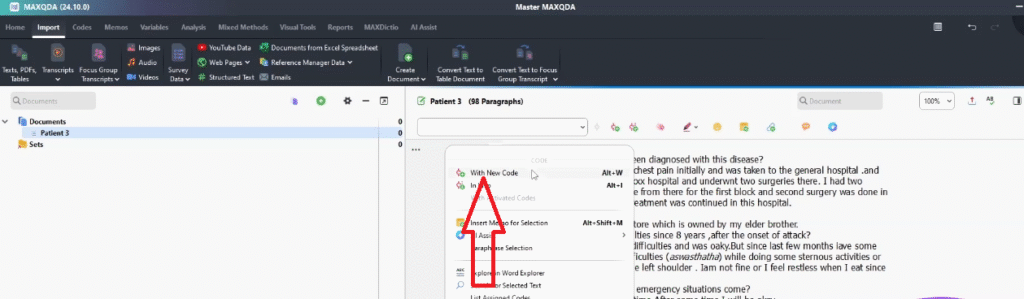
- Right-click the highlighted text and select Code with New Code.
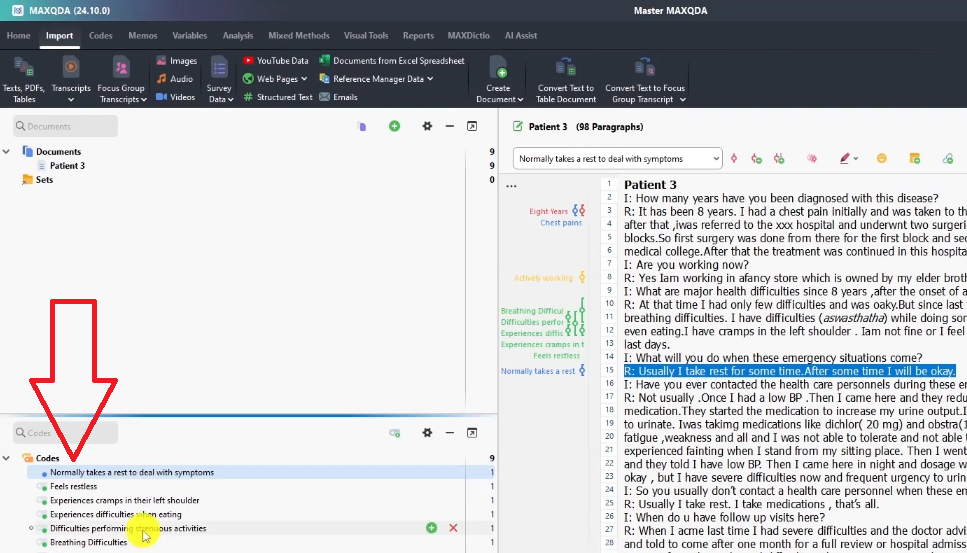
- Type your code label and press Enter. The code appears immediately in the Code System panel.
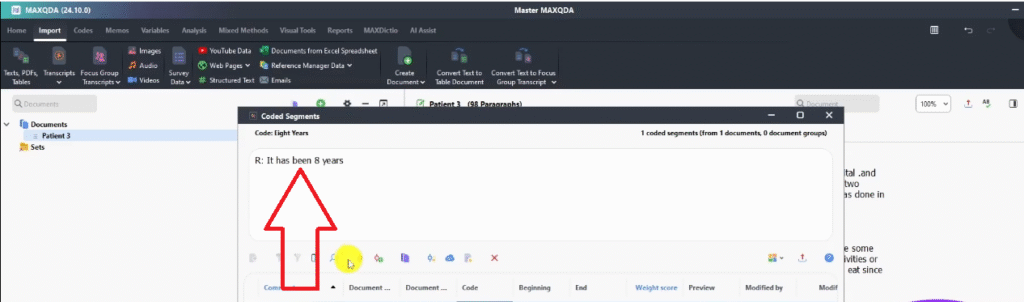
- Double-click the code in the Code System to see the quote it came from in the retrieved segments panel.
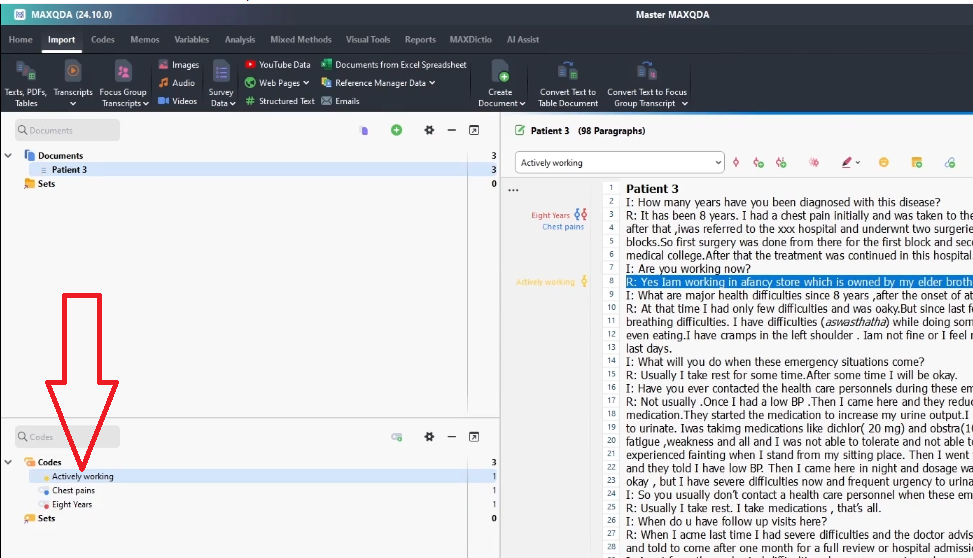
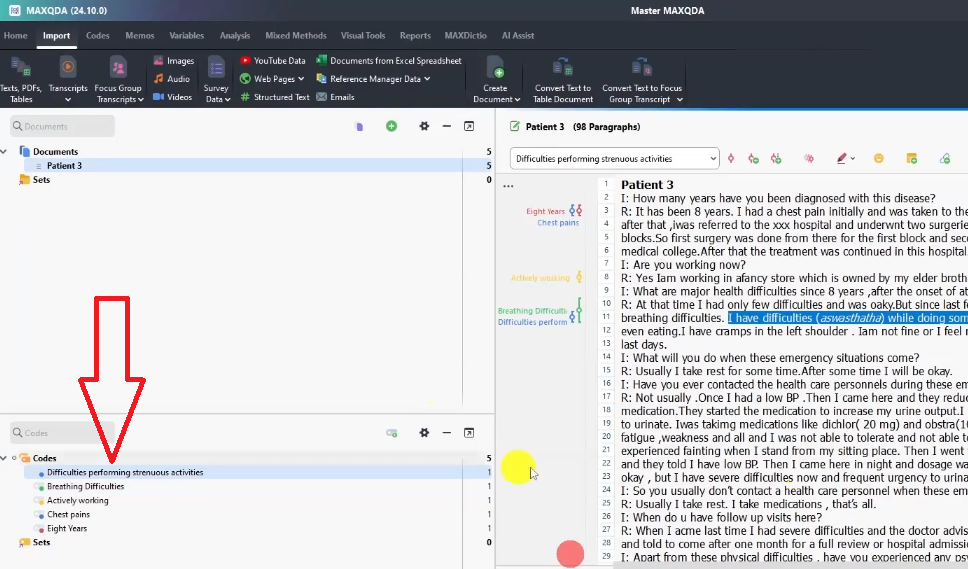
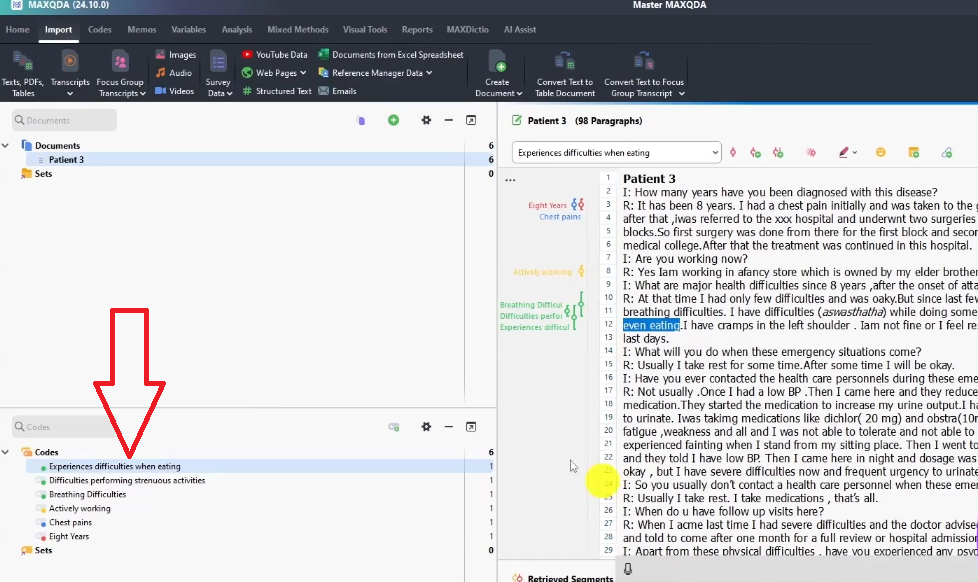
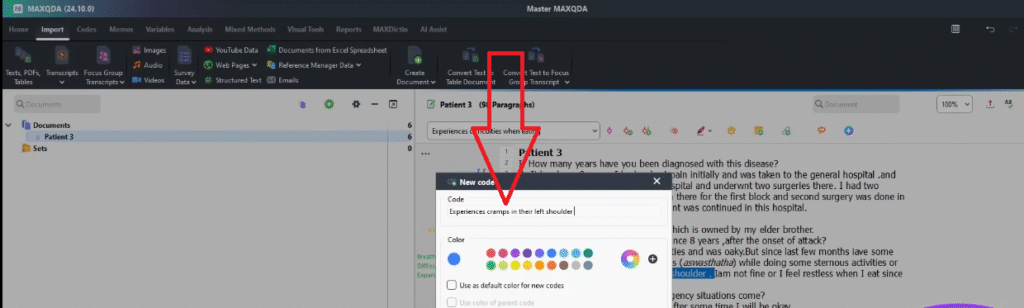
Work through the full transcript before moving to the next one. Never code in patches — complete the whole document first so you don’t miss context.
How to Colour Code Your Codes by Research Question
- After creating a code, go to the Code System panel.
- Right-click the code and select Change Color.
- Choose the colour that matches the interview question the code came from (red for question 1, gold for question 2, green for question 3, and so on).
Example codes from this tutorial and their colours:
- Eight years — red (question 1: how long diagnosed)
- Chest pains — blue (volunteered by participant, not from a specific question)
- Actively working — gold (question 2: current employment)
- Difficulties performing strenuous activities — green (question 3: health difficulties)
- Experiences difficulties when eating — green
- Experiences cramps in left shoulder — green
- Feels restless — green
- Normally takes a rest to deal with symptoms — blue (question 4: coping strategies)
Step 4 — Generating Themes from Your Codes in MAXQDA
Once you’ve coded all your transcripts, you move to theme generation. This is where you look across your codes and ask: which ones share a pattern of meaning? Codes that are talking about the same underlying issue get grouped into a theme.
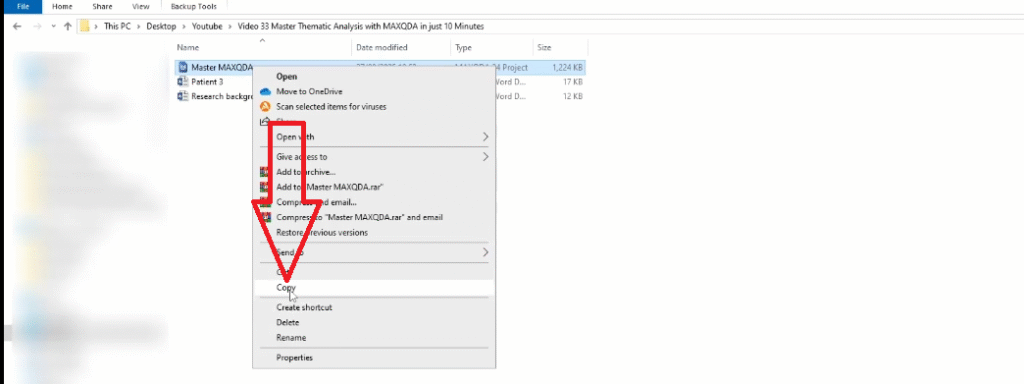
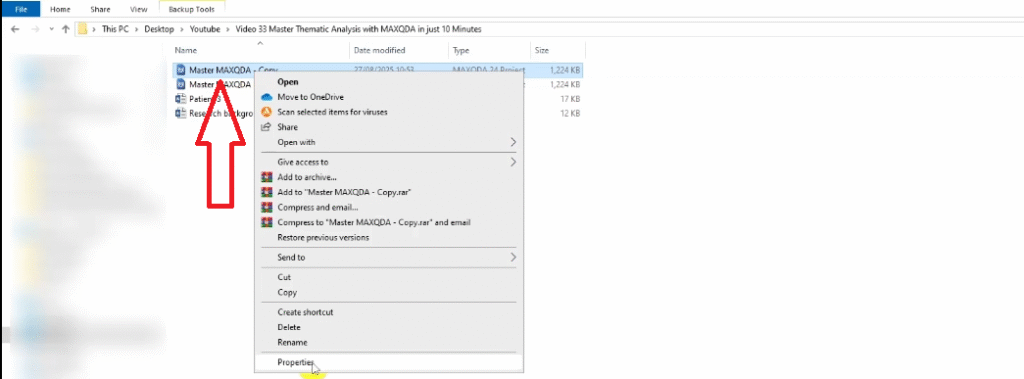
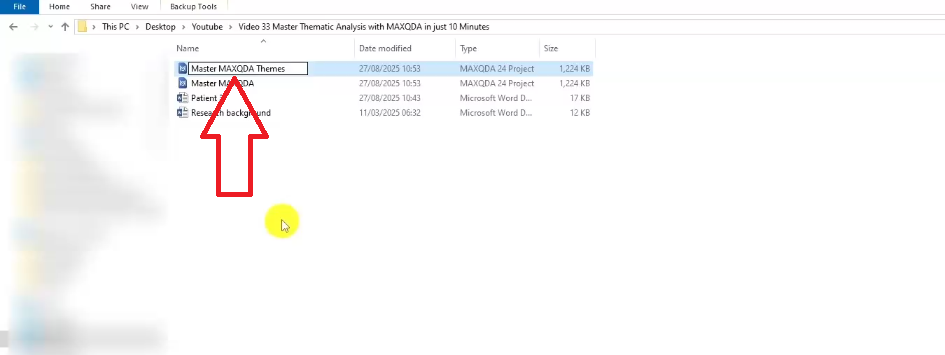
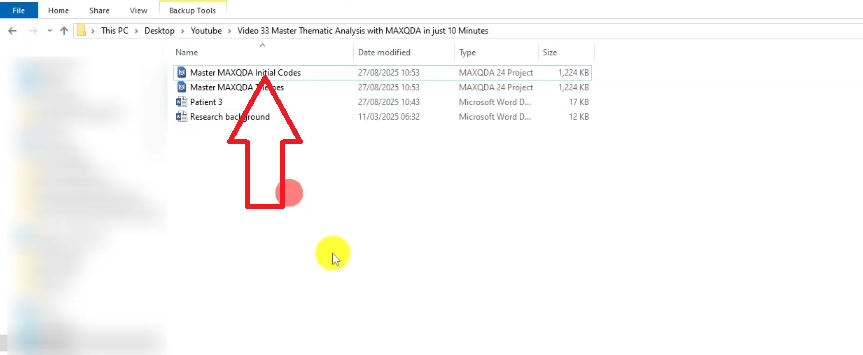
Before you start, I recommend duplicating your MAXQDA project file. Rename the original ‘Initial Codes’ and the duplicate ‘Themes’. This preserves your first-pass coding in case you need to refer back to it — and it’s good research documentation practice.
How to Create a Theme in MAXQDA
- Open the Themes version of your project in MAXQDA.
- Look at the codes in the Code System panel. Start with the most prominent cluster — in this example, the green codes (from question 3: health difficulties).
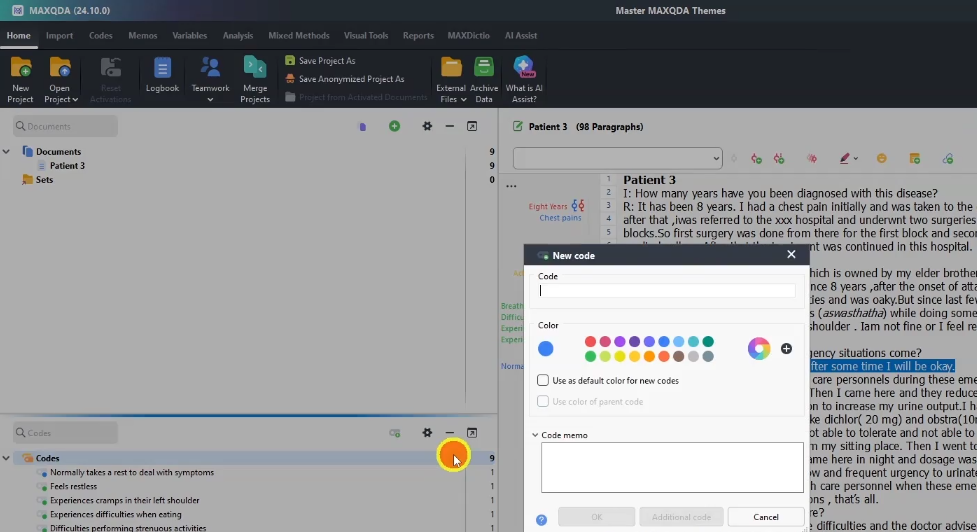
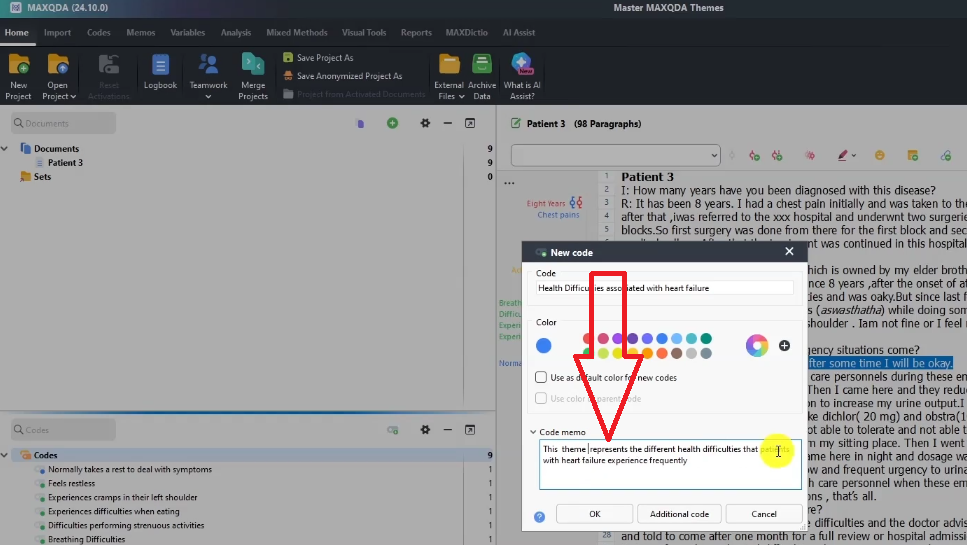
- In the Code System panel, right-click in an empty area and select New Code.
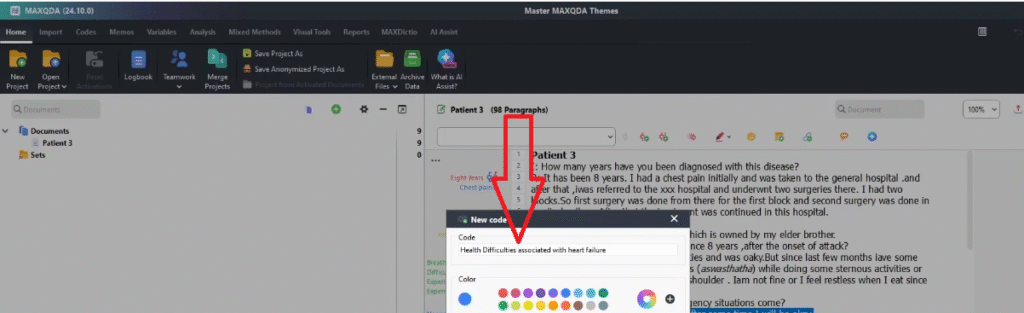
- Name the new code as your theme — for example: Health Difficulties Associated with Heart Failure.
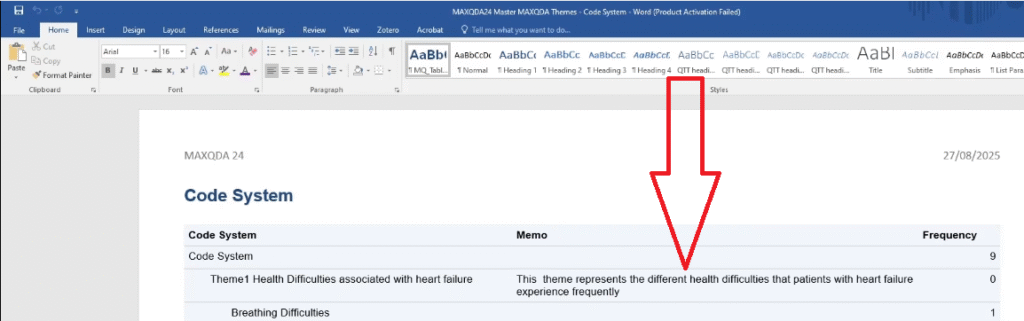
- Right-click the theme code and select Memo to write a description. Example: ‘This theme represents the different health difficulties that patients with heart failure experience frequently.’
Select all the relevant codes (the green codes in this example), then drag and drop them underneath the theme code. They become sub-codes of the theme.
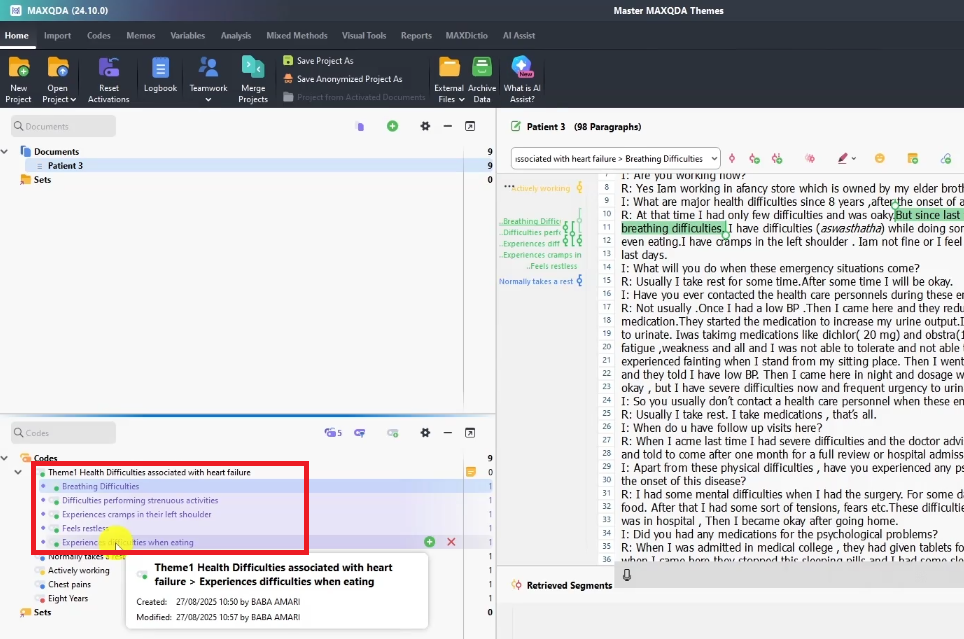
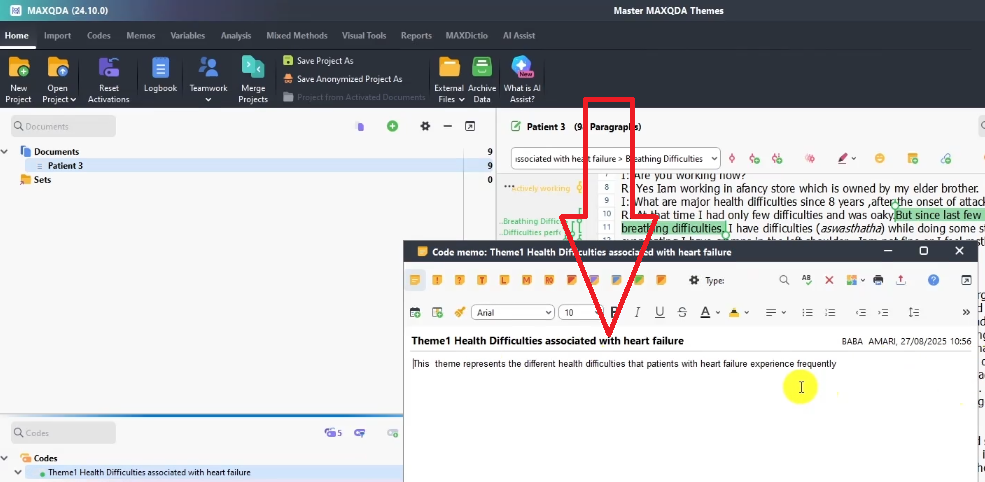
The result is a hierarchical structure: theme at the top, codes nested beneath it, each code linked to the participant quotes that support it. That hierarchy is your completed thematic analysis structure for this theme.
To go deeper on theme generation across multiple transcripts, read my full guide on getting themes in MAXQDA. And once your themes are finalised, my step-by-step guide on reporting thematic analysis findings in MAXQDA will show you how to write them up for your dissertation.
How to Export Your MAXQDA Codebook
- Once your themes and codes are finalised, go to Reports in the top menu.
- Select Export → Code System.
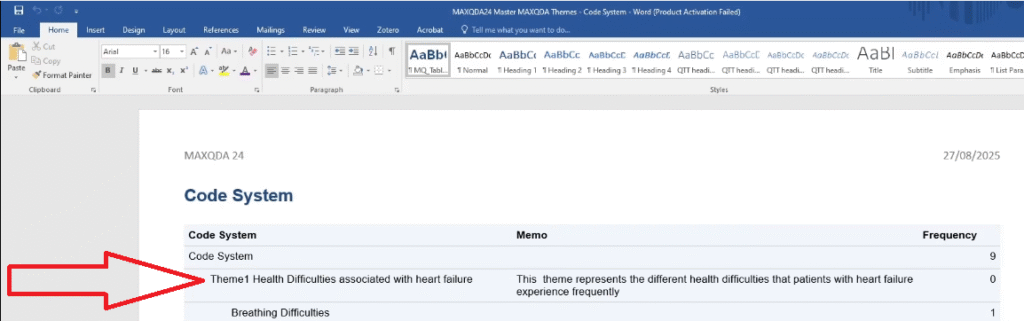
- Choose Word Document and click Save.
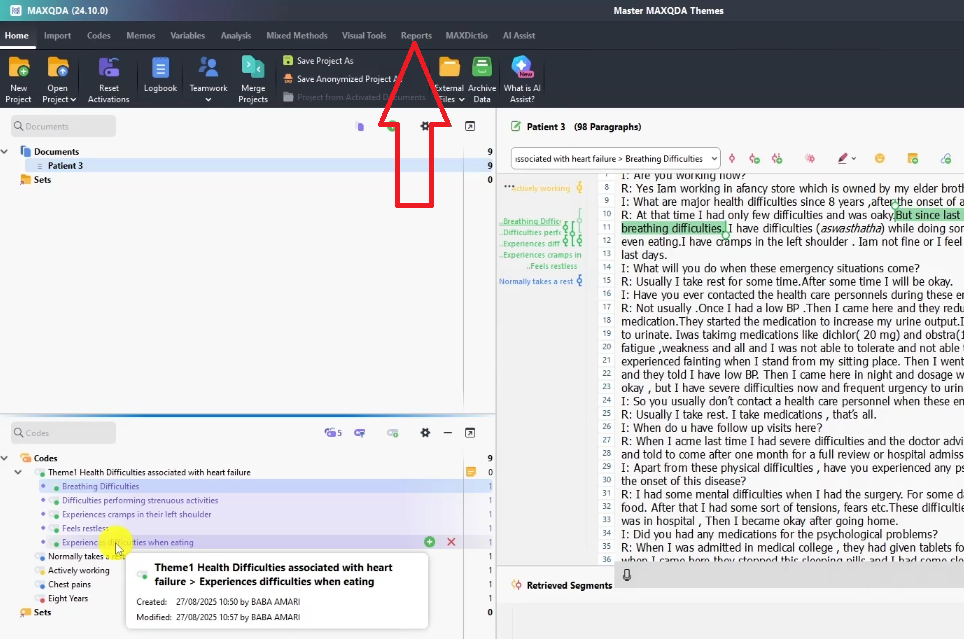
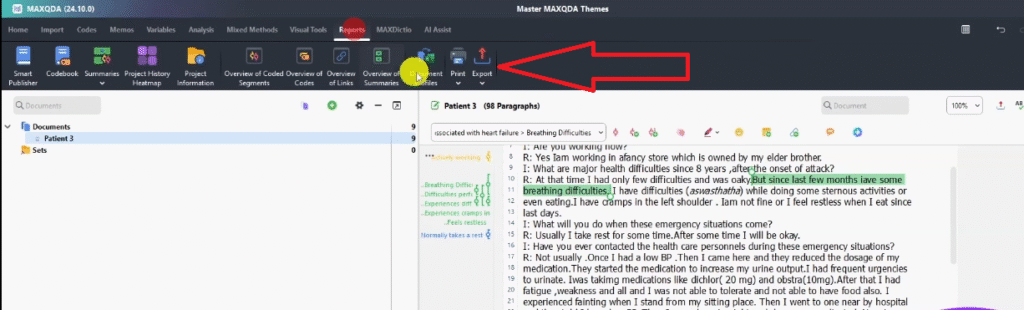
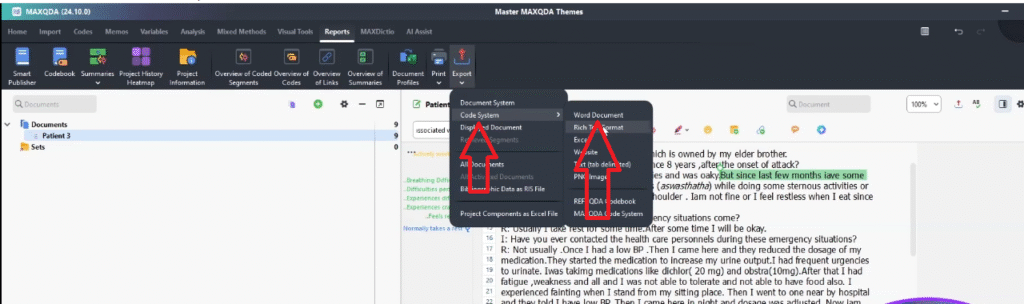
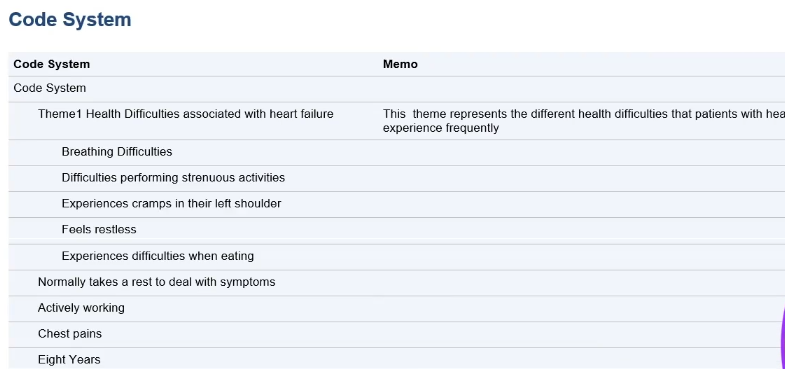
The exported codebook shows: your theme name, the theme memo (description), and all the codes nested underneath it. This document is often required as a dissertation appendix and is exactly what your supervisor or examiner will look at to evaluate the rigour of your analysis.
If you want to see how Saldana’s coding framework compares to the Braun and Clarke approach — and when to use each one — read my guide on Saldana’s method of inductive thematic analysis in MAXQDA.
Frequently Asked Questions
Do I need to use all six Braun and Clarke steps in MAXQDA?
In practice, the six steps are not strictly linear. You’ll often cycle back — reading transcripts again after coding, or revising codes as you develop themes. MAXQDA supports this iterative process by letting you rename, merge, and reorganise codes at any stage. What matters is that your analysis is systematic and well-documented, not that you follow the steps in rigid sequence.
How many codes should I have before I start generating themes?
There is no fixed number. For a typical PhD study with 3–6 interview transcripts you might generate 30–60 initial codes. After merging similar codes and refining labels, you’ll likely have 20–40 distinct codes to work with when building themes. Don’t try to reduce codes to themes too early — work through all transcripts first.
What is the difference between a code and a theme in MAXQDA?
A code is attached to a specific segment of a specific transcript — it captures what one participant said or meant at one point. A theme is a higher-level pattern that appears across multiple codes from multiple participants. Themes answer your research question; codes are the evidence that supports them.
Should I create a new MAXQDA project for theme generation?
I recommend duplicating the project file rather than creating a completely new one. Open your file manager, copy the .mx24 project file, and rename the copy. This gives you an archived version of your initial codes and a working version for theme development — without having to re-import your transcripts or rebuild your codes from scratch.
Can I use MAXQDA for deductive as well as inductive thematic analysis?
Yes. MAXQDA supports both approaches. For inductive analysis (themes emerge from the data), you generate codes first and then group them. For deductive analysis (you start with a framework), you create your code system in advance based on your theoretical categories and then code the data against it. The workflow in MAXQDA is the same — the difference is whether your code structure comes before or after reading the data.
Key Takeaways
- Thematic analysis in MAXQDA follows the Braun and Clarke six-step framework — this article covers steps 2 and 3: coding and theme generation
- The three panels you need are the Document System, Code System, and Document Browser — ignore the rest for now
- Colour-code your interview questions before importing to MAXQDA — it makes theme generation significantly faster
- Work transcript by transcript — complete the full document before moving to the next
- To generate themes, duplicate your project file, then drag and drop related codes under a new parent code that becomes the theme
- Export your codebook via Reports → Export → Code System — you may need it as a dissertation appendix
Need Help With Your MAXQDA Analysis?
If your transcripts are sitting untouched and your deadline is approaching, my team can step in. The done-for-you thematic analysis service covers full MAXQDA coding, theme development, and write-up support — delivered to you. More than 600 PhD students have used this service to finish their dissertations. Book a consultation today.
![How to Code Qualitative Data in MAXQDA [Step-by-Step Guide]](https://survivingresearch.com/wp-content/uploads/2024/08/Maxqda-Tutorial.webp)
![Is AI Ethical for Qualitative Data Analysis? [Tested]](https://survivingresearch.com/wp-content/uploads/2025/04/Can-I-use-AI-to-do-qualitative-coding-ethically.jpg)