
Last Updated on 4 months ago by Bernard Mugo
If you’ve already generated your initial codes in NVivo for Mac, the next step is one of the most important in thematic analysis — moving from individual codes to broader themes. In this guide, I’ll walk you through steps 3, 4, and 5 of Braun and Clarke’s thematic analysis framework: developing themes, reviewing and refining them, and defining and naming your final themes. I’ll also show you how to export a codebook and create visualizations in Microsoft Word.
This is Part 2 of the NVivo for Mac thematic analysis series. If you haven’t followed along with Part 1 (familiarizing yourself with the data and generating initial codes), I recommend reading that first before continuing here.
- What Is Thematic Analysis in NVivo for Mac?
- Step 3 – Going from Codes to Themes
- Step 4 – Reviewing and Refining Your Themes
- Step 5 – Defining and Naming Your Final Themes
- How to Export a Codebook in NVivo for Mac
- How to Visualize Your Themes in Microsoft Word
- Frequently Asked Questions
- Key Takeaways
- Need Help with Your Thematic Analysis?
What Is Thematic Analysis in NVivo for Mac?
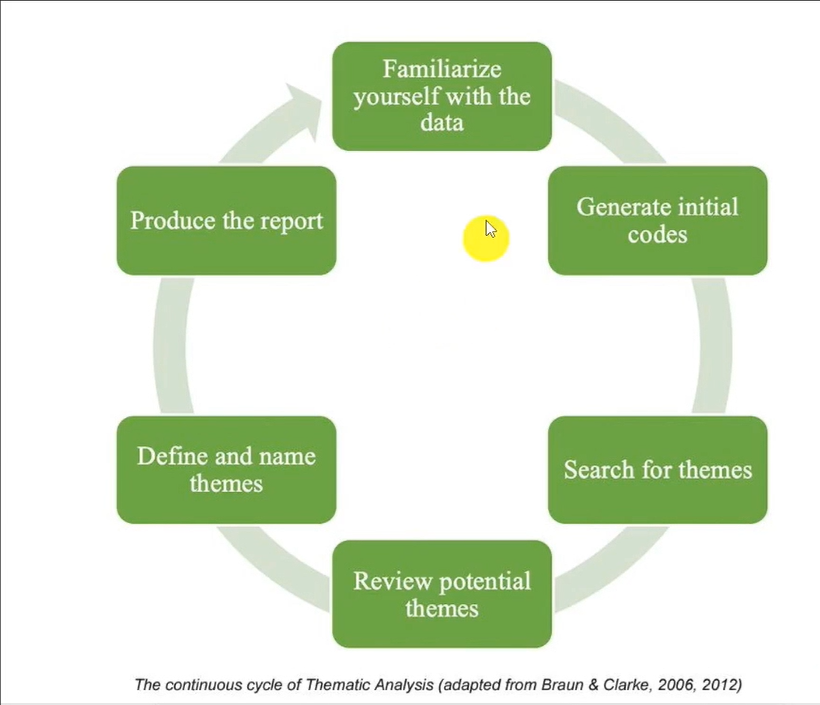
Thematic analysis is a qualitative research method used to identify, analyze, and interpret patterns of meaning — or themes — across a dataset. The most widely used framework comes from Braun and Clarke’s 2006 paper in Qualitative Research in Psychology, which outlines six steps for doing thematic analysis in a rigorous, transparent way.
NVivo for Mac allows you to organize your codes, group them into themes, add descriptions, and aggregate the coding — all in one place. It streamlines what is otherwise a complex, multi-stage process.
In Part 1, we covered Steps 1 and 2: familiarizing yourself with the data and generating initial codes. In this guide, we focus on Steps 3 through 5, and then look at how to produce output.
Step 3 – Going from Codes to Themes
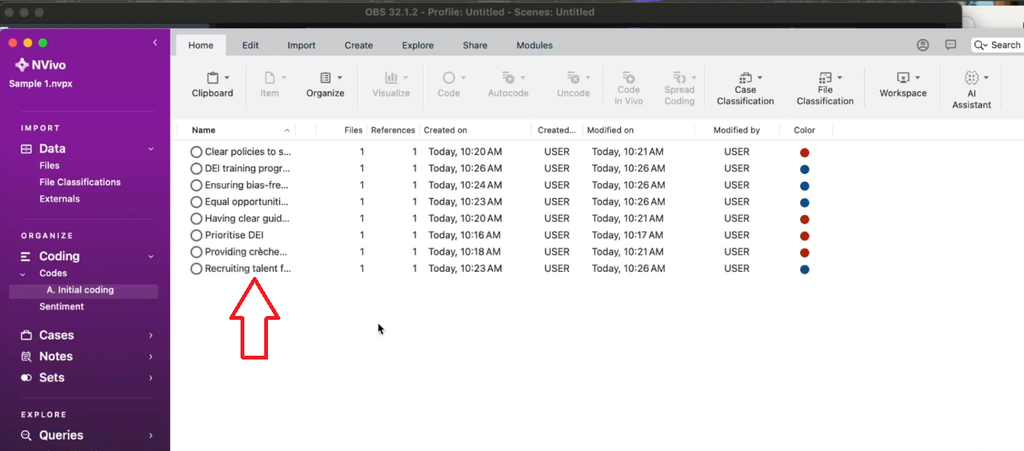
This is where thematic analysis starts to feel meaningful. You’ve built up a list of codes from your first cycle of coding — now you need to look for patterns of shared meaning across them and begin grouping them into themes.
The key question at this stage is: which codes are describing the same underlying idea? If several codes all point toward how an organization handles diversity and inclusion, for example, they likely belong under a single DEI-themed grouping.
How to Group Codes into Preliminary Themes
Here’s the step-by-step process I use in NVivo for Mac to move from codes to themes:
- Open your NVivo project and navigate to the Codes section. You should see all the initial codes you created during your first round of coding.
- Review your codes and look for clusters of shared meaning. Don’t worry about getting this perfect — these are preliminary themes and they will be refined in the next step.
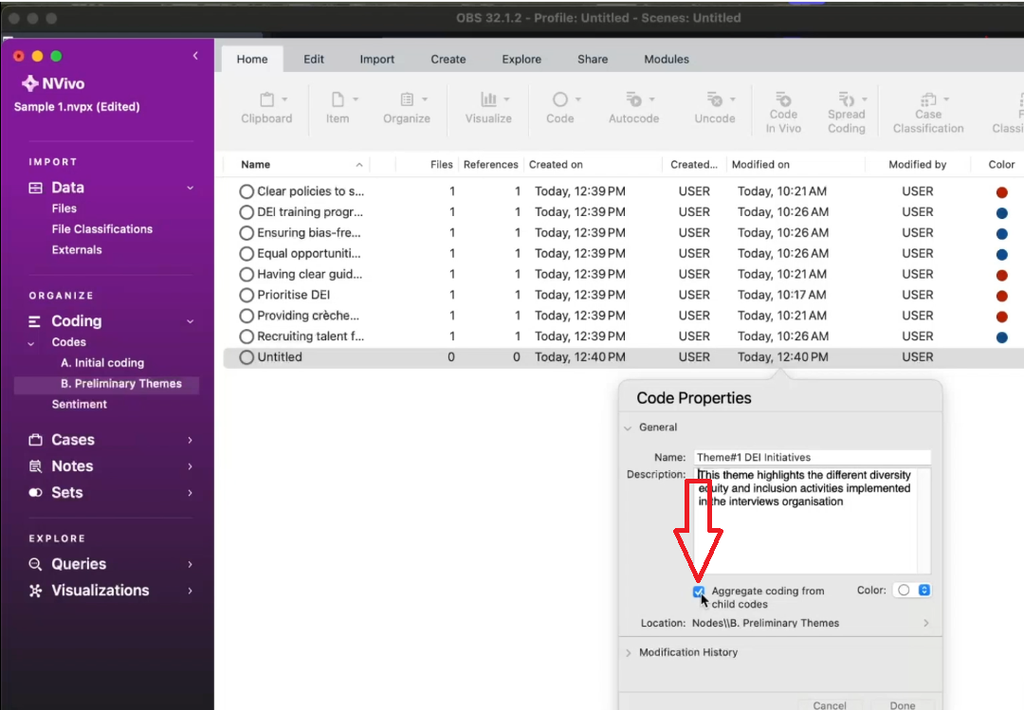
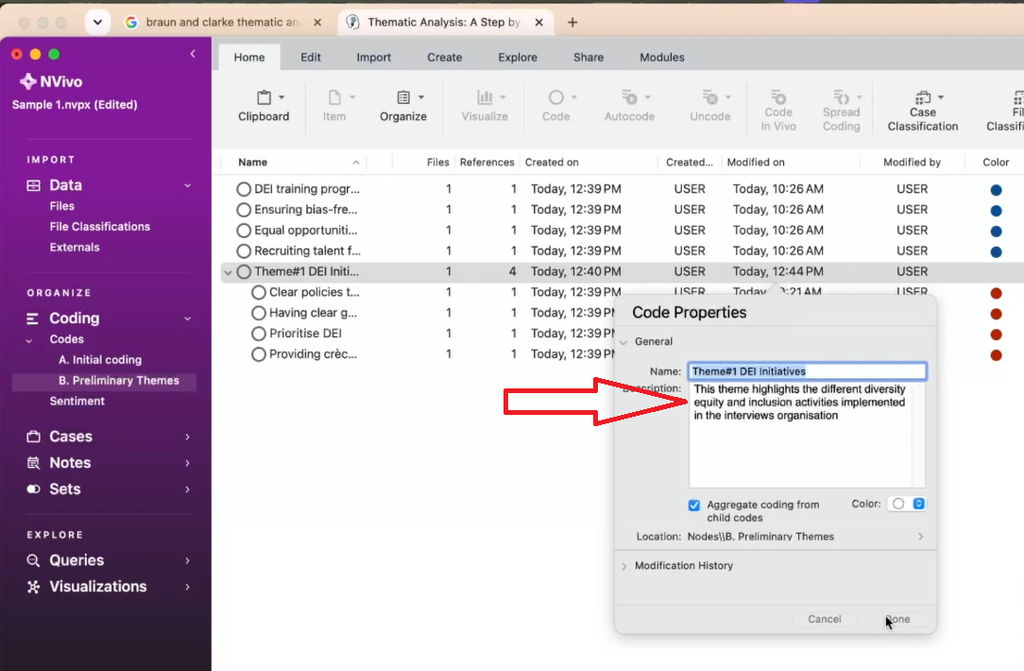
- Right-click in the blank space in the Codes panel and select New Top Level Code. This becomes your theme container.
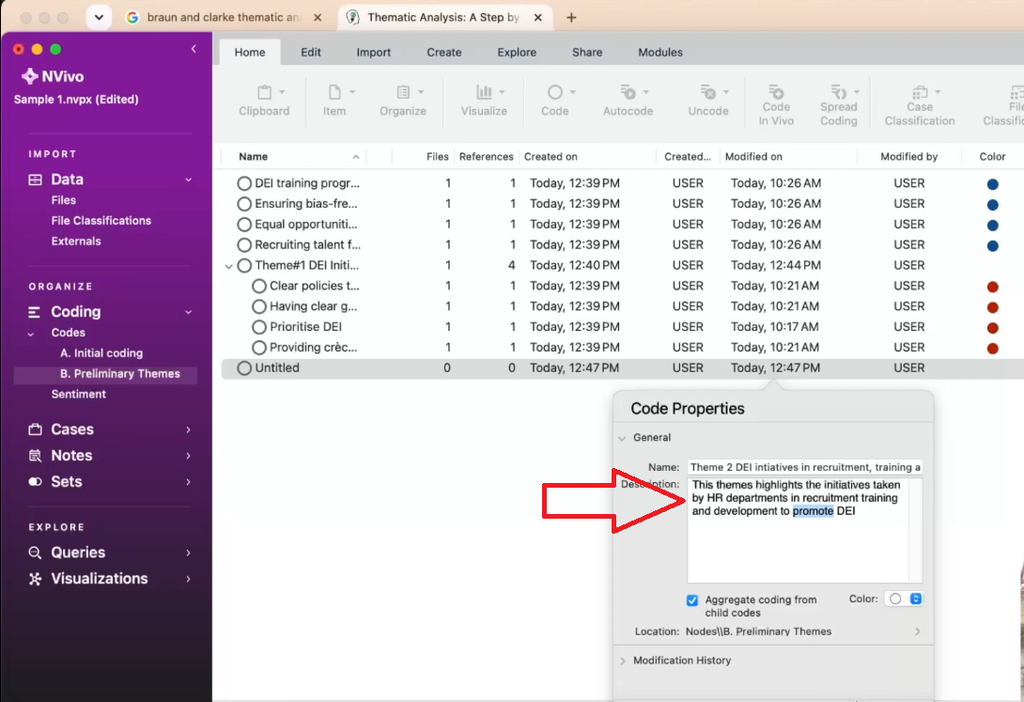
- Name the theme meaningfully — for example, “DEI Initiatives” or “Recruitment and Training Practices.”
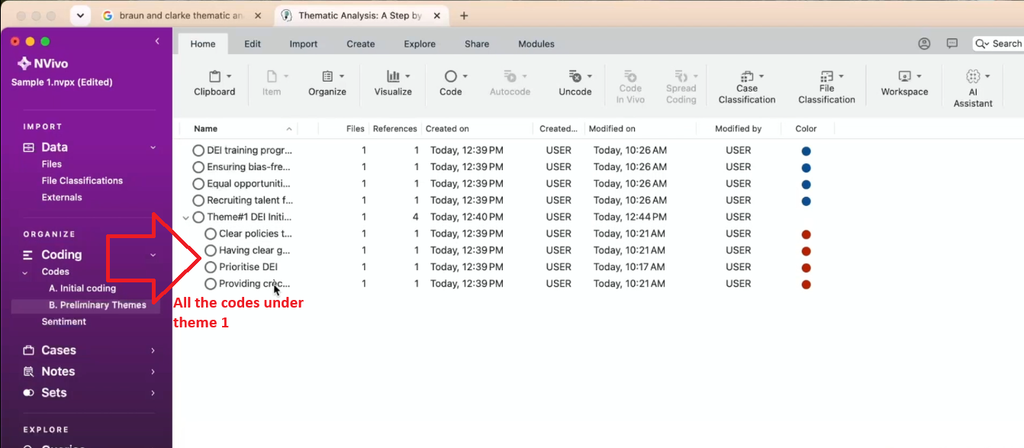
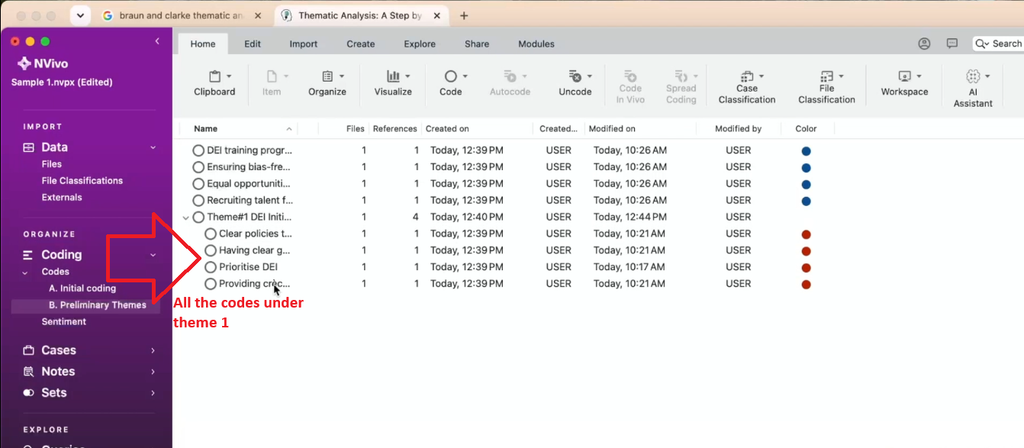
- Hold Control and click to select all the codes that belong under this theme. Then drag and drop them under the theme node.
- Repeat the process for each cluster of codes until you’ve placed all your codes under a preliminary theme.
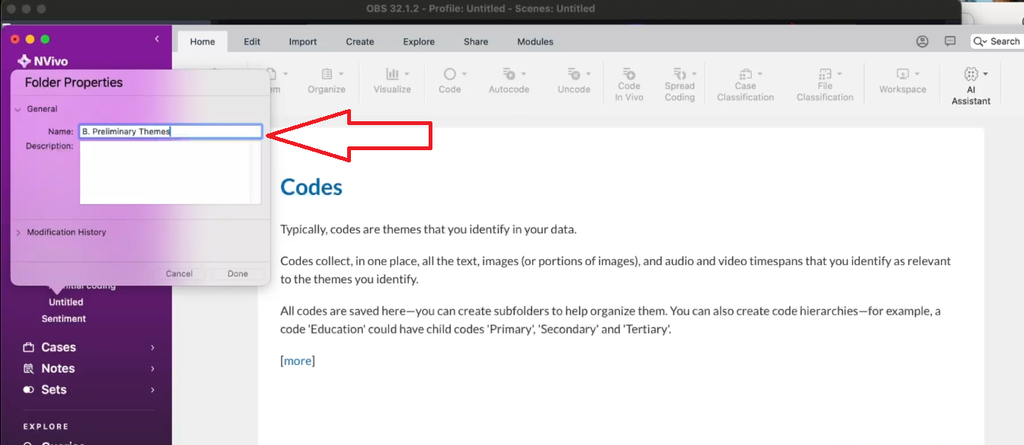
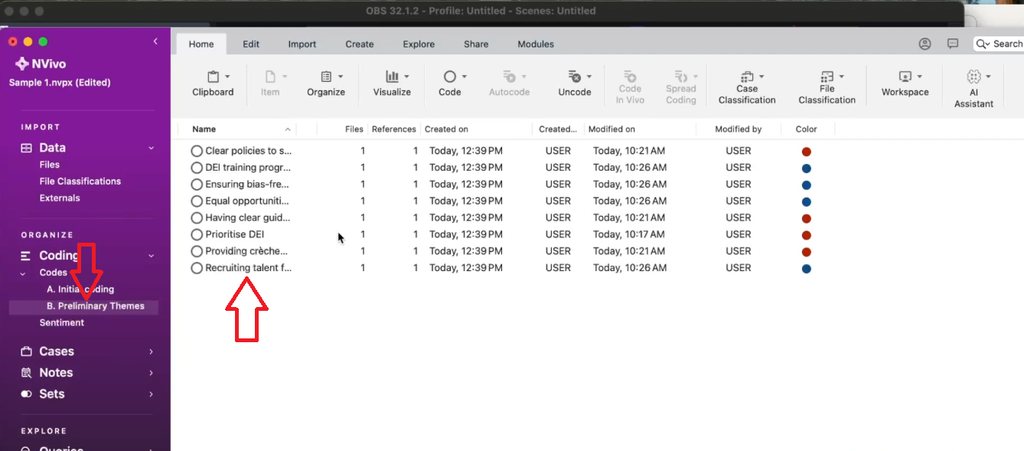
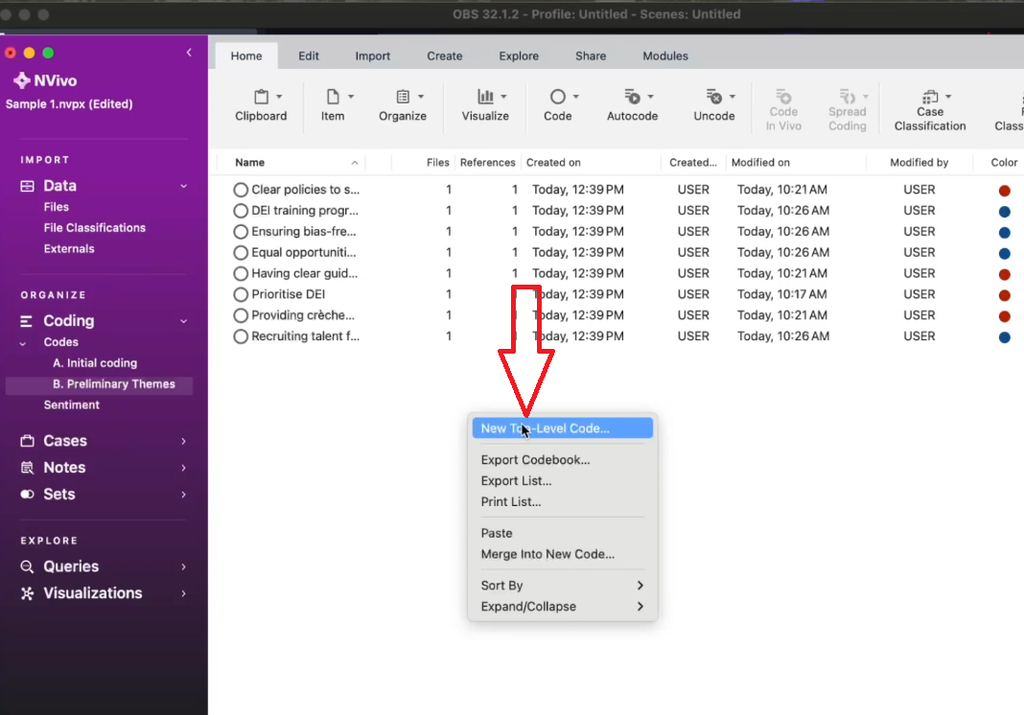
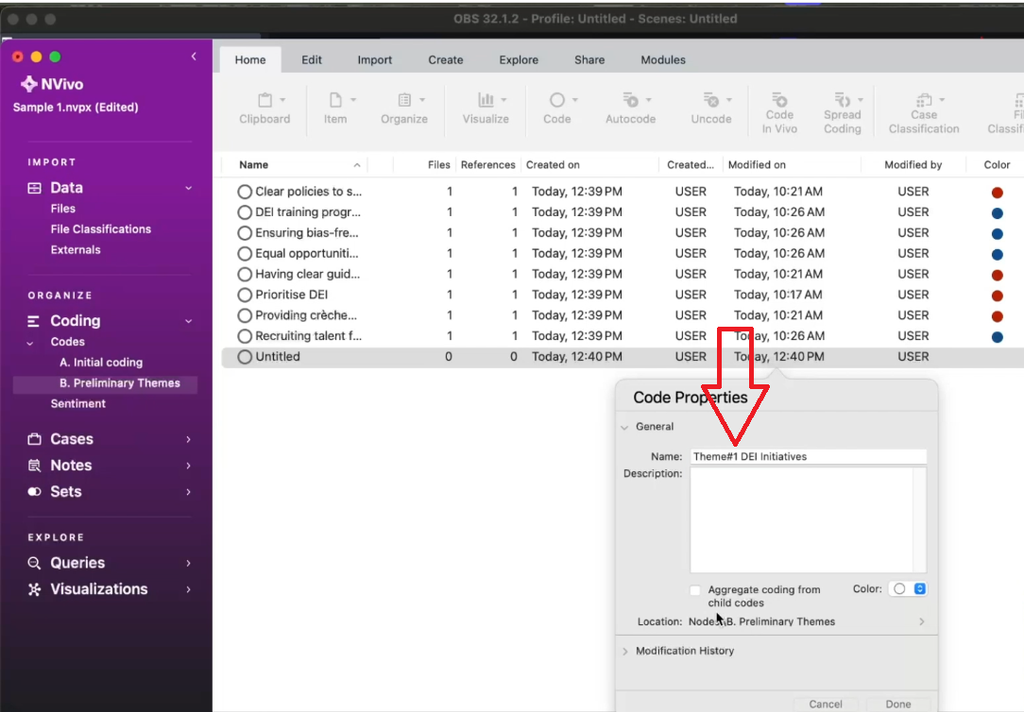
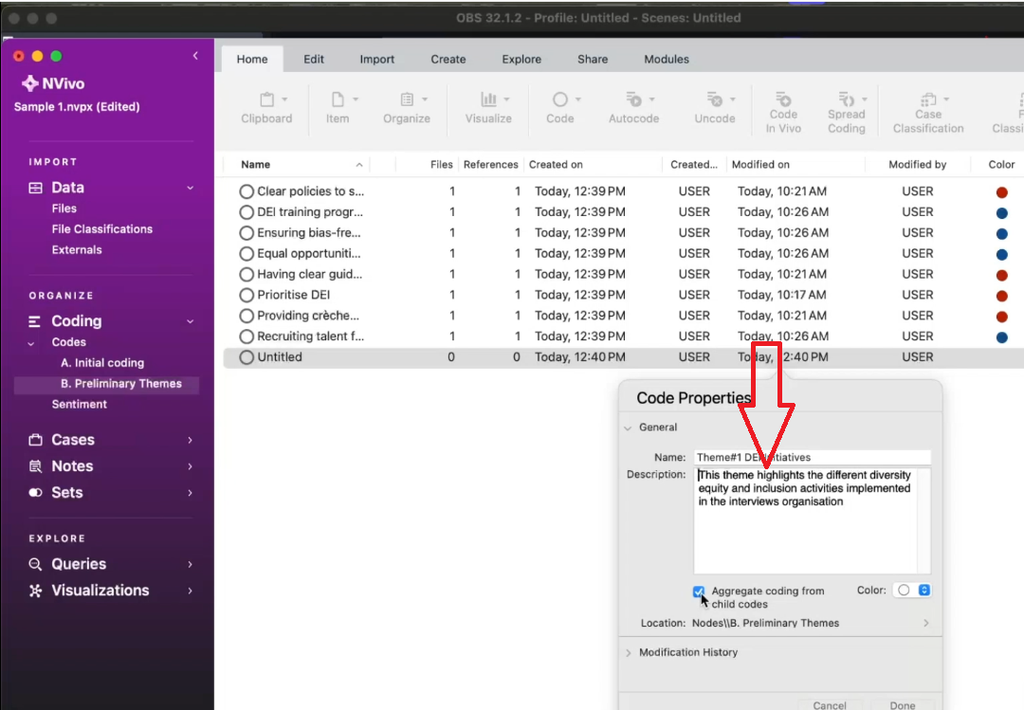
You can also check Aggregate coding from children so that the theme node reflects all the coded references from its sub-codes. This is important for when you want to see how much data sits under each theme.
How to Name Your Themes and Write Descriptions
Naming your themes is not just a labelling exercise — it’s a moment of interpretation. A strong theme name captures the shared meaning of all the codes beneath it. For example:
- Codes like “clear policies,” “prioritizing DEI initiatives,” and “having clear guidelines to deter segregation” all point to the same thing: how organizations structure their DEI activities. A good theme name for these might be “DEI Initiatives in the Organization.”
- Codes like “DEI training programs,” “ensuring bias-free recruiting,” and “equal opportunities in talent acquisition” belong together under a theme like “DEI Initiatives in Recruitment, Training, and Development.”
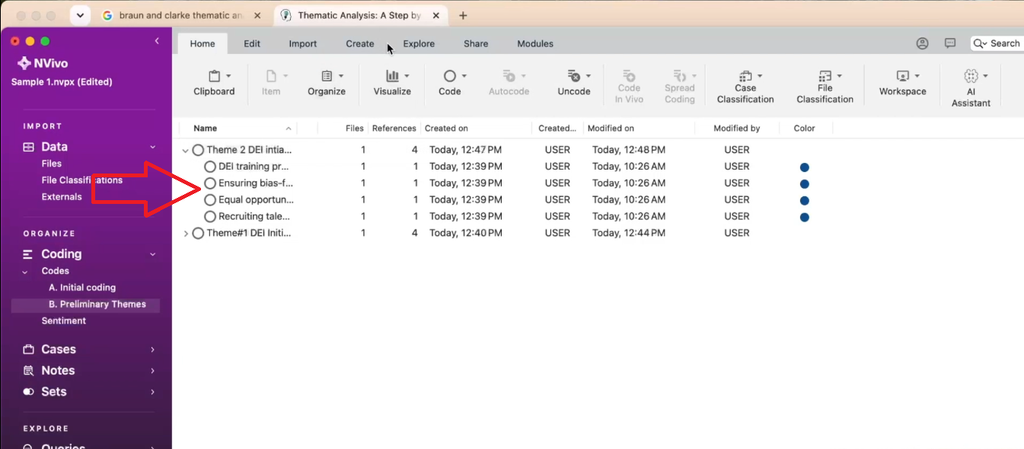
Once you’ve named a theme in NVivo, write a description that explains what the theme means. This description serves two purposes: it keeps you analytically honest during the analysis, and it goes directly into your codebook as the definition reviewers and examiners will read.
A good theme description in NVivo looks like this: “This theme highlights the different diversity and inclusion activities adopted by the organizations of the interviewees, including formal policy adoption, facility provision, and senior-level commitment.”
Step 4 – Reviewing and Refining Your Themes
Once you have preliminary themes, the work is not done. Reviewing your themes means going back to your data and asking: does each theme tell a coherent story? Is the data under this theme actually all saying the same thing?
During this step, you may find that:
- Some codes don’t quite fit the theme they’ve been placed under — move them to a more appropriate theme.
- Two themes are too similar and should be merged into one.
- One theme is actually two distinct ideas that should be split apart.
- A code doesn’t fit any theme — it might represent an outlier or it might prompt a new theme.
This is a normal part of the process. Braun and Clarke are explicit that thematic analysis is iterative — you go back and forth between data, codes, and themes multiple times. NVivo’s drag-and-drop functionality makes it easy to reorganize as you refine.
Step 5 – Defining and Naming Your Final Themes
By Step 5, your themes should be stable — each one has a clear, distinct meaning, and the codes under each theme all cohere. This is the point where you finalize your theme names and descriptions.
Final theme names should:
- Be specific enough to communicate the essence of what’s in the theme
- Be broad enough to encompass all the codes under it
- Use language that resonates with your research questions — not just descriptive, but interpretive
For guidance on building a strong codebook structure and understanding what qualitative coding means at a deeper level, SAGE Research Methods has an excellent library of resources on thematic analysis and coding frameworks.
Need a step-by-step walkthrough of the full thematic analysis process before your viva? Read my guide on how to master qualitative analysis with NVivo for a complete overview.
How to Export a Codebook in NVivo for Mac
A codebook is a document that lists all your codes and themes, along with their definitions. It’s a standard research output — you’ll typically include it as an appendix in your dissertation or thesis to demonstrate transparency and rigour in your analysis.
To export a codebook in NVivo for Mac:
- Click on the Codes section in your NVivo project.
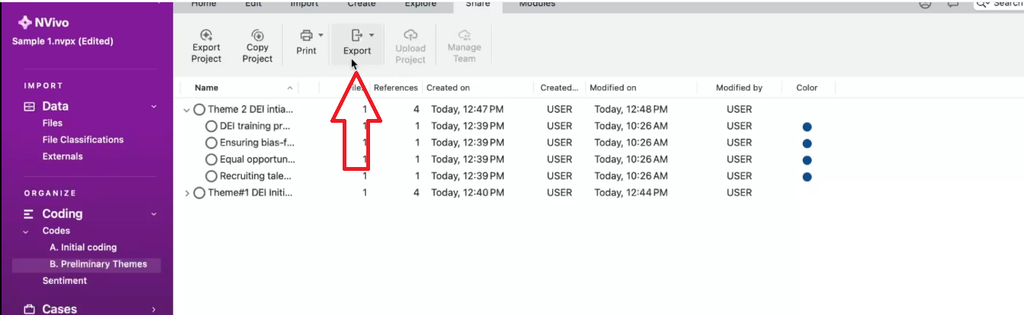
- Go to Share → Export → Export Codebook.
- Choose your export format and click OK.
- NVivo will generate a document showing your themes, descriptions, and all the codes nested beneath each theme.
- Review the ordering of themes and return to NVivo to reorder if needed — click on the Name field to sort alphabetically, for example.
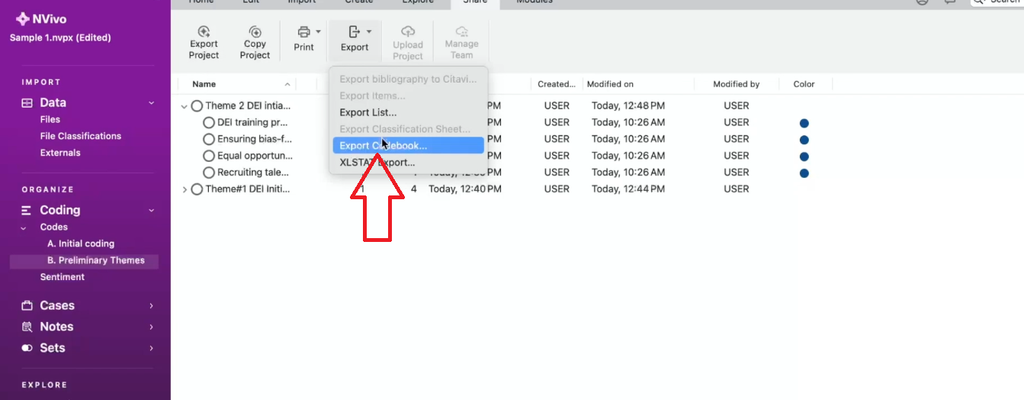
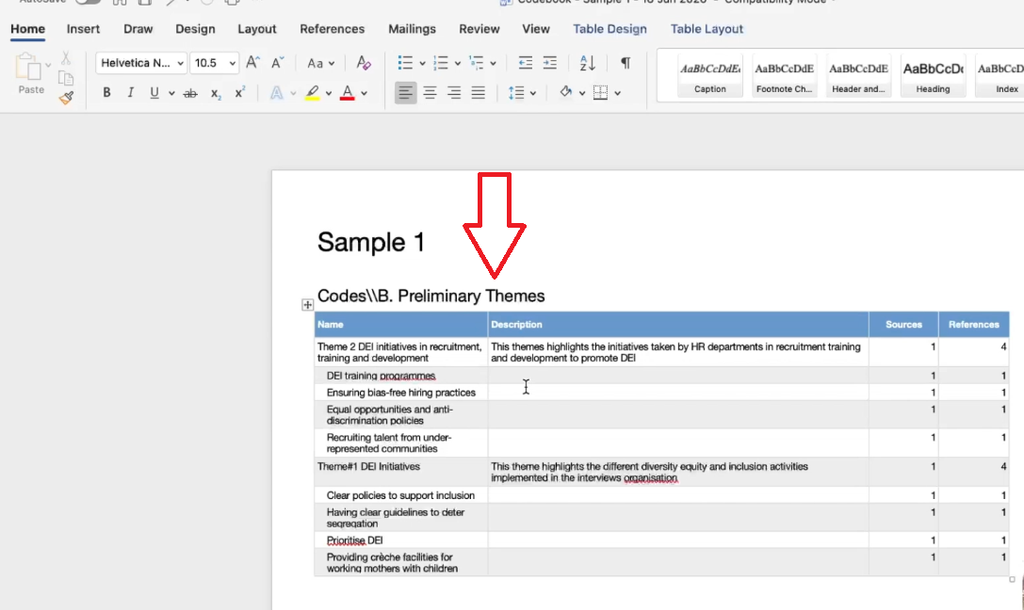
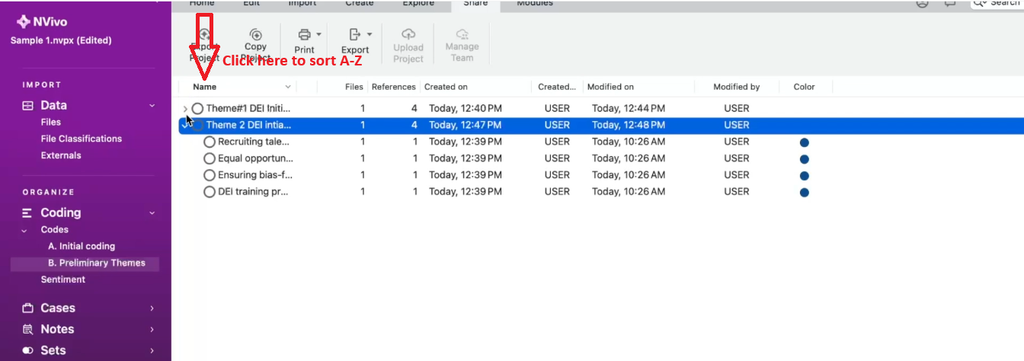
The exported codebook will show your theme structure clearly: theme name, description, and all child codes below it. This is exactly what your examiner will expect to see as evidence of your analytical process.
For a detailed explanation of what a codebook is and how to write one properly, check out Scribbr’s guide to qualitative coding — it provides a clear breakdown that complements what NVivo produces.
How to Visualize Your Themes in Microsoft Word
NVivo for Mac doesn’t offer as many visualization options as the Windows version. However, one practical workaround I use regularly is building theme diagrams in Microsoft Word using SmartArt.
Here’s how:
- Open Microsoft Word and create a new blank document.
- Go to Insert → SmartArt → Hierarchy and select a hierarchy layout that suits your structure.
- Type your theme name in the top box of the hierarchy.
- Add sub-boxes for each code that belongs to that theme.
- Repeat for each theme in your analysis.
- Change colors to a simple black-and-white scheme for academic documents (usually under Change Colors in the SmartArt Design menu).
- Set your font to Times New Roman if required by your university’s formatting guidelines.
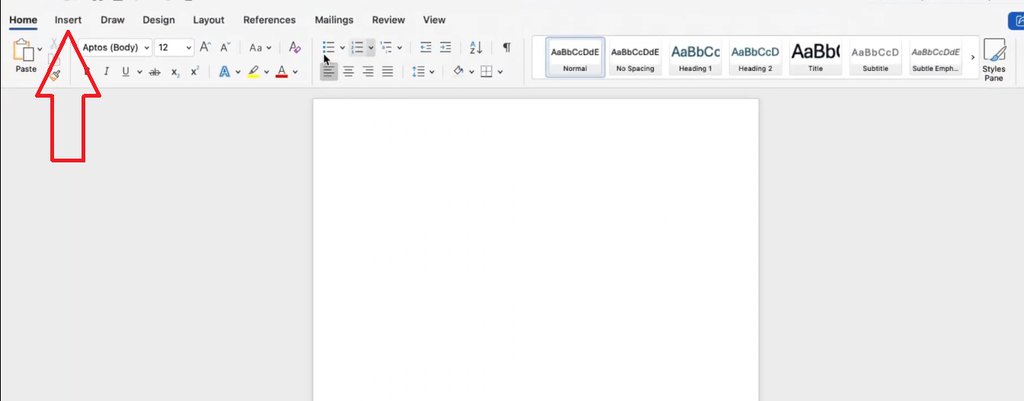
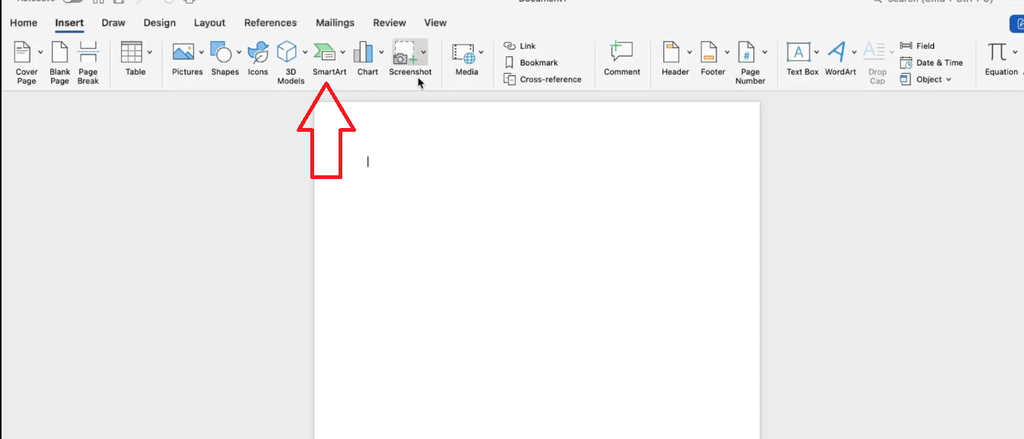
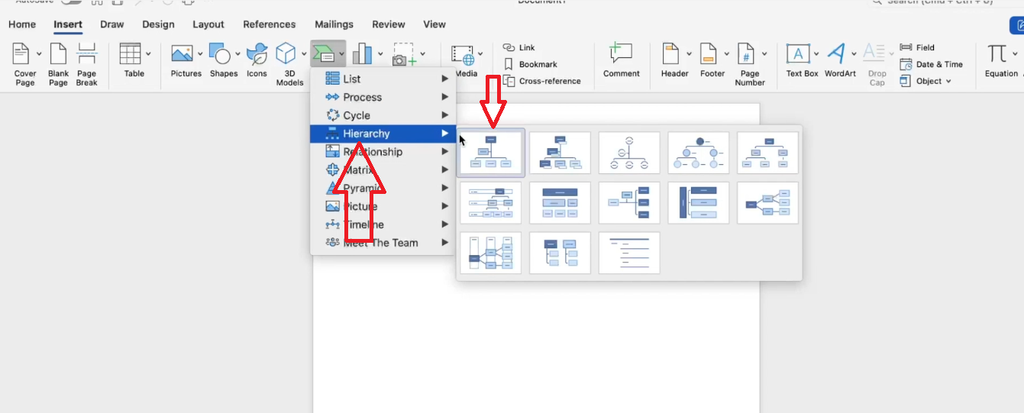
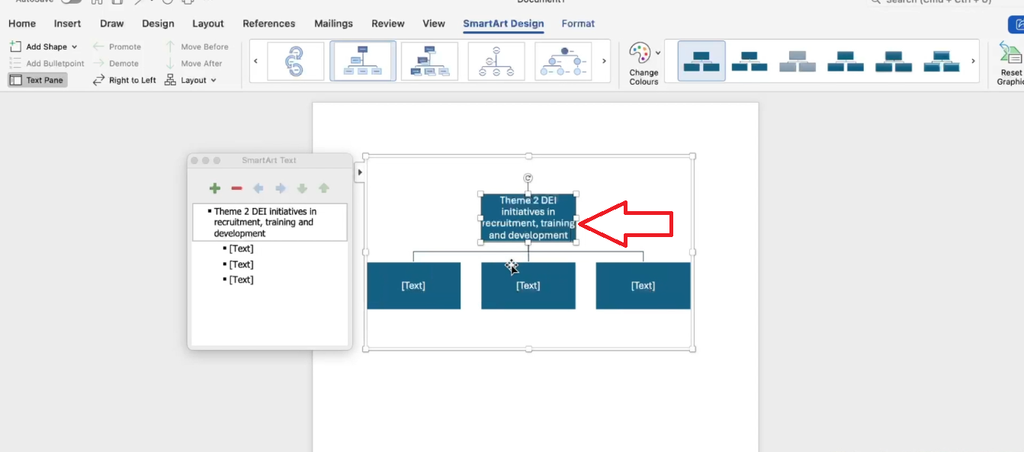
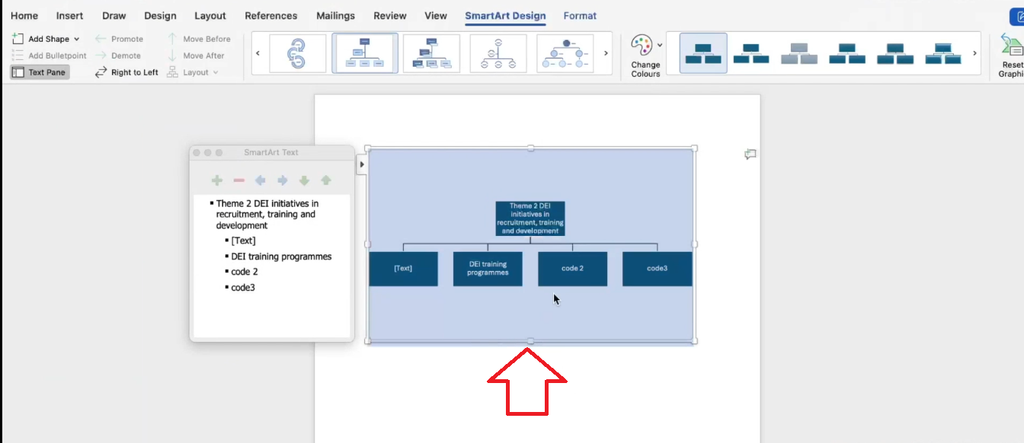
These SmartArt diagrams serve as mind maps showing how your codes cluster into themes. They’re useful additions to the findings chapter of your dissertation — they help examiners see the structure of your analysis at a glance.
Frequently Asked Questions
How many themes should I have in NVivo thematic analysis?
There is no set number, but most thematic analysis studies report between 3 and 6 themes. Each theme should be meaningful and distinct — too many themes can make your analysis feel scattered, while too few may mean themes are too broad to be analytically useful.
What is the difference between a code and a theme in NVivo?
A code is a label applied to a specific segment of data that captures what that segment is about. A theme is a broader pattern that emerges from grouping multiple codes together based on shared meaning. In NVivo, codes become child nodes nested under theme nodes.
Can I do thematic analysis in NVivo for Mac without following Braun and Clarke?
Yes. Braun and Clarke’s framework is one approach, but NVivo itself is a tool that supports any coding and theming process. You can use it with Saldana’s coding manual, grounded theory approaches, or your own framework. The NVivo structure of nodes and sub-nodes adapts to many methodologies.
What should I include in a thematic analysis codebook?
Your codebook should include: each theme name, a description or definition of the theme, and all the codes nested beneath it with brief descriptions. NVivo’s codebook export generates most of this automatically, but you may want to expand the descriptions before including it in your appendix.
Key Takeaways
- Steps 3–5 of Braun and Clarke involve moving from codes to themes, reviewing and refining, and defining and naming your final themes.
- In NVivo for Mac, create themes as top-level code nodes and drag your initial codes underneath them.
- Always write a description for each theme — this becomes part of your codebook and helps you stay analytically consistent.
- Enable “Aggregate coding from children” to ensure your theme node reflects all coded references across its sub-codes.
- Export your codebook via Share → Export → Export Codebook for use in your dissertation appendix.
- Use Microsoft Word SmartArt as a workaround for visualizing your thematic structure when NVivo’s Mac visualization options are limited.
Need Help with Your Thematic Analysis?
If you’re feeling stuck — whether it’s moving from codes to themes, organizing your NVivo project, or writing up your findings — I offer two services designed specifically for PhD students and researchers:
Done-for-You Qualitative Analysis: I handle the full coding and thematic analysis process for you, using NVivo, and deliver a findings report ready for Chapter 4 of your dissertation.
One-on-One NVivo Consulting: We work through your analysis together via Zoom or Microsoft Teams, and I guide you step by step through your specific dataset.
Next in the series: How to report your thematic analysis findings — writing up Chapter 4.