

Reporting thematic analysis findings means turning your ATLAS.ti codes, themes, and quotes into a narrative chapter that explains what your data shows and proves it with evidence. If you’ve already coded your data and built your themes, this is the step where all that work becomes readable, citable text for chapter four of your thesis or dissertation. Here’s exactly how to structure it.
- What Is a Thematic Analysis Findings Report?
- Where Reporting Fits in Braun and Clarke's Six Steps
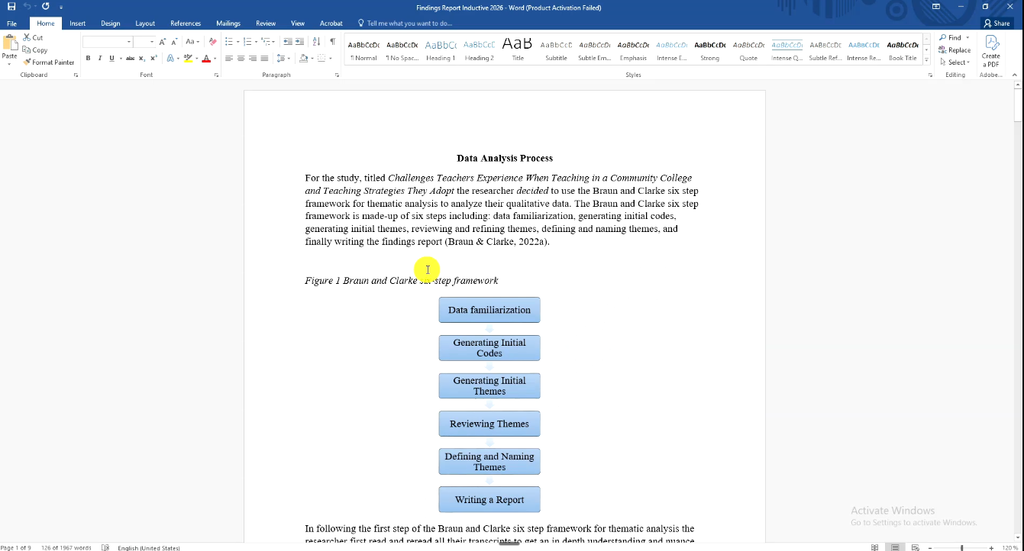
- Step 1 — Write Your Data Analysis Process Section
- Step 2 — Present Your Initial Codes and Example Quotes
- Step 3 — Write Each Theme as a Narrative
- Step 4 — Add Visual Support with Network Views or SmartArt
- Common Mistakes When Reporting Thematic Analysis Findings
- Frequently Asked Questions
- Key Takeaways
- Get Help With Your Findings Chapter
What Is a Thematic Analysis Findings Report?
A thematic analysis findings report is the write-up stage where you present your themes, explain them in plain language, and support each one with direct quotes from participants. It typically opens with a data analysis process section, then moves theme by theme, pairing a rewritten description, a code explanation, a quote, and the participant attribution for every point you make.
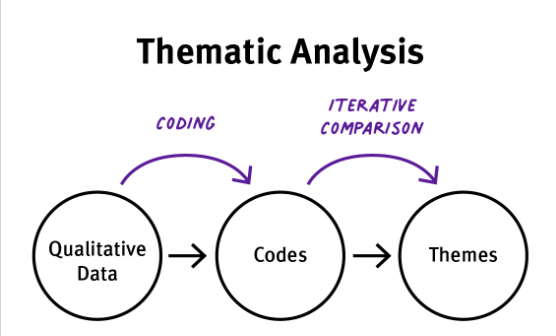
A good reference point is any results section published in a peer-reviewed journal like Frontiers. Those sections open with participant demographics and a preview of the major themes, follow with a table of themes and descriptions, and then work through each theme individually — explaining it, presenting sub-themes, and backing every claim with a quote.
Where Reporting Fits in Braun and Clarke’s Six Steps
Following the six-step process developed by Virginia Braun and Victoria Clarke — familiarization, coding, generating themes, reviewing themes, defining and naming themes, and writing up — reporting findings is the final step. If you want the full walkthrough of all six steps applied specifically in ATLAS.ti, see Thematic Analysis in ATLAS.ti: Braun and Clarke’s 6 Steps.
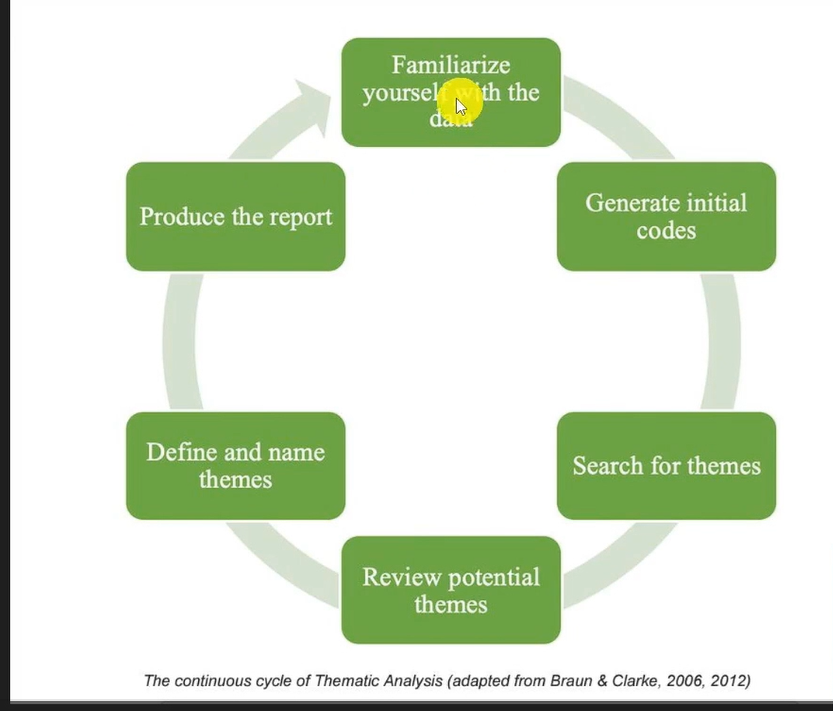
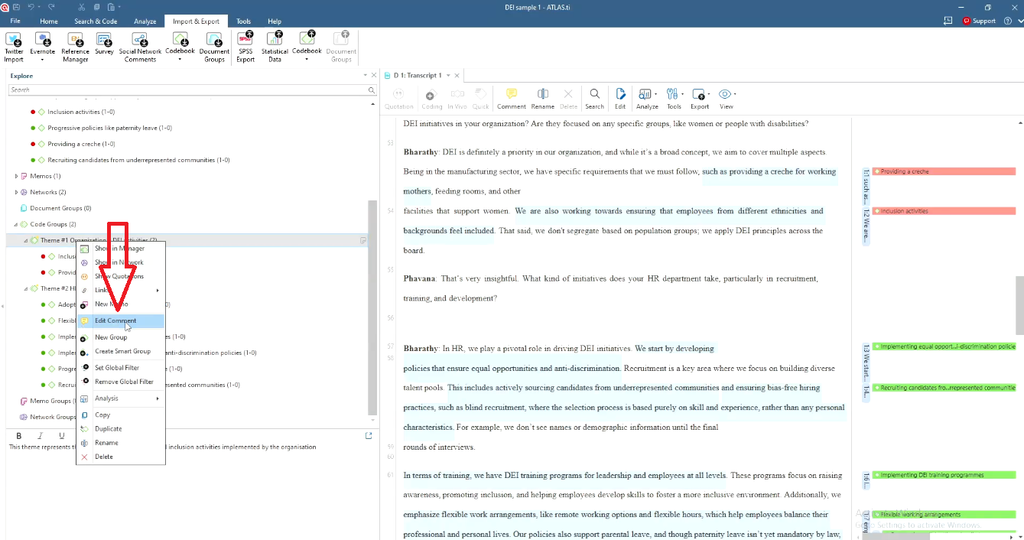
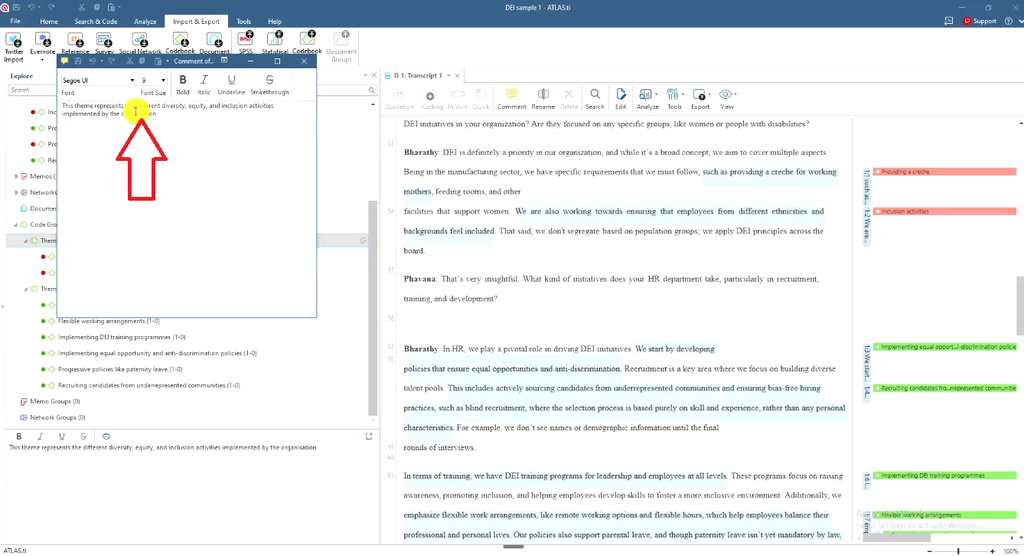
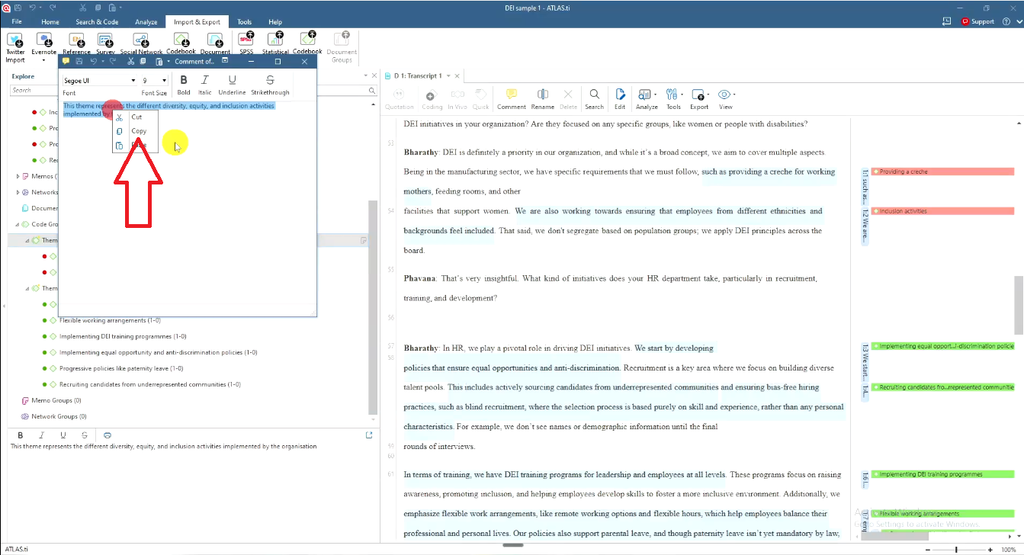
By the time you get here, you should already have your codes generated, your themes reviewed and refined, and a clear description written for each theme inside ATLAS.ti (accessible via right-click → Edit Comment). If you haven’t finished those earlier stages yet, work through Inductive Thematic Analysis in ATLAS.ti: Step-by-Step Guide before writing your report — reporting only works once your coding framework is solid.
Step 1 — Write Your Data Analysis Process Section
Every findings report should open with a section explaining the steps you took to analyze your data. This gives your reader (and your examiner) confidence that your themes didn’t appear out of nowhere — they were built systematically.
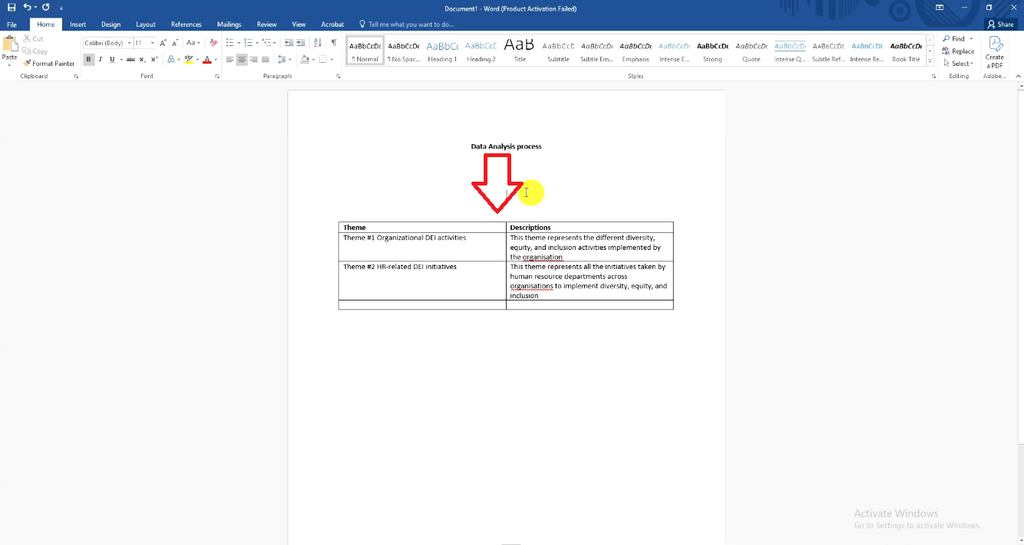
Building a Themes-and-Descriptions Table from ATLAS.ti
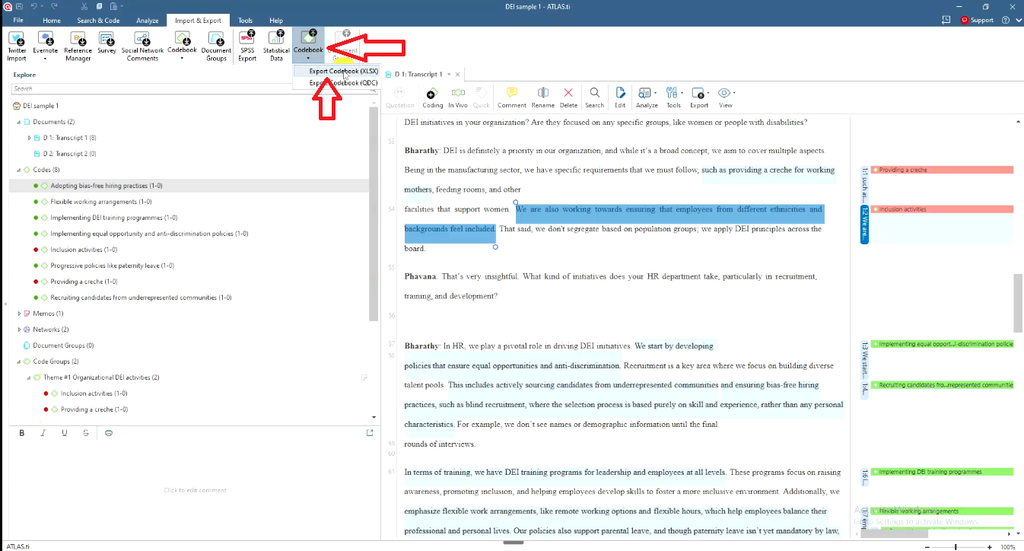
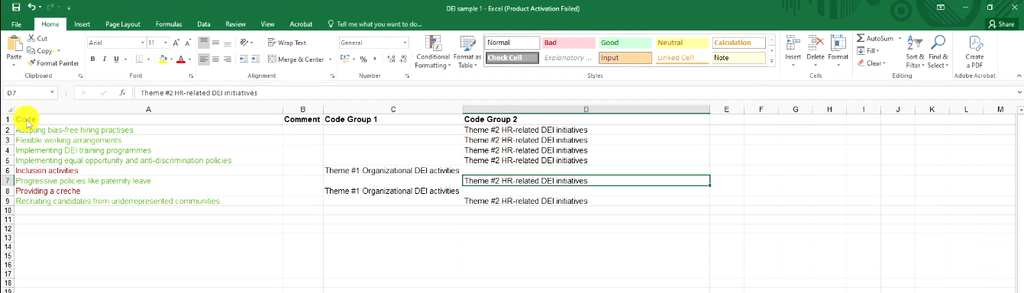
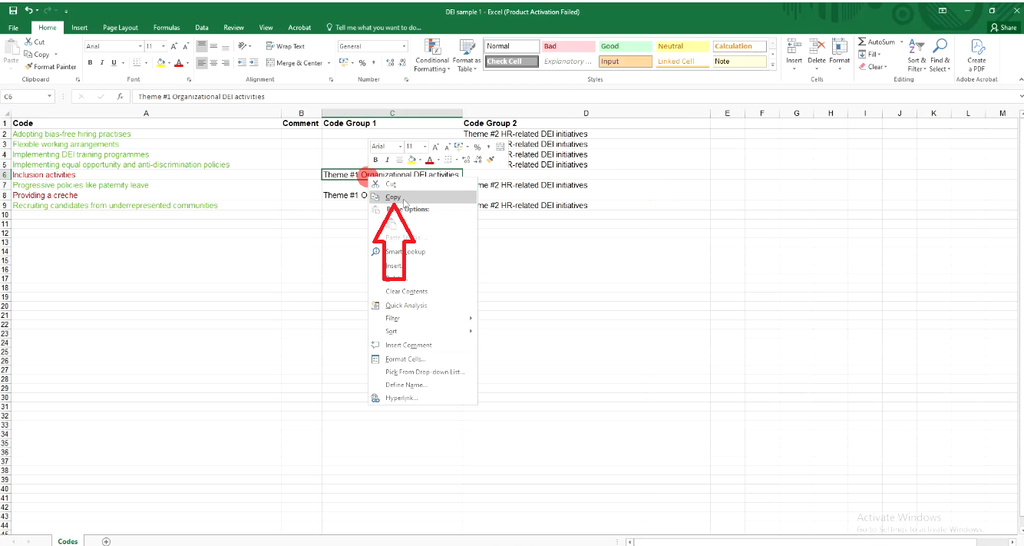
- In ATLAS.ti, go to Codebook → Export Codebook to pull your themes and their descriptions into Excel.
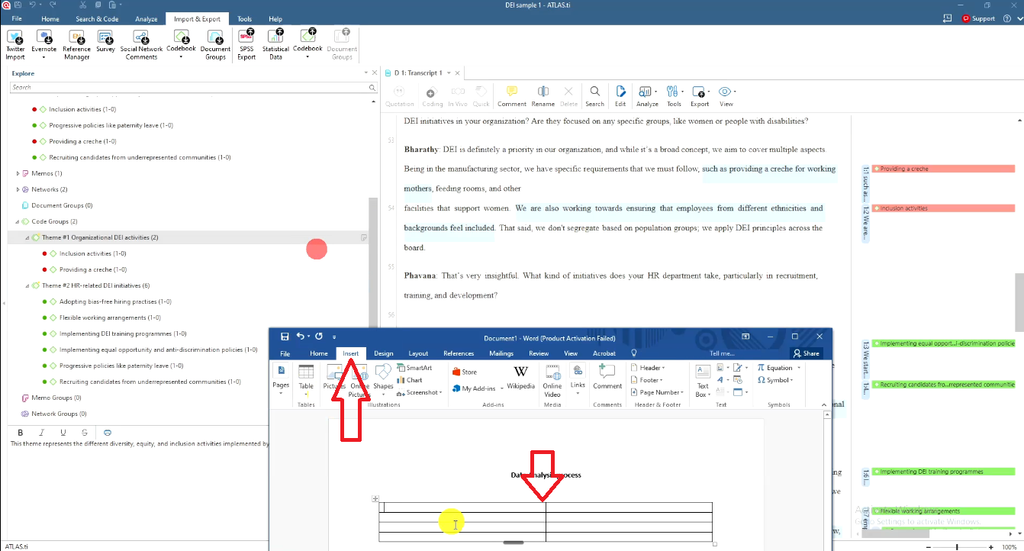
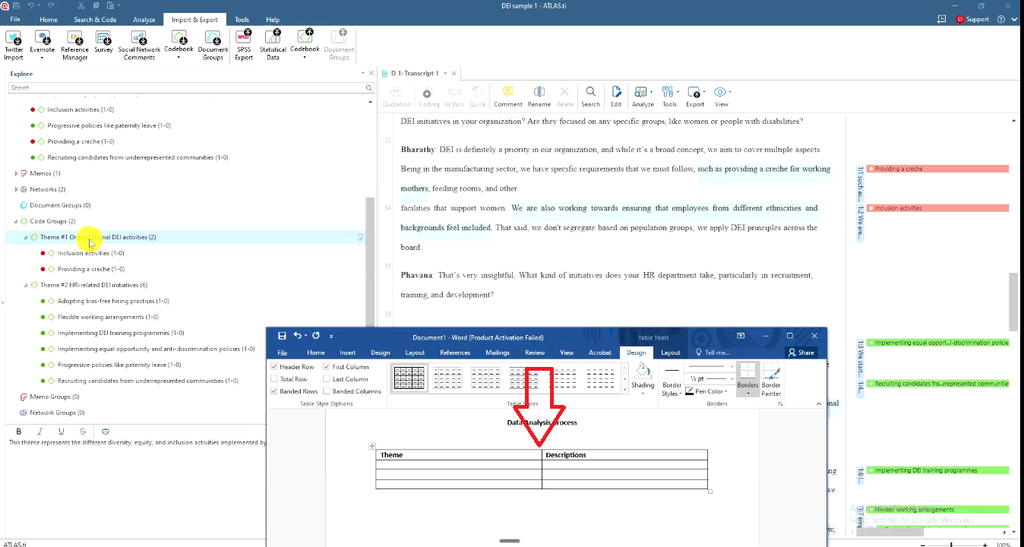
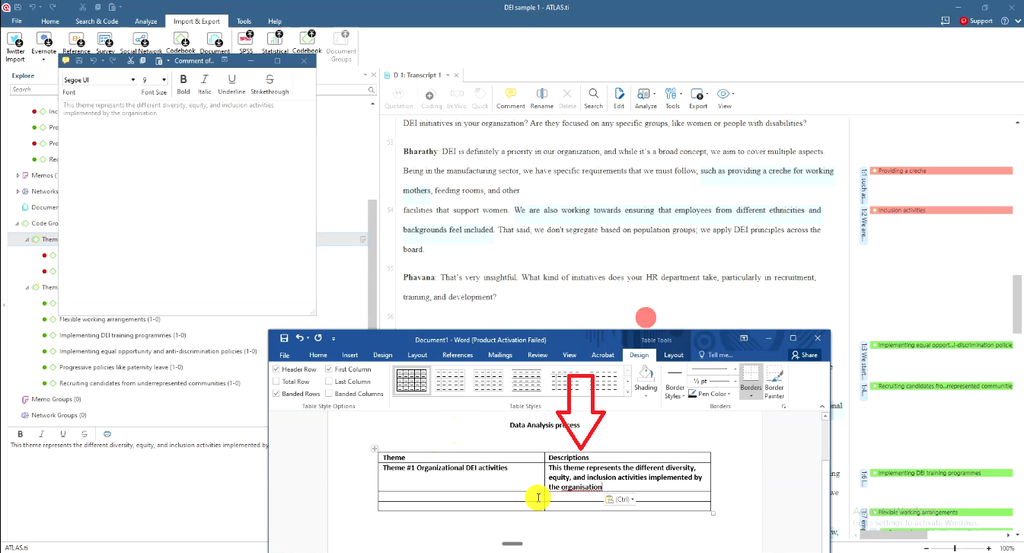
- In Word, go to Insert → Table and create two columns: “Theme” and “Description.”
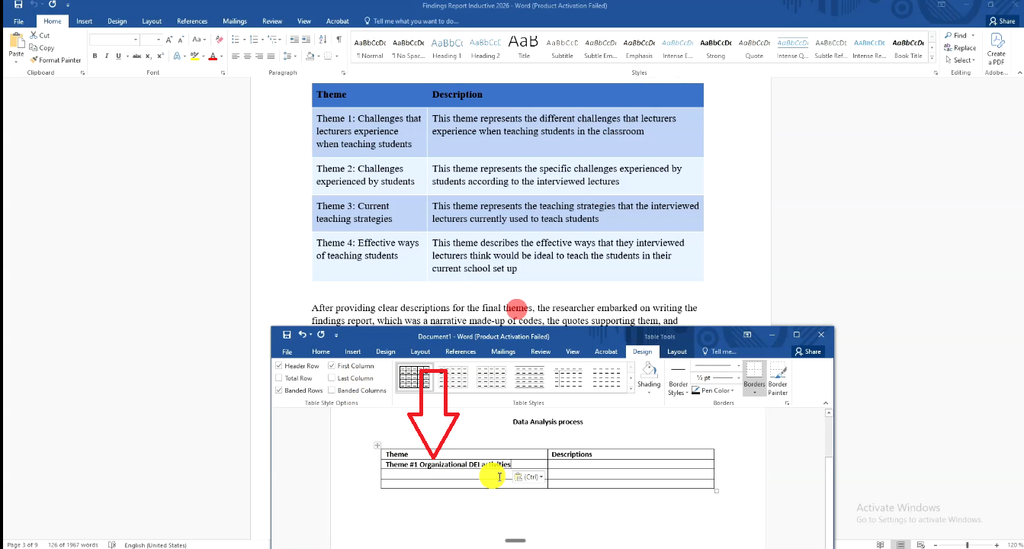
- Copy each theme name and its corresponding description (found under each theme’s Edit Comment in ATLAS.ti) into the table.
- Repeat for every theme in your analysis.
This table becomes the anchor of your data analysis process section — it shows the reader your full set of themes before you unpack any of them individually.
Step 2 — Present Your Initial Codes and Example Quotes
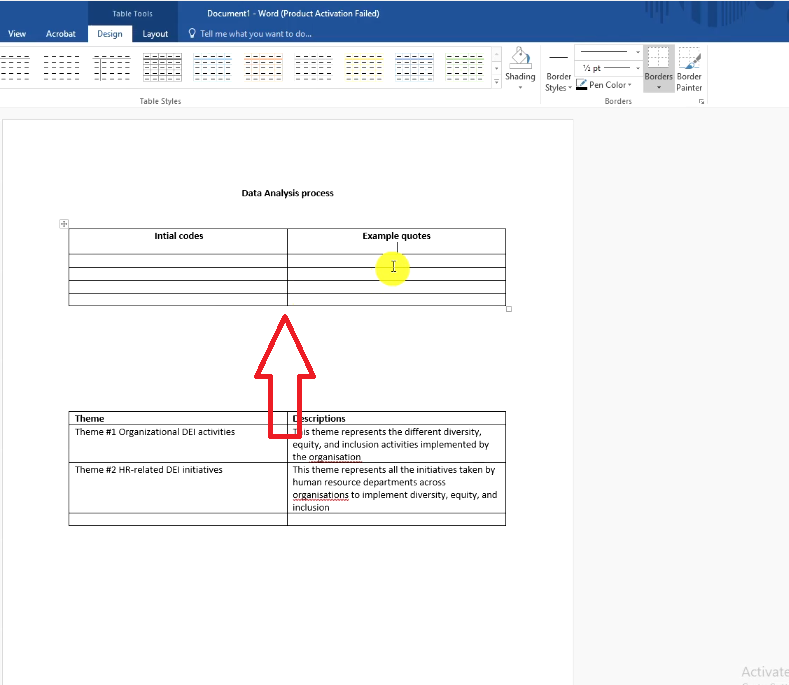
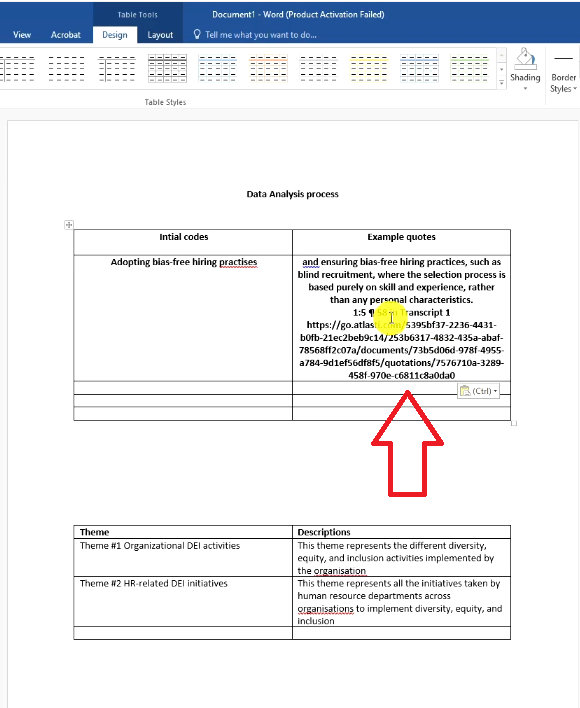
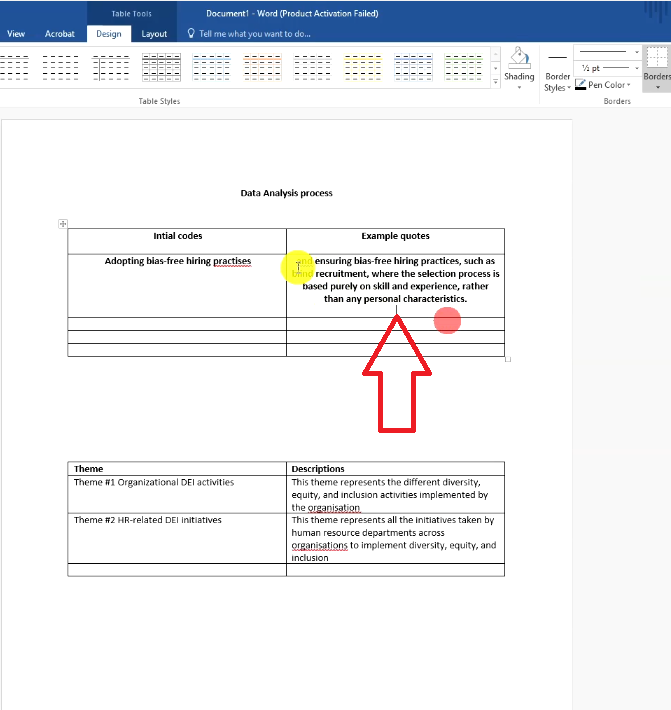
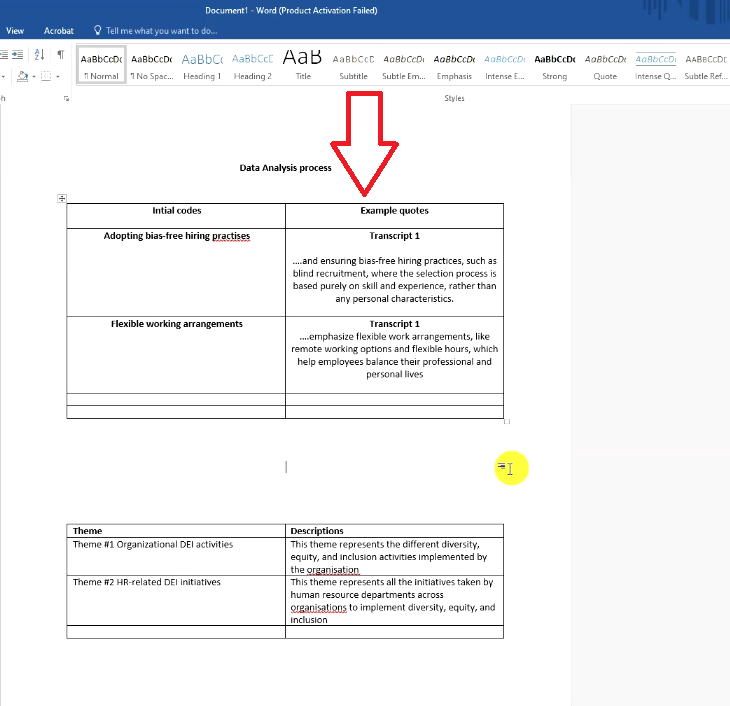
Before you get into the themes themselves, it helps to show the initial codes that fed into them, along with a supporting quote for each. Insert a table with two columns — “Initial Codes” and “Example Quotes” — then:
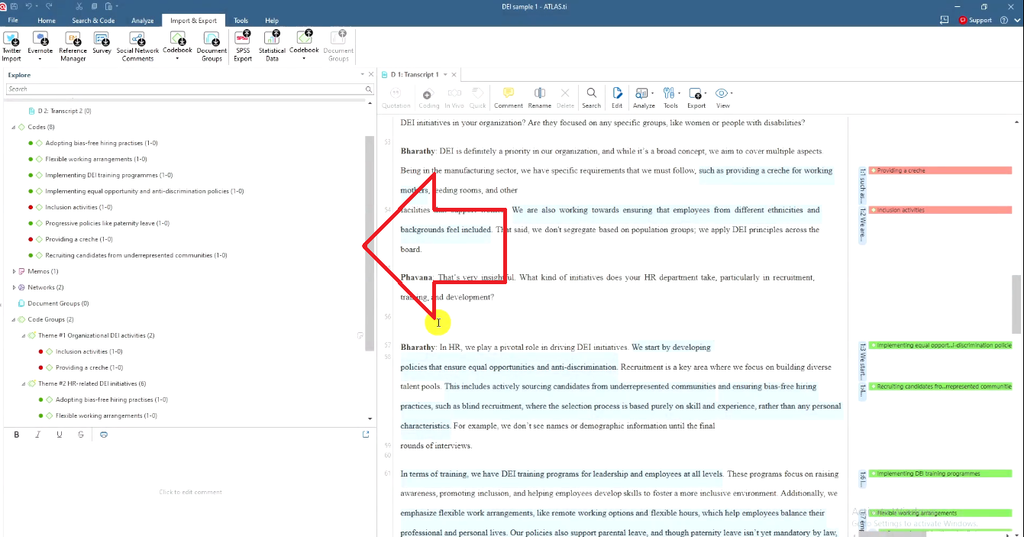
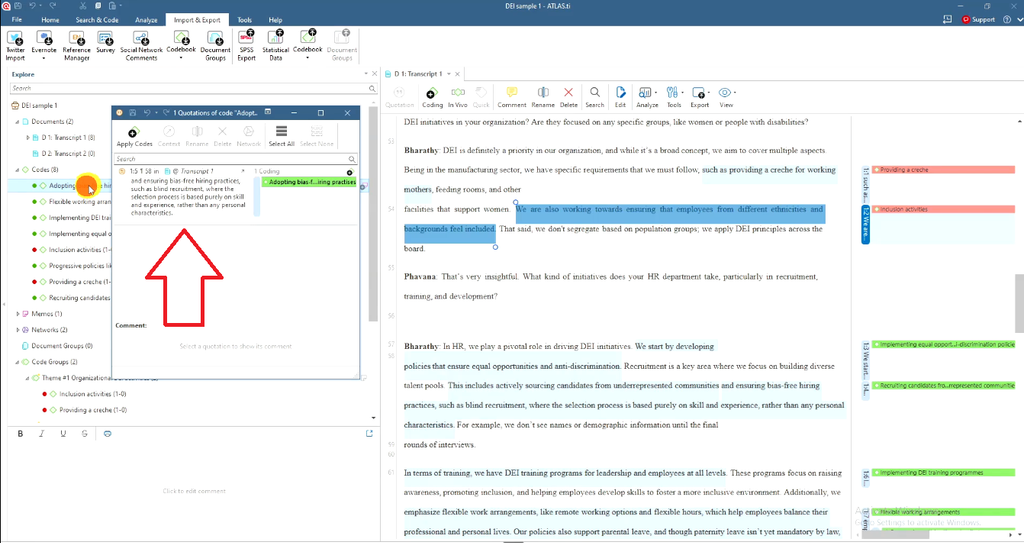
- Double-click a code in ATLAS.ti to see which quotations are linked to it and who said them.
- Copy the quote text into your table, trimming anything that isn’t part of the actual statement (names, timestamps, filler).
- Repeat for two or three representative codes so the reader sees the raw material your coding was built from.
Working in NVivo instead? The same logic applies — see From Codes to Themes in NVivo: A Step-by-Step Guide.
Step 3 — Write Each Theme as a Narrative
This is the core of the report. For every theme, you’re combining four elements into a single flowing paragraph:
The Four Elements Every Theme Section Needs
- A rewritten description — Take your theme’s ATLAS.ti description and rewrite it in past tense as your opening sentence.
- A code explanation — Name the specific codes that make up the theme, in plain language.
- A supporting quote — Pull the actual quote from ATLAS.ti and present it in quotation marks or italics.
- Participant attribution — Credit the quote to the person who said it.
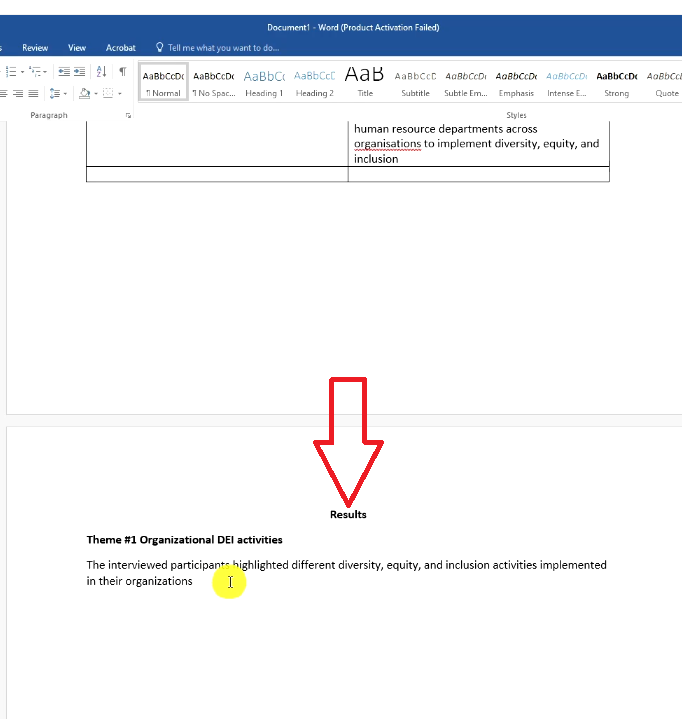
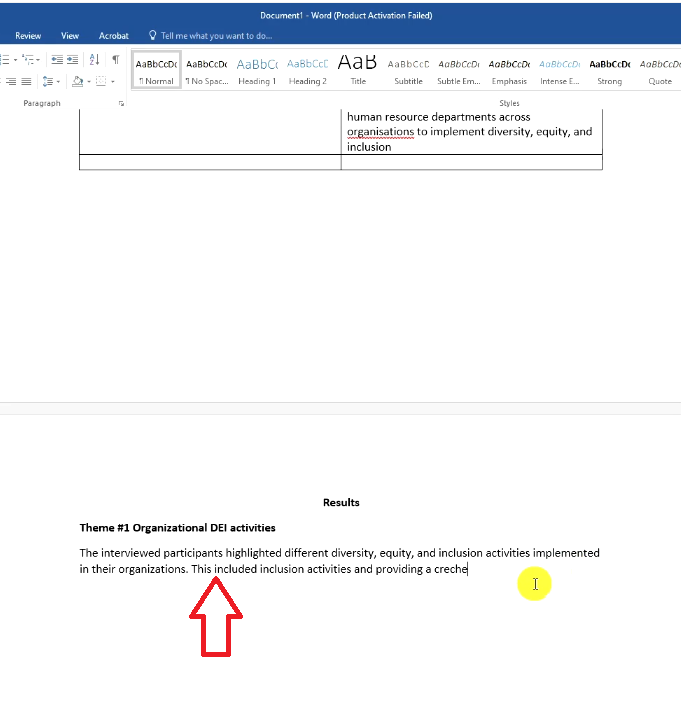
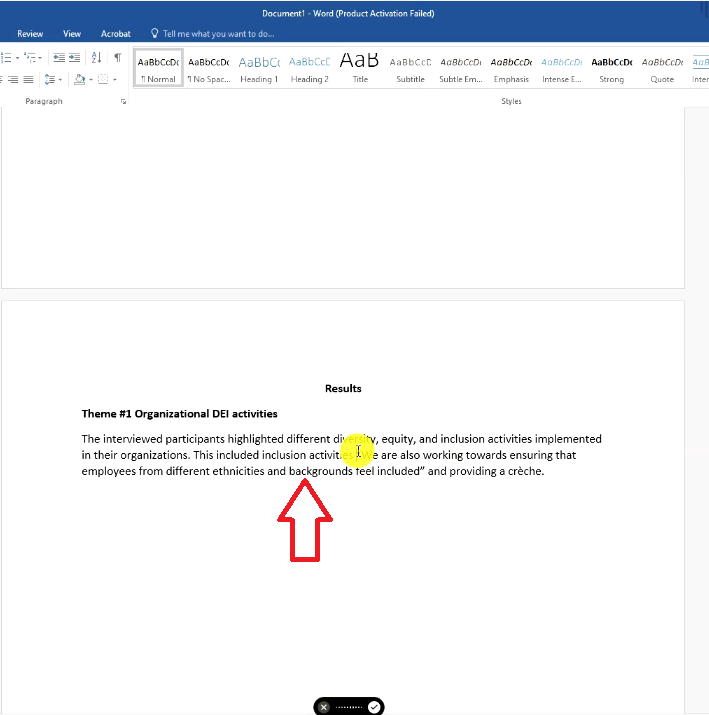
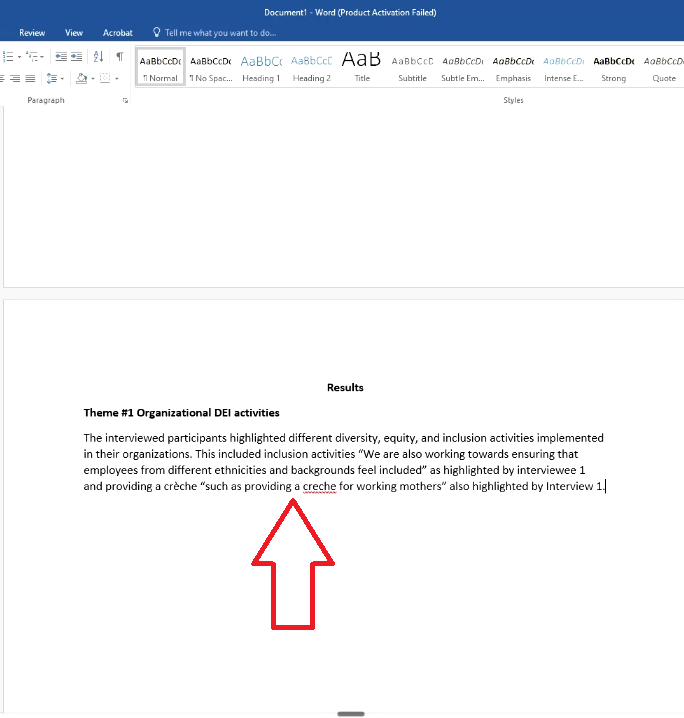
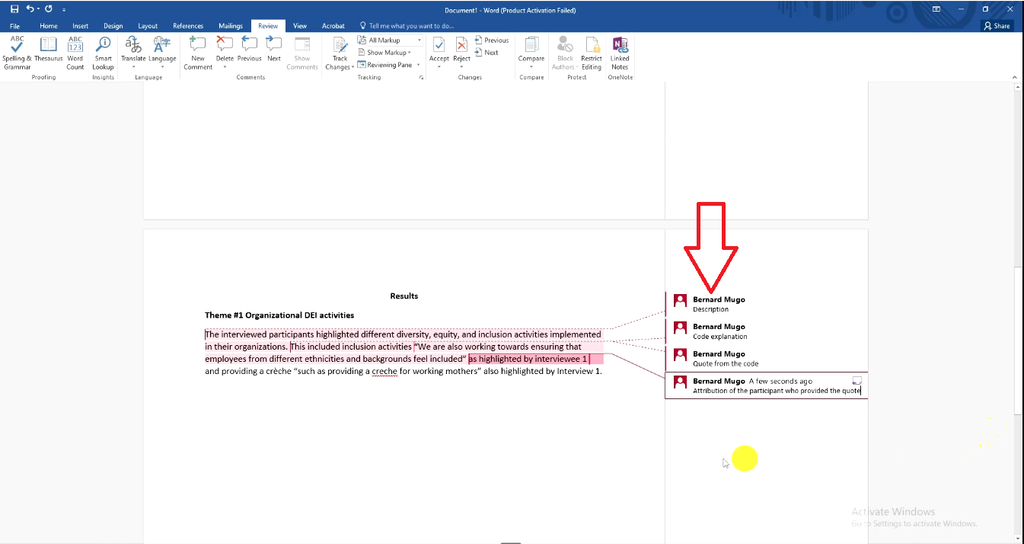
Stack these four elements for every code within the theme, then repeat the whole pattern for each additional theme in your study.
Step 4 — Add Visual Support with Network Views or SmartArt
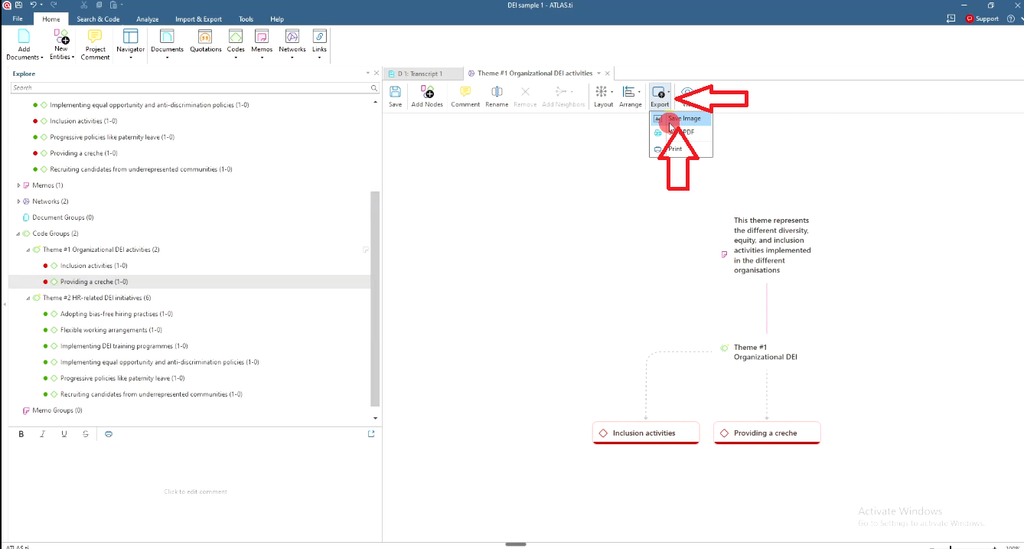
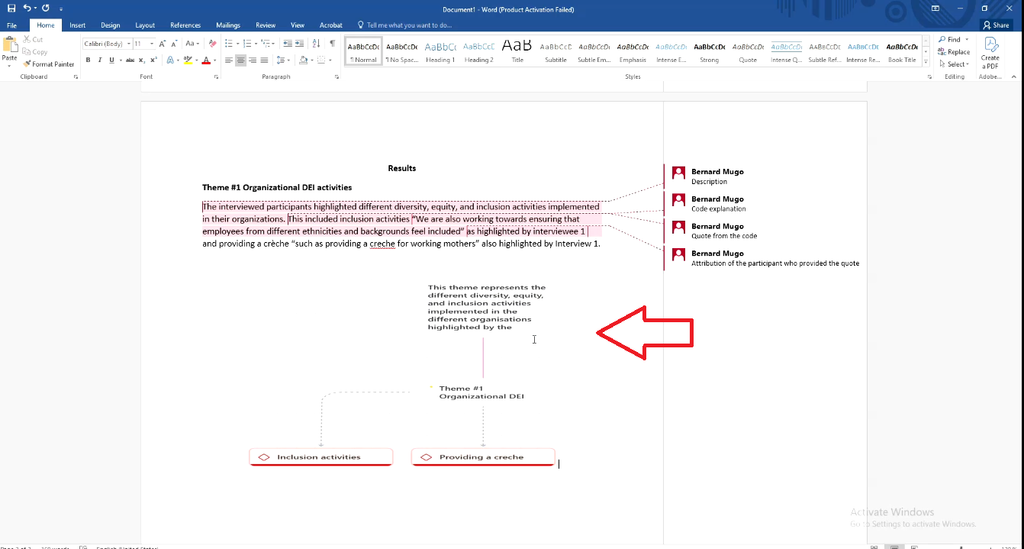
Text-heavy findings chapters are hard to read. ATLAS.ti’s network views (right-click a theme → Show in Network, drag in related codes, then Export → Save Image) or Word’s Insert → SmartArt → Hierarchy both give readers a quick visual map of how your codes relate to each theme.
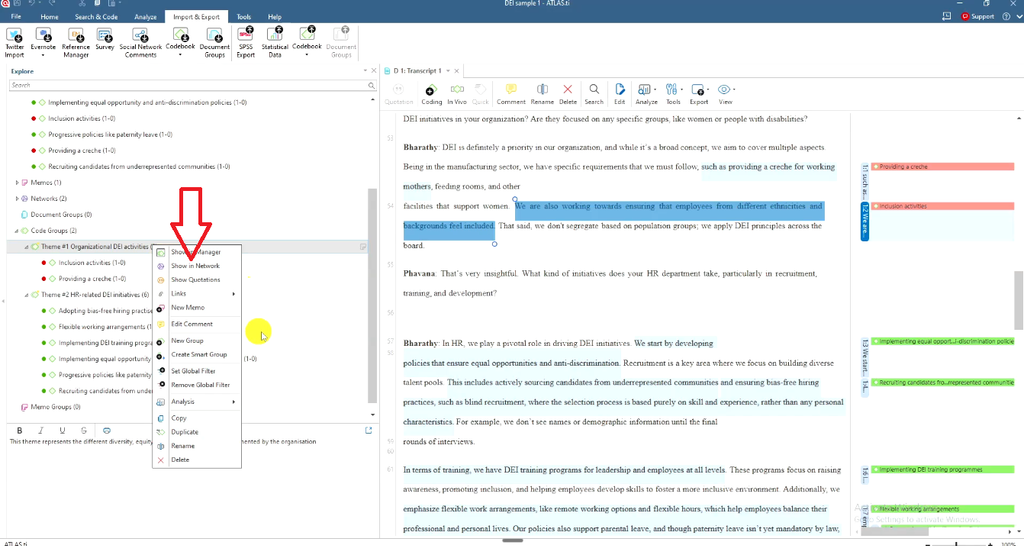
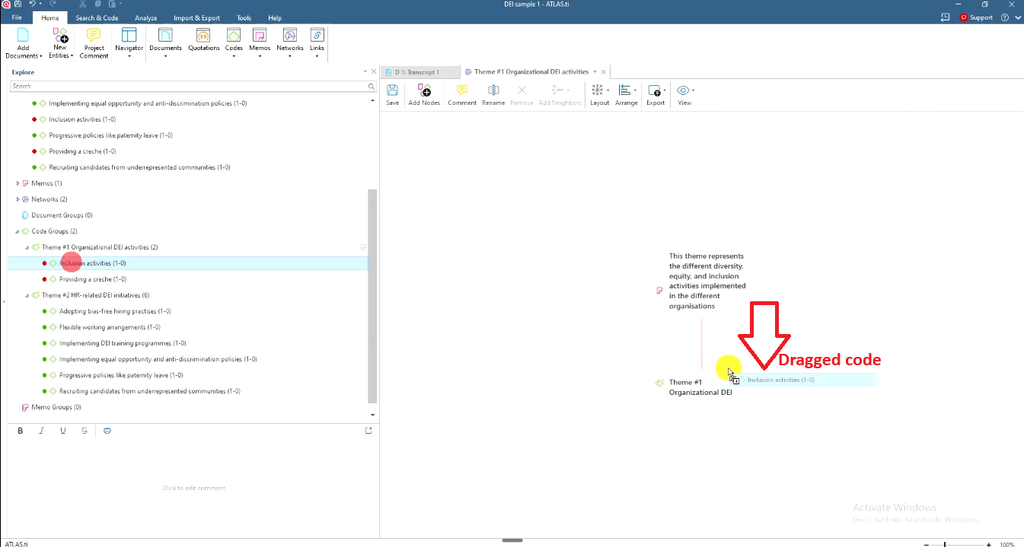
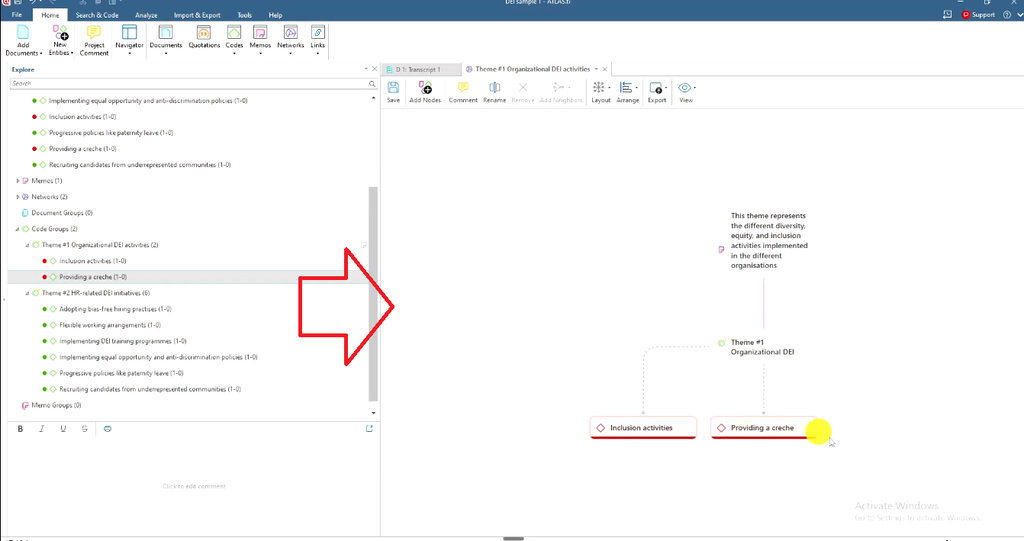
For a full rundown of options, see ATLAS.ti Visualization: 5 Ways to Present Your Findings.
Common Mistakes When Reporting Thematic Analysis Findings
- Skipping the data analysis process section
- Presenting quotes with no attribution
- Copy-pasting ATLAS.ti descriptions verbatim instead of rewriting them as narrative
- Leaning on AI-generated visuals you don’t fully understand
For a deeper look at what commonly goes wrong, see 5 Thematic Analysis Mistakes That Will Fail Your Dissertation.
Frequently Asked Questions
What are the six steps of thematic analysis?
Familiarization, coding, generating themes, reviewing themes, defining and naming themes, and writing up.
What should a thematic analysis findings report include?
A data analysis process section, a table of themes and codes, and a theme-by-theme narrative combining description, code explanation, quote, and attribution.
Can I use ATLAS.ti’s network view instead of writing quotes manually?
Network views are a good visual supplement, but examiners still expect narrative text with quotes and attribution.
Key Takeaways
- A thematic analysis findings report is built from four repeating elements: description, code explanation, quote, and attribution.
- Everything in the report comes directly out of ATLAS.ti, not invented during writing.
- Visuals strengthen the report but don’t replace the written narrative.
Get Help With Your Findings Chapter
If you’d rather have your findings chapter handled for you, the Done-For-You Data Analysis Service includes manual coding, theme development, visualizations, a ready-to-use findings report, and a full video walkthrough. If you’d prefer to write it yourself with expert guidance, one-on-one consulting is available via Zoom, Teams, or Google Meet.
![Qualitative Analysis of Interviews in ATLAS.ti [Step-by-Step]](https://survivingresearch.com/wp-content/uploads/2025/09/Qualitative-Data-Analysis-Just-Got-Easier-Atlas.ti-Tutorial-2025.jpg)
![Thematic Analysis in ATLAS.ti: Braun and Clarke 6 Steps [Full Guide]](https://survivingresearch.com/wp-content/uploads/2025/10/Thematic-Analysis-with-Atlas-ti.jpg)