

Last Updated on 20 minutes ago by Bernard Mugo
This ATLAS.ti tutorial takes you through the full journey of interview analysis in one place: importing your transcripts, coding them, turning codes into themes, and writing up the findings chapter of your dissertation. If you have finished your semi-structured interviews and don’t know where to start, follow the steps below in order and you’ll finish with a findings report you can defend.
I’m Bernard Mugo, a qualitative research specialist. Over the past four years I’ve helped more than 400 PhD students analyze semi-structured interviews, write their findings report and finish chapter four of their thesis or dissertation. This is the exact process I use with them, shown on real interview data.

QUICK ANSWER: To analyze interviews in ATLAS.ti, (1) create a project and import your transcripts, (2) read each transcript line by line, (3) apply short interpretive codes to meaningful quotes, color-coded by interview question, (4) group codes that share meaning into code groups that become your themes, (5) write a description for each theme, and (6) export your codes, quotes and themes to write your findings chapter.
This is the full-course version of my ATLAS.ti series. If you want to go deeper on a single stage, I’ve also written dedicated guides on ATLAS.ti qualitative analysis of interviews: coding step by step, thematic analysis in ATLAS.ti using Braun and Clarke’s 6 steps and 5 ways to visualize your results in ATLAS.ti.
- What You'll Learn in This ATLAS.ti Tutorial
- What Does It Mean to Analyze Interviews in ATLAS.ti?
- Before You Start: Prepare Your Interview Data
- The Example Study: DEI Initiatives in Manufacturing
- Braun and Clarke's 6 Steps of Thematic Analysis
- Step 1: Set Up Your ATLAS.ti Project and Import Transcripts
- Step 2: Code Your Interviews in ATLAS.ti
- Step 3: Move from Codes to Themes in ATLAS.ti
- Step 4: Report Your Thematic Analysis Findings from ATLAS.ti
- Common Mistakes When Analyzing Interviews in ATLAS.ti
- Frequently Asked Questions
- Key Takeaways
- Get Expert Help Analyzing Your Interviews in ATLAS.ti
What You’ll Learn in This ATLAS.ti Tutorial
By the end of this tutorial you will be able to:
- Set up an ATLAS.ti project and import interview transcripts
- Code interviews inductively using Braun and Clarke’s framework
- Use color-coding to track which interview question every code came from
- Move from codes to themes using code groups
- Write clear theme descriptions and visualize themes in networks
- Export your codebook and build the tables your findings chapter needs
- Write up each theme using a simple four-part structure
What Does It Mean to Analyze Interviews in ATLAS.ti?
Analyzing interviews in ATLAS.ti means using the software to organize, code and interpret your interview transcripts so that patterns of meaning (themes) emerge that answer your research questions. ATLAS.ti does not do the thinking for you. It gives you a structured workspace where every code, quote, theme and description stays linked to the participant who said it.
That link matters. When your supervisor or examiner asks “where did this theme come from?”, you can show them the exact codes and quotes behind it in seconds. That audit trail is one of the strongest ways to demonstrate rigor, and it supports the strategies for boosting validity in qualitative research that examiners look for.
The approach I use in this tutorial is inductive thematic analysis, where themes come from the data rather than from a framework you set in advance. If you prefer a different inductive route, see my guide to inductive thematic analysis using ATLAS.ti (Saldana’s method). Not sure ATLAS.ti is the right software for you? Compare the options in my overview of tools for qualitative data analysis.
Before You Start: Prepare Your Interview Data
Good analysis starts before you open ATLAS.ti. Check these three things first.
1. Clean, Consistent Transcripts
Each transcript should clearly separate the interviewer’s questions from the participant’s answers. Use the same format and labels across every file (for example, “Interviewer:” and “Participant 1:”). Consistent transcripts make coding faster and make it easier to spot which question every answer belongs to. If you still need to transcribe, see my roundup of transcribing tools.
2. Your Research Questions in Front of You
Every coding decision should connect back to your research questions. Print them or keep them open in a separate window while you code.
3. Enough Interviews
If you’re still deciding on your sample size, read how many interviews you need for qualitative research before you begin. And if you’re still collecting data, my guide on how to conduct a qualitative research interview will help you get richer answers to code.
The Example Study: DEI Initiatives in Manufacturing
To keep things practical, I’ll use two interview transcripts from a study on diversity, equity and inclusion (DEI) initiatives in the manufacturing sector. The study had two research questions:
- RQ1: How are diversity, equity and inclusion initiatives implemented through HR practices in organizations within the manufacturing sector?
- RQ2: What is the impact of DEI initiatives on organizational performance in manufacturing sector organizations?
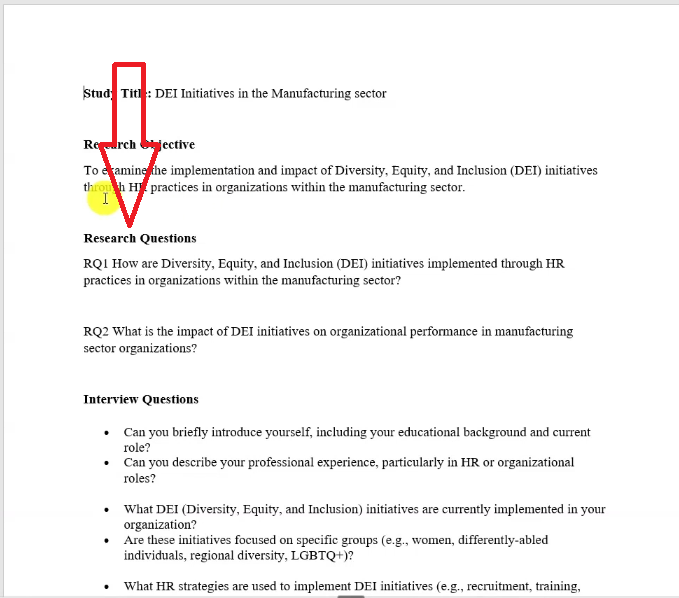
The interviews were semi-structured, which means each participant answered the same core questions with room for follow-up. That structure is what makes the color-coding technique in Step 2 so effective. For a refresher on this interview format, Scribbr’s guide to semi-structured interviews is a good overview.
Braun and Clarke’s 6 Steps of Thematic Analysis
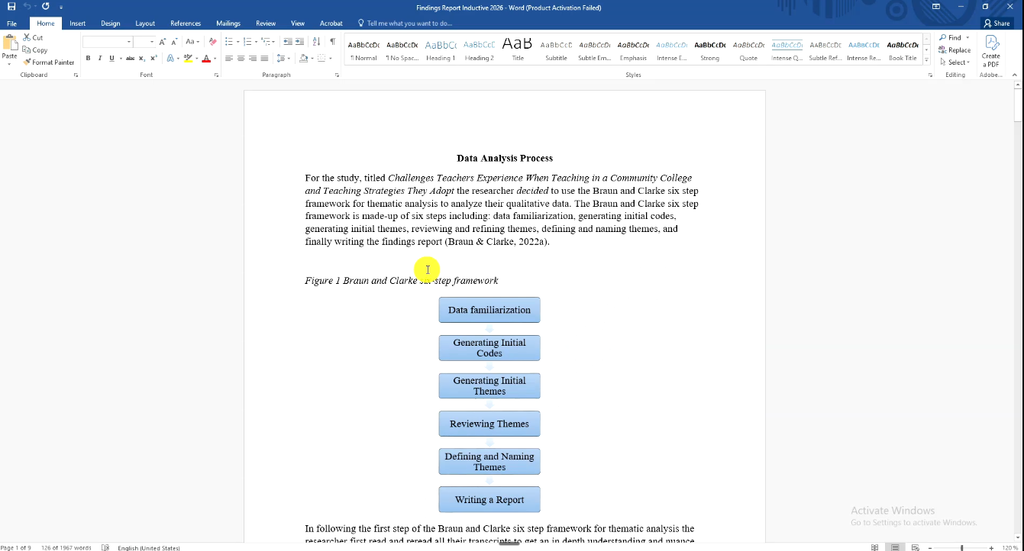
Braun and Clarke’s six-phase approach is the most widely used framework for thematic analysis of interviews. It was set out in their 2006 paper “Using thematic analysis in psychology” in Qualitative Research in Psychology. The six steps are:
- Familiarize yourself with the data
- Generate initial codes
- Generate themes
- Review and refine themes
- Define and name themes (write a description for each)
- Report the findings
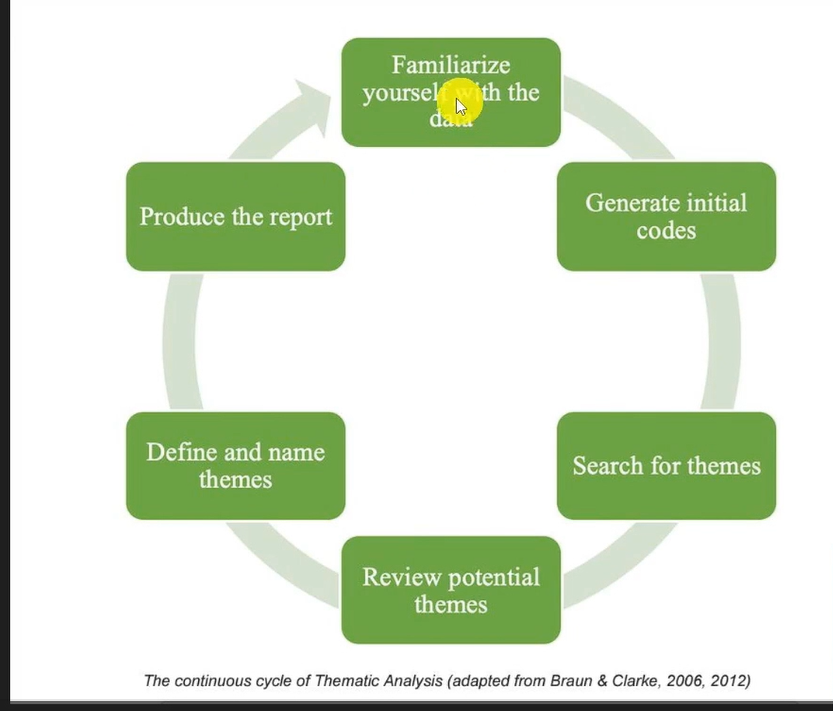
Here is how each step maps onto ATLAS.ti:
- Steps 1–2 (familiarize and code): Documents, Apply Codes and the Codes list
- Steps 3–5 (generate, review and define themes): Code Groups, Edit Comment and Networks
- Step 6 (report): Codebook export, Code Group Manager and your word processor
In ATLAS.ti, steps 3 to 5 often happen together, as you’ll see below. For a plain-English overview of the method itself, Scribbr’s step-by-step guide to thematic analysis and Grad Coach’s thematic analysis explainer are both useful companions to this tutorial. You can also see worked thematic analysis examples, inductive and deductive, on my blog.
Step 1: Set Up Your ATLAS.ti Project and Import Transcripts
The first step to analyze interviews in ATLAS.ti is to create a project and bring your transcripts into it.
Getting to Know the ATLAS.ti Interface
When you open ATLAS.ti, you’ll see three navigation areas:
- The top (blue) ribbon: File, Home, Search & Code, Analyze, Import & Export, Tools and Help.
- The second menu bar: tools for Documents, Quotations, Codes, Memos, Networks, Links, comments and the Project Navigator.
- The left-hand panel: Documents, Codes, Memos, Networks, Document Groups and Code Groups.
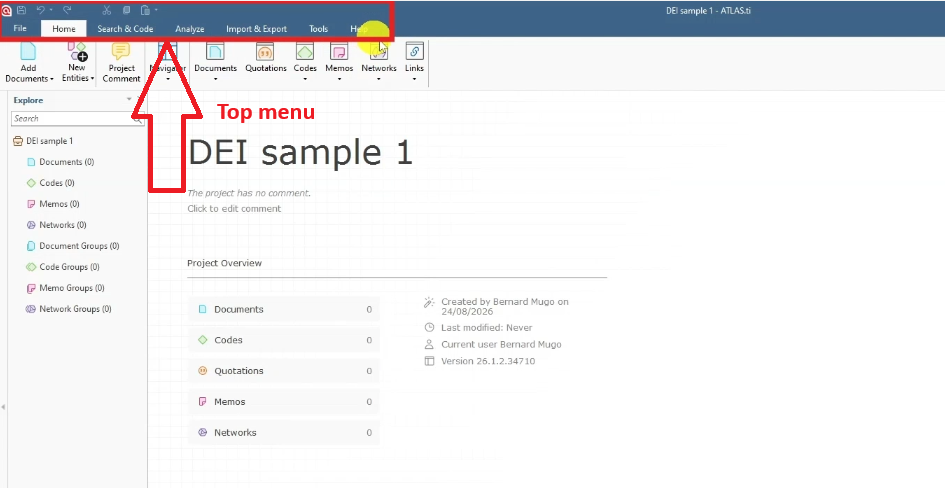
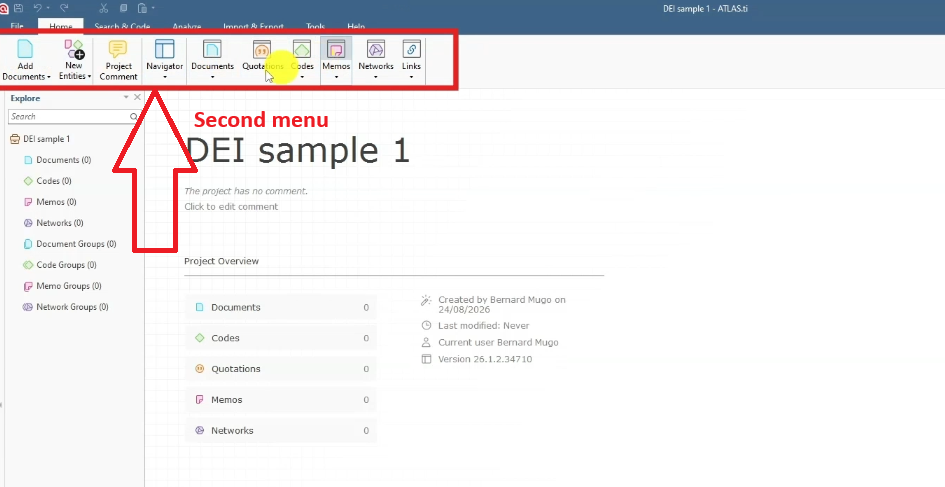
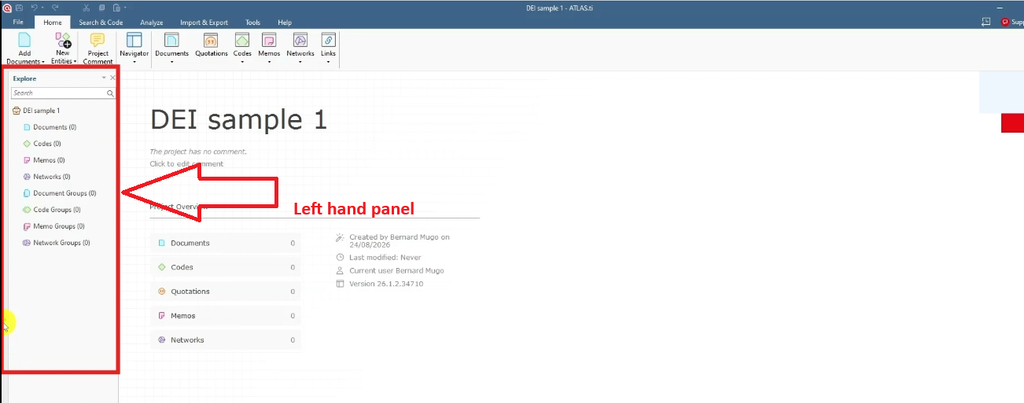
You’ll use the left-hand panel most, because that’s where your codes and themes live. The official ATLAS.ti guide to coding interviews has further background on each feature.
Importing Your Interview Transcripts
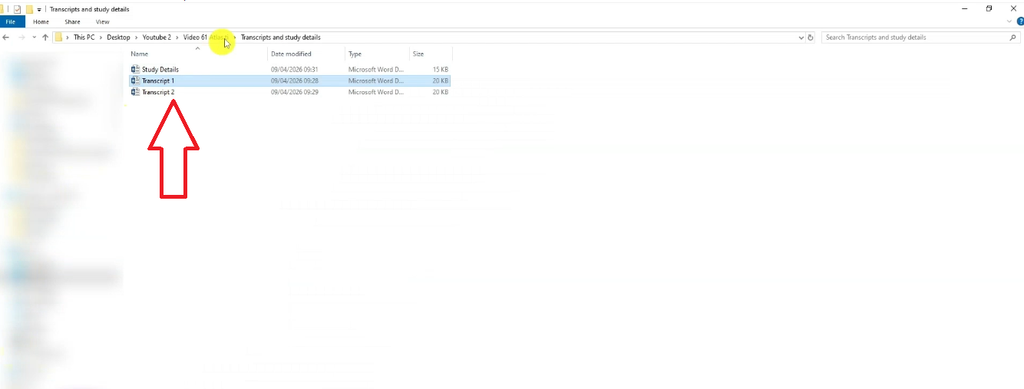
- Go to File > New Project, name it and create it.
- Open Documents in the left panel.
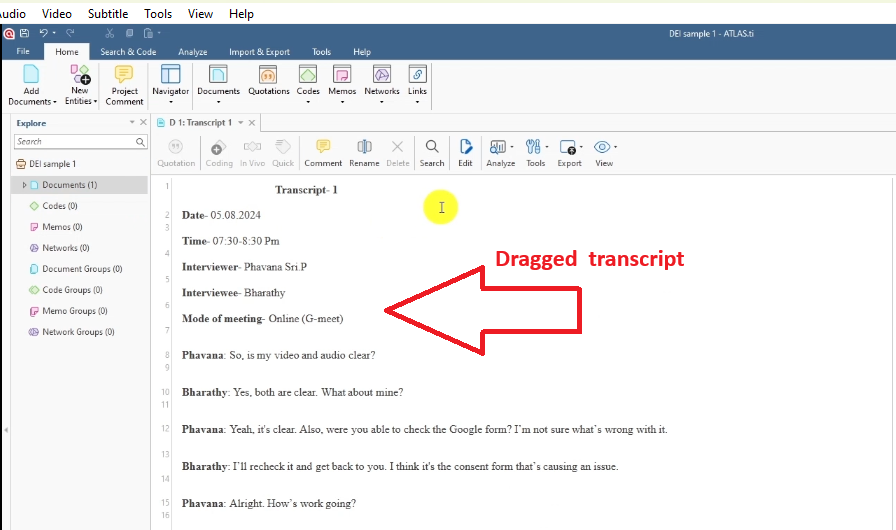
- Drag and drop your first transcript into the Documents area.
- Repeat for each remaining transcript.
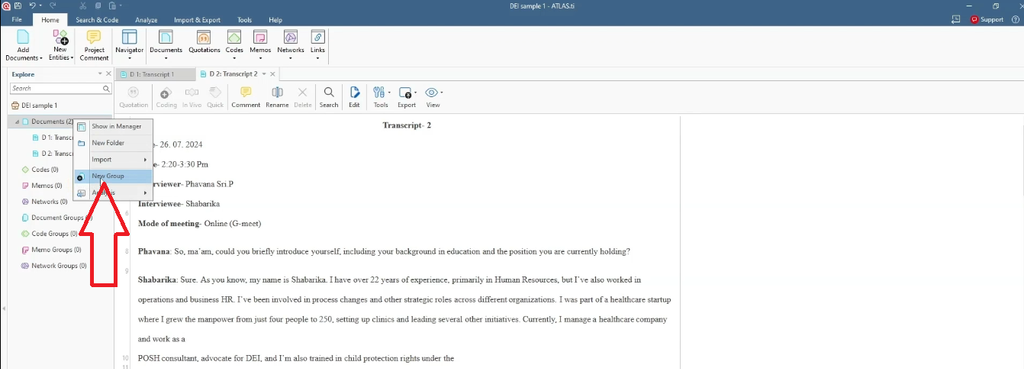
- Optional: if your documents belong together (for example, by site or participant type), right-click and create a document group.
- Double-click any document to open it.
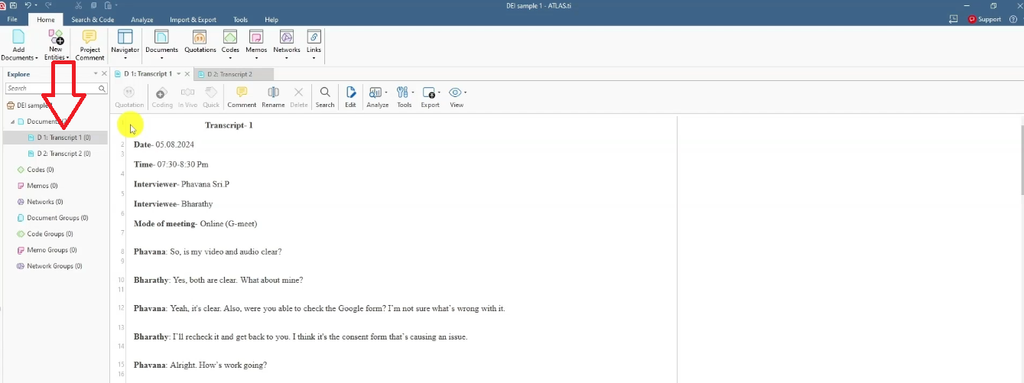
Tip: name each file by participant (for example, “Interviewee 1”). That name becomes the attribution you’ll use when you quote participants in your findings chapter.
Step 2: Code Your Interviews in ATLAS.ti
Coding is the heart of qualitative analysis. Before you code, complete Braun and Clarke’s first step: read each transcript line by line so you know what participants are saying.
What Is a Code?
A code is a short label or interpretive statement you attach to any piece of information that is important to your research questions. Good codes are concise and capture the meaning of the quote, not just its words.

Here is the difference in practice, using quotes from the DEI study:
- Quote: “we have specific requirements that we must follow, such as providing a creche for our working mothers.” Weak code: “we have specific requirements.” Strong code: “Providing a creche.”
- Quote: “we don’t see names or demographic information until the final rounds of interviews.” Weak code: “names and demographic information.” Strong code: “Adopting bias-free hiring practices.”
The strong codes interpret what the participant is describing, which makes them much easier to group into themes later. For more worked examples, Grad Coach’s qualitative coding examples are worth a read.
Color-Code by Interview Question
Here is a habit that saves hours later. Assign a color to each interview question:
- Codes from question 1: red
- Codes from question 2: green
- Codes from question 3: blue, and so on
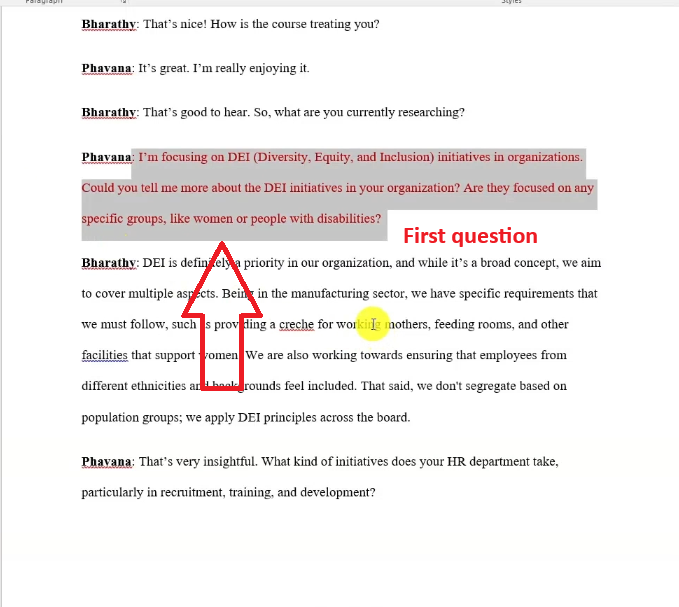
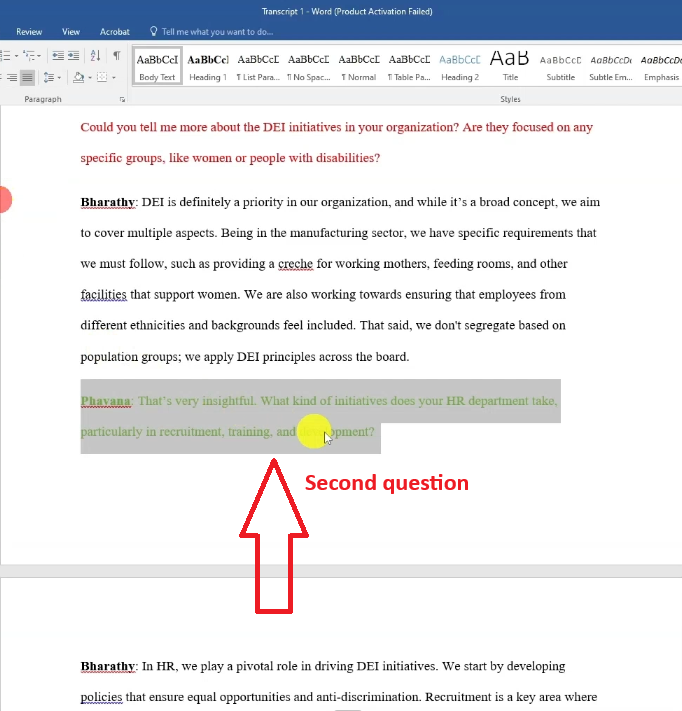
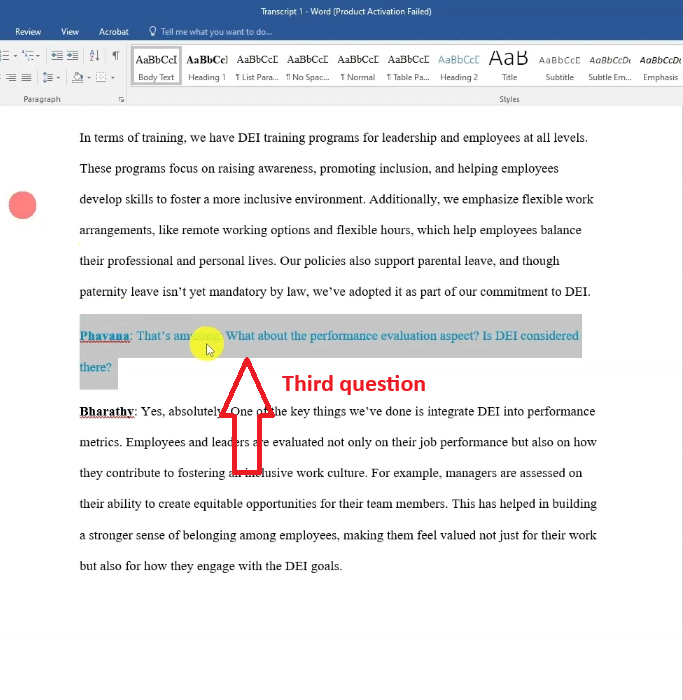
When you later move from codes to themes, you’ll instantly see where every code came from across all participants.
How to Apply a Code in ATLAS.ti
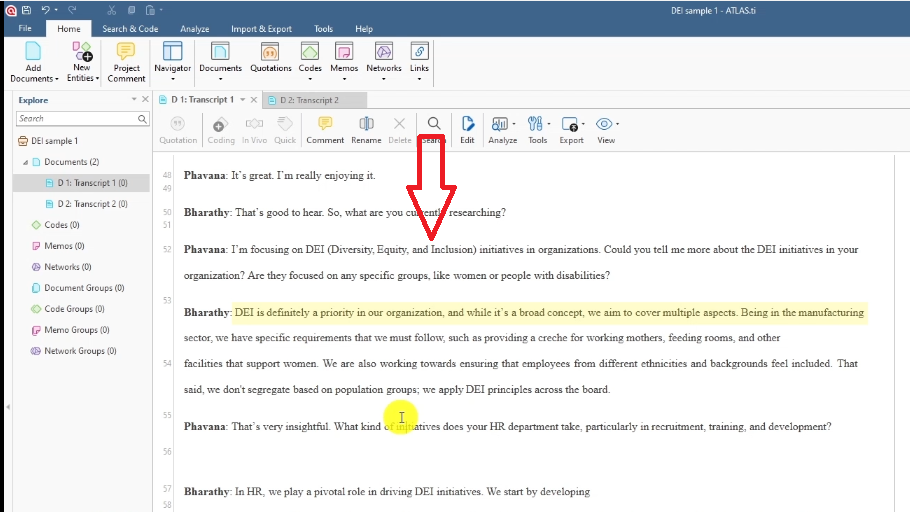
- Read the whole response paragraph first, not just one sentence.
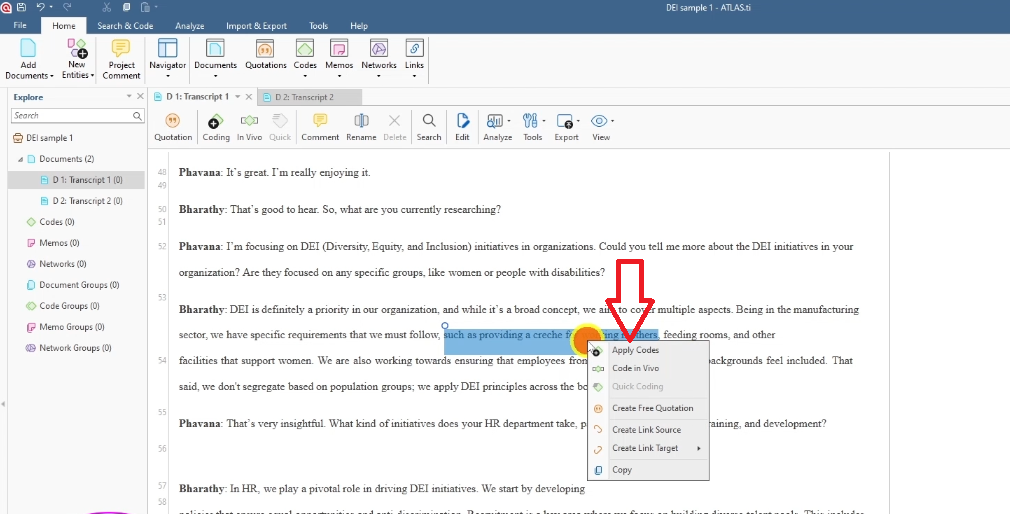
- Highlight the meaningful quote.
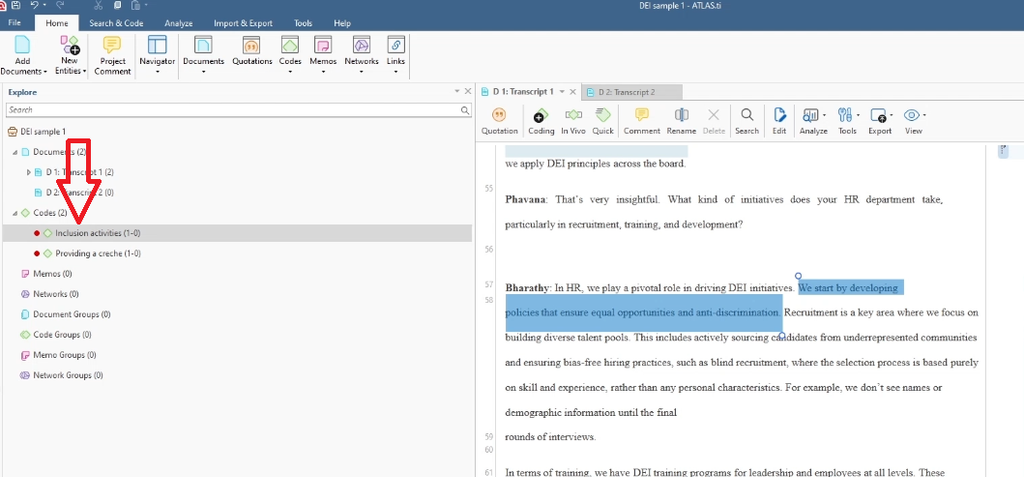
- Right-click and select Apply Codes.
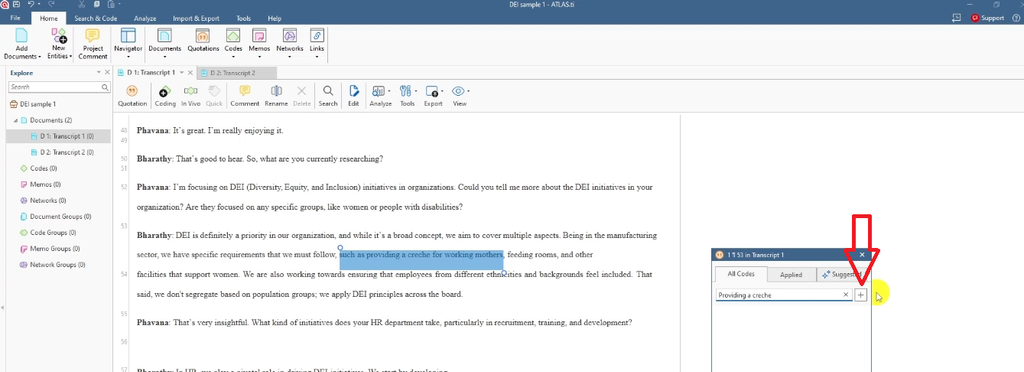
- Type a concise code name and click the plus (+) button.
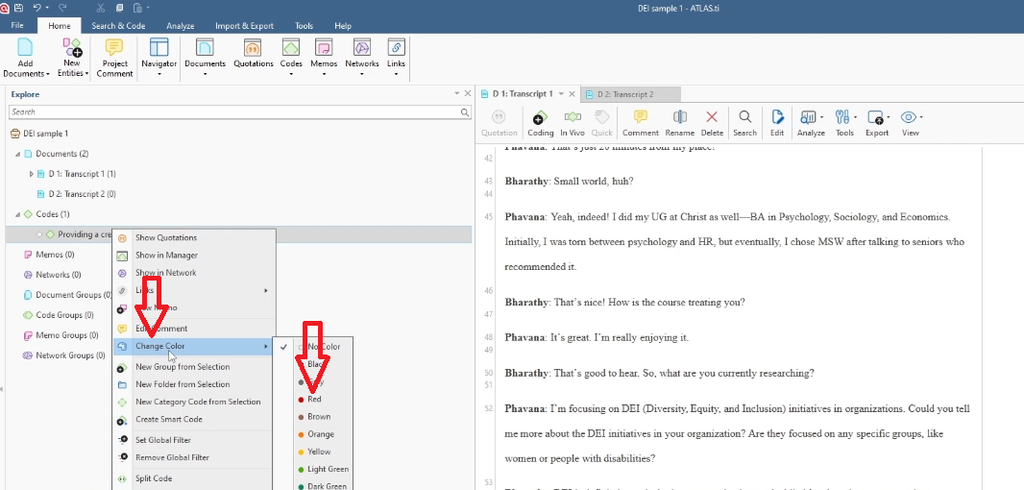
- In the Codes list, right-click the new code and choose Change Color to match the question.
Worked Example: Coding Question 1
The interviewer asked: “Could you tell me more about DEI initiatives in your organization? Are they focused on any specific groups like women or people with disabilities?”
The participant replied that DEI is a priority, and that “being in the manufacturing sector, we have specific requirements that we must follow, such as providing a creche for our working mothers, feeding rooms, and other facilities that support women. We also work towards ensuring that employees from different ethnicities and backgrounds feel included.”
From this answer I created two red codes:
- Providing a creche
- Inclusion activities
Worked Example: Coding Question 2
The second question asked: “What kind of initiatives does your HR department take, particularly in recruitment, training, and development?”
The participant gave a long answer. They described developing policies that ensure equal opportunities and anti-discrimination, building diverse talent pools by sourcing candidates from underrepresented communities, and blind recruitment where “we don’t see names or demographic information until the final rounds of interviews.” They also mentioned DEI training programs for leadership and employees, flexible work arrangements, and parental leave, noting that “though paternity leave isn’t yet mandatory by law, we’ve adopted it as part of our commitment to DEI.”
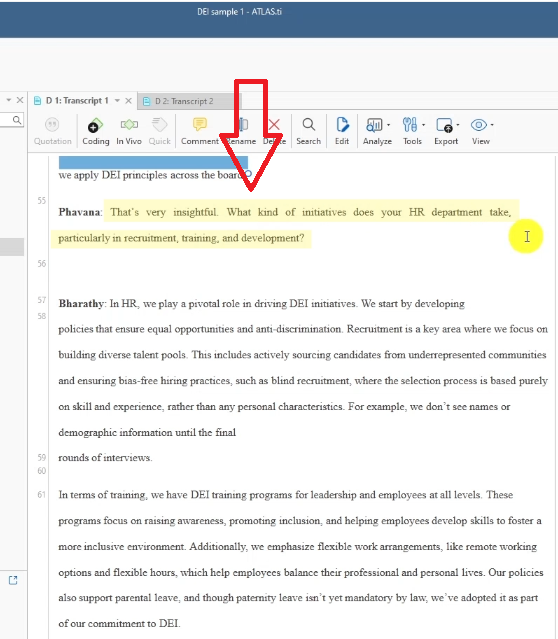
With a paragraph this long, read it fully first, then go back and code it piece by piece. It produced six green codes:
- Implementing equal opportunity and anti-discrimination policies
- Recruiting candidates from underrepresented communities
- Adopting bias-free hiring practices
- Implementing DEI training programs
- Flexible working arrangements
- Progressive policies like paternity leave
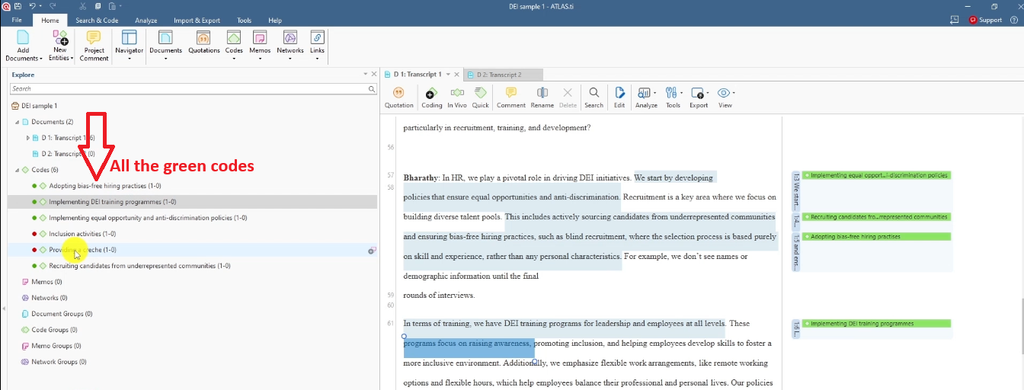
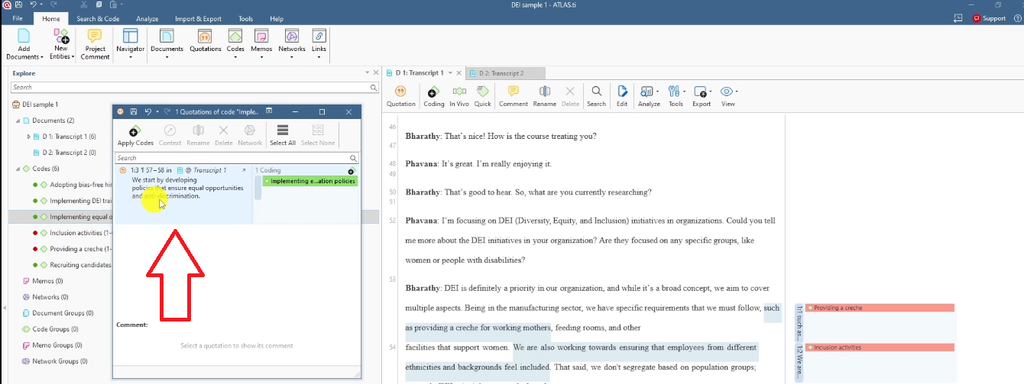
Notice that each code interprets the quote in a few words. Double-click any code to see its linked quotation and jump to the exact spot in the transcript. Then repeat the process for every question and every transcript.
If you also use NVivo, compare this workflow with qualitative coding of interviews with NVivo.
Step 3: Move from Codes to Themes in ATLAS.ti

A theme is a pattern of shared meaning across several codes. To move from codes to themes in ATLAS.ti, review your codes one by one, understand their deeper meaning and combine codes that share that meaning into code groups.
How to Spot Codes That Belong Together
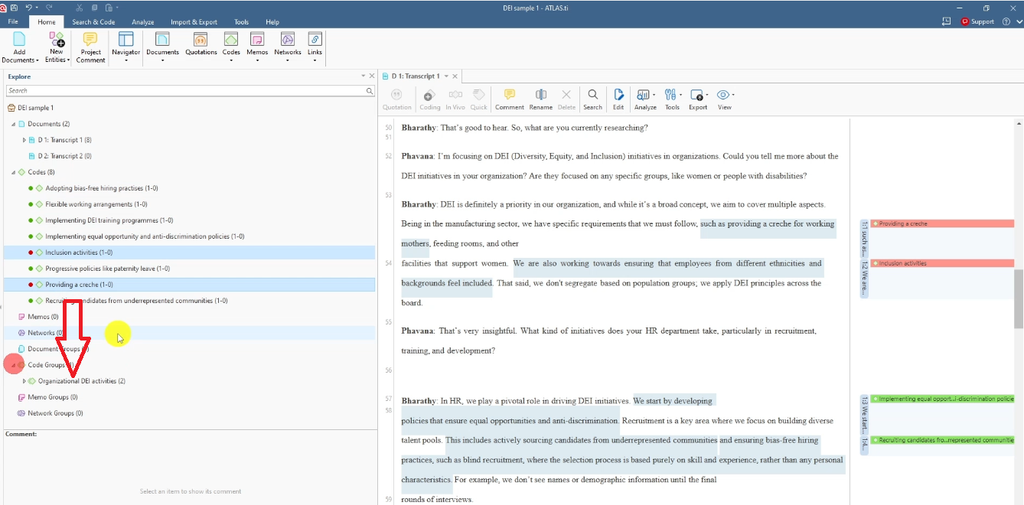
Go back to the research question behind each set of codes. Your colors tell you which question each code answers. For example, the red codes “Inclusion activities” and “Providing a creche” both describe what the organization does to support DEI, so they share a meaning.
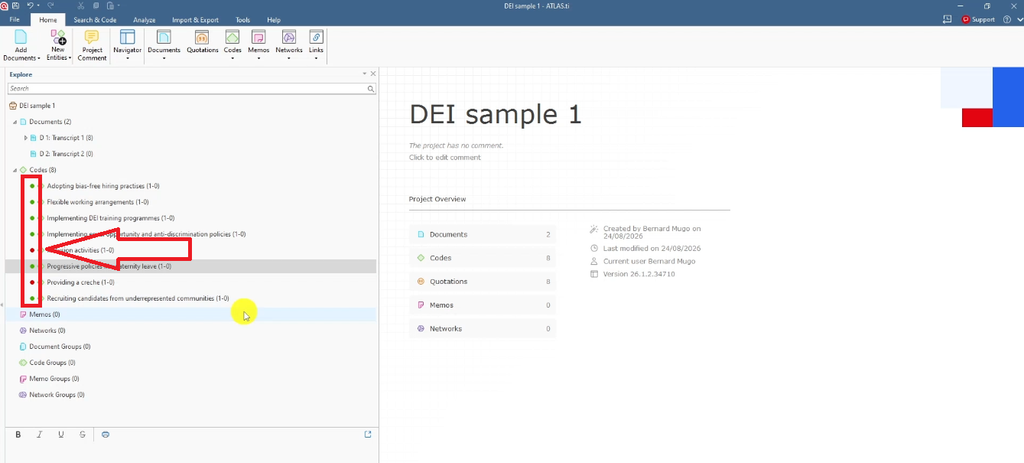
Codes with the same color are a good starting point, but they aren’t a rule. Some codes with different colors may still belong to the same theme, and some codes with the same color may belong to different themes. Double-click each code, re-read its quotes, and ask: what is this really about?
Group Related Codes into a Theme
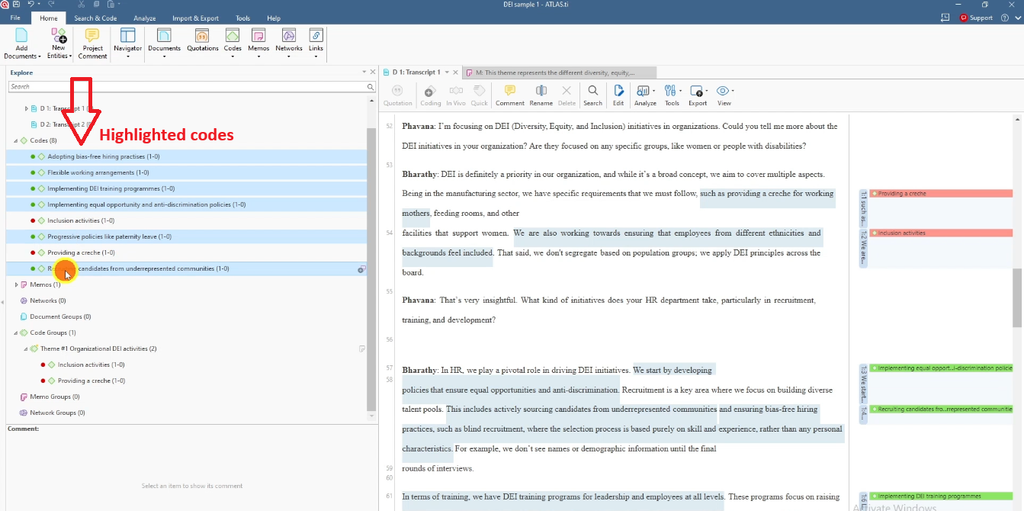
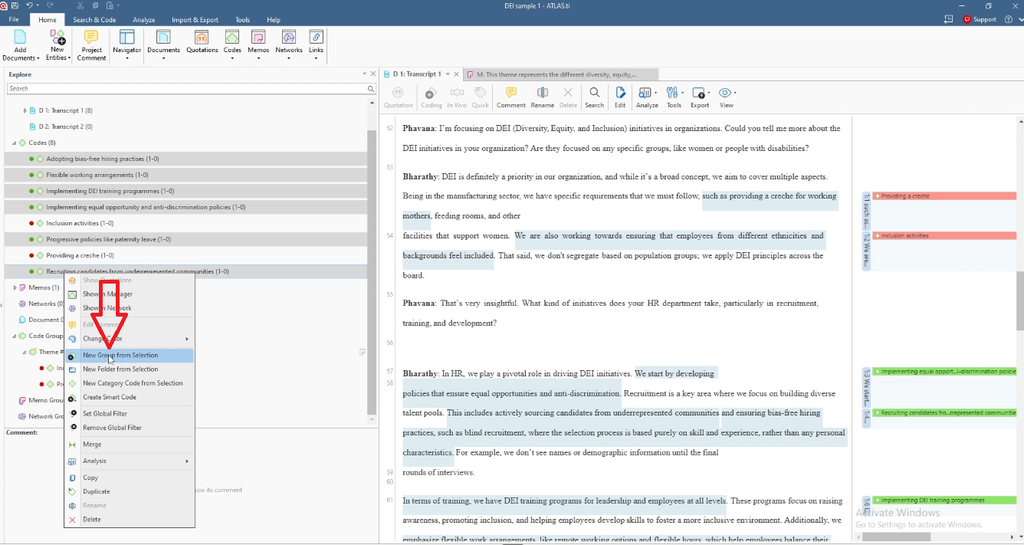
- Select the codes that share meaning, for example Inclusion activities and Providing a creche.
- Right-click and choose New Group from Selection.
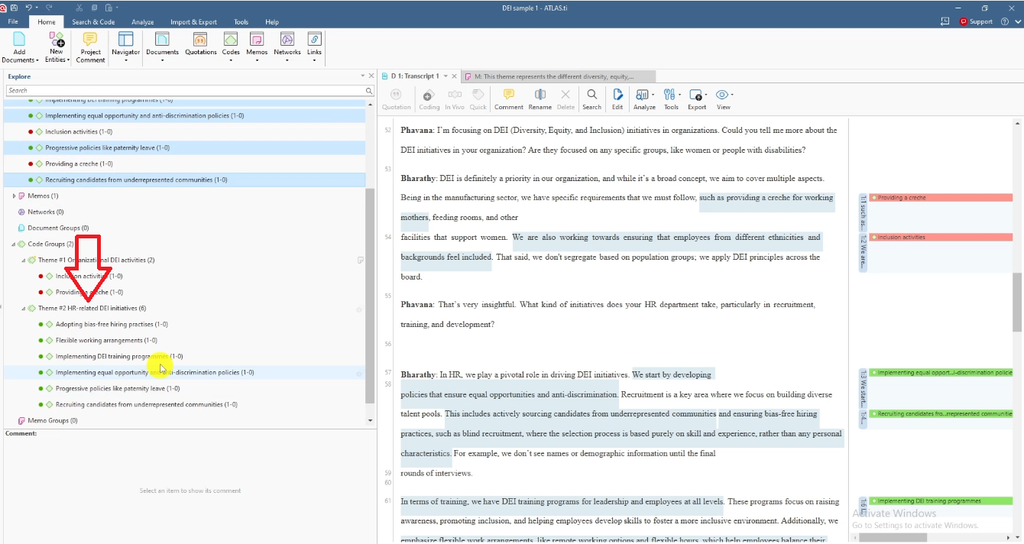
- Name the group. I named this one Theme 1: Organizational DEI Activities (adding a # prefix keeps themes at the top of the list).
- Click Create. The group appears under Code Groups.
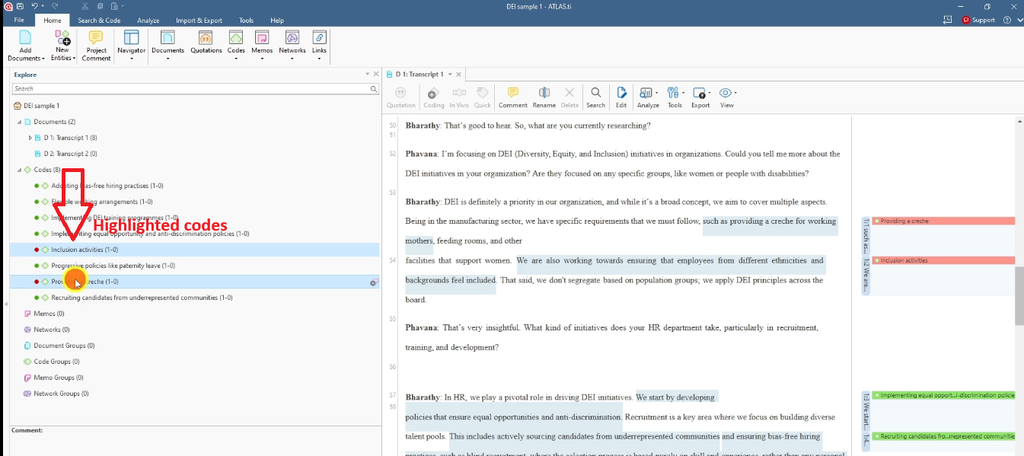
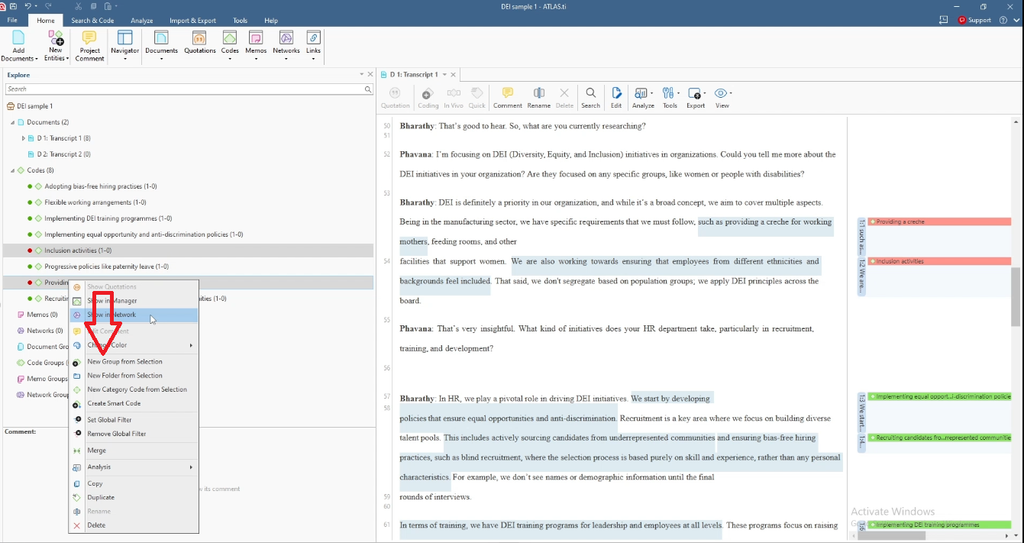
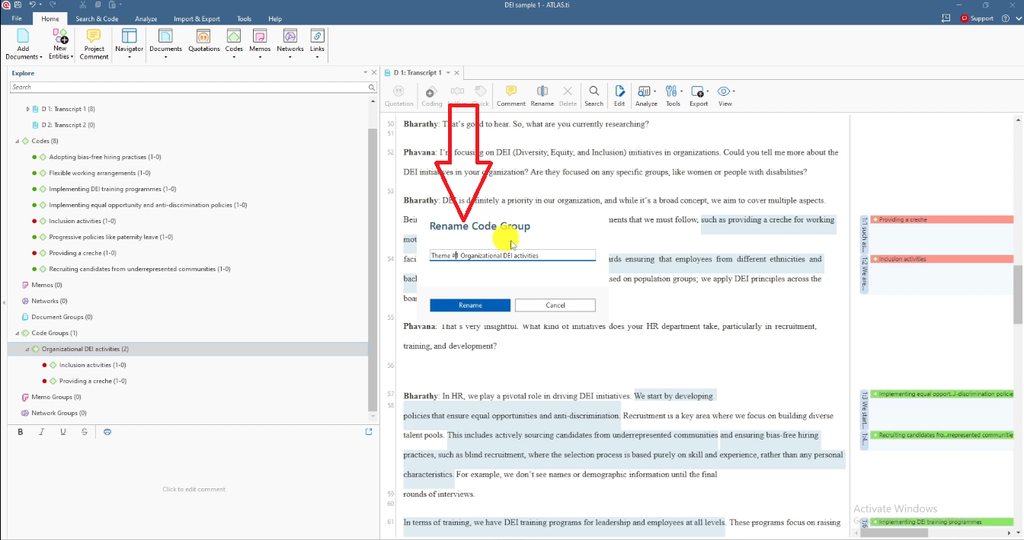
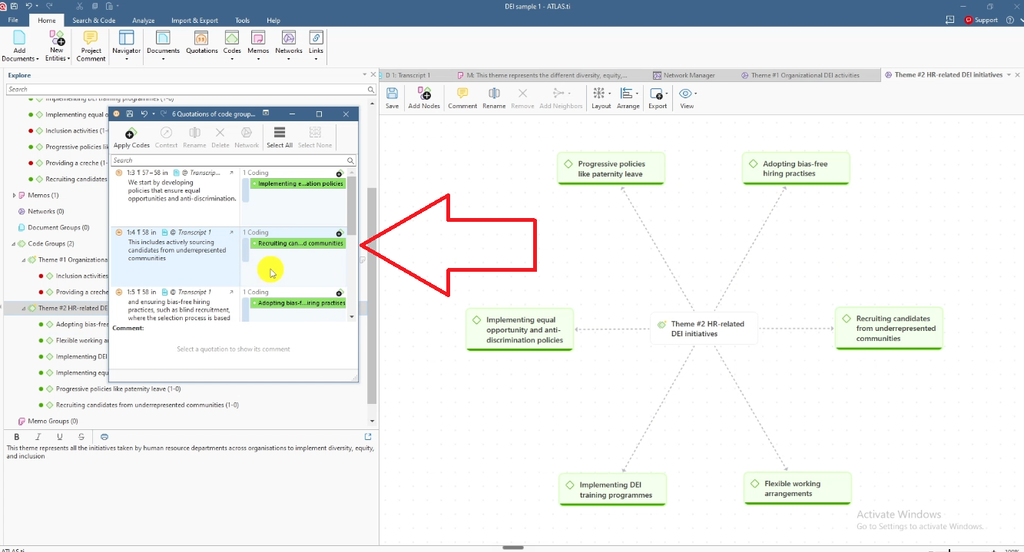
I repeated this for the green HR-related codes (bias-free hiring, flexible working, DEI training, equal opportunity policies, paternity leave and recruiting from underrepresented communities) to create Theme 2: HR-Related DEI Initiatives.
For the full detail on this feature, see the official ATLAS.ti manual on working with code groups.
Add a Description to Each Theme
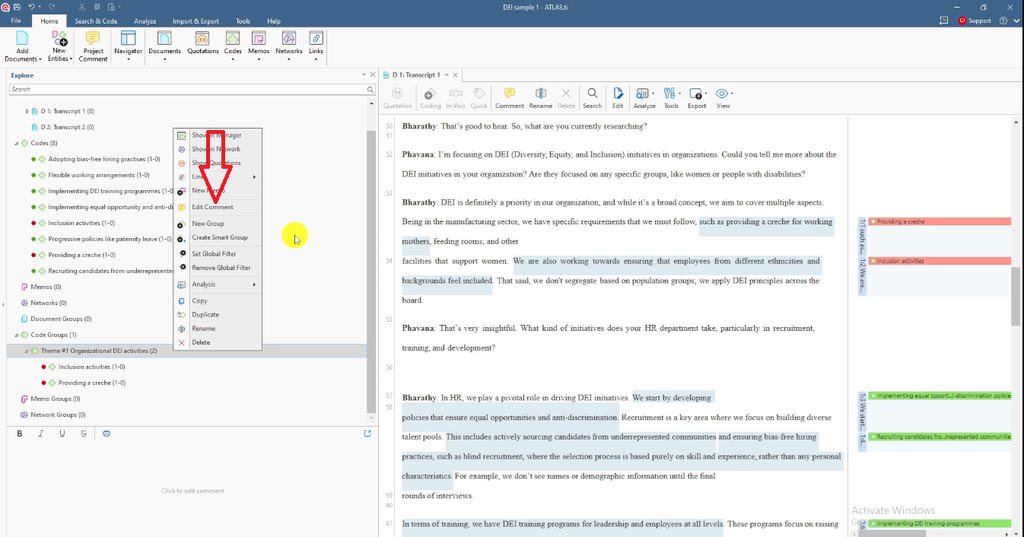
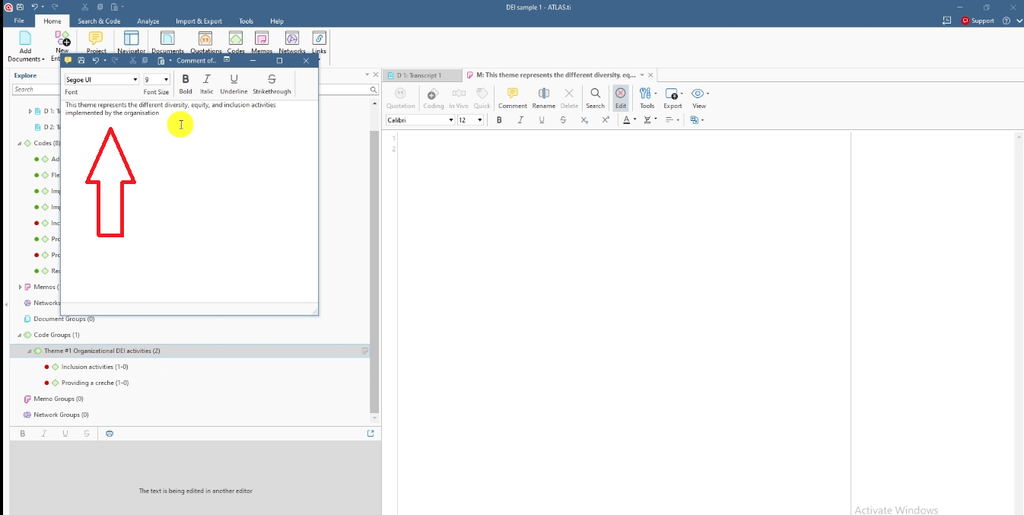
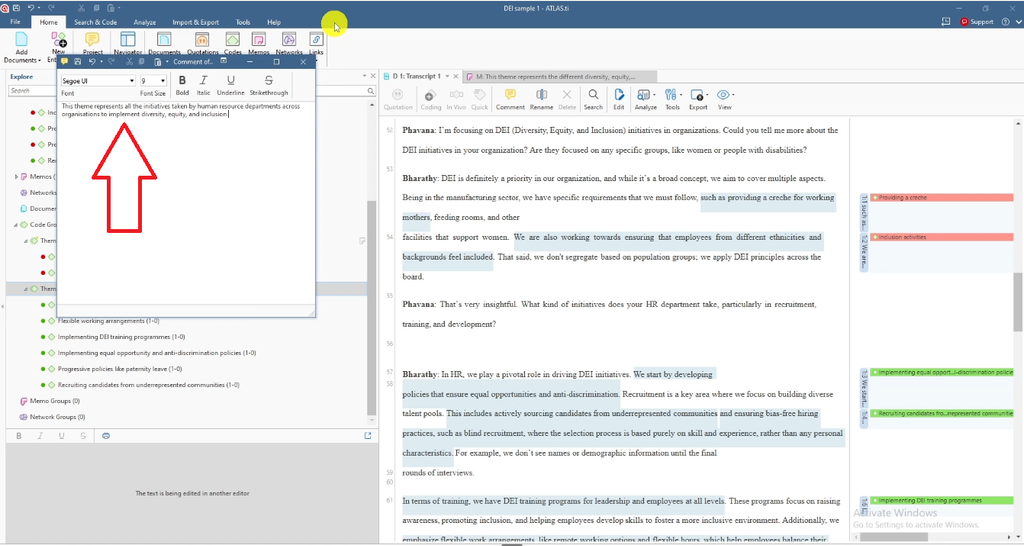
Right-click the theme and select Edit Comment, then write what the theme represents in one or two sentences.
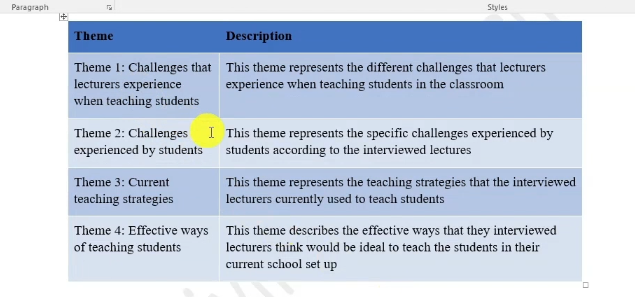
- Theme 1: “This theme represents the different diversity, equity, and inclusion activities implemented by the organization.”
- Theme 2: “This theme represents all the initiatives taken by human resource departments across organizations to implement diversity, equity, and inclusion.”
This covers steps 3, 4 and 5 of Braun and Clarke together: generating, refining and defining your themes. These descriptions matter more than they seem, because each one becomes the opening sentence of that theme in your findings chapter.
Review and Refine Your Themes
Before moving on, check each theme against these questions:
- Do all the codes in this theme share a clear, common meaning?
- Does the theme help answer at least one research question?
- Is the theme distinct from your other themes?
- Could you explain the theme to your supervisor in one sentence?
If a theme fails any of these, split it, merge it or rename it. For more on this stage, read my guide on how to get themes in qualitative data analysis and the most common thematic analysis mistakes in dissertations.
Visualize Themes with ATLAS.ti Networks
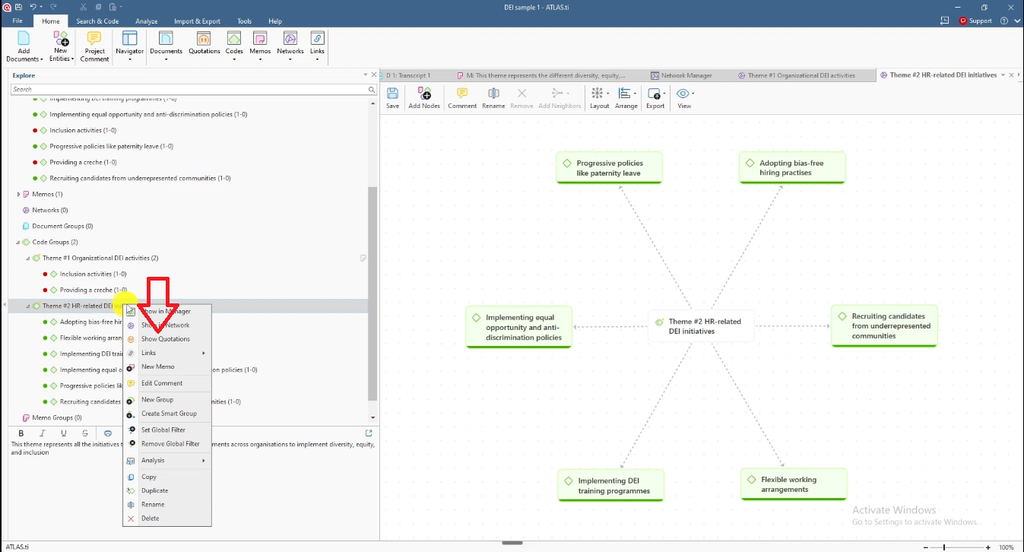
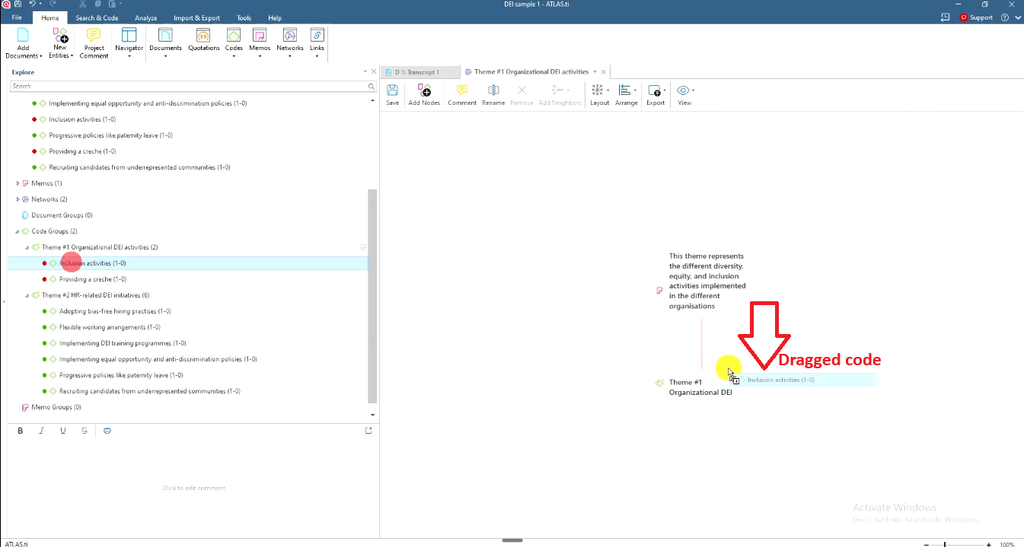
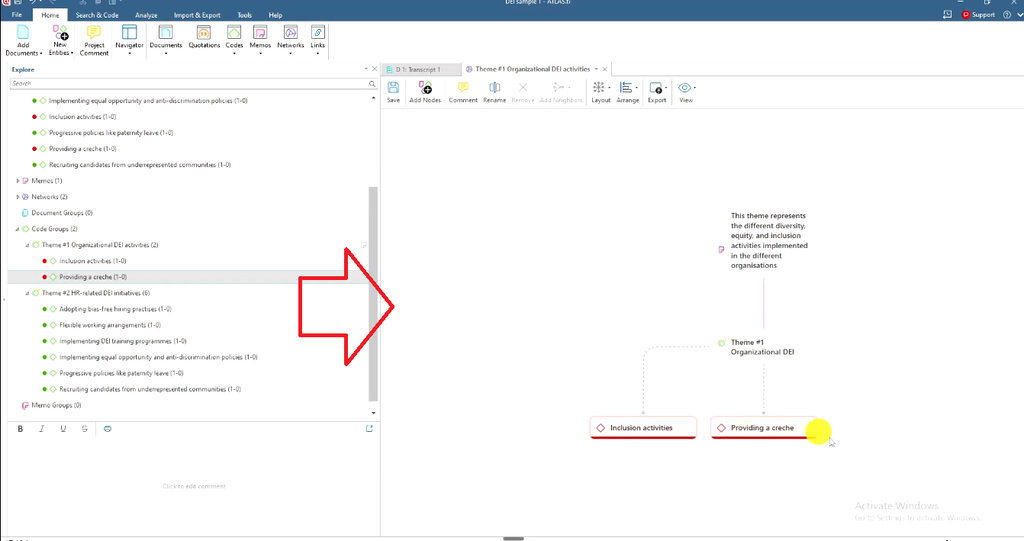
- Right-click a theme and select Show in Networks.
- Drag the theme’s codes onto the network canvas (hold Shift to select several).
- Change the layout (for example, to circular) to make it readable.
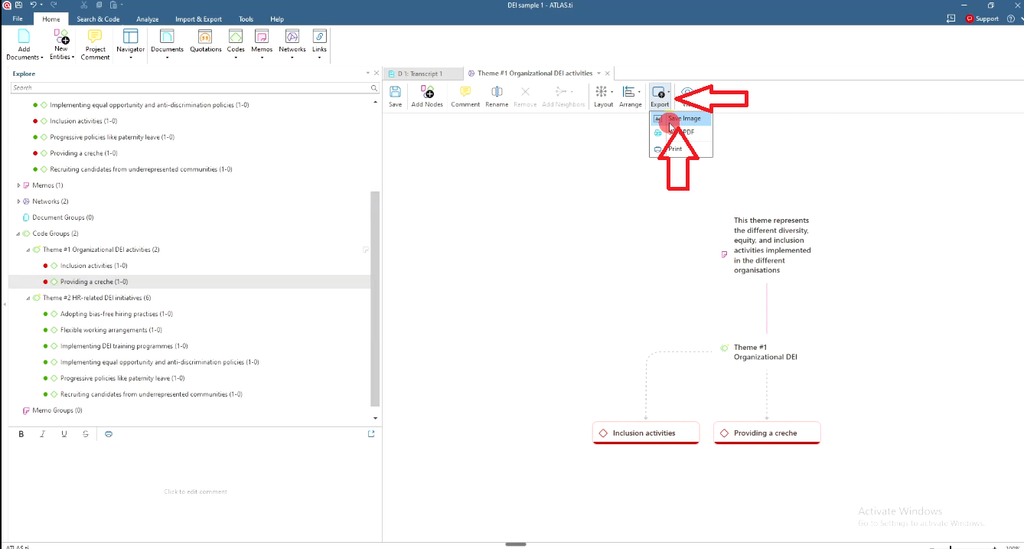
- Use Export > Save Image to use the network as a figure in your report.
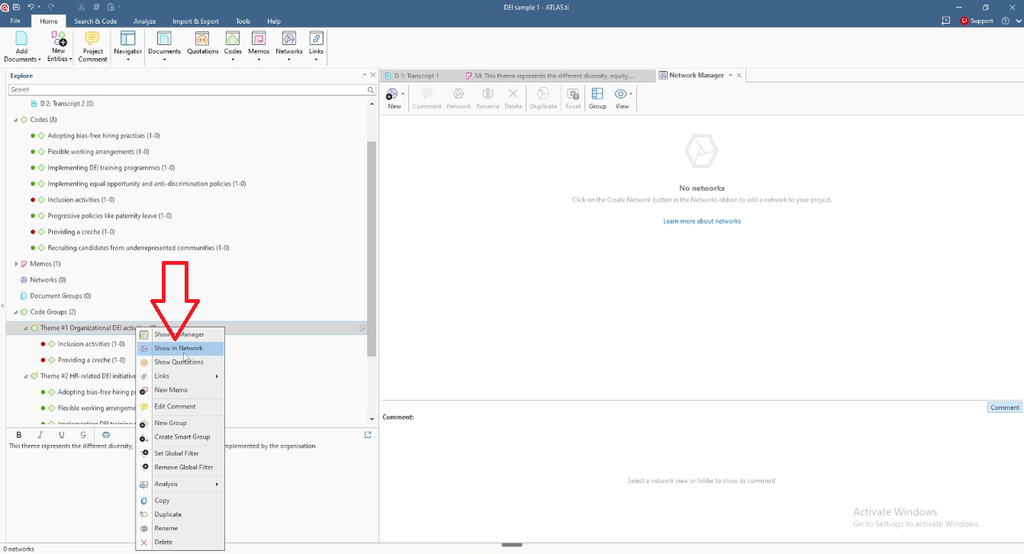
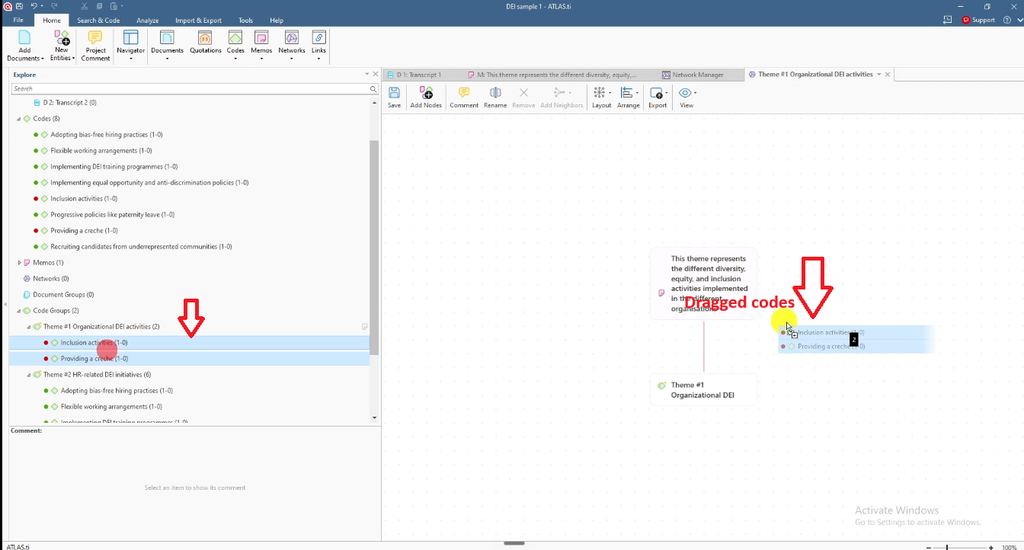
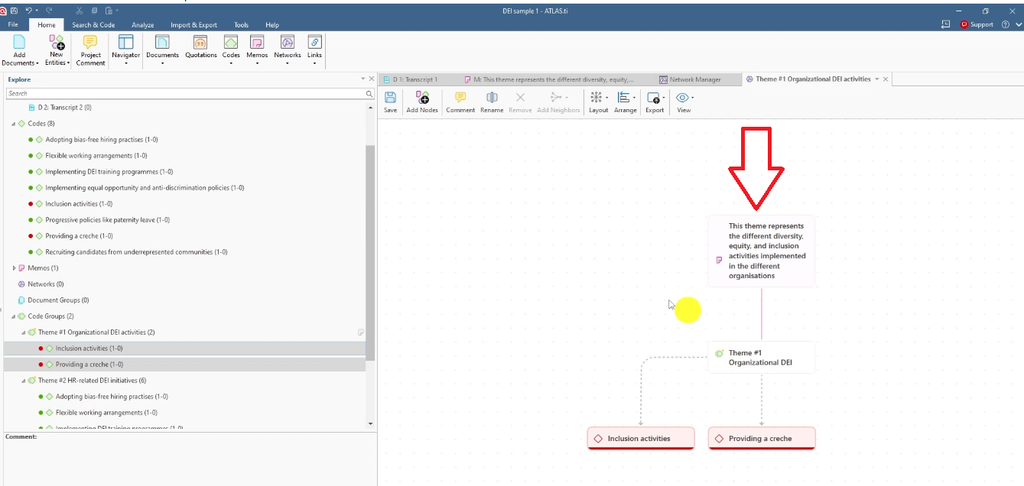
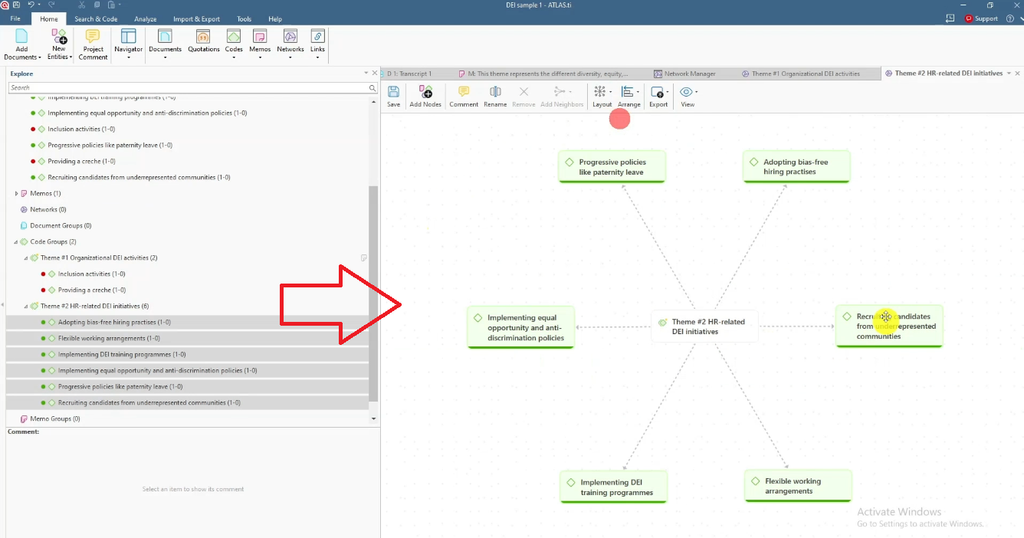
If you linked a memo to a theme, it will appear in the network too. For more visual options, see 5 ways to visualize your results in ATLAS.ti.
Export Your Codebook and Code Groups
From the Code Group Manager, you can see which codes sit in each theme and export the list. From the top menu, go to Codebook > Export Codebook to get an Excel file of every code. These exports feed directly into the tables in your findings report.
Prefer to learn ATLAS.ti yourself, with an expert beside you? Book one-on-one qualitative data analysis consulting on Zoom, Microsoft Teams or Google Meet and I’ll guide you through your own data, step by step.
Step 4: Report Your Thematic Analysis Findings from ATLAS.ti
The final step is to turn your ATLAS.ti project into a findings chapter. Everything you write, and every table you draw, comes directly from ATLAS.ti.
Learn from a Published Results Section
Before writing, study the results section of a published qualitative article (I use an open-access article from Frontiers). You’ll typically see:
- An introductory paragraph on participant demographics and the main themes
- A table of participant demographics
- A table of themes, sub-themes and descriptions
- A section for each theme with its meaning, sub-themes and supporting quotes
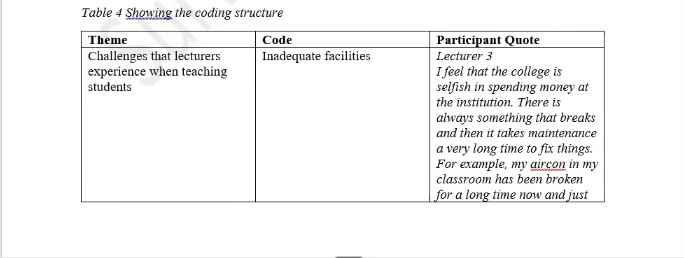
Your findings chapter should follow the same pattern.
Write the Data Analysis Process Section
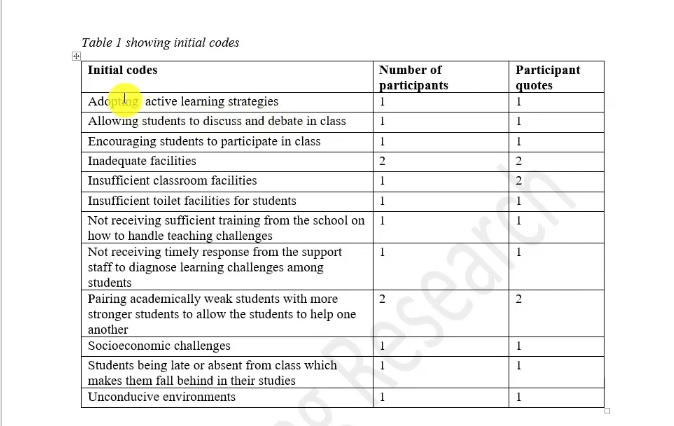
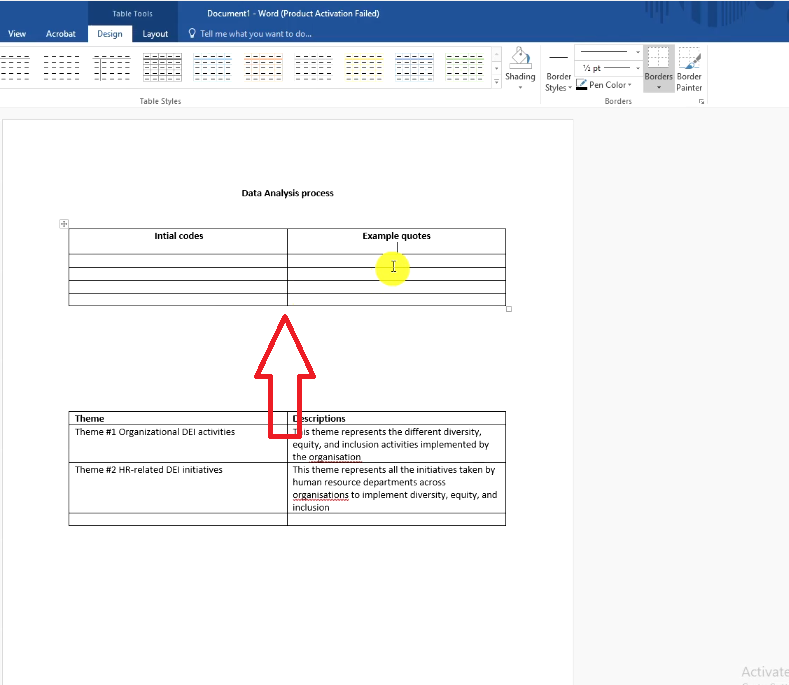
Open your report with a data analysis process section. Explain how you followed each of Braun and Clarke’s six steps, cite your sources, and back each claim with evidence. Every time you say “I did X”, show a table that proves it:
- Themes and descriptions table: copy each theme name and its description from Edit Comment.
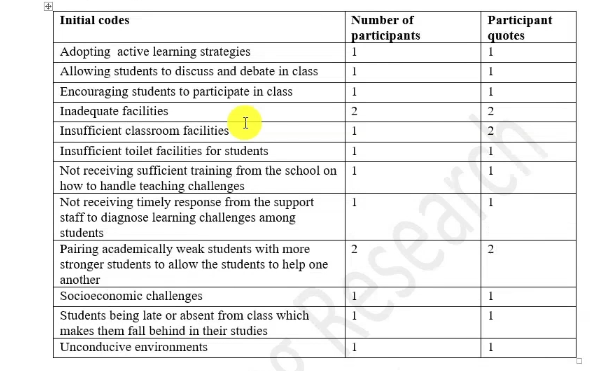
- Initial codes table: list each initial code with its number of quotations, which ATLAS.ti shows next to each code.
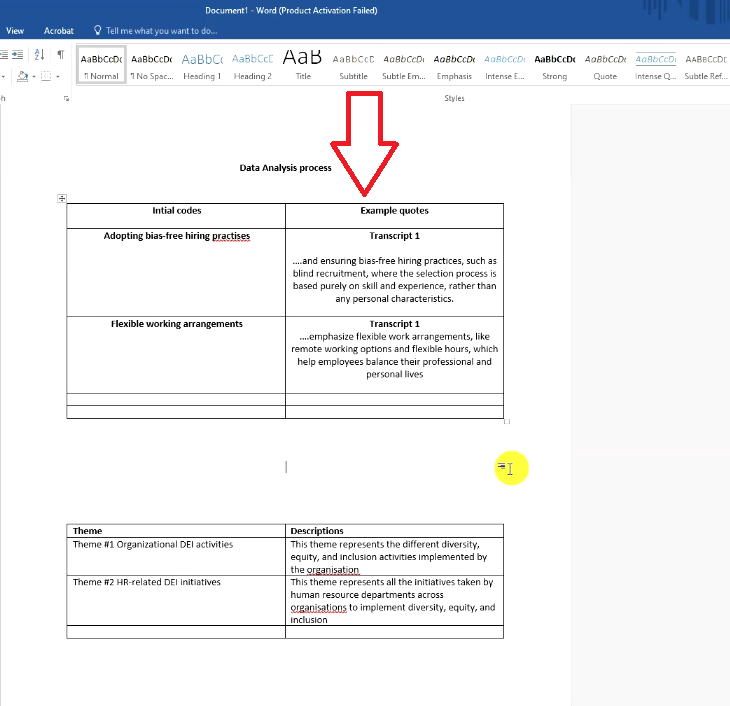
- Example quotes table: double-click a code, copy the quotation, trim anything that doesn’t add meaning, and keep the participant attribution.
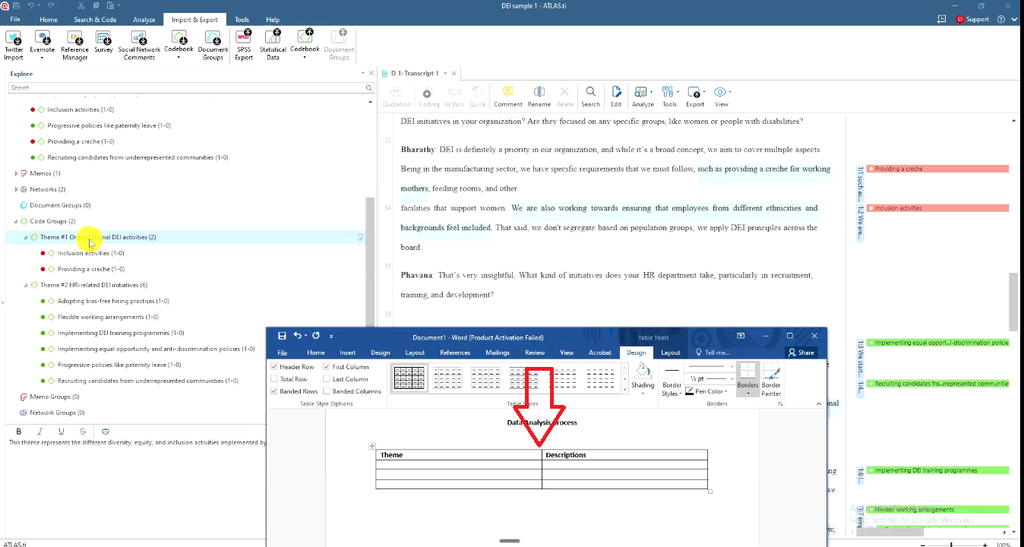
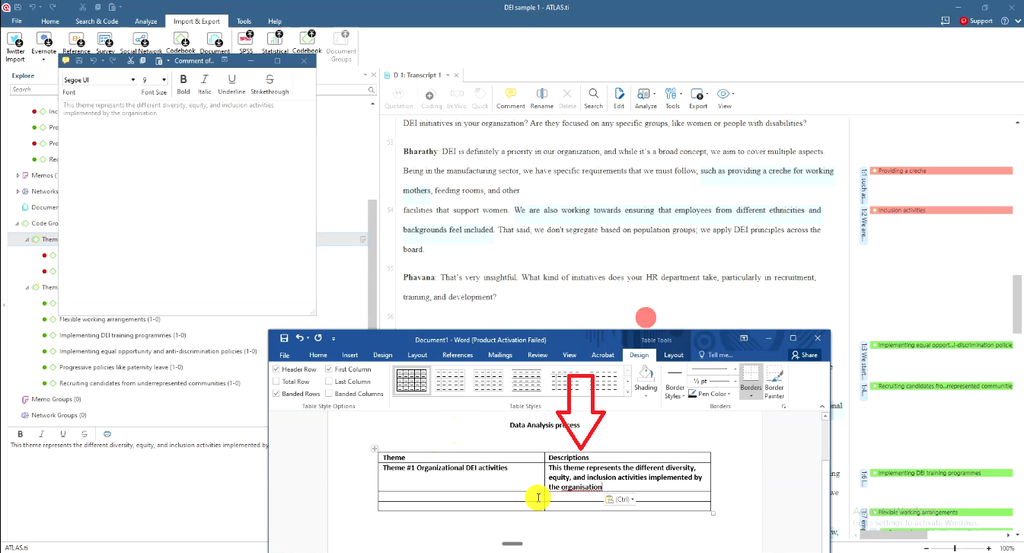
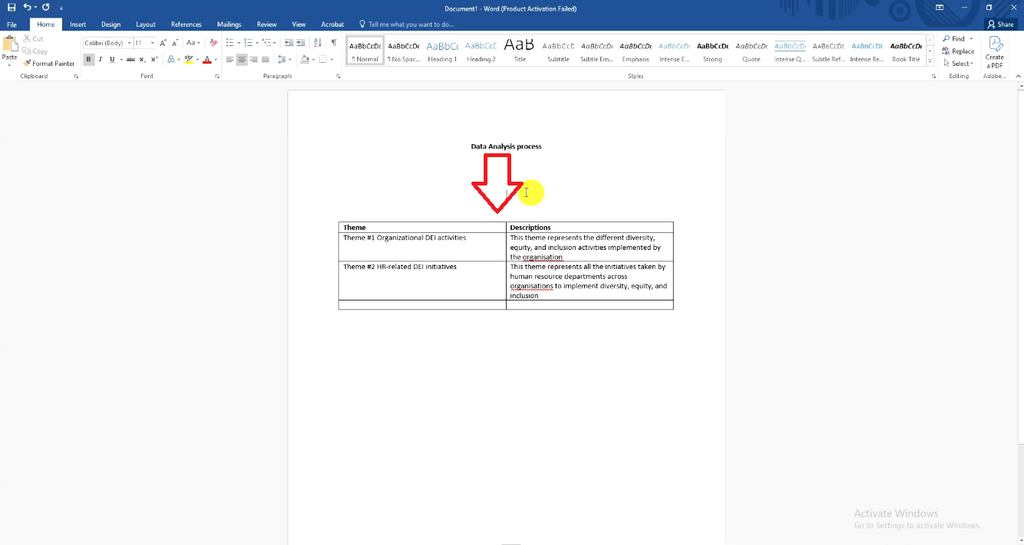
I prefer extracting these manually rather than relying on auto-generated visuals I may not use. If you also need to describe your analysis in your methods chapter, see how to write the methodology chapter for a qualitative study.
Present Each Theme Using Four Elements
Write each theme under its own heading, in the past tense, using four elements:
- Description: your theme description, rephrased as the opening sentence.
- Code explanation: the codes that support the theme.
- Quote: the participant’s words, copied from ATLAS.ti. Some researchers italicize quotes; either style is fine.
- Attribution: who said it.
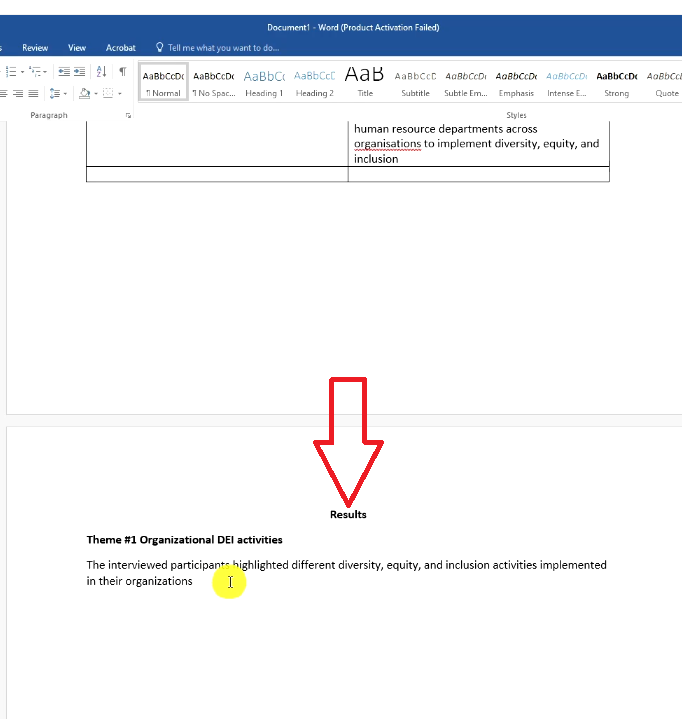
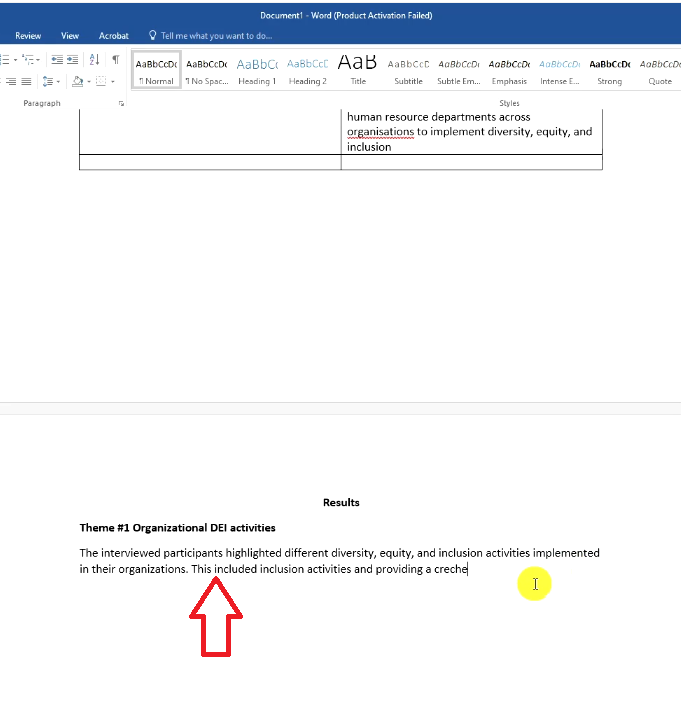
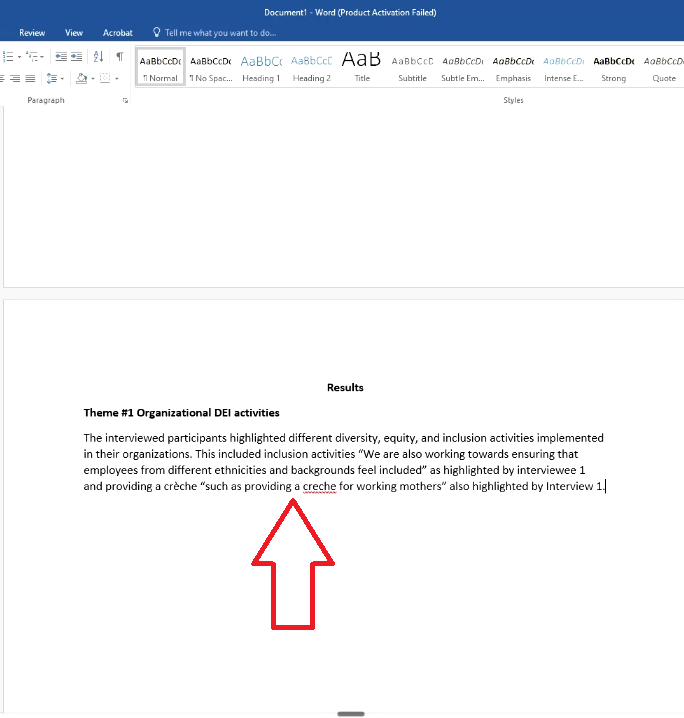
Here is how Theme 1 reads when you put the four elements together:
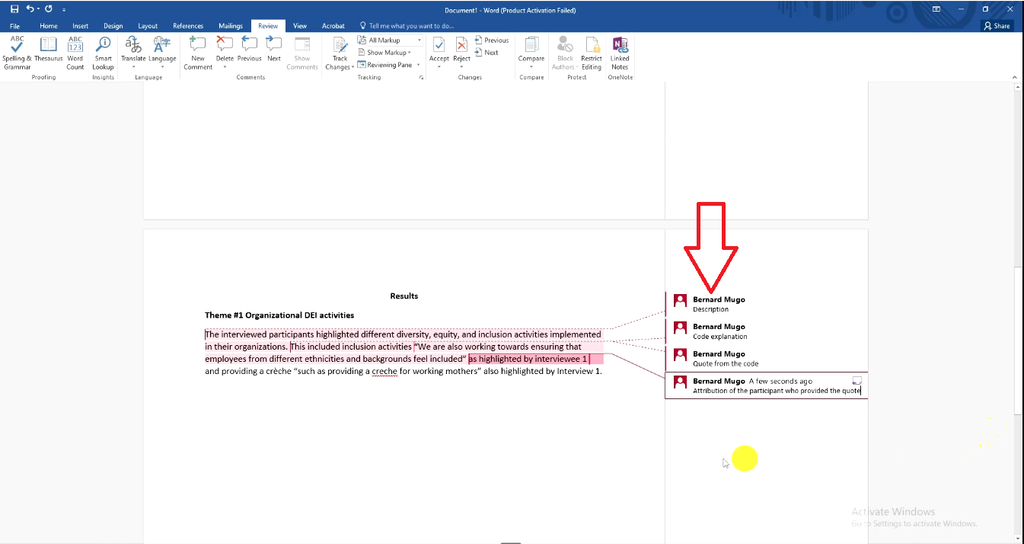
“The interviewed participants highlighted different diversity, equity, and inclusion activities implemented in their organizations. This included inclusion activities, ‘We are also working towards ensuring that employees from different ethnicities and backgrounds feel included,’ as highlighted by Interviewee 1, and providing a creche, ‘such as providing a creche for working mothers,’ also highlighted by Interviewee 1.”
Repeat these four elements for every code and theme until the report is complete. With more participants, cite several voices under each code to show the pattern holds across your sample. For the same process in other software, see how to report findings after data analysis with NVivo and reporting thematic analysis findings in MAXQDA.
Add Visuals to Your Findings Chapter
Mind maps make your report easier to read. You have two options:
- From ATLAS.ti: Show in Networks, drag in the codes, then Export > Save Image.
- In Microsoft Word: Insert > SmartArt > Hierarchy, with the theme at the top and its codes below. Adjust the colors to match your report.
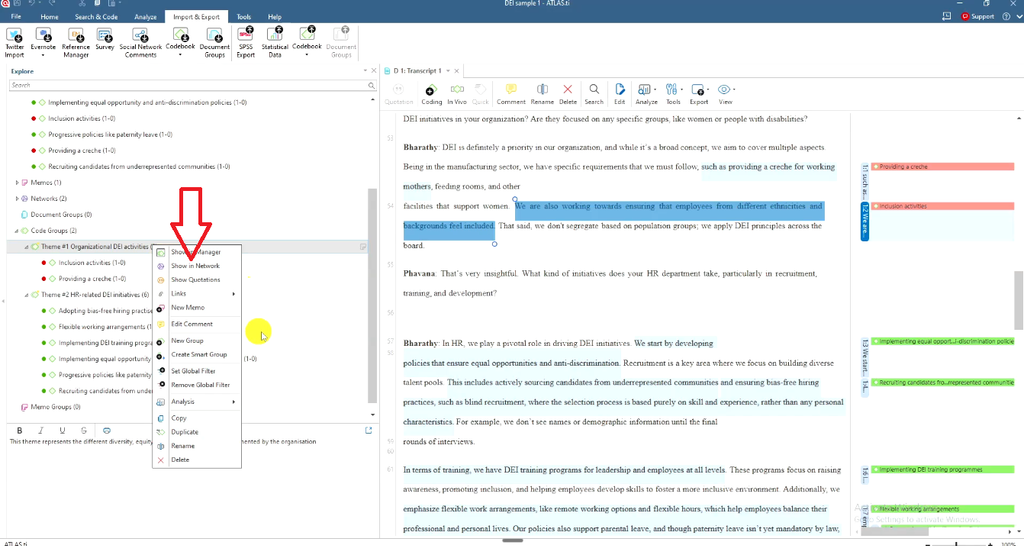
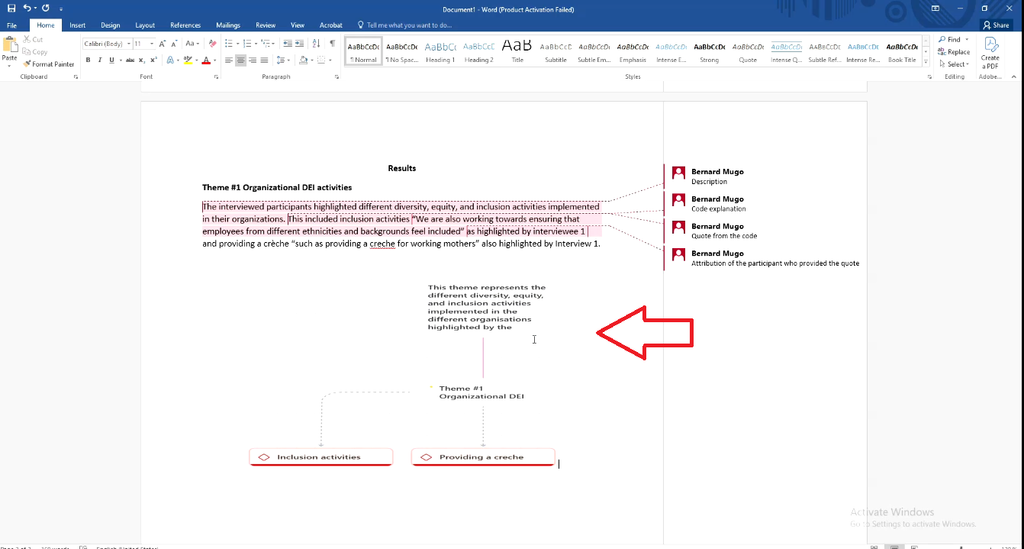
Place one visual under each theme heading, right after the theme’s opening description.
Common Mistakes When Analyzing Interviews in ATLAS.ti
- Coding one sentence at a time. Read the whole response first, then return and code.
- Copying the quote as the code. A code should interpret meaning in a few words.
- Losing track of where codes came from. Color-code by interview question from the start.
- Combining codes haphazardly. Group codes only when they share meaning.
- Skipping theme descriptions. Descriptions become the opening sentence of each theme in your report.
- Reporting themes without evidence. Support every theme with codes, quotes and attributions.
- Leaving out the data analysis process. Examiners want to see how you moved from data to themes, with citations.
Frequently Asked Questions
Is ATLAS.ti good for thematic analysis of interviews?
Yes. ATLAS.ti handles every stage of Braun and Clarke’s thematic analysis: coding transcripts, grouping codes into themes, writing theme descriptions with comments, visualizing themes in networks, and exporting your codebook for the report.
Can ATLAS.ti do thematic analysis automatically?
ATLAS.ti offers AI-assisted coding features, but rigorous thematic analysis still depends on your interpretation. I code manually because it lets me go through every word and capture meaning that matters to the research questions.
How do I turn codes into themes in ATLAS.ti?
Select codes that share a pattern of meaning, right-click and choose New Group from Selection, name the group as a theme and add a description using Edit Comment.
How do I export codes and quotes from ATLAS.ti?
Use Codebook > Export Codebook for an Excel list of codes, and the Code Group Manager’s Export option for themes. To copy a quote, double-click the code and copy the quotation content.
How should I write up findings from ATLAS.ti?
Start with a data analysis process section supported by tables, then present each theme using four elements: description, code explanation, quote and participant attribution.
Should I use inductive or deductive coding in ATLAS.ti?
Use inductive coding when you want themes to emerge from participants’ words, as in this tutorial. Use deductive coding when you’re testing an existing theory or framework. ATLAS.ti supports both.
Key Takeaways
- This ATLAS.ti tutorial follows Braun and Clarke’s six steps of thematic analysis, from coding to findings.
- Prepare clean transcripts and keep your research questions in view before you code.
- Strong codes interpret meaning in a few words; they don’t copy the quote.
- Color-code your codes by interview question so you always know their source.
- Themes are code groups built on shared meaning, each with a written description.
- Networks and exported codebooks give you ready-made figures and tables.
- Every theme in your report needs a description, code explanation, quote and attribution.
Get Expert Help Analyzing Your Interviews in ATLAS.ti
If you’ve followed this ATLAS.ti tutorial and still feel stuck on your data analysis chapter, you don’t have to do it alone. I’ve helped more than 400 PhD students get from raw transcripts to a finished findings chapter, and I offer two ways to help:
- Done-for-you ATLAS.ti thematic analysis meticulous manual coding, theme development, data visualization, a ready-to-use findings report for chapter four, and a walkthrough video of how I analyzed your data in ATLAS.ti.
- One-on-one ATLAS.ti consulting: a video call on Zoom, Microsoft Teams or Google Meet where I guide you step by step so you can analyze your own data with confidence.
Not sure which option fits? Contact me here or email bernardmugo@survivingresearch.com with a short description of your study, and I’ll recommend the best next step.
![Qualitative Analysis of Interviews in ATLAS.ti [Step-by-Step]](https://survivingresearch.com/wp-content/uploads/2025/09/Qualitative-Data-Analysis-Just-Got-Easier-Atlas.ti-Tutorial-2025.jpg)
![Thematic Analysis in ATLAS.ti: Braun and Clarke 6 Steps [Full Guide]](https://survivingresearch.com/wp-content/uploads/2025/10/Thematic-Analysis-with-Atlas-ti.jpg)